1. Setup and First Use
Follow these steps for initial setup and pairing of your NexiGo Air T2 earbuds.
Initial Charging and Preparation
Before first time use, ensure the earbuds are fully charged. The charging case is made of aviation-grade aluminum alloy for durability and lightness.
- Take the earbuds out from the charging case.
- Peel off the insulating plastic adhered to the inner bottom side of both L/R earbuds. This allows the earbuds to charge.
- Replace the earbuds into the charging case and close the cover. This action resets the earbuds and prepares them for pairing.
Pairing Instructions
The NexiGo Air T2 earbuds feature ultra-fast pairing thanks to Bluetooth 5.2 technology.
- Open the charging case. The earbuds will automatically enter pairing mode when both earbud indicators flash blue.
- Ensure that Bluetooth is enabled on your device (e.g., smartphone).
- Select the Bluetooth device name "NexiGo Air T2" from your device's Bluetooth settings and tap "Pair" to connect.
- The earphones will respond with a "Connected" voice prompt to indicate successful pairing.
Once paired, the earbuds will automatically sync and pair with your device whenever the case is opened.

Image: NexiGo Air T2 earbuds shown with their ultra-thin charging case.
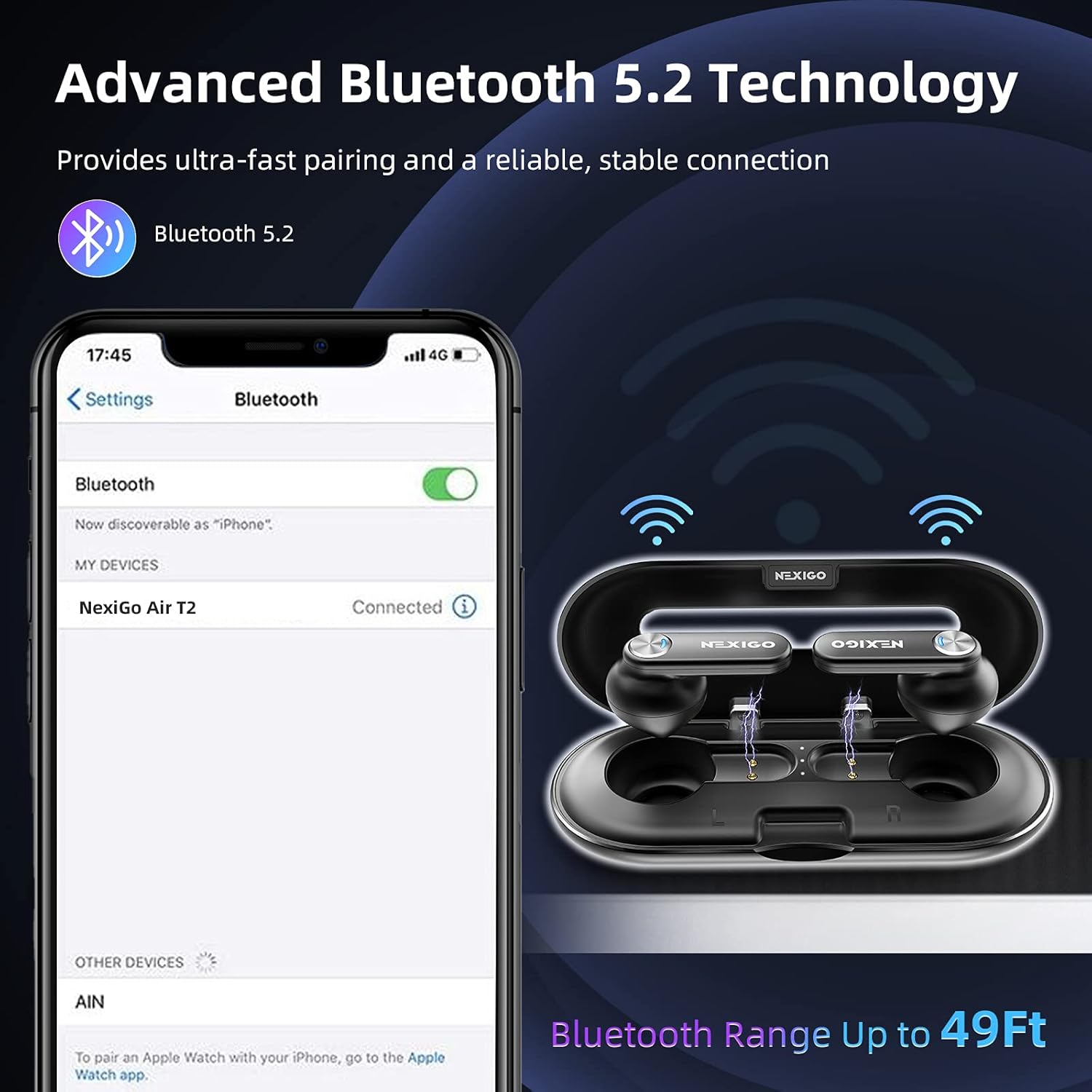
Image: A smartphone screen displaying the Bluetooth pairing process for the NexiGo Air T2 earbuds.
Charging the Earbuds and Case
The charging case is not Qi wireless compatible. Use the provided USB-C cable for charging.
- Connect the included Type-C Charging Cable to the USB-C port on the case.
- The earbuds can last up to seven hours on a single charge. With the charging case, total playtime extends up to 28 hours.

Image: Illustration showing 7 hours of use time with a single charge and 28 hours total playtime with the charging case.
Video: Official NexiGo USA video demonstrating the unboxing and initial setup of the Air T2 earbuds, including charging.
2. Operating the Earbuds
The NexiGo Air T2 earbuds offer intuitive tap controls for various functions.
Touch Controls
Easy tap controls allow you to adjust almost every command with a few simple taps. The earbuds feature a wide tap area for convenience.
- Double Tap (Either Earbud): Play/Pause Music, Answer/Hang Up Phone Calls.
- Triple Tap (Left Earbud): Previous Track, Decline Phone Calls.
- Triple Tap (Right Earbud): Next Track, Decline Phone Calls.
- Quad Tap (Either Earbud): Activate Voice Assistant (Siri).

Image: Diagram illustrating the various tap control functions for the NexiGo Air T2 earbuds.
Sound Quality and Noise Cancellation
Equipped with an advanced Qualcomm QCC3040 chip and supporting aptX decoding technology, the earbuds deliver high-quality sound. Dual microphones with cVc 8.0 noise reduction technology ensure crystal clear calls by reducing background noise.
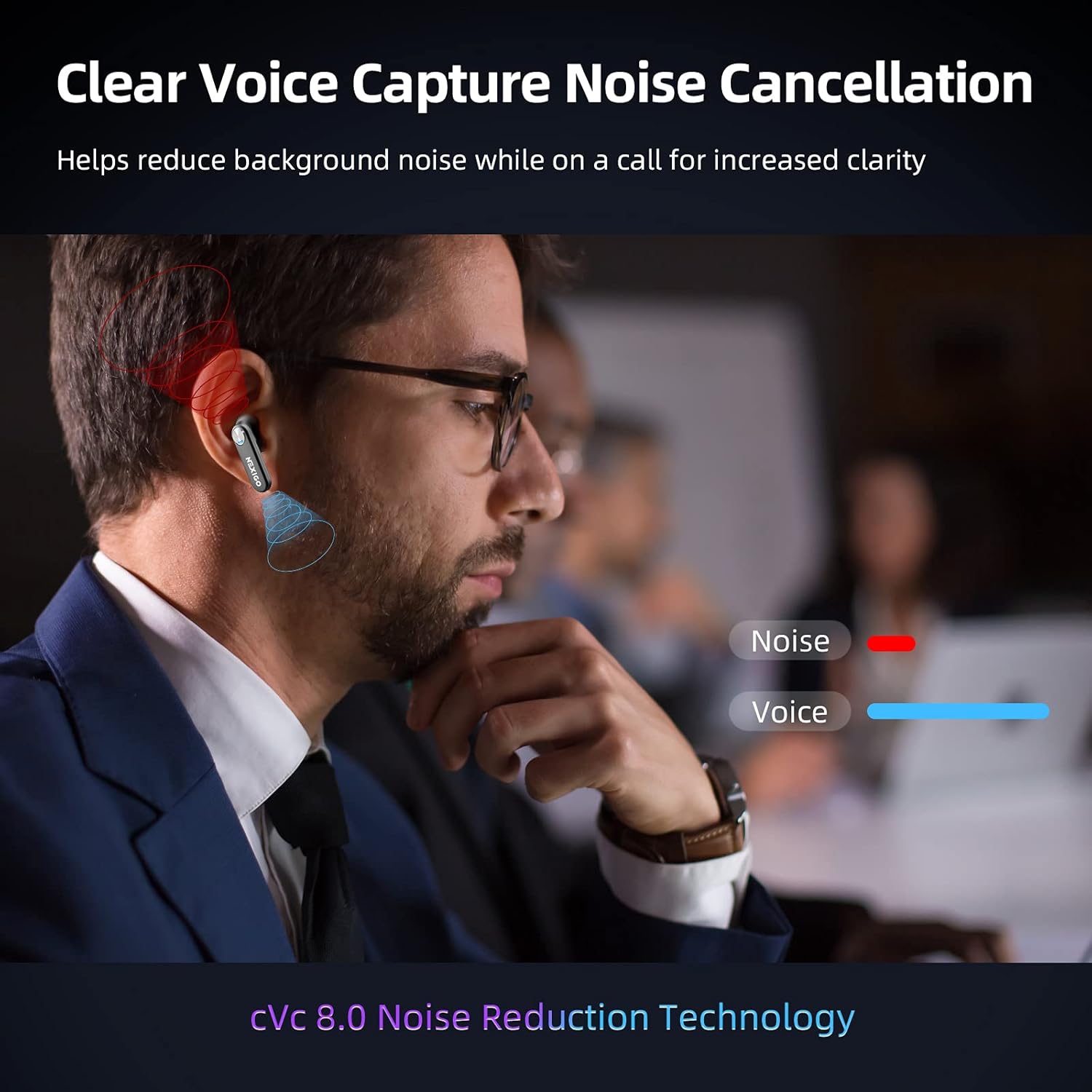
Image: Illustration of cVc 8.0 noise reduction technology in action, showing how voice is isolated from background noise during calls.
Water Resistance
The IPX5 waterproof technology protects the earbuds from water and sweat, making them suitable for use in rain or during intense workouts.

Image: NexiGo Air T2 earbuds shown with water droplets, illustrating their IPX5 waterproof rating.
Video: Official NexiGo USA promotional video highlighting the ultra-thin design and features of the Air T2 earbuds, including water resistance.
3. Maintenance
Proper maintenance ensures the longevity and optimal performance of your earbuds.
Cleaning
Due to the open-air design of the charging case, it may collect dust and debris. Regularly clean the case and earbuds to prevent accumulation.
- Use a soft, dry, lint-free cloth to wipe down the earbuds and the charging case.
- Avoid using abrasive materials or harsh chemicals.
- Ensure charging contacts on both earbuds and case are clean and dry.
Storage
When not in use, store the earbuds in their charging case to protect them and keep them charged.
- Keep the case closed to prevent dust and debris from entering.
- Store in a cool, dry place away from extreme temperatures.
4. Troubleshooting
If you encounter issues with your earbuds, try the following troubleshooting steps.
Common Issues and Solutions
- Earbuds not pairing: Ensure the insulating plastic is removed from both earbuds. Place them back in the case, close, then reopen to re-enter pairing mode. Check your device's Bluetooth settings to ensure it's enabled and
Related Documents - Air T2

NexiGo Air T2 Ultra Thin CVC Wireless Earbuds User Manual
Comprehensive user manual for the NexiGo Air T2 Ultra Thin CVC Wireless Earbuds, covering setup, features, troubleshooting, and care.
NexiGo Meeting 360 Camera N2000 User Manual and Setup Guide
Comprehensive user manual for the NexiGo Meeting 360 Camera (N2000), covering product introduction, package contents, overview, control panel functions, LED indicators, mode switching, technical specifications, setup instructions for Windows and macOS, firmware updates, important notes, and warnings.
NexiGo Meeting 360 Ultra Quick Start Guide: Setup and Operation
This guide provides step-by-step instructions for setting up the NexiGo Meeting 360 Ultra All-in-One Conference Camera. Learn how to connect via USB, HDMI, or LAN modes, pair the remote control, and get started with your video conferencing.
NexiGo Meeting Studio User Manual: Installation and Setup Guide
Learn how to install and set up the NexiGo Meeting Studio software with your NexiGo Meeting 360 Ultra cameras for enhanced video conferencing in large conference rooms.
NexiGo Aurora Pro MKII UST Tri-Color Laser Projector User Manual
Comprehensive guide to setting up, operating, and maintaining the NexiGo Aurora Pro MKII Ultra Short Throw Tri-Color Laser Projector for an optimal home theater experience.
NexiGo Gripcon User Manual for Nintendo Switch & Switch OLED
Comprehensive user manual for the NexiGo Gripcon controller (model 1125S), detailing setup, pairing, calibration, and button mapping for Nintendo Switch and Switch OLED consoles. Includes specifications and support information.