
1. Introduction
This manual provides essential information for setting up, operating, and maintaining your NiPoGi Mini PC AM02PRO. Please read this guide thoroughly before using the device to ensure optimal performance and longevity. The NiPoGi Mini PC is a compact and powerful desktop computer designed for various applications, including office work, home entertainment, and light gaming.
2. Package Contents
Verify that all items are present in the package:
- NiPoGi Mini PC AM02PRO
- Power Adapter
- HDMI Cable
- User Manual
3. Product Overview
The NiPoGi Mini PC AM02PRO features an AMD Ryzen 7 5700U processor, offering efficient performance in a small form factor. It supports dual display output and high-speed connectivity.
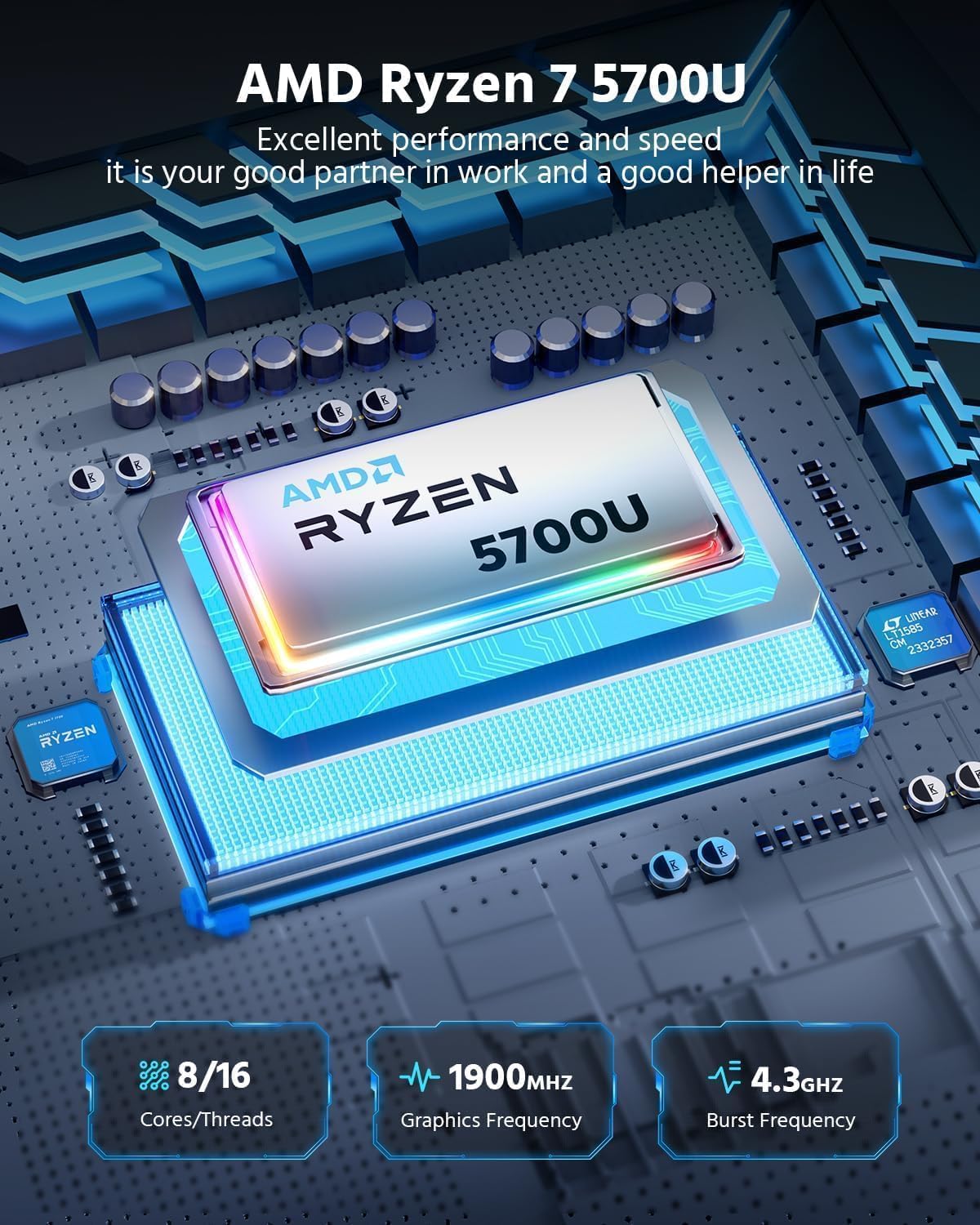
Image: Front view of the NiPoGi Mini PC AM02PRO, showcasing its compact design.
3.1 Processor and Performance
Equipped with an AMD Ryzen 7 5700U processor, this mini PC delivers excellent performance for multitasking, productivity, and multimedia. It features 8 cores and 16 threads, with a burst frequency up to 4.3 GHz and integrated Radeon Graphics with a frequency of 1900 MHz.
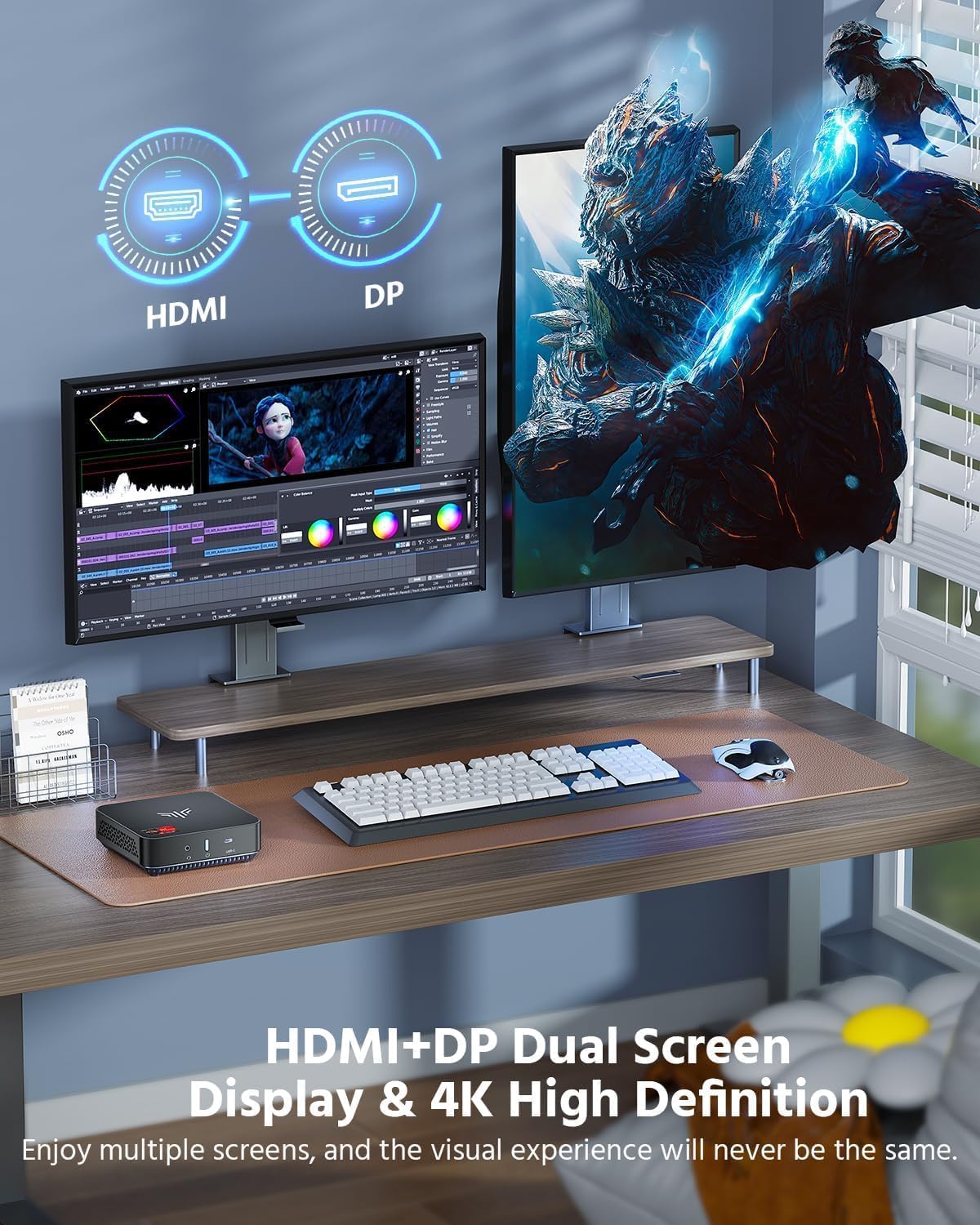
Image: Detailed view of the AMD Ryzen 7 5700U processor, highlighting its core count, graphics frequency, and burst frequency.
3.2 Memory and Storage
The device comes with 32GB DDR4 RAM (16GB x 2) and a 512GB M.2 SSD. The RAM is expandable up to 64GB via two SODIMM slots, and the M.2 SSD supports expansion up to 2TB, providing ample space and speed for your applications and data.

Image: Internal view of the mini PC, illustrating the dual SO-DIMM memory slots and the M.2 SSD slot for memory and storage expansion.
3.3 Ports and Connectivity
The Mini PC offers a comprehensive set of ports for various peripherals and displays:
- 1x HDMI 2.0 (4K@60Hz)
- 1x DisplayPort
- 4x USB 3.0 ports
- 1x Gigabit Ethernet LAN (RJ45)
- 1x USB-C port
- 1x Microphone jack
- 1x DC Power input
- 1x Power Button
Wireless connectivity includes Wi-Fi 6 (802.11ax) and Bluetooth 5.2, ensuring fast and stable network connections and peripheral pairing.
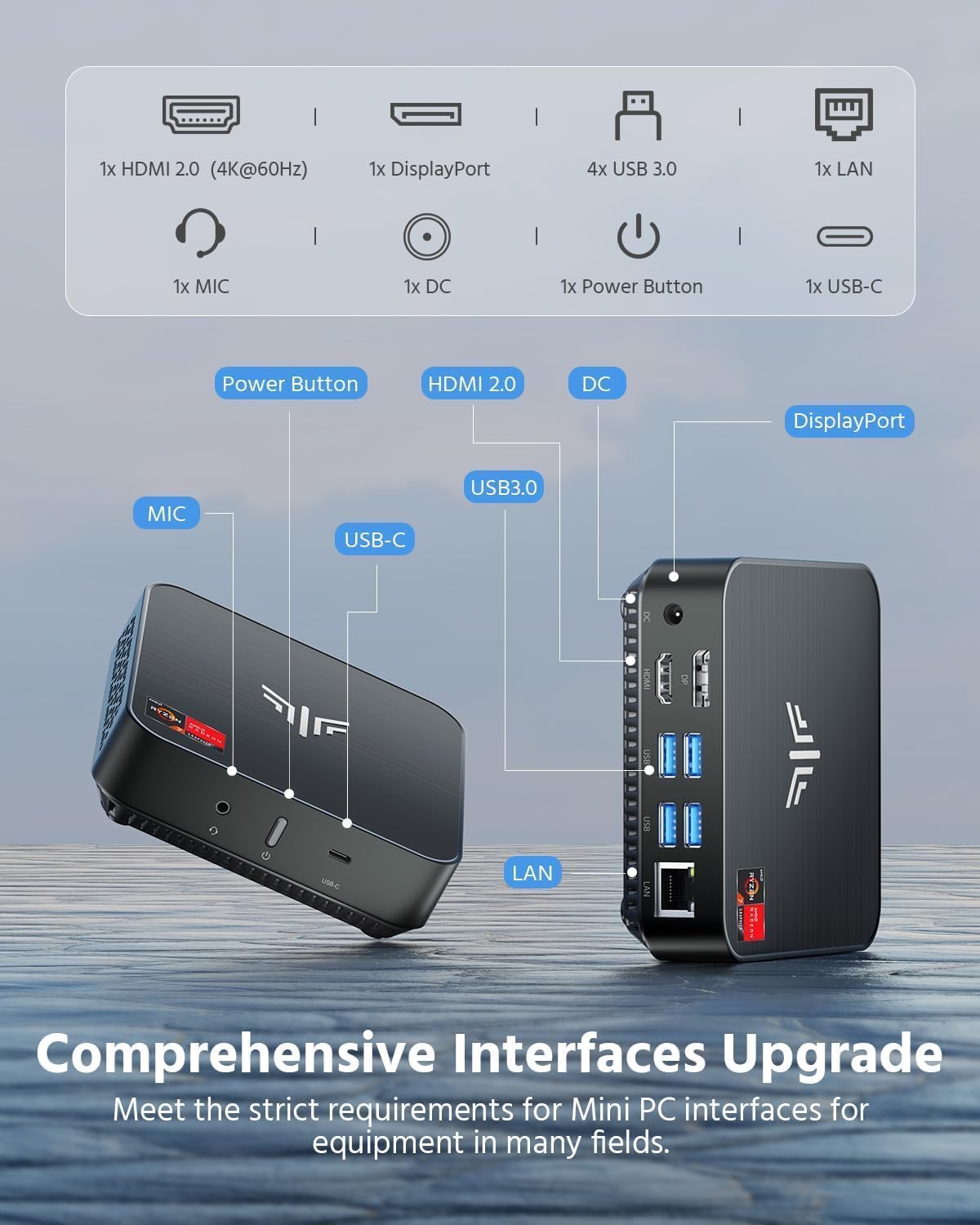
Image: Diagram showing the various ports available on the NiPoGi Mini PC, including HDMI, DisplayPort, USB 3.0, USB-C, LAN, and audio jacks.
3.4 Dual Display Support
The Mini PC supports dual 4K display output at 60Hz via HDMI and DisplayPort, allowing for an extended desktop experience and enhanced productivity.
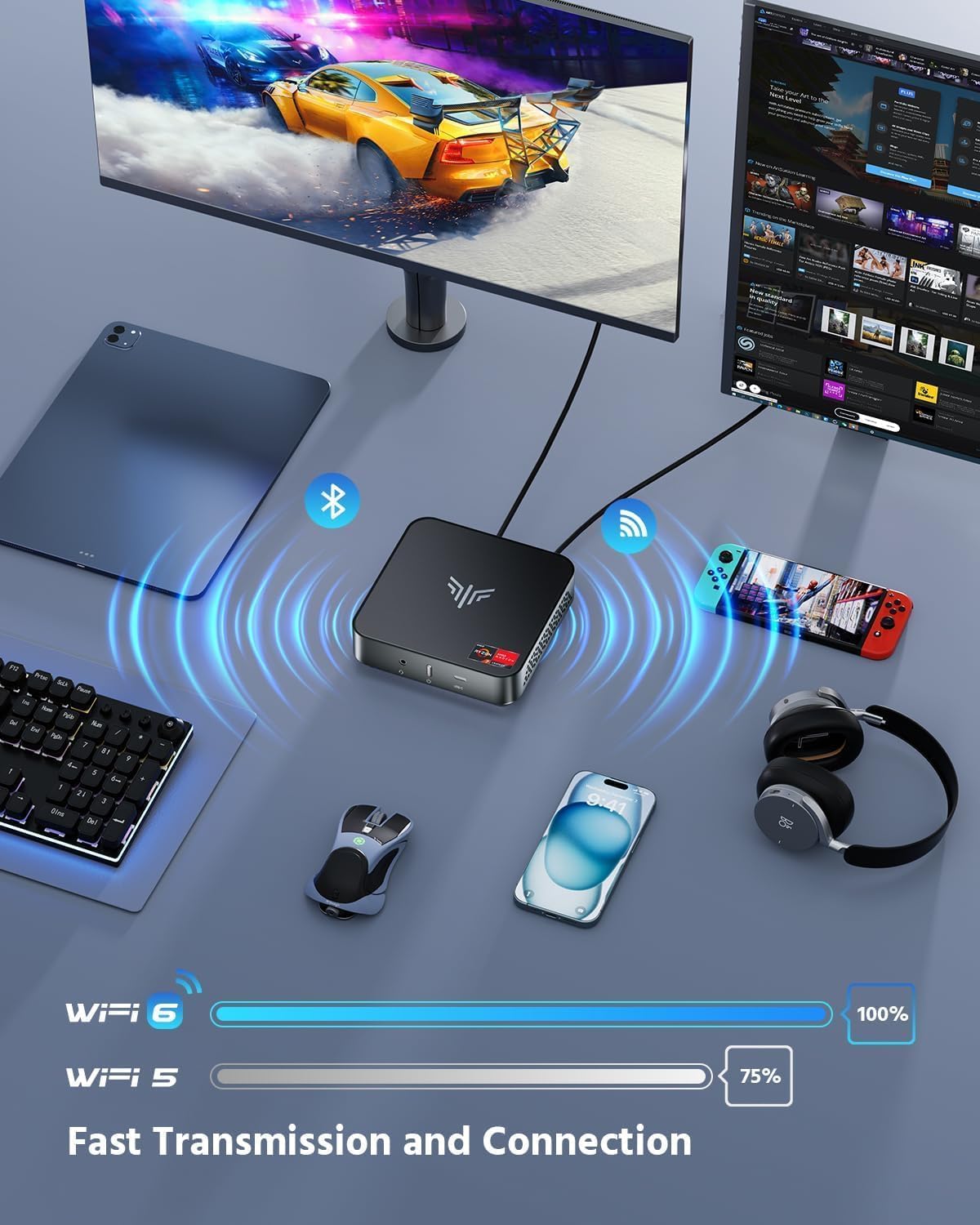
Image: A NiPoGi Mini PC connected to two monitors, demonstrating its dual 4K display capabilities for an immersive visual experience.
3.5 Installation Options
The compact design allows for flexible placement. It can be placed on a desk or mounted to the back of a monitor using a VESA mount bracket (not included), helping to optimize your workspace.
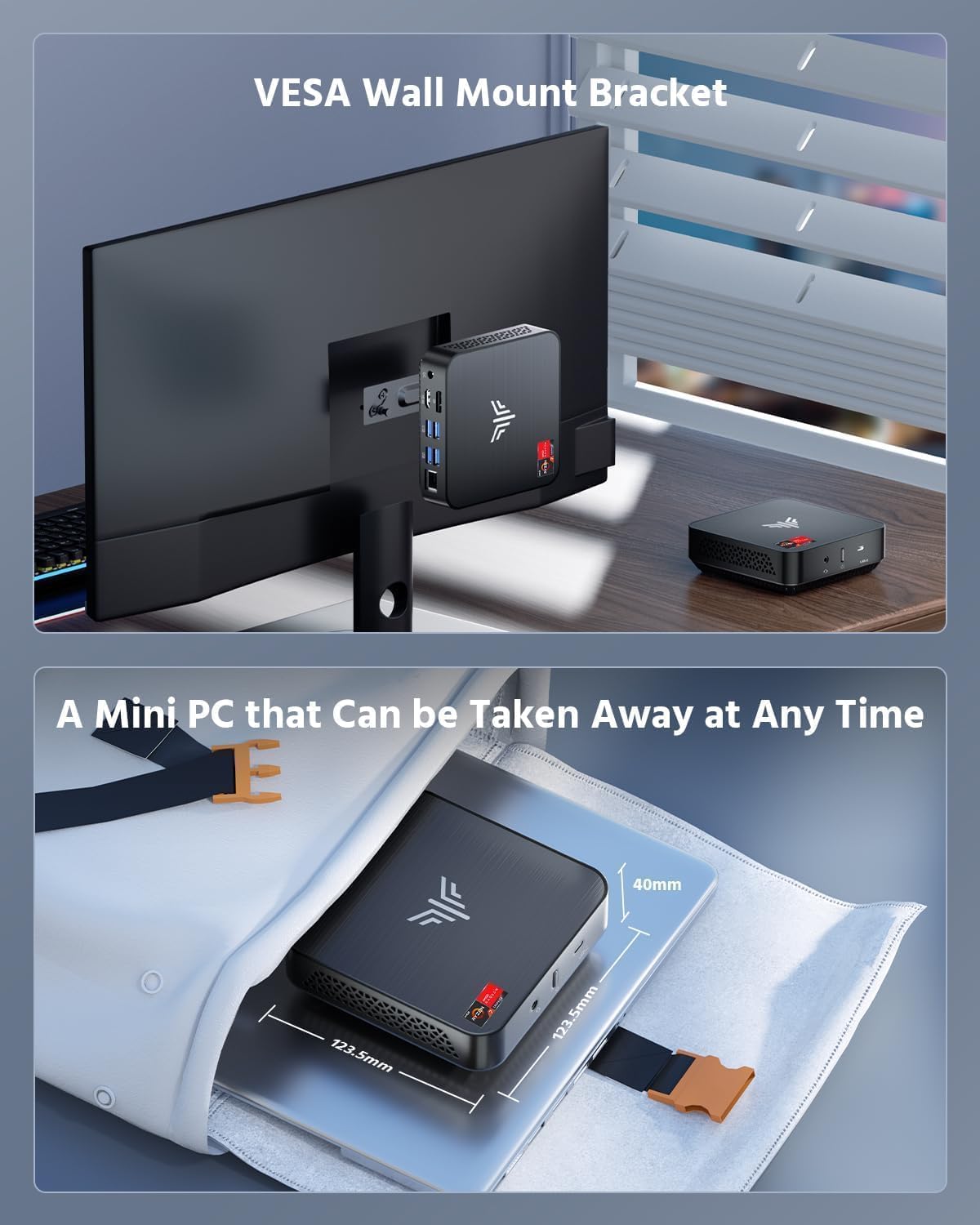
Image: The NiPoGi Mini PC shown mounted on the back of a monitor using a VESA bracket, and also highlighting its small size for portability.
4. Setup Instructions
Follow these steps to set up your NiPoGi Mini PC:
- Connect to a Display: Connect the Mini PC to your monitor or TV using the provided HDMI cable or a DisplayPort cable.
- Connect Peripherals: Plug in your keyboard, mouse, and any other USB devices into the available USB ports.
- Connect to Power: Connect the power adapter to the DC input port on the Mini PC, then plug the adapter into a power outlet.
- Power On: Press the power button on the Mini PC. The device will boot up, and you should see the operating system on your display.
- Initial Setup: Follow the on-screen instructions to complete the Windows 11 Pro initial setup, including language, region, network connection, and user account creation.
5. Operating Instructions
5.1 Power On/Off
- To Power On: Press the power button once.
- To Shut Down: Click the Start button in Windows, then select Power > Shut down.
- To Restart: Click the Start button in Windows, then select Power > Restart.
- To Sleep: Click the Start button in Windows, then select Power > Sleep.
5.2 Network Connection
- Wired Connection: Connect an Ethernet cable from your router/modem to the LAN port on the Mini PC.
- Wireless Connection: In Windows, click the Wi-Fi icon in the taskbar, select your network, enter the password, and click Connect.
5.3 BIOS Settings
To access the BIOS settings, press the DEL key repeatedly during startup when the NiPoGi logo appears. Here you can configure boot options, system time, and other hardware settings.
6. Maintenance
Regular maintenance helps ensure the longevity and optimal performance of your Mini PC.
- Cleaning: Use a soft, dry cloth to clean the exterior of the Mini PC. For dust accumulation in vents, use compressed air. Ensure the device is powered off and unplugged before cleaning.
- Software Updates: Regularly check for and install Windows updates and driver updates to ensure system stability and security.
- Ventilation: Ensure the Mini PC is placed in a well-ventilated area and that its vents are not obstructed to prevent overheating.
- Data Backup: Periodically back up important data to an external drive or cloud storage to prevent data loss.
7. Troubleshooting
If you encounter issues with your Mini PC, refer to the following common troubleshooting steps:
| Problem | Possible Solution |
|---|---|
| No display on monitor |
|
| Mini PC does not power on |
|
| No internet connection |
|
| System is slow or unresponsive |
|
8. Specifications
Detailed technical specifications for the NiPoGi Mini PC AM02PRO:
| Feature | Detail |
|---|---|
| Model Number | AM02PRO |
| Processor | AMD Ryzen 7 5700U (8 Cores/16 Threads, up to 4.3 GHz) |
| Graphics | Integrated Radeon Graphics (1900 MHz) |
| Operating System | Windows 11 Pro |
| RAM | 32GB DDR4 (2x 16GB SO-DIMM, expandable to 64GB) |
| Storage | 512GB M.2 NGFF SSD (expandable to 2TB) |
| Wireless Connectivity | Wi-Fi 6 (802.11ax), Bluetooth 5.2 |
| Wired Connectivity | Gigabit Ethernet (RJ45) |
| Video Output | 1x HDMI 2.0 (4K@60Hz), 1x DisplayPort (4K@60Hz) |
| USB Ports | 4x USB 3.0, 1x USB-C |
| Audio | 1x Microphone Jack |
| Dimensions (L x W x H) | 12 x 12 x 4 cm |
| Weight | 470 grams |
9. Warranty and Support
The NiPoGi Mini PC AM02PRO comes with a 1-year warranty. For technical assistance or warranty claims, please contact NiPoGi customer support. 24/7 support is available to assist you with any issues or questions you may have.


