
Introduction
This manual provides essential information for the assembly, operation, and maintenance of your Acer Predator Gaming Desk. Please read these instructions carefully before use to ensure proper setup and safe operation.
The Predator Gaming Desk offers a perfect balance of practical features and an attractive design, enhancing your gaming or work environment. It includes a cup holder, headset hook, and integrated cable management solutions to keep your setup organized.
Safety Information
- Maximum Load Capacity: Do not exceed the maximum load capacity of 120 kg (264 lbs) on the desk surface. Overloading can cause damage or injury.
- Assembly: Always follow the provided assembly instructions carefully. Ensure all screws and fasteners are securely tightened before use.
- Placement: Place the desk on a flat, stable surface to prevent tipping.
- Children: Keep small parts and packaging materials away from children to prevent choking hazards.
- Cleaning: Use only mild cleaning agents and a soft cloth. Avoid abrasive cleaners or harsh chemicals that may damage the surface.
Setup
The Acer Predator Gaming Desk is designed for easy assembly, typically taking 10-20 minutes. While detailed step-by-step visuals are not provided here, the package includes a comprehensive assembly manual and all necessary screws.
General Assembly Steps:
- Unpack Components: Carefully remove all parts from the packaging. Verify that all components listed in the included manual are present.
- Assemble Frame: Follow the instructions to connect the T-shaped steel frame components.
- Attach Legs: Securely attach the desk legs to the frame using the provided screws.
- Mount Desktop: Place the carbon fiber desktop onto the assembled frame and secure it with the designated fasteners.
- Install Accessories: Attach the headset hook, cup holder, and cable management trays as per the manual.
- Final Check: Ensure all connections are tight and the desk is stable before placing any equipment on it.

Figure 1: The Acer Predator Gaming Desk, showcasing its design and features.
Operating Features
Your Predator Gaming Desk is equipped with several features designed to enhance your user experience:
- Carbon Fiber Surface: The entire desk surface is covered with a durable carbon fiber texture, which also functions as an integrated mouse pad.
- Headset Hook: A convenient hook is located on the side of the desk for easy storage of your gaming headset.
- Cup Holder: A dedicated cup holder helps prevent spills and keeps your beverage within reach.
- Cable Management: Two cable pass-throughs and a rear shelf are provided to help organize and conceal cables and power adapters, maintaining a tidy workspace.
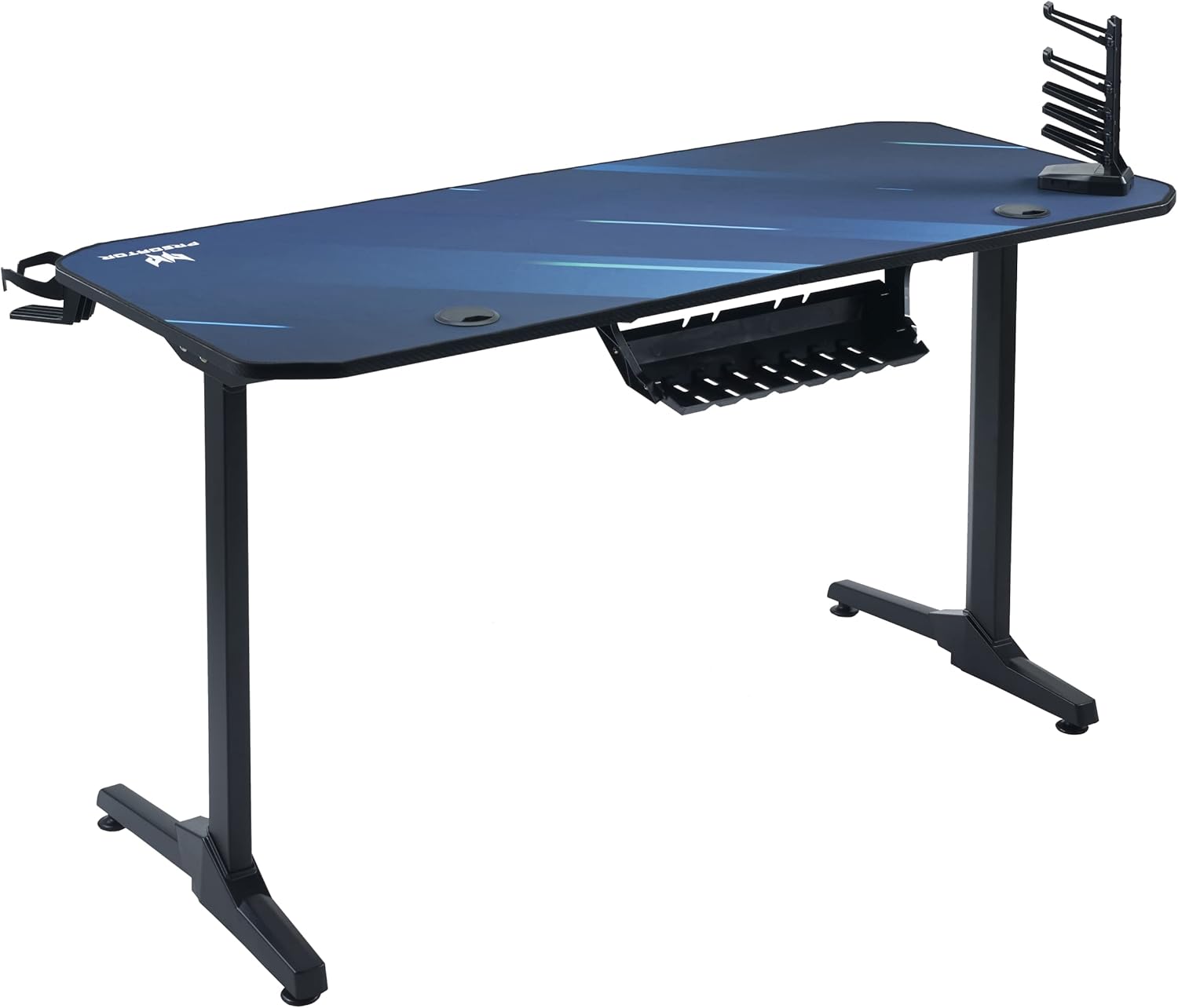
Figure 2: Rear view illustrating the integrated cable management system.
Maintenance
To ensure the longevity and appearance of your Predator Gaming Desk, follow these maintenance guidelines:
- Regular Cleaning: Wipe the desk surface regularly with a soft, damp cloth to remove dust and spills.
- Avoid Harsh Chemicals: Do not use abrasive cleaners, solvents, or harsh chemicals, as these can damage the carbon fiber finish and other materials.
- Check Connections: Periodically inspect all screws and fasteners to ensure they remain tight. Re-tighten if necessary.
- Protect from Heat/Moisture: Avoid placing hot items directly on the surface without protection. Wipe up any liquid spills immediately.
Troubleshooting
If you encounter any issues with your Predator Gaming Desk, refer to the following common troubleshooting tips:
- Desk Wobbles:
Solution: Check that all assembly screws are securely tightened. Ensure the desk is placed on a level surface. Adjust any leveling feet if present. - Accessories Not Holding Firmly:
Solution: Verify that the headset hook and cup holder are correctly installed and tightened according to the assembly manual. - Cable Management Issues:
Solution: Ensure cables are routed properly through the pass-throughs and secured in the rear tray. Avoid overfilling the cable management areas.
For persistent issues not covered here, please contact Acer customer support.
Specifications
| Feature | Detail |
|---|---|
| Model Number | GP.OTH11.03L |
| Brand | Acer |
| Color | Black |
| Dimensions (L x W x H) | 140 cm x 60 cm x 75 cm (55 inches x 23.6 inches x 29.5 inches) |
| Product Weight | 18.5 kg (40.8 lbs) |
| Package Weight | 22.44 kg (49.47 lbs) |
| Material (Frame) | Alloy Steel |
| Material (Top Surface) | Carbon Fiber |
| Finish Type | Lacquered |
| Maximum Load Capacity | 120 kg (264 lbs) |
| Special Features | Cable Management, Headset Support, Cup Holder, Integrated Mouse Pad |
| Assembly Required | Yes (Assembly Manual included) |
| Recommended Uses | Gaming, Writing |

Figure 3: Key dimensions of the Predator Gaming Desk.
Warranty and Support
Warranty Information:
This Acer Predator Gaming Desk comes with a 2-year manufacturer's warranty. Please retain your proof of purchase for any warranty claims.
Customer Support:
For technical assistance, warranty claims, or any other inquiries, please contact Acer customer support through their official website or the contact information provided in your product packaging.