
Introduction
The Paperang GO Portable Printer F1S is a compact, inkless thermal printer designed for on-the-go printing. It supports 8.5" x 11" US letter-sized documents with a 300dpi resolution, making it suitable for various applications such as design sketches, invoices, and service reports. This manual provides essential information for setting up, operating, maintaining, and troubleshooting your device.
What's in the Box
Upon unpacking your Paperang GO printer, ensure all items are present:
- Paperang GO Portable Printer F1S
- Thermal Paper Roll (included for initial use)
- USB Type-C Charging Cable
- User Manual
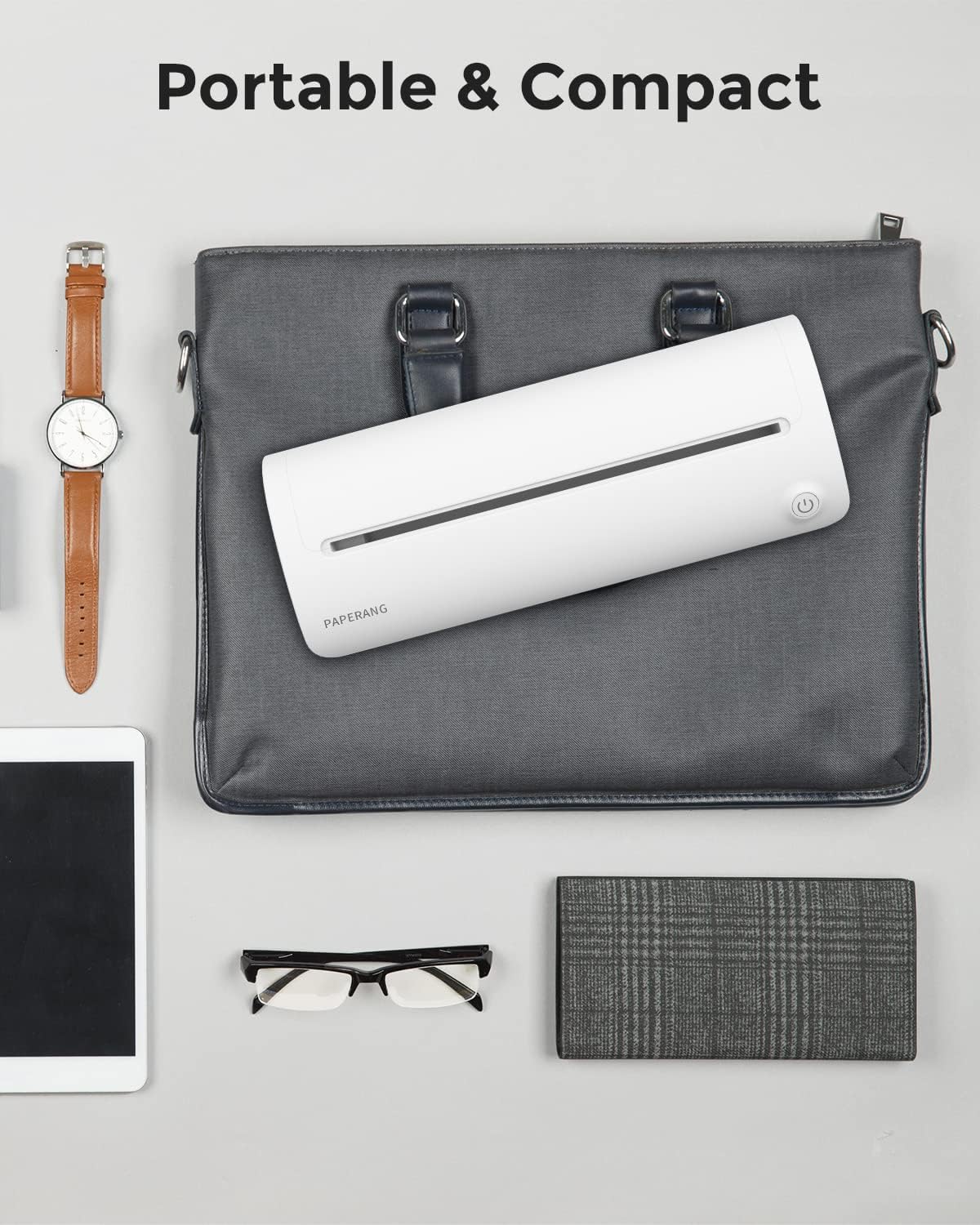
Image: The Paperang GO Portable Printer F1S shown with its included accessories, including a thermal paper roll and USB-C cable.
Product Features
- High-Resolution Printing: Delivers 300dpi full-page prints for clear and crisp documents.
- Portable & Compact Design: Small enough to fit into a briefcase or backpack, ideal for business trips and mobile use.
- Integrated Paper Compartment: Holds up to 25 sheets of A4 paper, eliminating the need to carry extra paper separately.
- Long-Lasting Battery: Equipped with a built-in 2,000mAh battery, providing up to 150 prints on a single charge and an ultra-long 48-hour standby time.
- Wireless Connectivity: Supports instant wireless printing via Bluetooth, compatible with iPhones, Android phones, and iPads.
- Inkless Thermal Technology: Utilizes thermal printing, eliminating the need for ink cartridges or carbon ribbons, resulting in lower long-term costs and easier maintenance.
- Versatile Applications: Boosts productivity for various tasks, including presenting design sketches, printing invoices, and generating maintenance reports.

Image: The Paperang GO printer is shown fitting compactly into a briefcase, highlighting its portability.

Image: An internal view of the Paperang GO printer, emphasizing its 2000mAh rechargeable battery for extended use.

Image: A chart illustrating the lower page cost of the Paperang F1S compared to traditional inkjet and thermal printers with ribbons.

Image: A collage depicting various scenarios where the Paperang GO printer is used for efficient, in-the-field printing via Bluetooth, such as in business meetings, construction sites, and medical offices.
Setup
- Charge the Printer: Connect the printer to a power source using the provided USB Type-C cable. The power indicator light will show charging status.
- Install the Paperang App: Download the official "Paperang" app from your device's app store (Apple App Store for iOS or Google Play Store for Android).

Image: Screenshots of the Paperang mobile application interface, showing options for notes, image editing, and document printing.
- Pair via Bluetooth: Turn on the printer by pressing the power button. Enable Bluetooth on your smartphone or tablet and open the Paperang app. Follow the in-app instructions to connect to your Paperang GO printer.
- Load Thermal Paper: Open the paper compartment. Insert the thermal paper roll, ensuring the printable side is facing the print head. Close the compartment securely. The printer is designed to hold 8.5" x 11" US Letter thermal paper.

Image: A person demonstrating how to load paper into the Paperang GO printer, ready for printing.
Operating Instructions
- Power On/Off: Press and hold the power button for a few seconds to turn the printer on or off. The indicator light will illuminate when powered on.
- Select Document: In the Paperang app, choose the document, image, or text you wish to print.
- Adjust Print Settings: Within the app, you can typically adjust settings such as print density, number of copies, and paper size if applicable.
- Initiate Print: Tap the 'Print' button in the app. The printer will automatically feed the paper and begin printing.

Image: A visual comparison demonstrating the difference in print quality between 300dpi and 200dpi, highlighting the superior detail of 300dpi.
- Retrieve Print: Once printing is complete, gently tear off the printed document from the printer's output slot.
Maintenance
- Cleaning the Print Head: Regularly clean the thermal print head with a soft, lint-free cloth lightly dampened with isopropyl alcohol. Ensure the printer is off and cooled down before cleaning.
- Paper Storage: Store thermal paper in a cool, dry place away from direct sunlight to prevent degradation of print quality over time.
- Battery Care: To prolong battery life, avoid fully discharging the printer frequently. Charge it regularly, even if not in constant use.
Troubleshooting
| Problem | Possible Cause | Solution |
|---|---|---|
| Printer not turning on | Low battery, power button not pressed correctly | Charge the printer fully. Press and hold the power button firmly for a few seconds. |
| Cannot connect via Bluetooth | Bluetooth off, printer not in pairing mode, app issue | Ensure Bluetooth is enabled on your device. Restart the printer and the app. Check app permissions. |
| Poor print quality | Low battery, dirty print head, incorrect paper type | Charge the printer. Clean the print head. Ensure you are using compatible thermal paper. |
| Paper jams or misfeeds | Improperly loaded paper, damaged paper | Ensure paper is loaded straight and correctly. Use undamaged paper. |
| Printer stops during printing | Bluetooth connection interrupted, app error, low battery | Verify Bluetooth connection stability. Restart the app and printer. Ensure sufficient battery charge. |
Specifications
| Feature | Detail |
|---|---|
| Model Number | F1S |
| Printing Technology | Thermal |
| Maximum Print Resolution | 300 dpi (Black and White) |
| Connectivity Technology | Bluetooth |
| Compatible Devices | Smartphones (iPhone, Android), iPads |
| Maximum Media Size | 8.5 x 11 inches (US Letter) |
| Max Input Sheet Capacity | 25 sheets |
| Battery | 2000mAh Lithium Ion (included) |
| Item Weight | 2.57 pounds |
| Hardware Interface | USB Type C |
| Control Method | App |
| Color | White |
Official Product Video
Video: An official product video showcasing the Paperang F1S Portable Thermal Printer in use, demonstrating its features and portability.
Warranty and Support
The Paperang GO Portable Printer F1S comes with a limited warranty. For detailed warranty information, product support, or service inquiries, please refer to the warranty card included in your product packaging or visit the official Paperang website.
For further assistance, you may also contact Paperang customer support through their official channels.
