
1. Introduction
Thank you for choosing the HXSJ L800 3-Mode 61-Key RGB Mechanical Gaming Keyboard. This keyboard offers versatile connectivity options including 2.4GHz wireless, Bluetooth 5.0, and wired USB-C, making it suitable for various devices and usage scenarios. Its compact 61-key layout is designed for portability and efficiency, providing ample space for mouse movement. The keyboard features durable two-color injection molded ABS keycaps and vibrant RGB backlighting for an enhanced user experience. This manual provides detailed instructions for setup, operation, maintenance, and troubleshooting to ensure optimal performance.
2. Package Contents
- 1 x HXSJ L800 Mechanical Gaming Keyboard
- 1 x USB Receiver (for 2.4GHz wireless connection)
- 1 x Type-C Cable (for wired connection and charging)
- 1 x User Manual

3. Setup
3.1 Connectivity Modes
The HXSJ L800 keyboard supports three connection modes: 2.4GHz wireless, Bluetooth 5.0, and wired USB-C. You can switch between these modes based on your device and preference.
3.1.1 2.4GHz Wireless Connection
- Locate the USB receiver included in the package.
- Plug the USB receiver into an available USB port on your computer or compatible device.
- Ensure the keyboard's mode switch (usually on the back or side) is set to 2.4G wireless mode.
- The keyboard should automatically connect. If not, press and hold the Fn + R keys simultaneously for a few seconds to initiate pairing.
3.1.2 Bluetooth 5.0 Connection
The keyboard can connect to up to three Bluetooth devices simultaneously.
- Ensure the keyboard's mode switch is set to Bluetooth mode.
- On your device (computer, tablet, smartphone), enable Bluetooth and search for new devices.
- To connect to the first device, press and hold Fn + Z (BT1) until the indicator light flashes rapidly.
- To connect to the second device, press and hold Fn + X (BT2) until the indicator light flashes rapidly.
- To connect to the third device, press and hold Fn + C (BT3) until the indicator light flashes rapidly.
- Select "HXSJ L800" or a similar name from your device's Bluetooth list to pair.

3.1.3 Wired USB-C Connection
- Connect one end of the provided Type-C cable to the keyboard's Type-C port.
- Connect the other end of the cable to a USB port on your computer.
- The keyboard will automatically switch to wired mode and begin charging.
3.2 System Compatibility
The HXSJ L800 keyboard is compatible with a wide range of operating systems, including IBM PC, Win98SE, Me, 2000, XP, VISTA, WIN 7, and WIN10. It also supports Mac OS, iOS, and Android systems.

4. Operating Instructions
4.1 Key Functions
The 61-key layout is compact but retains all essential functions. Many keys have secondary functions accessible via the Fn key. Refer to the keyboard's keycap legends for specific Fn combinations (e.g., Fn + number row for F1-F12, Fn + arrow keys for page navigation).
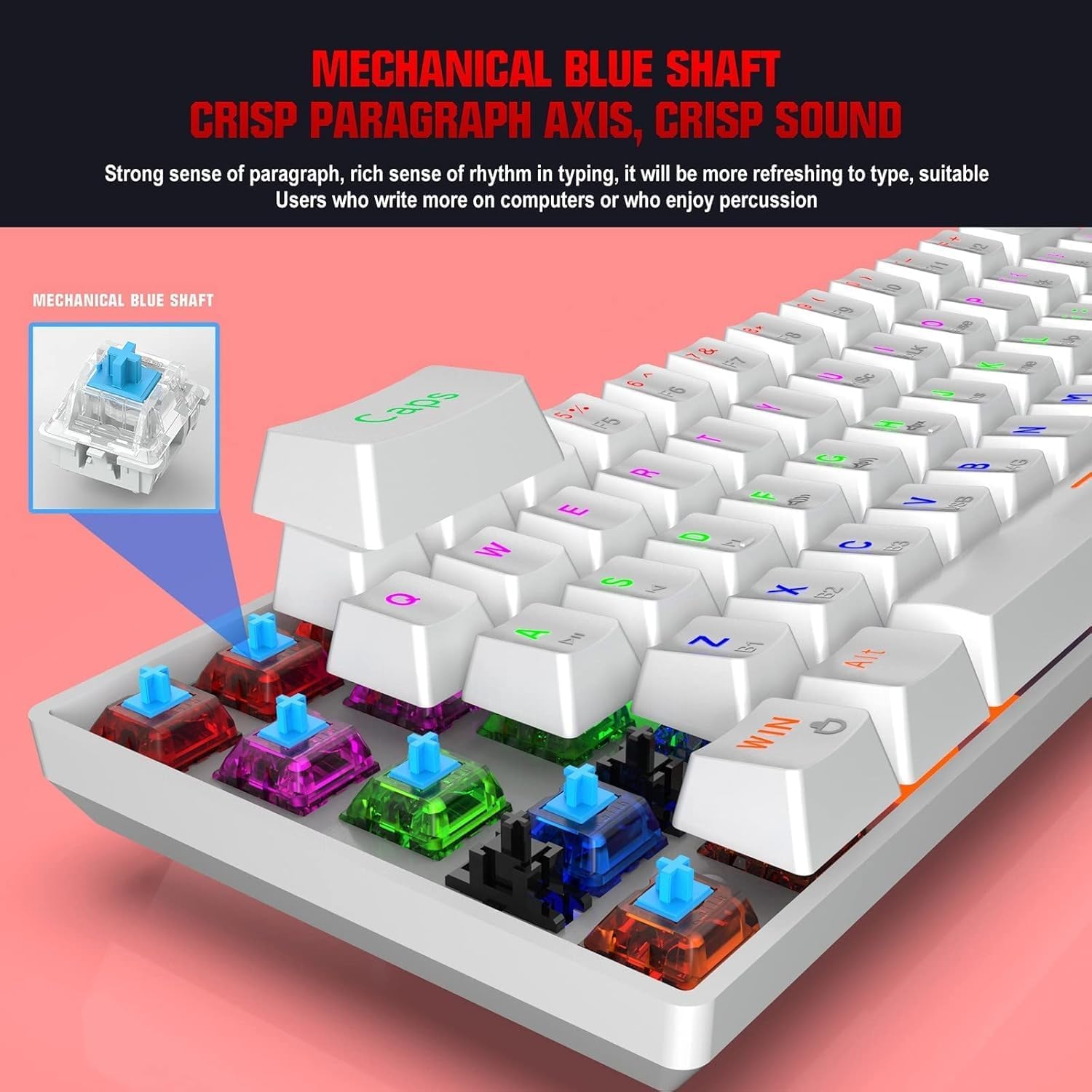
4.1.1 Blue Mechanical Switches
The keyboard is equipped with blue mechanical switches, known for their distinct tactile bump and audible click. This provides clear feedback for each keystroke, preferred by many for typing and gaming.
4.2 RGB Backlighting
The keyboard features dynamic RGB backlight effects. Use specific Fn key combinations (e.g., Fn + \|) to cycle through different lighting modes, adjust brightness, or change colors. Consult the full user manual for a complete list of lighting controls.
4.3 Charging the Keyboard
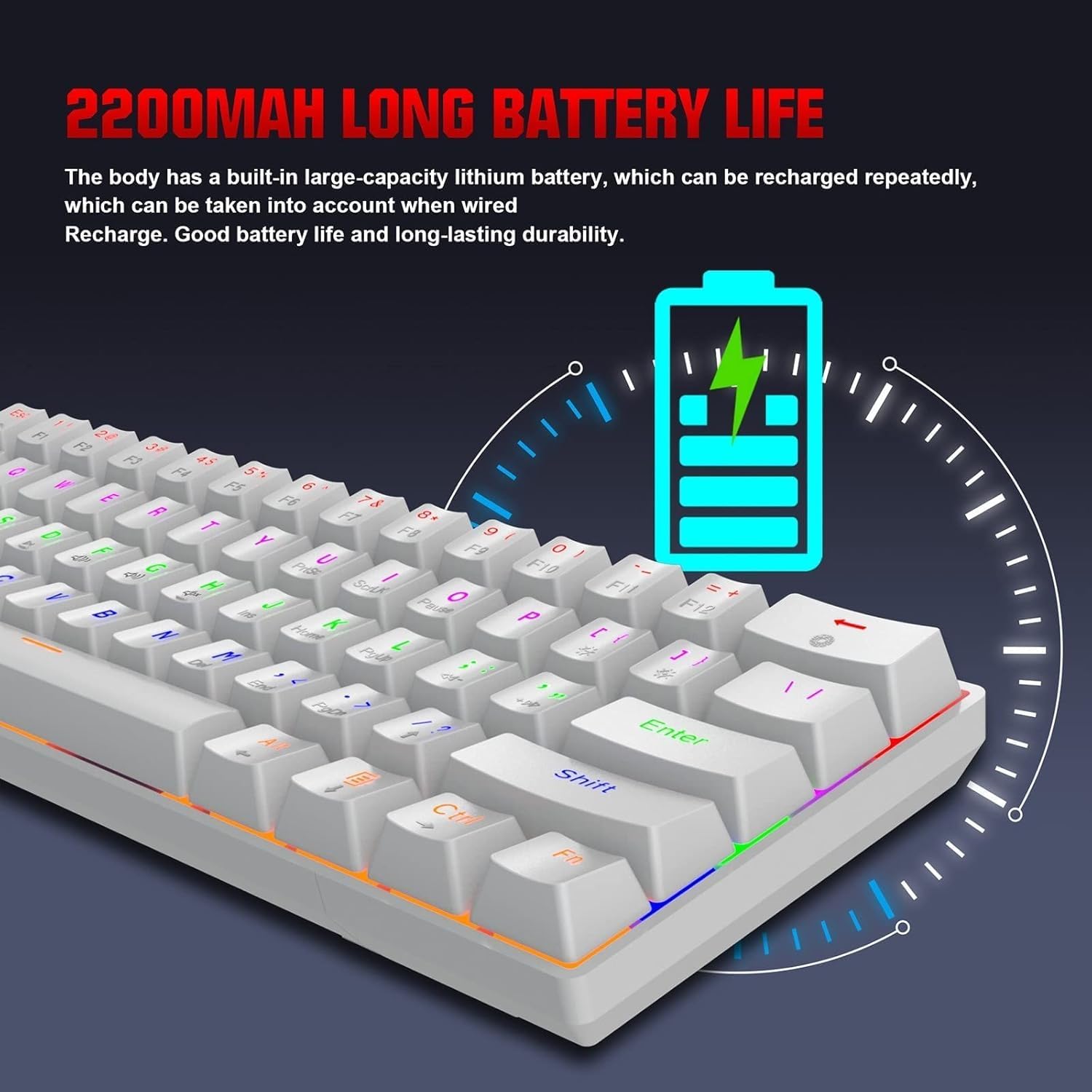
The HXSJ L800 has a built-in 2200mAh rechargeable lithium battery. When the battery is low, the indicator light may flash or change color. Connect the keyboard to a USB power source using the provided Type-C cable to charge. The indicator light will typically show charging status and turn off or change color when fully charged.
5. Maintenance
To ensure the longevity and optimal performance of your HXSJ L800 keyboard, follow these maintenance guidelines:
- Cleaning: Regularly clean the keyboard with a soft, dry cloth. For deeper cleaning, use compressed air to remove dust and debris from between the keycaps. You may carefully remove keycaps using a keycap puller (not included) for thorough cleaning, but ensure to reattach them correctly.
- Keycaps: The two-color injection molded ABS keycaps are designed for durability and resistance to fading. Avoid using harsh chemicals or abrasive materials that could damage the keycap surface.
- Storage: Store the keyboard in a cool, dry place away from direct sunlight and extreme temperatures.
- Liquid Exposure: Avoid spilling liquids on the keyboard. If a spill occurs, immediately disconnect the keyboard, turn it upside down to drain, and allow it to dry completely before reconnecting.
6. Troubleshooting
If you encounter issues with your HXSJ L800 keyboard, refer to the following common troubleshooting steps:
| Problem | Possible Solution |
|---|---|
| Keyboard not responding (wired) | Ensure the USB-C cable is securely connected to both the keyboard and the computer. Try a different USB port or cable. |
| Keyboard not connecting (2.4GHz wireless) | Ensure the USB receiver is plugged in and the keyboard is in 2.4G mode. Try re-pairing by pressing Fn + R. Check battery level. |
| Keyboard not connecting (Bluetooth) | Ensure the keyboard is in Bluetooth mode and discoverable (Fn + Z/X/C). Check your device's Bluetooth settings. Forget and re-pair the device. Check battery level. |
| RGB backlighting not working or stuck | Ensure the backlight is not turned off. Use Fn key combinations to cycle through modes or adjust brightness. Check battery level. |
| Keys are not registering or double-typing | Clean under the affected keycap. Ensure the switch is not damaged. Try updating keyboard drivers if available. |
| Short battery life | Ensure the keyboard is fully charged. Reduce backlight brightness or turn it off when not needed. |
7. Specifications
| Feature | Detail |
|---|---|
| Brand | HXSJ |
| Model | L800 |
| Product Type | 3-Mode Mechanical Gaming Keyboard |
| Connectivity | Type-C Wired + 2.4GHz Wireless + Bluetooth 5.0 |
| Color | White |
| Backlight | RGB Backlight Effect |
| Key Layout | 61 Keys |
| Key Life | 50 Million Times |
| Mechanical Switch | Blue Switch |
| Keycap Material | ABS |
| Keycap Technology | Two-color Injection Molded Keycaps |
| Built-in Battery Capacity | 2200mAh |
| Operating Voltage | DC 5V + 5% |
| Rated Current | 150mA (Max) |
| Interface Port | Type-C |
| Cable Length | 1.75m |
| Dimensions (L×W×H) | Approx. 289 × 101 × 38 mm |
| Weight | 590g |
| Operating System Support | IBM PC Win98SE/Me/2000/XP/VISTA/WIN 7/WIN10, Mac OS, iOS, Android |
8. Warranty Information
This product is covered by a standard manufacturer's warranty against defects in materials and workmanship. The warranty period typically begins from the date of purchase. Please retain your proof of purchase for warranty claims. The warranty does not cover damage caused by misuse, accident, unauthorized modification, or normal wear and tear. For specific warranty terms and conditions, please refer to the documentation provided at the time of purchase or contact your retailer.
9. Support
If you require further assistance or have questions not covered in this manual, please contact the seller or manufacturer's customer support. You may find contact information on the product packaging or the retailer's website. When contacting support, please have your product model (L800) and purchase details ready.


