
Introduction
The kwmobile Laptop Sun Shade is designed to enhance your outdoor computing experience by reducing screen glare and providing privacy. This lightweight and portable accessory is compatible with 13-inch laptop screens, allowing you to work comfortably in various lighting conditions.
This manual provides essential information on how to set up, operate, and maintain your sun shade to ensure optimal performance and longevity.

Image: Front view of the kwmobile Laptop Sun Shade installed on a laptop, providing clear screen visibility.
Package Contents
- 1x kwmobile Laptop Sun Shade
- 4x Adhesive Buttons
Setup Instructions
Follow these steps to properly install your kwmobile Laptop Sun Shade:
- Unfold the Sun Shade: Carefully unfold the sun shade from its compact, flat form. The shade is designed to create a three-sided enclosure around your laptop screen.
- Prepare Adhesive Buttons: The package includes four adhesive buttons. These are used to secure the sun shade to the back of your laptop screen. Ensure the surface of your laptop where the buttons will be applied is clean and dry.
- Attach Adhesive Buttons: Peel the backing from the adhesive buttons. Attach two buttons to the top corners of the sun shade's rear flap, and the other two to the bottom corners.
- Position on Laptop: Place the sun shade over your laptop screen. Align the top edge of the shade with the top edge of your laptop screen. The side flaps should extend around the sides of the screen.
- Secure the Shade: Gently press the adhesive buttons on the sun shade's rear flap onto the back of your laptop screen. Ensure a firm and secure attachment. The shade should now stand upright, creating a glare-free viewing area.
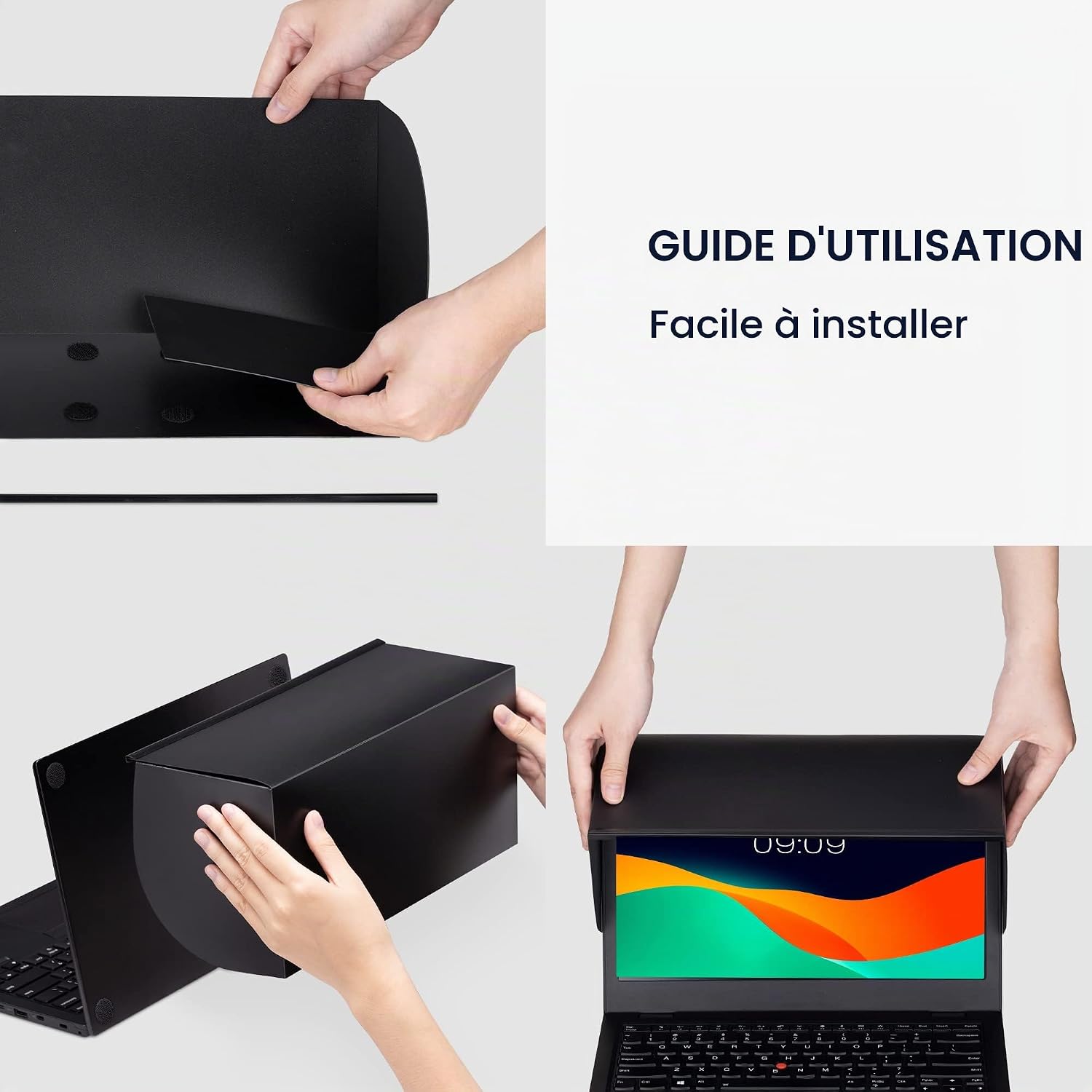
Image: Step-by-step guide illustrating how to unfold the sun shade, attach adhesive buttons, and install it onto a laptop screen.
Operating Instructions
Once installed, the kwmobile Laptop Sun Shade is ready for use:
- Glare Reduction: The primary function of the sun shade is to block direct sunlight and ambient light, significantly reducing glare on your laptop screen. This allows for clearer visibility and reduces eye strain when working outdoors or in brightly lit environments.
- Enhanced Privacy: The side flaps of the sun shade also act as a privacy screen, limiting the viewing angle of your screen to those directly in front of it. This is beneficial when working with sensitive information in public spaces.
- Portability: The sun shade is designed to be lightweight and foldable. When not in use, carefully detach it from your laptop, fold it flat, and store it in your laptop bag for easy transport.

Image: A user working outdoors with the sun shade, highlighting its effectiveness in bright environments.

Image: Close-up of a user benefiting from the sun shade's glare protection while working outside.
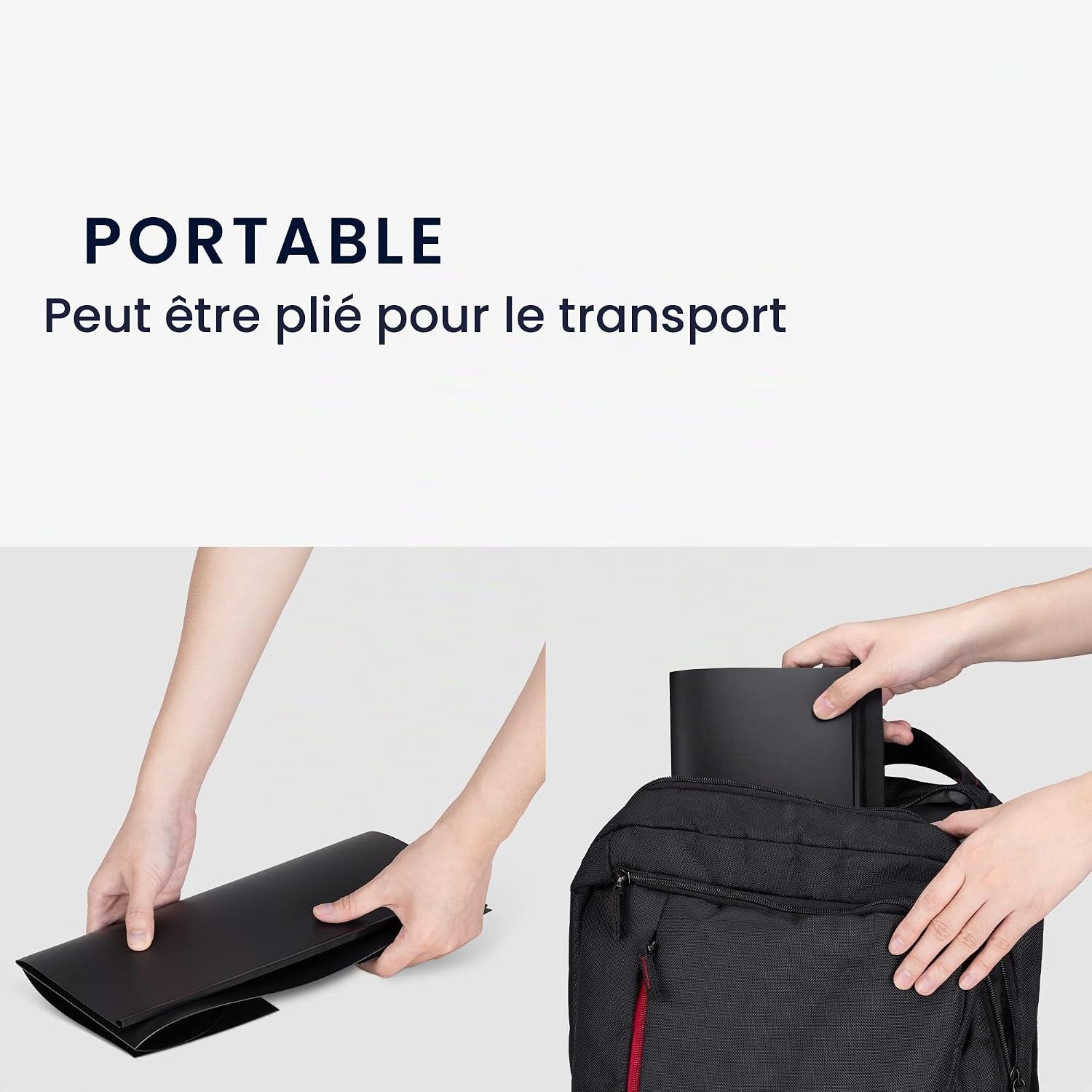
Image: Demonstration of the sun shade's foldable design for easy storage and transport in a laptop bag.
Maintenance
- Cleaning: To clean the sun shade, gently wipe it with a soft, damp cloth. Avoid using harsh chemicals or abrasive materials, as these may damage the surface or the adhesive.
- Storage: When not in use, fold the sun shade flat and store it in a cool, dry place away from direct sunlight. This helps maintain its shape and extends the life of the material.
- Adhesive Care: If the adhesive buttons lose their stickiness over time, they can often be cleaned with a damp cloth and allowed to air dry to restore some adhesion. For long-term use, replacement adhesive strips or buttons may be considered.
Troubleshooting
- Shade Not Staying in Place:
- Ensure the adhesive buttons are firmly pressed onto a clean, dry surface on your laptop.
- Check if the sun shade is correctly unfolded and positioned to create a stable structure.
- If adhesive buttons lose effectiveness, consider replacing them with new, strong adhesive strips.
- Reflections Still Visible:
- Adjust your position relative to the sun or light source. The shade works best when the light source is directly above or to the sides, not directly in front of the screen.
- Ensure the shade is fully extended and positioned as close to the screen as possible without obstructing your view.
Specifications
| Brand | kwmobile |
| Model Number | 57192.1.01_m000442 |
| Compatibility | 13-inch laptop screens |
| Material | PP (Polypropylene), Adhesive |
| Color | Black |
| Weight | Approx. 135 g (0.3 lbs) |
| Dimensions (Approximate) |
|

Image: Detailed dimensions of the kwmobile Laptop Sun Shade.
Warranty and Support
For warranty information or technical support, please refer to the product packaging or contact kwmobile customer service through the retailer where the product was purchased. Please have your model number (57192.1.01_m000442) and purchase details ready when contacting support.