
Active Pixel AP-WPT-3.0MP-ICAM365(AC SOCKET)
Active Pixel 360 Wi-Fi Camera Panoramic Lamp User Manual
Model: AP-WPT-3.0MP-ICAM365(AC SOCKET)
Introduction
This manual provides comprehensive instructions for the installation, operation, and maintenance of your Active Pixel 360 Wi-Fi Camera Panoramic Lamp. This device is designed to provide home security surveillance with features such as 360-degree panoramic viewing, night vision, two-way audio, and motion detection. Please read this manual thoroughly before using the product to ensure proper functionality and safety.

Figure 1: Active Pixel 360 Wi-Fi Camera Panoramic Lamp. This image shows the white camera unit with an E27 screw base at the top and the spherical camera body with multiple lenses and IR/LED lights at the bottom.
Package Contents
Verify that all items listed below are included in your package:
- 1x Active Pixel 360 Wi-Fi Camera
- 1x User Manual Guide
- 1x Bulb Holder
- 1x Screws Bag (for mounting the bulb holder if needed)
Product Features
The Active Pixel 360 Wi-Fi Camera offers a range of advanced features for comprehensive home security:
- 360-Degree Panoramic View: Provides a wide monitoring range with 355° horizontal and 90° vertical rotation.
- 3MP HD Video: Captures clear and detailed video footage.
- Enhanced Night Vision: Equipped with 4 IR lights and 4 white LEDs for full-color night vision up to 15 meters.
- Two-Way Audio: Built-in microphone and speaker allow for real-time communication.
- Motion Detection & Auto Tracking: Automatically detects movement and tracks the subject, sending alerts to your mobile device.
- Easy Installation: Designed with a standard E27 connector for simple screw-in installation into a compatible bulb socket.
- Wi-Fi Connectivity: Supports 2.4GHz Wi-Fi for remote access and control via a smartphone application.
- Secure Storage: Supports local storage via TF card (up to 128GB) and cloud storage with unique encryption for video files.
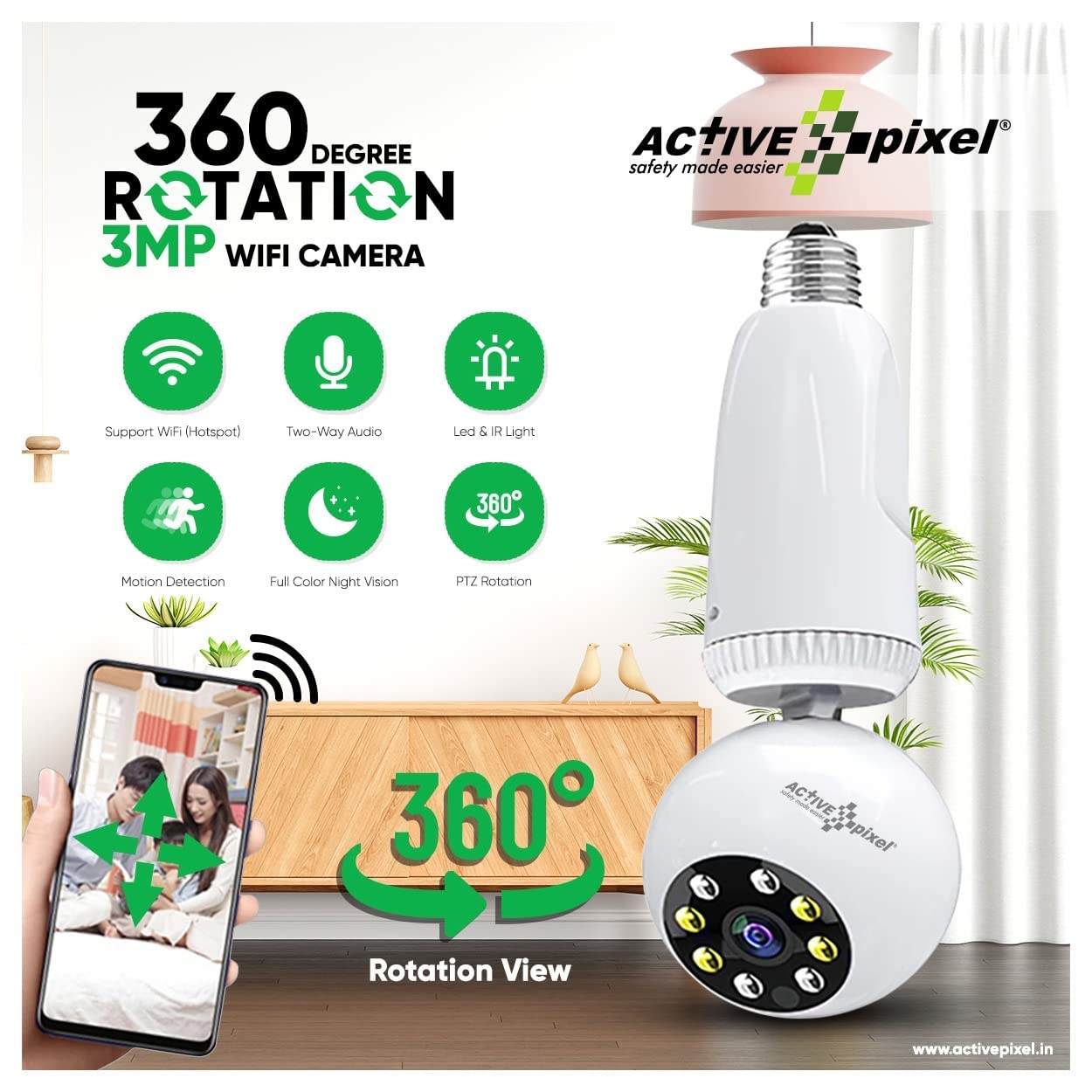
Figure 2: Overview of camera features including Wi-Fi support, two-way audio, LED & IR light, motion detection, full color night vision, and 360-degree PTZ rotation.
Setup Guide
1. Installation
The camera is designed for simple installation into a standard E27 bulb socket. Ensure the socket is within your Wi-Fi range.
- Locate a suitable E27 bulb socket in your desired monitoring area.
- Carefully screw the Active Pixel camera into the E27 socket until it is securely fastened.
- If your socket is recessed or requires an extension, use the provided bulb holder or an E27 to E27 extension adaptor (not included if not in package).

Figure 3: Illustration of the E27 connector for easy and quick installation into an ordinary bulb base.

Figure 4: Different types of E27 sockets, including normal, recessed, and the use of an E27 to E27 extension adaptor.
2. App Download and Initial Connection
To control and view your camera, you need to download the companion mobile application.
- Download the free APP "icam365" from Google Play Store (for Android) or Apple App Store (for iOS).
- Register for a new account or log in if you already have one.
- Power on the camera by ensuring the E27 socket has power. The camera will emit a prompt sound indicating it's ready for connection.
- In the "icam365" app, follow the on-screen instructions to add a new device. Select the option to connect via Wi-Fi.
- Important: For the first connection, use the camera's hotspot. After initial setup, you can connect the camera to your home 2.4GHz Wi-Fi network (5GHz Wi-Fi is not supported).
- Enter your Wi-Fi network name (SSID) and password when prompted by the app.
- The camera will connect to your Wi-Fi network. Once connected, the camera's status indicator will change, and you will hear a confirmation sound.

Figure 5: Diagram showing wireless network connection options, including connecting to the camera via a wireless hotspot or connecting the camera to a router.
Operating Instructions
1. Remote Control and Panoramic Viewing
Once connected, you can access the live stream and control the camera remotely via the "icam365" app.
- Open the "icam365" app and select your camera from the device list.
- Use the on-screen controls to pan (horizontal 355°) and tilt (vertical 90°) the camera lens to view different areas.
- The panoramic view allows you to cover a larger area and reduce blind spots.

Figure 6: Visual representation of the camera's smooth pan (360°) and tilt (90°) monitoring capabilities, controlled via a mobile phone.
2. Motion Detection and Auto Tracking
The camera features high-sensitivity motion detection and automatic tracking to alert you to activity.
- Enable motion detection in the app settings.
- When motion is detected, the camera will send a push notification to your mobile phone.
- The auto-tracking function allows the camera to follow detected movement within its field of view. This feature can be enabled or disabled in the app.

Figure 7: Illustration of the AI detection and auto-tracking feature, showing the camera following a moving object (e.g., a dog) and recording its movement.

Figure 8: Example of a motion detection alert being sent to a mobile phone when movement is detected by the camera, even at night.
3. Two-Way Audio
Communicate with individuals near the camera using the two-way audio feature.
- In the live view interface of the app, tap the microphone icon to speak through the camera's speaker.
- Tap the speaker icon to listen to audio from the camera's microphone.

Figure 9: Depiction of the two-way audio feature, enabling real-time conversation between the user via the app and individuals near the camera.
4. Night Vision
The camera provides clear visibility even in low-light or no-light conditions.
- The camera automatically switches to infrared night vision in dark environments.
- With its 4 IR lights and 4 white LEDs, it can also provide full-color night vision when the floodlight function is activated.
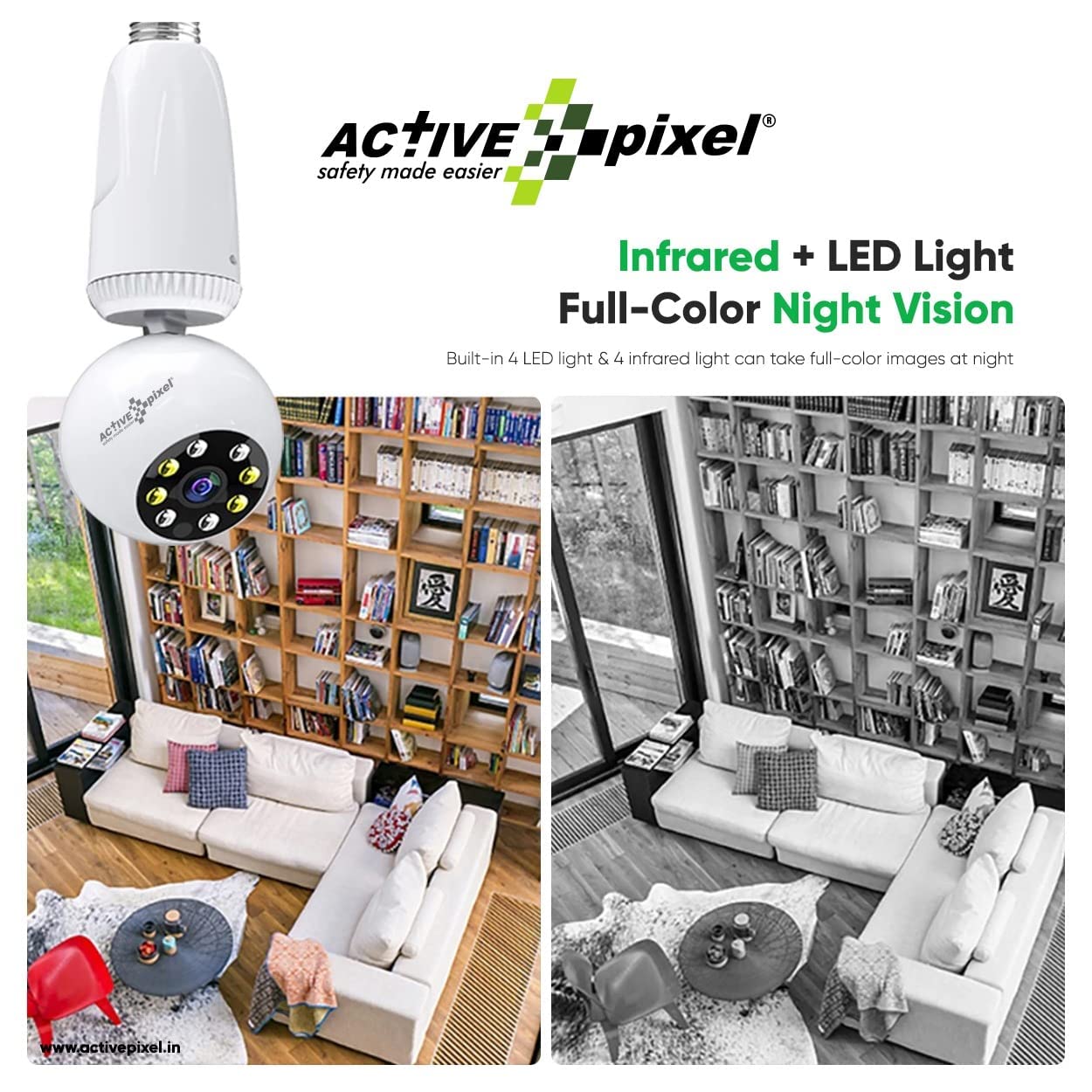
Figure 10: Comparison showing the camera's ability to capture full-color images at night using its built-in LED and infrared lights.
5. Video Storage
Recordings can be stored locally or in the cloud.
- TF Card Storage: Insert a MicroSD (TF) card (up to 128GB, not included) into the camera's designated slot for local recording. The camera uses unique encryption for saved video files, ensuring data security even if the card is removed.
- Cloud Storage: The camera supports cloud storage for alarm events. Refer to the app for subscription details and options.
Maintenance
- Cleaning: Gently wipe the camera lens and body with a soft, dry cloth. Do not use liquid cleaners or abrasive materials.
- Firmware Updates: Periodically check the "icam365" app for available firmware updates to ensure optimal performance and security.
- Network Stability: Ensure your Wi-Fi network is stable and strong in the camera's location for uninterrupted operation.
- Temperature Range: Operate the camera within its specified working temperature range of -10°C to 50°C.
Troubleshooting
| Problem | Possible Cause | Solution |
|---|---|---|
| Camera offline/Cannot connect to Wi-Fi. | Incorrect Wi-Fi password; Camera too far from router; 5GHz Wi-Fi network used; Power interruption. | Verify Wi-Fi password; Move camera closer to router or use a Wi-Fi extender; Ensure you are connecting to a 2.4GHz network; Power cycle the camera by unscrewing and re-screwing it into the socket. |
| No motion detection alerts. | Motion detection disabled in app; Sensitivity set too low; App notifications blocked. | Enable motion detection in "icam365" app settings; Adjust sensitivity level; Check phone notification settings for the app. |
| Two-way audio not working. | Microphone/speaker permissions not granted to app; Volume too low. | Check app permissions in phone settings; Adjust volume levels in app and on phone. |
| Poor image quality at night. | Lens dirty; Insufficient ambient light for color night vision. | Clean the camera lens; Ensure floodlight function is enabled for color night vision if desired. |
| SD card not recording. | SD card full or corrupted; Incorrect format; Card not inserted properly. | Check SD card status in app; Format the SD card via the app; Reinsert the SD card. Replace if corrupted. |
Specifications
| Resolution | 3 Megapixel (1080P HD) |
| Rotation (Pan/Tilt) | Horizontal: 355°, Vertical: 90° |
| Lens | 3.6mm |
| Night Vision | Supported (4pcs IR LEDs + 4pcs White LEDs) |
| IR Distance | 12-15 meters |
| Minimum Illumination | 0.01 Lux |
| Smart Functions | Auto Tracking, Motion Detection, Two-way Audio, Remote View |
| Storage | TF Card (Max 128GB), Cloud Storage |
| Connection Port | Standard E27 base |
| Network Connection | Wi-Fi (2.4GHz only), AP Hotspot |
| Power Input | AC 110-220V |
| Working Temperature | -10°C ~ 50°C |
| Camera Dimensions (LxWxH) | 9 x 8 x 16.5 cm |

Figure 11: Detailed specifications table for the Active Pixel 360 Wi-Fi Camera.
Warranty and Support
For warranty information and technical support, please refer to the official Active Pixel website or contact their customer service directly. Keep your purchase receipt as proof of purchase for warranty claims.
Manufacturer: Active Pixel
Model Number: AP-WPT-3.0MP-ICAM365(AC SOCKET)
Ask a question about this manual
Ask about setup, troubleshooting, compatibility, parts, safety, or missing instructions. Manuals+ will review the question and use this page’s manual context to help answer it.