Introduction
This user manual provides comprehensive instructions for the setup, operation, and maintenance of your Hisense 43A4G Series Full HD Smart Android LED TV. Please read this manual thoroughly before operating the television and retain it for future reference.
The Hisense 43A4G is a 108 cm (43 inches) Full HD Smart Certified Android LED TV, featuring Android TV 11, a 60Hz refresh rate, and a 178-degree wide viewing angle. It offers versatile connectivity options including HDMI, USB, Bluetooth, and built-in Chromecast. Enjoy powerful sound with 20 Watts output, DTS Virtual X, DTS Studio Sound, and Dolby Audio. The display boasts an Ultra Vivid High Contrast Panel, Natural Color Enhancer, and Noise Reduction for a superior viewing experience.
Package Contents
Upon unboxing, please verify that all items listed below are present and in good condition:
- 1 x Hisense LED TV (Model: 43A4G)
- 1 x Remote Control
- 1 x Table Top Stand
- 1 x Wall Mount Bracket
- 1 x Power Cable
- 2 x AAA Batteries (for remote control)
- 1 x User Manual (this document)
- 1 x Warranty Card

Image: Front view of the Hisense 43A4G Smart TV, highlighting features like Natural Colour Enhancer, DTS X, and Ok Google integration.
Setup Guide
1. Installing the Stand or Wall Mounting
Your Hisense TV comes with options for table-top placement or wall mounting. Choose the method that best suits your environment.
Table Top Stand Installation:
- Carefully place the TV face-down on a soft, flat surface to prevent screen damage.
- Align the stand bases with the corresponding screw holes on the bottom of the TV.
- Secure the stands using the provided screws. Ensure they are tightened firmly.
Wall Mount Installation:
For wall mounting, it is highly recommended to use the included wall mount bracket and consult a professional for installation to ensure safety and proper alignment. Refer to the separate wall mount installation guide for detailed instructions.

Image: Hisense TV placed on a modern wooden TV stand, demonstrating a typical setup.
2. Connecting Peripherals
The Hisense 43A4G TV offers various ports for connecting external devices.
- HDMI Ports: Connect set-top boxes, gaming consoles, Blu-ray players, etc. The TV has 2 HDMI ports, with ARC support on one.
- USB Ports: Connect USB drives for media playback. The TV has 2 USB ports.
- Ethernet (LAN) Port: For wired internet connection.
- Antenna/Cable Input: For connecting an antenna or cable TV signal.
- Audio Output: For connecting external audio systems.
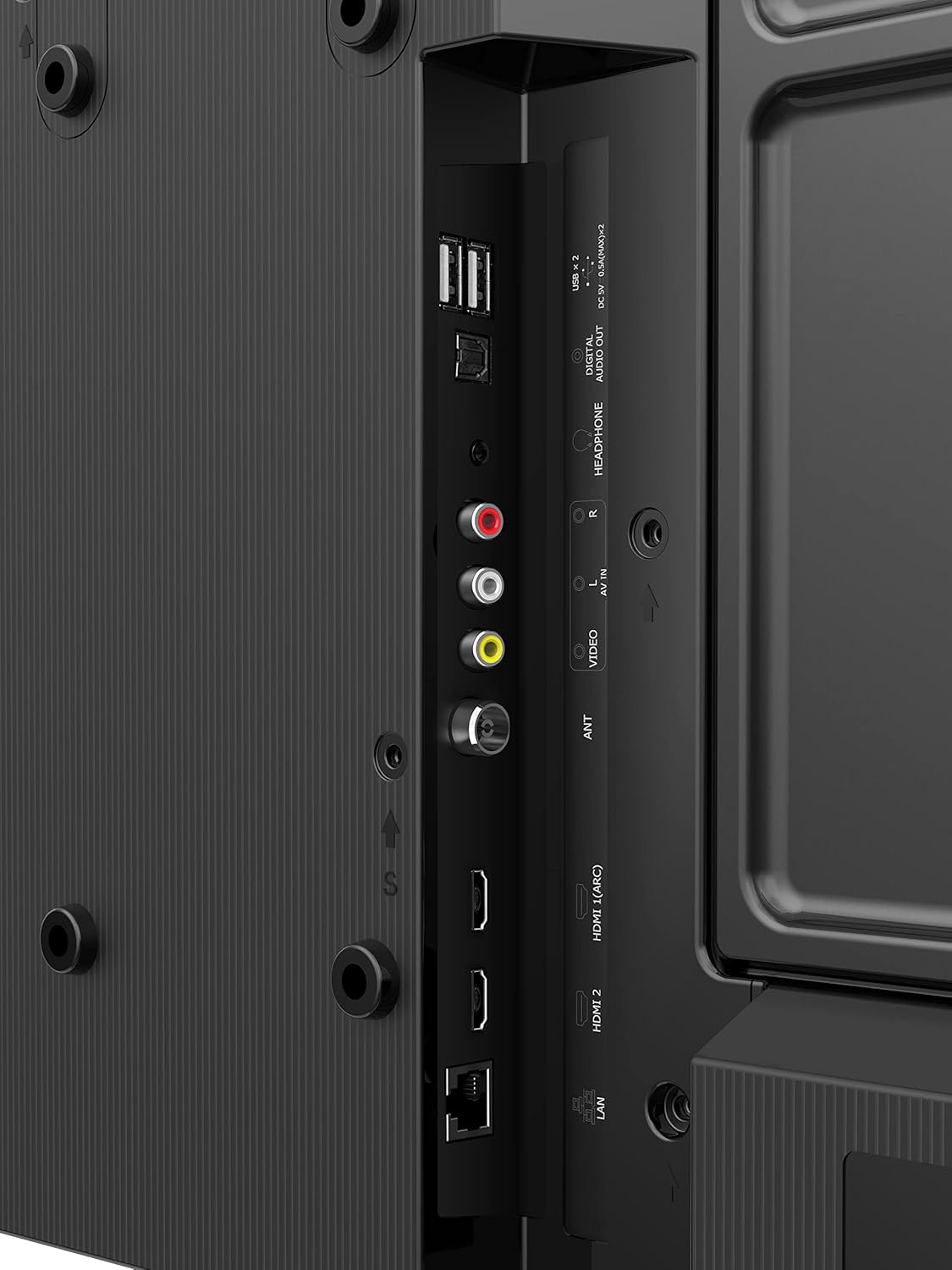
Image: Detailed view of the Hisense TV's rear panel, showing various input and output ports including HDMI, USB, LAN, and audio connections.
3. Power Connection
Connect the power cable to the TV's power input and then plug it into a suitable electrical outlet. The TV will enter standby mode.
Operating Instructions
1. Initial Setup Wizard
The first time you power on the TV, an initial setup wizard will guide you through essential configurations:
- Language Selection: Choose your preferred language.
- Network Connection: Connect to your Wi-Fi network or use a wired Ethernet connection. The TV supports Dual Band Wi-Fi.
- Google Account Sign-in: Sign in with your Google account to access the Google Play Store and other Android TV features.
- Channel Scan: Scan for available TV channels if you are using an antenna or cable connection.
- Time Zone and Date: Set the correct time zone and date.

Image: Screenshot of the Android TV home screen, displaying popular streaming applications like Netflix, YouTube, Prime Video, and Disney+ Hotstar.
2. Using the Remote Control
The smart remote control provides quick access to various functions and streaming services.
- Power Button: Turns the TV on/off or to standby mode.
- Navigation Buttons (Up/Down/Left/Right/OK): Navigate menus and confirm selections.
- Volume +/-: Adjusts the volume level.
- Channel +/-: Changes TV channels.
- Google Assistant Button: Activates voice control for search and commands.
- Dedicated App Buttons: Quick access to Netflix, Prime Video, YouTube, and Google Play.
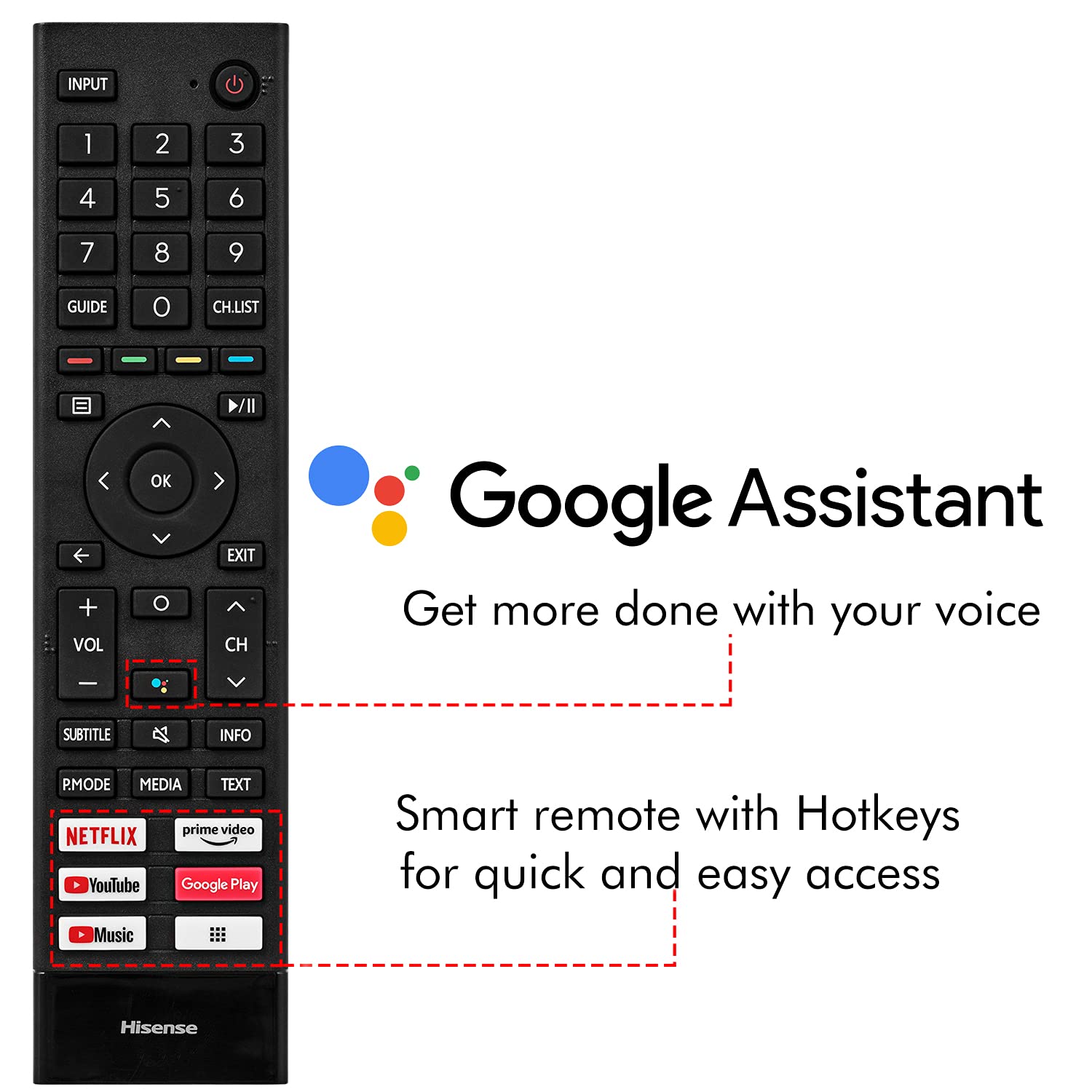
Image: The Hisense smart remote control, highlighting the Google Assistant button and dedicated hotkeys for popular streaming services.
3. Smart TV Features (Android TV 11)
- Built-in Chromecast: Cast content from your smartphone or tablet directly to the TV.
- Google Play Store: Download and install a wide range of apps, games, and streaming services.
- Voice Assistant: Use the built-in Google Assistant to search for content, control smart home devices, and get information.
- Bluetooth Connectivity: Connect Bluetooth headphones, soundbars, or game controllers.

Image: A person interacting with the Hisense TV using voice commands via Google Assistant, demonstrating smart TV functionality.
Maintenance
Proper maintenance ensures the longevity and optimal performance of your Hisense TV.
- Screen Cleaning: Gently wipe the screen with a soft, lint-free cloth. For stubborn marks, use a screen-specific cleaning solution applied to the cloth, not directly to the screen. Avoid harsh chemicals.
- Cabinet Cleaning: Wipe the TV cabinet with a soft, dry cloth.
- Ventilation: Ensure adequate airflow around the TV. Do not block ventilation openings.
- Power Cord: Regularly check the power cord for any damage.
- Software Updates: Keep your TV's software updated to ensure the latest features and security patches. The TV will usually prompt you for updates.
Troubleshooting
This section addresses common issues you might encounter with your Hisense TV.
| Problem | Possible Cause | Solution |
|---|---|---|
| No power | Power cord not connected; Power outlet not working. | Ensure power cord is securely plugged in; Test the outlet with another device. |
| No picture, but sound is present | Incorrect input source selected; Backlight issue. | Press the 'Input' button on the remote to select the correct source; Contact customer support if the issue persists. |
| No sound, but picture is present | Volume is muted or too low; External audio device issue. | Unmute the TV or increase volume; Check connections to external audio devices. |
| Remote control not working | Batteries are dead or incorrectly inserted; Obstruction between remote and TV. | Replace batteries; Ensure clear line of sight to the TV's IR sensor. |
| Slow Smart TV performance | Too many apps running in background; Network congestion. | Close unused apps; Restart the TV and your router; Consider a wired network connection. |
Specifications
| Feature | Detail |
|---|---|
| Brand | Hisense |
| Model | 43A4G |
| Screen Size | 43 Inches (108 cm) |
| Resolution | Full HD (1920x1080) |
| Refresh Rate | 60 Hz |
| Viewing Angle | 178 Degrees |
| Operating System | Official Android TV 11(R) |
| RAM | 1GB |
| ROM (Storage) | 8 GB |
| Processor | Quad Core |
| HDMI Ports | 2 (ARC supported) |
| USB Ports | 2 |
| Connectivity | Wi-Fi (Dual Band), Bluetooth, Ethernet |
| Sound Output | 20 Watts |
| Audio Technology | DTS Virtual X, DTS Studio Sound, Dolby Audio |
| Special Features | Built-in Assistant, Chromecast Built-in, Ultra Vivid High Contrast Panel, Natural Color Enhancer, Noise Reduction, Near Bezel-Less screen |
| Product Dimensions (LxWxH) | 95.5 x 8.7 x 55.8 cm |
| Item Weight | 6.5 kg |
| Power Consumption (On-mode) | 75 Watts |

Image: Diagram showing the physical dimensions of the Hisense 43-inch TV, including width, height, and depth.
Warranty and Support
Your Hisense 43A4G TV comes with a 2-year warranty provided by the manufacturer from the date of purchase.
For technical assistance, service requests, or warranty claims, please contact Hisense customer support using the information provided on your warranty card or visit the official Hisense website.
Importer Contact: Hisense, 18002661969