
1. Introduction
The Yahboom Transbot is an advanced AI robot tank kit designed for learning and development in robotics. It integrates a Raspberry Pi 4B, somatosensory depth camera, and SLAM lidar to enable sophisticated functionalities such as 2D and 3D mapping, navigation, object tracking, and robotic arm control. This manual provides essential information for setting up, operating, and maintaining your Transbot.
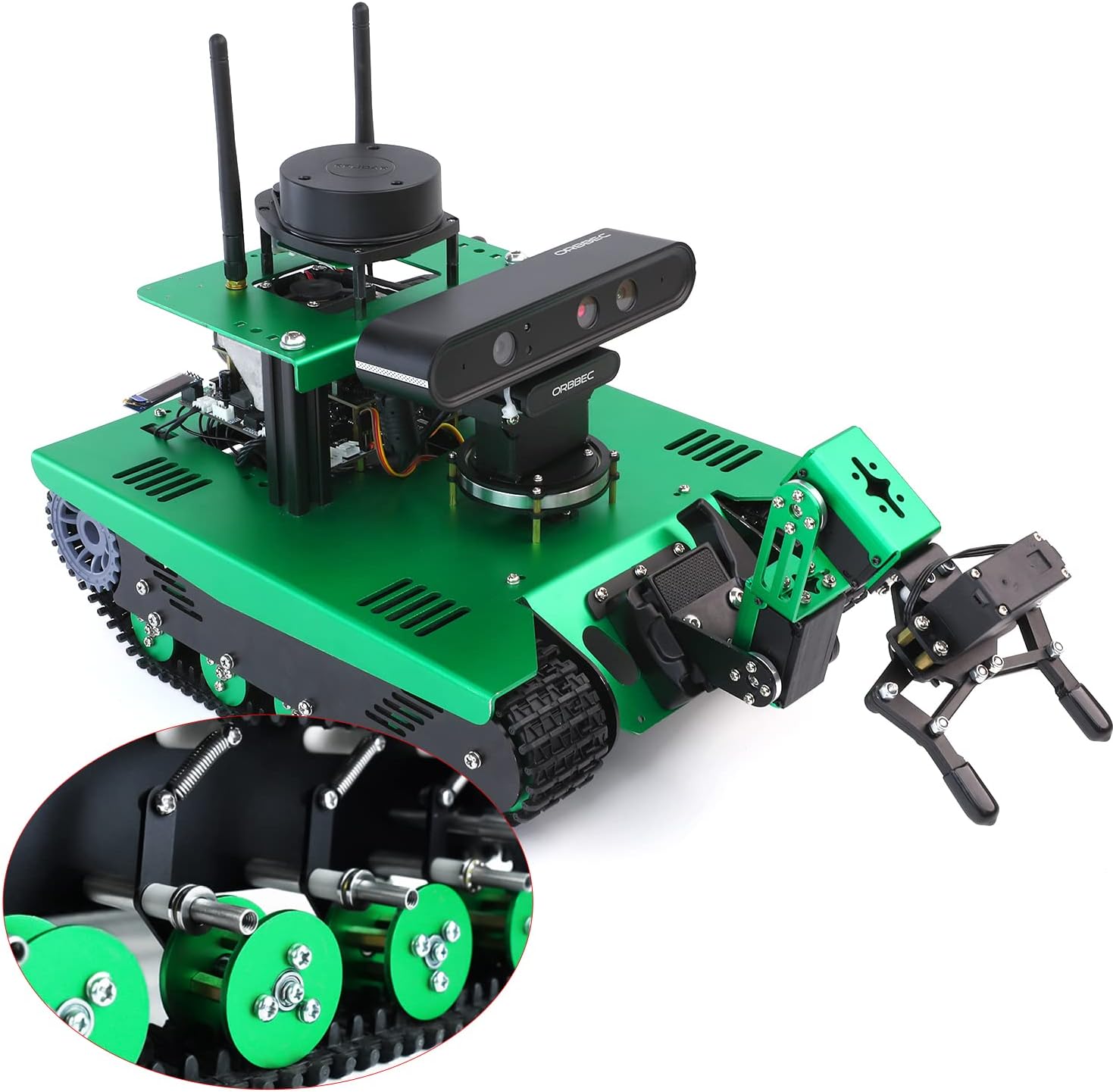
Figure 1.1: Fully assembled Yahboom Transbot ROS AI Robot Tank Kit.
2. Setup and Assembly
The Transbot kit requires assembly. Please refer to the detailed assembly instructions provided in the official Yahboom documentation or online resources. Key components include a high-end aluminum alloy frame, anti-jamming bearings, SLAM lidar, powerful coding gear motor, metal servo, and a professional robot expansion board.
2.1. Component Overview

Figure 2.1: Overview of Transbot model options, including 3 DOF robotic arm, Astra Pro Plus depth camera, SLAM A1 Lidar, and 7-inch HD touch screen.
2.2. Expansion Board Connections
The Yahboom professional robot expansion board serves as the central hub for connecting various components. Ensure all connections are secure and correctly oriented according to the provided diagrams.

Figure 2.2: Detailed diagram of the Transbot expansion board, highlighting various interfaces and components.
2.3. Packing List (Raspberry Pi 4B Version)
Verify all components are present before beginning assembly. The basic configuration for the Raspberry Pi 4B version includes:
- Frame
- Lidar fixed plate
- OLED screen
- Raspberry Pi accessory kit
- Expansion board
- Battery pack
- USB wireless handle
- Handle mobile phone holder
- Charger
- Several cables
- Micro USB data cable
- Battery case
- Cable tie
- Screwdriver
- Mechanical code & checkerboard paper
- Transbot manual
- Packing box + anti-collision sponge
- SLAM A1 Lidar pack
- Nox package

Figure 2.3: Packing list for the Raspberry Pi 4B version of the Transbot kit.
3. Operating Instructions
3.1. ROS Programmable Project
The Transbot utilizes the Robot Operating System (ROS) for its advanced functionalities. It leverages Rviz, Movelt, and Qt toolboxes for robotic arm control simulation and real-machine operation. A 7-inch screen can be optionally installed for direct interaction.

Figure 3.1: Diagram illustrating the components and functionalities of the ROS operating system on Transbot.
3.2. 3D Visual Mapping and Navigation (RTAB-VSLAM)
The Transbot supports RTAB-VSLAM 3D visual mapping and navigation technology, combining pure vision and visual radar fusion. This allows the robot to navigate, avoid obstacles, and perform global relocation within a 3D map. It can quickly obtain image data such as depth maps, color maps, and skeleton data via its API.

Figure 3.2: Visual representation of RTAB-VSLAM 3D mapping and navigation in action.
The Transbot can also perform multi-robot car navigation, allowing multiple units to navigate and locate within the same map simultaneously.

Figure 3.3: Multiple Transbot robots navigating and coordinating within a shared environment.
3.3. AI Functionalities
The robot integrates a variety of AI functions, including:
- Intelligent patrol
- Radar guard and tracking
- 3-DOF flexible grasping with manipulator
- Fixed-point navigation
- Automatic driving
- Color recognition and tracking
- AR tag recognition and reality enhancement
- Visual image beautification
- Face detection
- Lidar mapping navigation and obstacle avoidance

Figure 3.4: Overview of various AI features supported by the Transbot.
3.3.1. Robotic Arm Functions
The optional 3-DOF robotic arm allows the Transbot to grasp and transport objects. Movelt simulation within the ROS system can be used for motion planning and control.

Figure 3.5: Demonstrations of the 3-DOF robotic arm and Movelt simulation control.
3.3.2. Depth Camera Functions
The somatosensory depth camera enables advanced features like RTAB-VSLAM 3D visual mapping, depth image data acquisition (color map, skeleton), and KCF filter algorithm-based target following.

Figure 3.6: Examples of depth camera capabilities, including 3D mapping, depth data, and target following.
3.4. Cross-Platform Interconnection Control
The Transbot offers multiple control methods:
- Mobile Remote Control APP: Integrated with various AI functions (Yahboom App supports iOS & Android; ROS robot APP only for Android).
- Handle Control: Experience FPV real-time visual effects.
- JupyterLab: Online programming.
- Professional ROS Operating System Control.

Figure 3.7: Various control interfaces for the Transbot, including mobile app, handle, JupyterLab, and ROS system.
3.5. Hardware Features
The Transbot's robust design includes a crawler shape and powerful coding gear motor, providing excellent off-road capabilities, even allowing it to navigate stairs.
Video 3.1: Demonstrates the Transbot's off-road capabilities, including navigating rough terrain and stairs.
It is also equipped with high-brightness searchlights and colorful taillights, enabling normal operation even in dark environments.
Video 3.2: Shows the Transbot operating in low-light conditions, highlighting its searchlights and colorful taillights.
4. Maintenance
Regular maintenance ensures the longevity and optimal performance of your Transbot. Follow these general guidelines:
- Cleaning: Keep the robot free from dust and debris, especially around sensors, motors, and tracks. Use a soft, dry cloth for cleaning.
- Battery Care: Charge the 12V battery as needed and avoid over-discharging. Store the robot with a partially charged battery if not in use for extended periods.
- Connection Checks: Periodically inspect all cable connections to ensure they are secure and undamaged. Loose connections can lead to erratic behavior or component failure.
- Software Updates: Regularly check the Yahboom website for software and firmware updates to ensure you have the latest features and bug fixes.
5. Troubleshooting
If you encounter issues with your Transbot, consider the following common problems and solutions:
| Problem | Possible Cause | Solution |
|---|---|---|
| Robot does not power on | Battery not charged or improperly connected; power switch off. | Ensure battery is charged and connected. Check power switch. |
| 3D Camera not working | Loose cable connection; software driver issue. | Check camera cable connections. Verify camera drivers are installed and updated. Restart the system. |
| Mobile app connectivity issues | Incorrect network configuration; app bug. | Ensure the robot and mobile device are on the same network. Re-scan QR code or manually connect via IP. Restart the app and robot. |
| Erratic movement or navigation | Sensor interference; software calibration needed. | Ensure lidar and camera sensors are clear. Recalibrate navigation parameters in ROS. |
If issues persist, please contact Yahboom customer support for further assistance.
6. Specifications
| Feature | Detail |
|---|---|
| Model Number | Transbot-4B-8G |
| Brand | Yahboom |
| Package Dimensions | 17.56 x 12.48 x 11.54 inches |
| Item Weight | 18.34 pounds |
| Batteries | 1 x 12V battery (included) |
| Processor | Raspberry Pi 4B (specific configuration may vary) |
| Camera | Somatosensory Depth Camera (e.g., Astra Pro 3D Camera) |
| Lidar | SLAM Lidar (e.g., SLAM A1 Lidar) |
| Robotic Arm | 3-DOF (Degrees of Freedom) (optional) |
| Display | 7-inch Touch Screen (optional) |
7. Warranty and Support
For technical support, warranty information, or any inquiries regarding your Yahboom Transbot, please refer to the official Yahboom website or contact their customer service directly. Yahboom provides professional technical support and after-sales service to assist users with their products.
You can often find comprehensive learning materials, video tutorials, and open-source code on the Yahboom website to further enhance your experience with the Transbot.


