
Brady M211
Brady M211 Portable Bluetooth Label Printer User Manual
Model: M211
1. Introduction
The Brady M211 Portable Bluetooth Monochrome Label Printer is a robust and intuitive device designed for efficient label creation and printing directly from your smartphone. Its compact and durable construction ensures reliable performance in various work environments. This manual provides comprehensive instructions for setting up, operating, maintaining, and troubleshooting your M211 label printer.

2. What's in the Box
Verify that all items are present in your package:
- 1 x Brady M211 Printer
- 1 x M21-750-499 Label Cartridge
- 1 x Quick Start Guide
- 1 x AC Adapter (North America)
3. Setup
3.1 Charging the Printer
Before first use, fully charge the M211 printer using the provided AC adapter. Connect the adapter to the printer's charging port and plug it into a power outlet. The charging indicator light will show the charging status.
3.2 Installing a Label Cartridge
The M211 printer uses M21 series label cartridges. To install a cartridge:
- Open the cartridge door on the side of the printer.
- Align the label cartridge with the slot and gently push it in until it clicks into place.
- Close the cartridge door securely.

3.3 Connecting via Bluetooth and App Installation
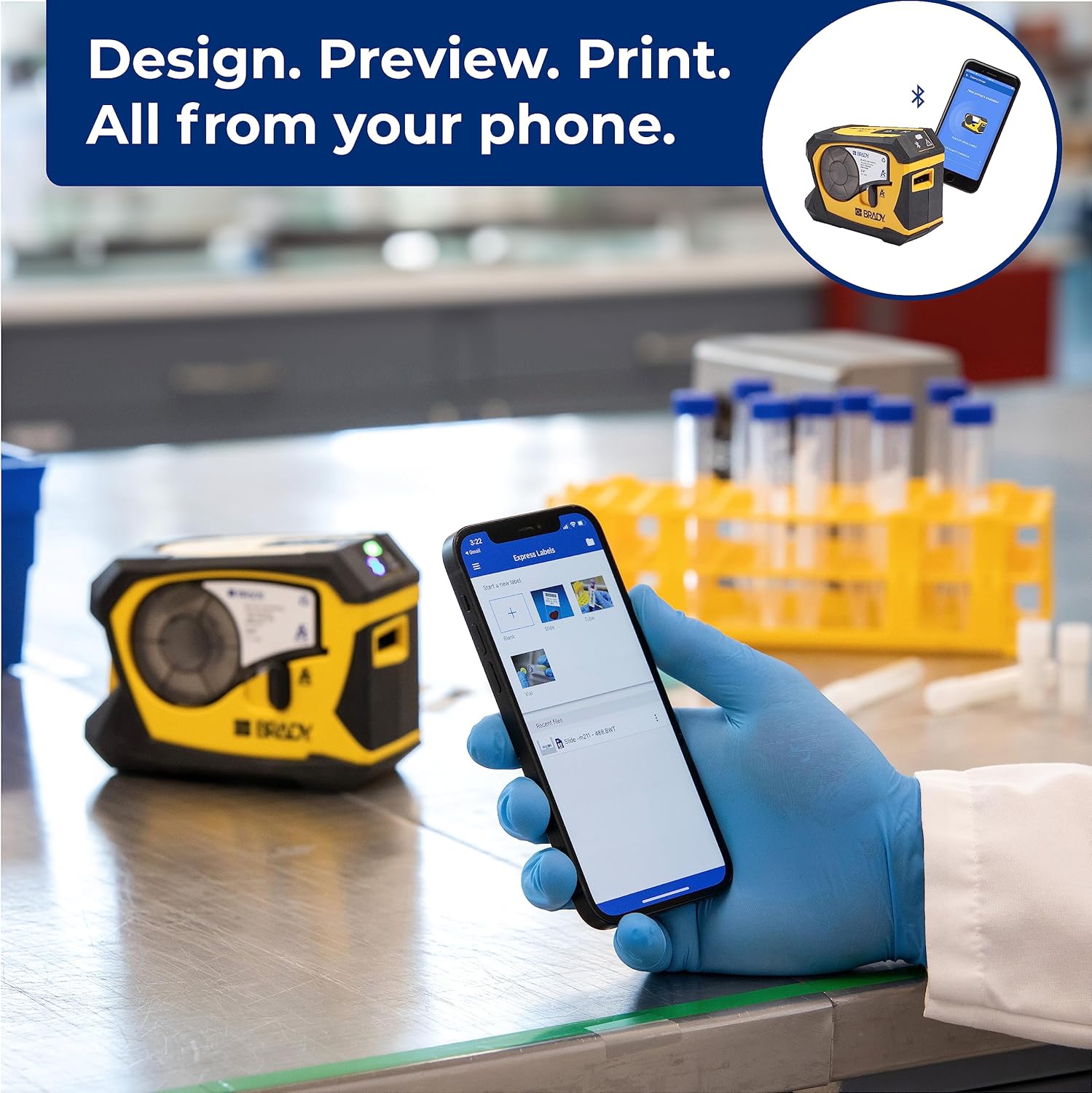
The M211 printer connects to your smartphone via Bluetooth using the Brady Express Labels Mobile app.
- Download the 'Express Labels Mobile' app from your device's app store (available for iOS and Android).
- Ensure Bluetooth is enabled on your smartphone.
- Power on the M211 printer by pressing the power button. The Bluetooth indicator light will blink, indicating it's ready to pair.
- Open the Express Labels Mobile app. The app will automatically search for and connect to your M211 printer. Follow any on-screen prompts to complete the pairing process.
Video 1: Official video demonstrating how to create and print barcode labels using the Brady M211 printer and the Express Labels Mobile app.
4. Operating the Printer
4.1 Designing and Printing Labels
The Express Labels Mobile app provides a user-friendly interface for designing and printing labels.
- Open the app and select a label template or start a new blank label.
- Use the app's tools to add text, barcodes (over 20 types supported), symbols (over 1400 available), and other elements.
- Preview your label design to ensure accuracy.
- Tap the print icon in the app to send the design to your M211 printer. The printer will automatically cut the label after printing.
4.2 Label Applications and Materials
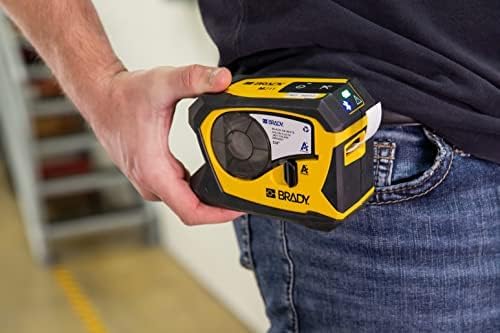
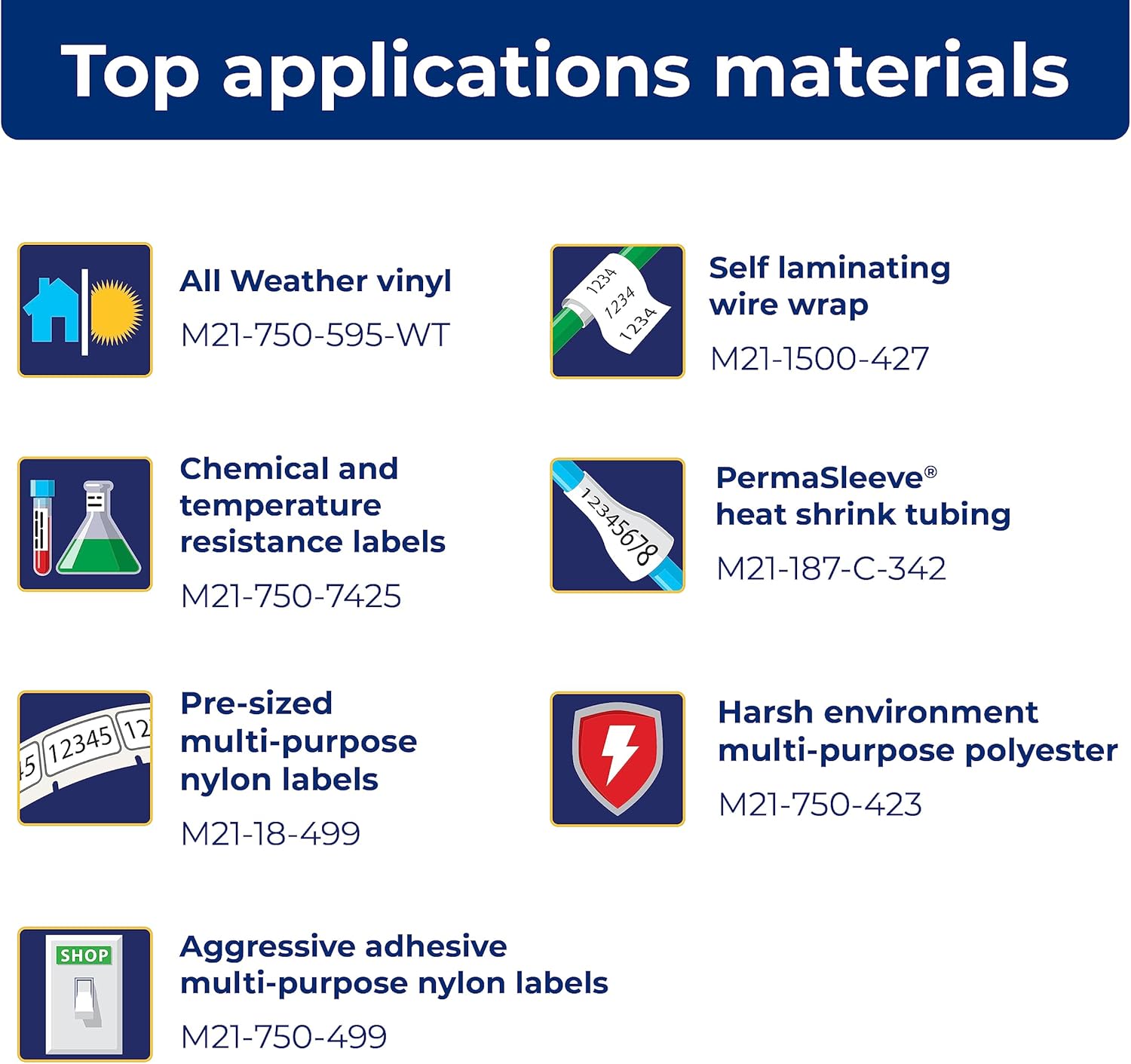
The M211 printer supports a wide range of label applications and materials, making it versatile for various tasks.

5. Maintenance
5.1 Cleaning the Printer
Regular cleaning helps maintain optimal performance:
- Use a soft, lint-free cloth to wipe the exterior of the printer.
- Periodically clean the print head and platen roller using a Brady-approved cleaning card or isopropyl alcohol on a cotton swab. Refer to the Quick Start Guide for detailed instructions on print head cleaning.
5.2 Cartridge Replacement
Replace label cartridges when the material runs out or when the print quality degrades. Always use authentic Brady cartridges to ensure compatibility and optimal performance.

6. Troubleshooting
If you encounter issues with your M211 printer, try the following common troubleshooting steps:
- Printer Not Responding: Ensure the printer is charged and powered on. Check the Bluetooth connection status in the app and on your phone.
- Poor Print Quality: Verify that the label cartridge is correctly installed. Clean the print head as described in the maintenance section. Ensure you are using authentic Brady label materials.
- App Connection Issues: Restart both the printer and your smartphone. Ensure the Express Labels Mobile app is updated to the latest version. Try forgetting and re-pairing the Bluetooth connection in your phone's settings.
- Labels Not Feeding/Cutting: Check for any obstructions in the label path. Ensure the label cartridge is not empty or jammed.
For more complex issues, refer to the detailed troubleshooting section in the full user manual or contact Brady customer support.
7. Specifications
| Feature | Specification |
|---|---|
| Product Dimensions | 2.6"D x 5.4"W x 4"H |
| Controller Type | Android, iOS |
| Maximum Media Size | 0.75 inch |
| Print Media | Labels |
| Scanner Type | Portable |
| Max Input Sheet Capacity | 50 |
| Max Copy Speed (Black & White) | 0.6 ppm |
| Display Type | LCD |
| Compatible Devices | Smartphones |
| Maximum Color Print Resolution | 203 dpi |
| Sheet Size | 0.25 x 0.75 |
| Maximum Black and White Print Resolution | 203 dpi |
| Color Depth | 1 bits per pixel |
| Dual-sided printing | Yes |
| Max copy resolution black-white | 203 dpi |
| Duplex | Simplex |
| Hardware Interface | Bluetooth |
| Ink Color | Black, Yellow |
| Resolution | 203 dpi |
| Additional Printer functions | Print Only |
| Control Method | App |
| Output sheet capacity | 50 |
| Series Number | 211 |
| Model Series | 211 |
| UPC | 888434587515 |
| Memory Storage Capacity | 2 MB |
| Item Weight | 1.44 pounds |
| Batteries | 1 Lithium Ion batteries required. (included) |
| Date First Available | March 31, 2022 |
| Manufacturer | Brady |
| Brand | Brady |
| Connectivity Technology | Bluetooth® 5 Low Energy (class II) |
| Printing Technology | Thermal |
| Color | Yellow/Black |
| Model Name | M211 |
| Printer Output | Monochrome |
| Maximum Print Speed (Color) | 0.6 ppm |
| Max Printspeed Monochrome | 0.6 |

8. Available Accessories
Enhance your M211 printer's functionality and protection with these available accessories:
- Hard Case
- AC Adapter
- Power Brick
- Belt Clip
- Magnet

9. Warranty and Support
9.1 Warranty Information
The Brady M211 Portable Bluetooth Monochrome Label Printer comes with a Limited Warranty. Please refer to the warranty card included with your product or visit the official Brady website for detailed terms and conditions regarding warranty coverage, duration, and claims procedures.
9.2 Customer Support
For technical assistance, product inquiries, or service requests, please contact Brady Customer Support:
- Website: Visit the official Brady website for FAQs, support resources, and contact forms.
- Phone: Refer to the Quick Start Guide or Brady's website for regional contact numbers.
- Email: Use the contact information provided on the Brady website for email support.
Related documentsM211


Ask a question about this manual
Ask about setup, troubleshooting, compatibility, parts, safety, or missing instructions. Manuals+ will review the question and use this page’s manual context to help answer it.