
Introduction
This manual provides detailed instructions for the installation, operation, and maintenance of your NAVITEL AR250NV Full HD Dash Cam. Please read this manual carefully before using the device to ensure proper function and safety. Keep this manual for future reference.
Product Overview
Key Features
- Full HD 1080p Video Recording
- 2-inch Display Screen
- 140-degree Wide Viewing Angle
- Night Vision Capability
- Parking Mode Support
- Loop Recording
- G-Sensor for emergency recording
Package Contents
- NAVITEL AR250NV Dash Cam
- Suction Cup Mount
- Car Charger (USB)
- User Manual
Device Layout
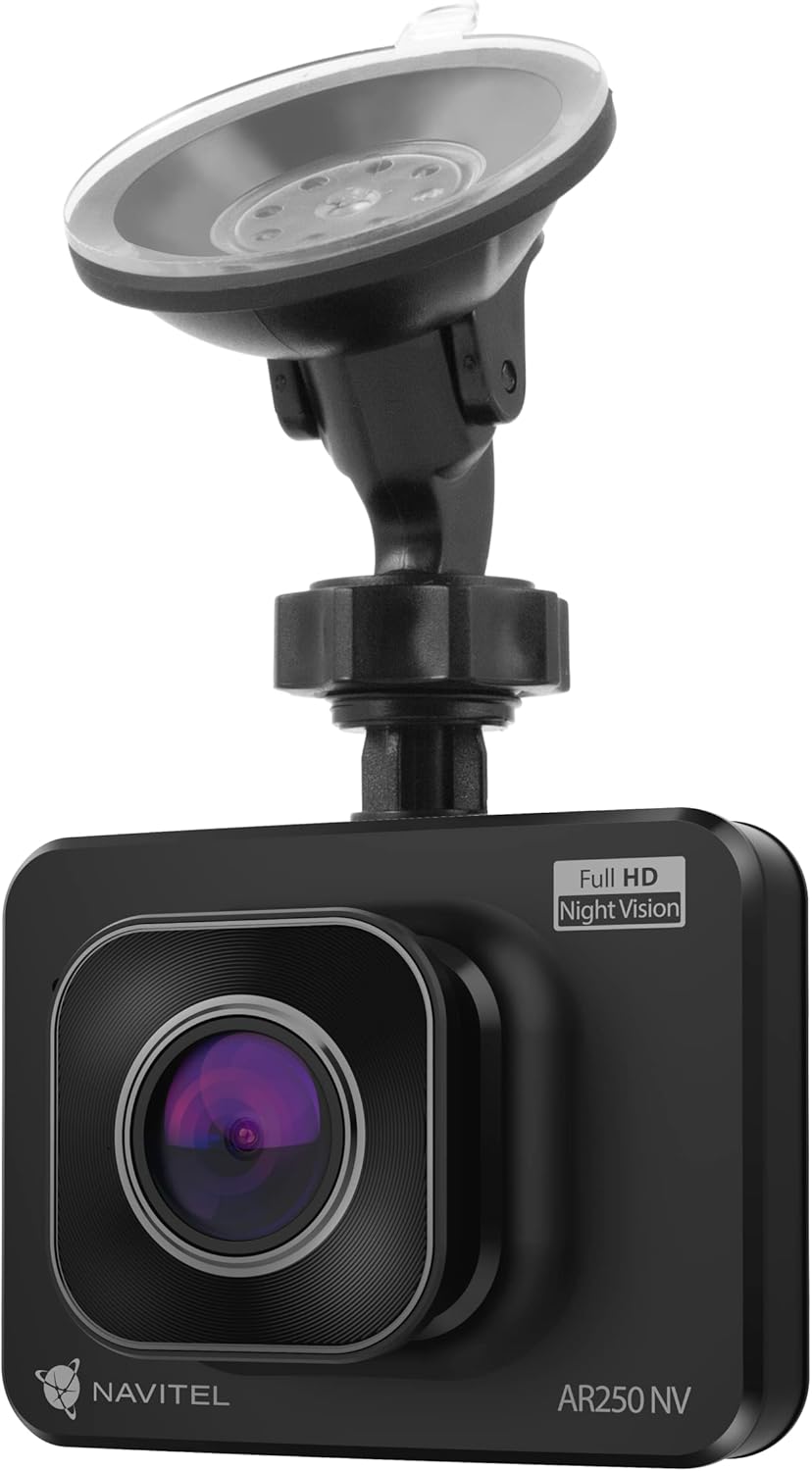
Image: Front view of the NAVITEL AR250NV dash cam, showing the lens and "Full HD Night Vision" label.
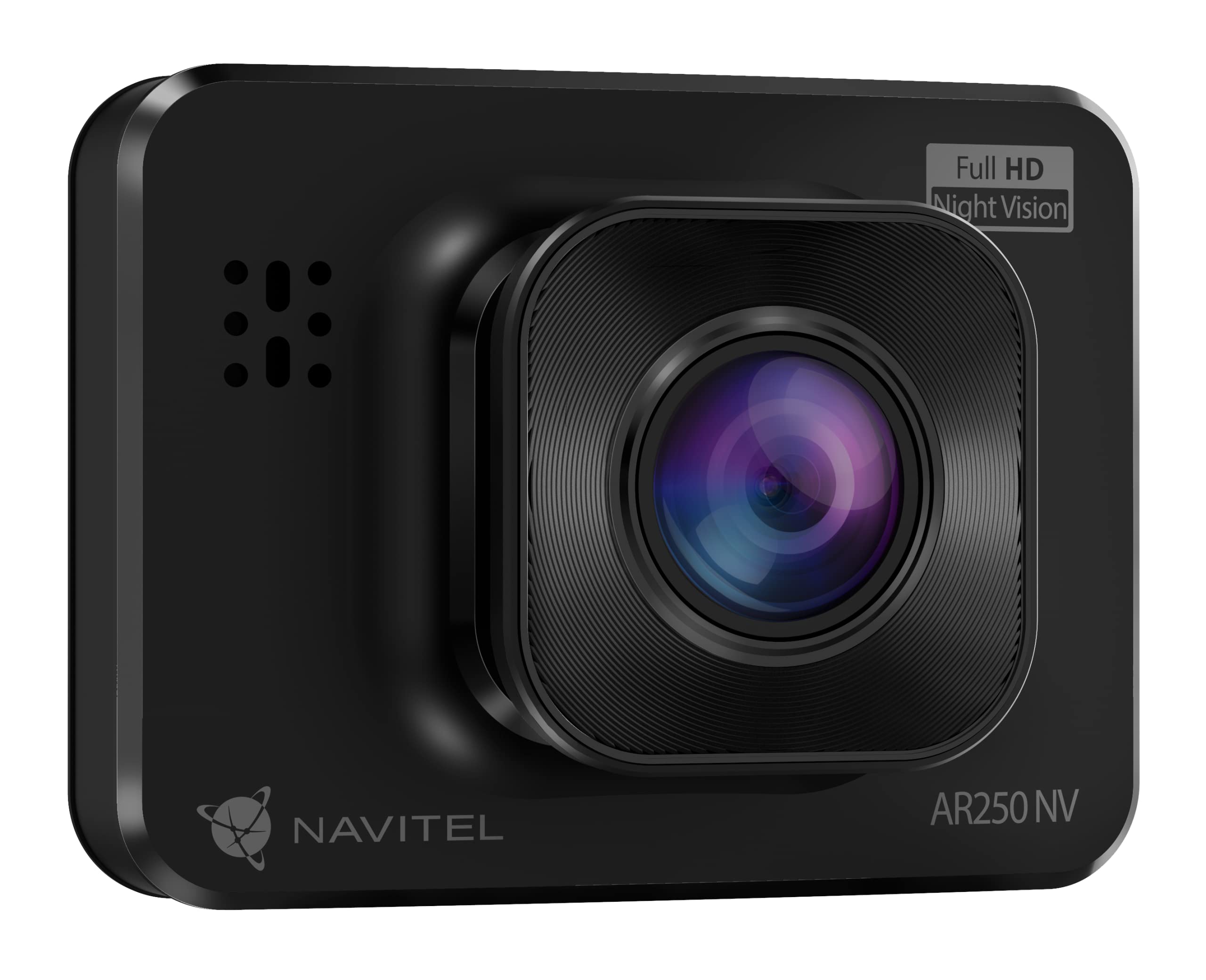
Image: Rear view of the NAVITEL AR250NV dash cam, displaying the 2-inch screen showing a road scene, and control buttons on the right side.

Image: Side view of the NAVITEL AR250NV dash cam, illustrating its compact profile.
Setup
1. Install the Suction Cup Mount
- Clean the windshield surface where you intend to mount the dash cam.
- Attach the suction cup mount to the dash cam.
- Press the suction cup firmly against the windshield and flip the lever to secure it. Ensure the camera has a clear view of the road.

Image: The NAVITEL AR250NV dash cam attached to its suction cup mount, ready for windshield installation.

Image: Close-up of the suction cup mount, showing the clear suction pad and adjustable arm.
2. Insert MicroSD Card
Insert a high-speed MicroSD card (Class 10 or higher, up to 64GB, not included) into the designated slot on the dash cam. Ensure the card is inserted correctly until it clicks into place.
3. Power Connection
- Connect the car charger to the dash cam's USB port.
- Plug the other end of the car charger into your vehicle's 12V power outlet (cigarette lighter socket).
- Route the cable neatly to avoid obstructing your view or interfering with driving controls.

Image: The NAVITEL car charger with its attached USB cable, used to power the dash cam.
The dash cam will automatically power on and begin recording when your vehicle's ignition is turned on (if the power outlet is ignition-switched).
Operating Instructions
Basic Operation
- Power On/Off: The device typically powers on automatically with the car ignition. To manually power on/off, press and hold the Power button.
- Recording: Once powered on, the dash cam will automatically start loop recording. A red dot or similar indicator on the screen confirms recording is active.
- Menu Navigation: Use the 'Menu' button to access settings. Use the Up/Down buttons to navigate and 'OK' to select.
Video Recording
The dash cam records video in Full HD (1080p) resolution. Recordings are saved in segments to the MicroSD card. When the card is full, the oldest unlocked files are overwritten (loop recording).
- Emergency Recording (G-Sensor): In case of a sudden impact or collision, the built-in G-sensor will automatically detect the event and lock the current recording segment, preventing it from being overwritten.
- Manual Lock: During recording, press a designated button (refer to device specific button layout) to manually lock the current video file.
Night Vision
The NAVITEL AR250NV features night vision technology to enhance video clarity in low-light conditions. This feature activates automatically or can be configured in the settings menu.
Parking Mode
Parking mode provides surveillance when your vehicle is parked. If the dash cam detects motion or impact while parked, it will automatically start recording. This feature requires a continuous power supply (e.g., hardwire kit, not included) or the internal battery to be sufficiently charged.
- To enable/disable Parking Mode, navigate to the settings menu.
- Ensure the dash cam has a reliable power source for extended parking surveillance.
Maintenance
- Cleaning: Use a soft, dry cloth to clean the camera lens and screen. Do not use abrasive cleaners or solvents.
- MicroSD Card: Format the MicroSD card regularly (e.g., once a month) through the dash cam's menu to maintain optimal performance and prevent data corruption. Back up important files before formatting.
- Temperature: Avoid exposing the dash cam to extreme temperatures. Prolonged exposure to direct sunlight in a parked car can damage the device.
- Firmware Updates: Check the official Navitel website periodically for firmware updates. Updating the firmware can improve performance and add new features.
Troubleshooting
| Problem | Possible Cause | Solution |
|---|---|---|
| Dash cam does not power on. | No power supply; faulty car charger; loose connection. | Check car charger connection and vehicle's 12V outlet. Ensure the car's ignition is on. |
| Recording stops unexpectedly. | MicroSD card full or corrupted; low battery; faulty card. | Format the MicroSD card. Replace with a new, high-speed MicroSD card if issues persist. Ensure continuous power. |
| Video quality is poor. | Dirty lens; protective film still on lens; incorrect resolution settings. | Clean the lens. Remove any protective film. Check video resolution settings in the menu. |
| Dash cam freezes or crashes. | Firmware issue; MicroSD card issue. | Perform a factory reset (refer to menu). Format or replace MicroSD card. Check for firmware updates. |
Specifications
| Feature | Detail |
|---|---|
| Model Name | AR250NV |
| Video Recording Resolution | 1080p Full HD |
| Screen Size | 2 Inches |
| Field of View | 140 Degrees |
| Special Features | Night Vision, Parking Mode, G-Sensor |
| Connectivity | USB |
| Mounting Type | Suction Mount |
| Battery Composition | Lithium-polymer |
| Color | Black |
Warranty and Support
For warranty information and technical support, please refer to the warranty card included with your product or visit the official Navitel website. Keep your purchase receipt as proof of purchase.
Official Navitel Website: https://navitel.cz/en (Example link, actual link may vary)


