1. Introduction
This manual provides detailed instructions for the setup, operation, and maintenance of your SEDSEY K22 Tactical Smart Watch. Please read this manual thoroughly before using the device to ensure proper function and to maximize your user experience. The K22 Smart Watch is designed for active individuals, featuring a rugged design, comprehensive health monitoring, and convenient Bluetooth calling capabilities.
2. Package Contents
Upon unpacking your SEDSEY K22 Tactical Smart Watch, please verify that all items listed below are present and in good condition:
- SEDSEY K22 Tactical Smart Watch (k22-Army green)
- Charging Cable
- User Manual (this document)
3. Product Overview
The SEDSEY K22 Tactical Smart Watch features a 1.28-inch IPS full-touch round display housed in a rugged casing, designed for durability and clear visibility. It includes multiple physical buttons for navigation and quick access to functions.

Figure 3.1: Front view of the SEDSEY K22 Tactical Smart Watch, showcasing its round display and rugged army green design.
4. Setup Guide
4.1. Initial Charging
Before first use, fully charge your smart watch. Connect the magnetic charging cable to the charging contacts on the back of the watch and plug the USB end into a standard USB power adapter (not included). A full charge typically takes approximately 2 hours.

Figure 4.1: The watch display indicating a charging status, showing the time and a battery icon.
4.2. App Installation and Pairing
- Download the App: Scan the QR code provided in the watch's quick start guide or search for the companion app (e.g., 'Dafit' or similar, as indicated in product information) on your smartphone's app store (Apple App Store for iOS or Google Play Store for Android).
- Enable Bluetooth: Ensure Bluetooth is enabled on your smartphone.
- Pair the Device: Open the app, create an account if prompted, and follow the on-screen instructions to add your device. Select 'K22' from the list of available devices. Confirm the pairing request on both your phone and the watch.

Figure 4.2: Illustration of the Bluetooth dial call feature, showing a smartphone's call interface alongside the watch's dial pad and incoming call screen.
4.3. Basic Settings
After successful pairing, you can customize various settings through the app or directly on the watch:
- Watch Face: Choose from a variety of pre-installed watch faces or customize your own via the app.
- Language: The watch language will automatically synchronize with your smartphone's language. Supported languages include English, Chinese, Japanese, German, French, Spanish, Arabic, Russian, Ukrainian, and Portuguese.
- Time and Date: These settings are typically synchronized automatically with your paired smartphone.
5. Operating Instructions
5.1. Navigation
The K22 Smart Watch features a full-touch screen and physical buttons for intuitive navigation:
- Touch Screen: Swipe left/right, up/down to navigate through menus and functions. Tap to select.
- Side Buttons: Use the physical buttons on the side for power on/off, returning to the home screen, or quick access to specific functions as configured.
5.2. Bluetooth Calling
Once paired, the watch allows you to manage calls directly from your wrist.
- Making Calls: Access the dial pad or contact list on the watch to initiate a call.
- Receiving Calls: When a call comes in, the watch will display the caller ID. You can answer or reject the call directly from the watch.
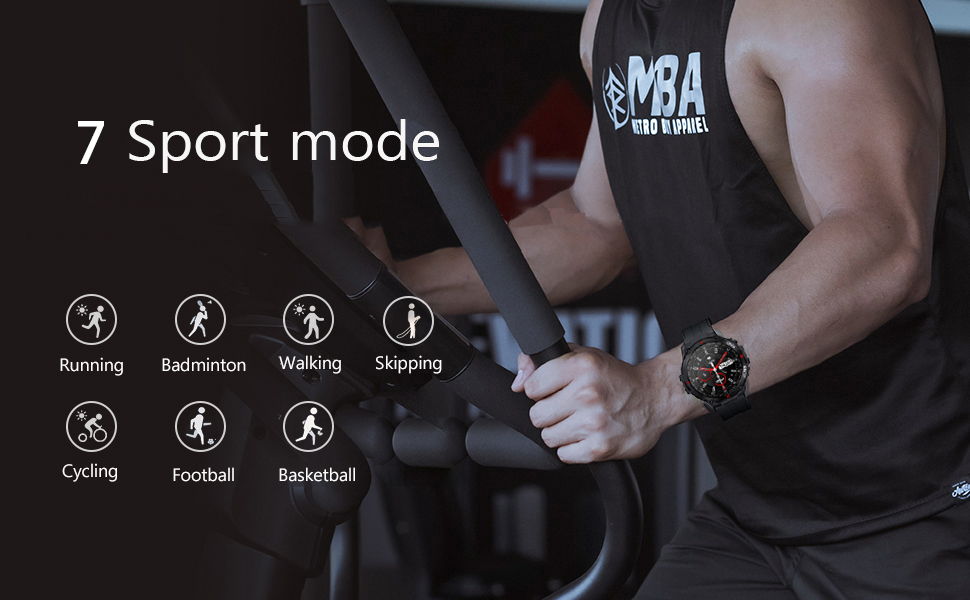
Figure 5.1: A user interacting with the smart watch to manage a Bluetooth call, demonstrating the convenience of hands-free communication.
5.3. Message Notifications
Receive real-time notifications from your smartphone directly on your watch.
- Setup: Enable app notifications in the companion app on your smartphone for desired applications (e.g., Mail, Text, Facebook, Twitter, Instagram).
- Viewing: Swipe down on the watch face or access the notifications menu to view recent messages.

Figure 5.2: The watch screen showing an incoming call reminder and various social media application icons, indicating notification support.
5.4. Health Monitoring
The K22 Smart Watch provides continuous monitoring of key health metrics.
- Heart Rate: The watch features a 24-hour dynamic heart rate monitor. Access the heart rate interface on the watch to view real-time data.

Figure 5.3: A user wearing the smart watch, which displays a real-time heart rate graph, illustrating the continuous heart rate detection feature.
- Blood Pressure & SpO2: The watch can provide estimates for blood pressure and blood oxygen saturation (SpO2). These measurements are for reference only and should not be used for medical diagnosis.

Figure 5.4: The watch face showing various health metrics including heart rate (BPM), blood pressure (MMHG), and blood oxygen saturation (SpO2) percentage.
- Sleep Monitor: The watch automatically records your sleep patterns, including deep and light sleep, to help you understand and adjust your sleep habits.

Figure 5.5: A person sleeping while wearing the smart watch, which displays a detailed sleep monitoring graph showing sleep duration and quality breakdown.
- Pedometer: Tracks your all-day steps, distance, and calories burned.
5.5. Sport Modes
The K22 Smart Watch supports 17 sport modes to accurately track your exercise data.
- Available Modes: Walking, Running, Cycling, Badminton, Basketball, Football, Skipping Rope, and more.
- Activation: Navigate to the 'Sport' menu on the watch, select your desired activity, and start your workout. The watch will record real-time heart rate, movement data, and other relevant health data.

Figure 5.6: The watch screen showing icons representing multiple sport modes, including walking, running, cycling, skipping, badminton, basketball, and football.
5.6. Other Useful Functions
- Music Control: Control music playback on your smartphone (play, pause, skip tracks) directly from the watch.
- Weather: View current weather conditions and forecasts after syncing with your phone's weather app.
- Remote Camera: Use the watch as a remote shutter for your smartphone camera.
- Sedentary Reminder: Receive alerts to move after periods of inactivity.
- Alarm Clock, Stopwatch, Timer, Games: Access these utility functions from the watch's menu.
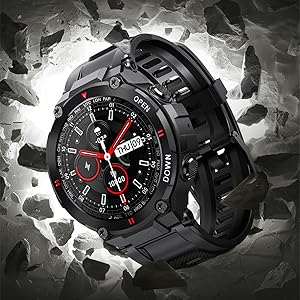
Figure 5.7: A composite image illustrating various smart watch features: remote camera control, sedentary reminder, real-time weather information, and a step counter.
6. Maintenance
6.1. Cleaning
Regularly clean your watch to ensure optimal performance and hygiene:
- Wipe the screen and strap with a soft, damp cloth.
- Avoid using harsh chemicals or abrasive materials.
- Ensure the charging contacts are clean and dry before charging.
6.2. Water Resistance
The K22 Smart Watch is IP67 waterproof, meaning it is resistant to splashes, rain, and brief immersion in water. It can be worn during daily activities like hand washing or showering. However, it is not recommended for swimming, diving, or exposure to hot water/steam.
6.3. Battery Care
- Charge the watch regularly to maintain battery health.
- Avoid extreme temperatures, which can degrade battery performance.
- If the watch will not be used for an extended period, charge it to about 50% before storing.
7. Troubleshooting
If you encounter issues with your SEDSEY K22 Smart Watch, refer to the following common solutions:
| Problem | Possible Solution |
|---|---|
| Watch does not turn on | Ensure the watch is fully charged. Press and hold the power button for several seconds. |
| Cannot pair with smartphone | Check if Bluetooth is enabled on your phone. Ensure the watch is within range. Restart both the watch and phone. Try unpairing and re-pairing through the app. |
| Inaccurate health data | Ensure the watch is worn snugly on your wrist, not too tight or too loose. Clean the sensor on the back of the watch. Note that environmental factors and individual physiology can affect readings. |
| Notifications not received | Verify that app notifications are enabled in your phone's settings and within the companion app. Ensure the watch is connected via Bluetooth. |
| Short battery life | Reduce screen brightness, disable continuous heart rate monitoring if not needed, limit frequent notifications. Ensure background app usage is optimized on your phone. |
8. Specifications
Key technical specifications for the SEDSEY K22 Tactical Smart Watch:
| Feature | Detail |
|---|---|
| Model Number | K22 |
| Display | 1.28-inch IPS Full Touch Round Screen, 240x240 resolution |
| Battery Capacity | 400 mAh Lithium Polymer |
| Battery Life | 7-15 days (working time), 30 days (standby time) |
| Charging Time | Approx. 2 hours |
| Water Resistance | IP67 (Daily life waterproof, not for swimming/diving) |
| Connectivity | Bluetooth 5.0 |
| Compatibility | Android 4.4 or above, iOS 8.0 or above |
| Health Monitoring | Heart Rate, Sleep Monitor, Pedometer, Calorie Tracker |
| Sport Modes | 17 modes (Walking, Running, Cycling, Badminton, Basketball, Football, Skipping Rope, etc.) |
| Product Dimensions | 1.18 x 1.97 x 9.45 inches |
| Item Weight | 3.53 ounces |
9. Warranty and Support
SEDSEY is committed to providing high-quality products and customer satisfaction. Your K22 Tactical Smart Watch comes with a commitment to support, including:
- Money Back and Free Replacement: Unconditionally ensured for product issues.
- Life-long Accessories: Straps, bands, and charging cables are offered for your relaxed usage.
For further assistance or warranty claims, please refer to the contact information provided with your purchase or visit the official SEDSEY support channels.
10. Video Resources
No official product videos from the seller were available in the provided product data. Please refer to the manufacturer's official website or support channels for any available video tutorials or demonstrations.


