
1. Introduction
This manual provides detailed instructions for the installation, operation, and maintenance of your TUMAN Pro Light Bulb Camera. This device is a 3MP wireless surveillance camera designed for indoor security, offering features such as 360-degree panoramic viewing, color night vision, two-way audio, and smart motion detection.

Image 1.1: TUMAN Pro Light Bulb Camera and its smartphone interface.
2. Package Contents
Please verify that all items are present in your package:
- 1 x Light Bulb Camera (SD card not included)
- 1 x E27 Socket
- 1 x User Manual
- 2 x Screws
3. Safety Information
- Ensure the camera is powered off before installation or maintenance.
- This camera is designed for indoor use only. While it can be installed outdoors with a complete waterproof lamp shade, direct exposure to weather elements is not recommended.
- Keep the device away from water and moisture.
- Do not attempt to disassemble or repair the camera yourself. Contact support if issues arise.
- Use only the provided E27 socket or a compatible standard E27 light bulb socket.
4. Setup Guide
4.1. Physical Installation
- Power Off: Ensure the power to the light fixture is turned off at the circuit breaker before proceeding.
- Install Camera: Screw the light bulb camera into a standard E27 light bulb socket.
- Power On: Restore power to the light fixture. The camera will initiate its self-test and emit a voice prompt.
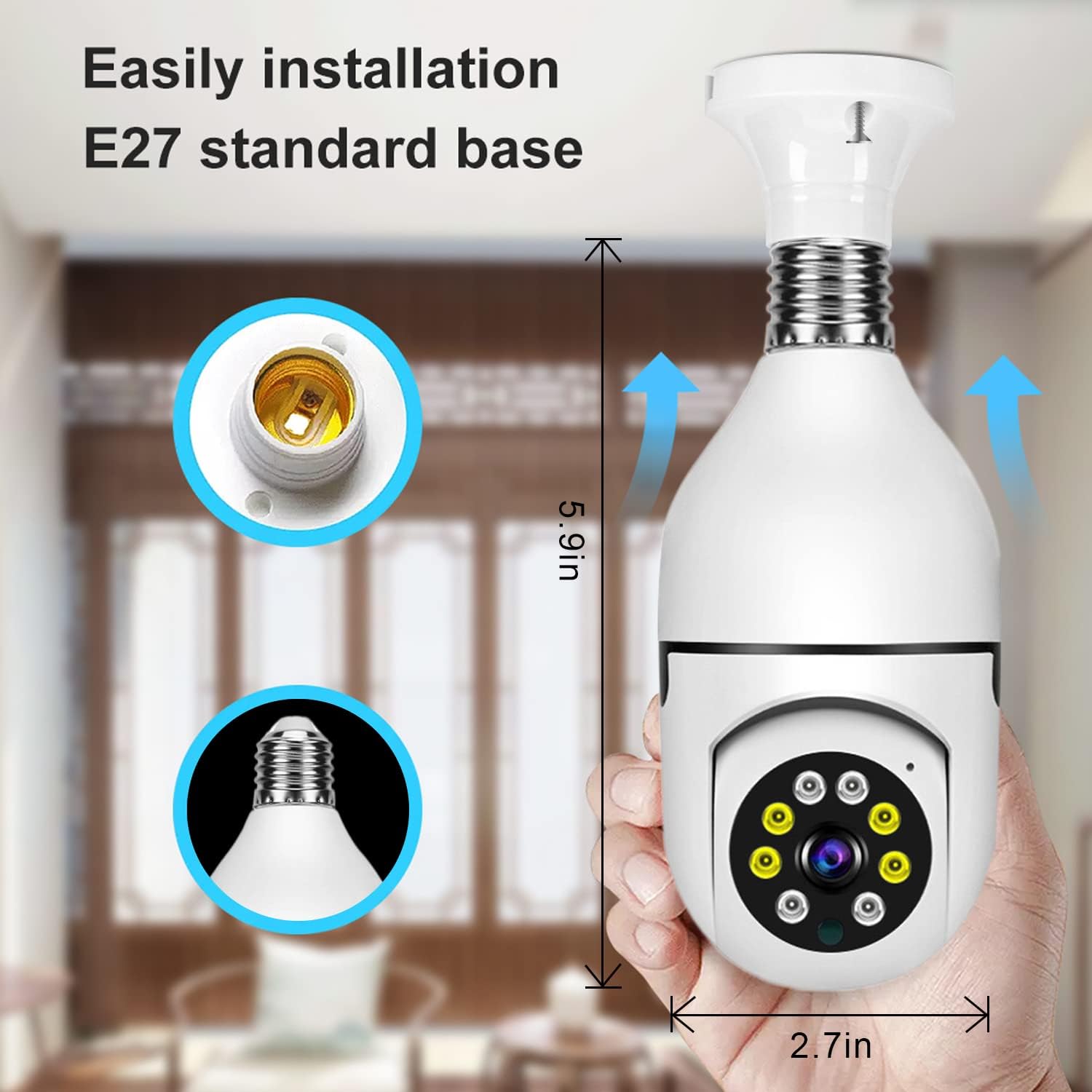
Image 4.1: Easy installation into a standard E27 base.
4.2. App Download and Account Creation
- Download the V380 Pro app from your mobile device's app store (iOS App Store or Google Play Store).
- Open the app and follow the on-screen instructions to create a new account or log in if you already have one.
4.3. Wi-Fi Connection
The camera supports 2.4GHz Wi-Fi only. It does not support 5GHz Wi-Fi networks. Ensure your Wi-Fi password does not contain special characters or symbols (e.g., @, #) as this may cause connection failures. Use standard English letters and numbers only.
- Open the V380 Pro app and tap the "Add device" or "+" icon.
- Select the option to add a device via QR code scanning.
- The app will prompt you to select your 2.4GHz Wi-Fi network and enter its password.
- A QR code will be generated on your phone screen. Hold your phone with the QR code approximately 10-30 cm (4-12 inches) in front of the camera lens.
- The camera will emit a "Wi-Fi connected" voice prompt upon successful scanning.
- Wait for the camera to connect to the network. This may take approximately 40 seconds for the first connection.
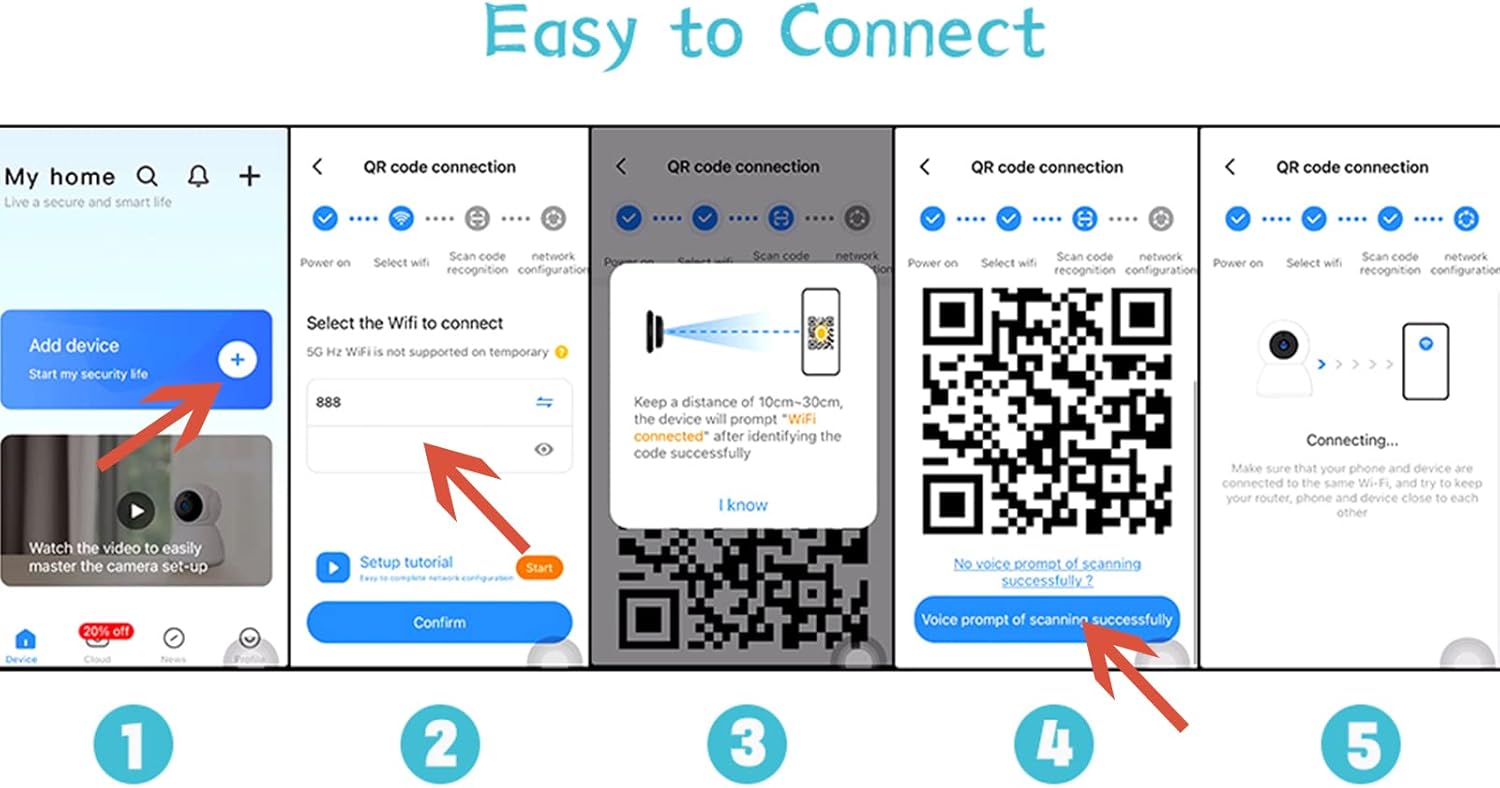
Image 4.2: Wi-Fi connection steps via QR code.
Video 4.1: Demonstrates the light bulb camera connection method.
5. Operating Instructions
5.1. Live View and Pan/Tilt Control
Once connected, access the live feed through the V380 Pro app. The camera features a 350° horizontal pan and 90° vertical tilt, allowing for 360-degree panoramic monitoring without blind spots. Use the on-screen controls in the app to adjust the camera's viewing angle.
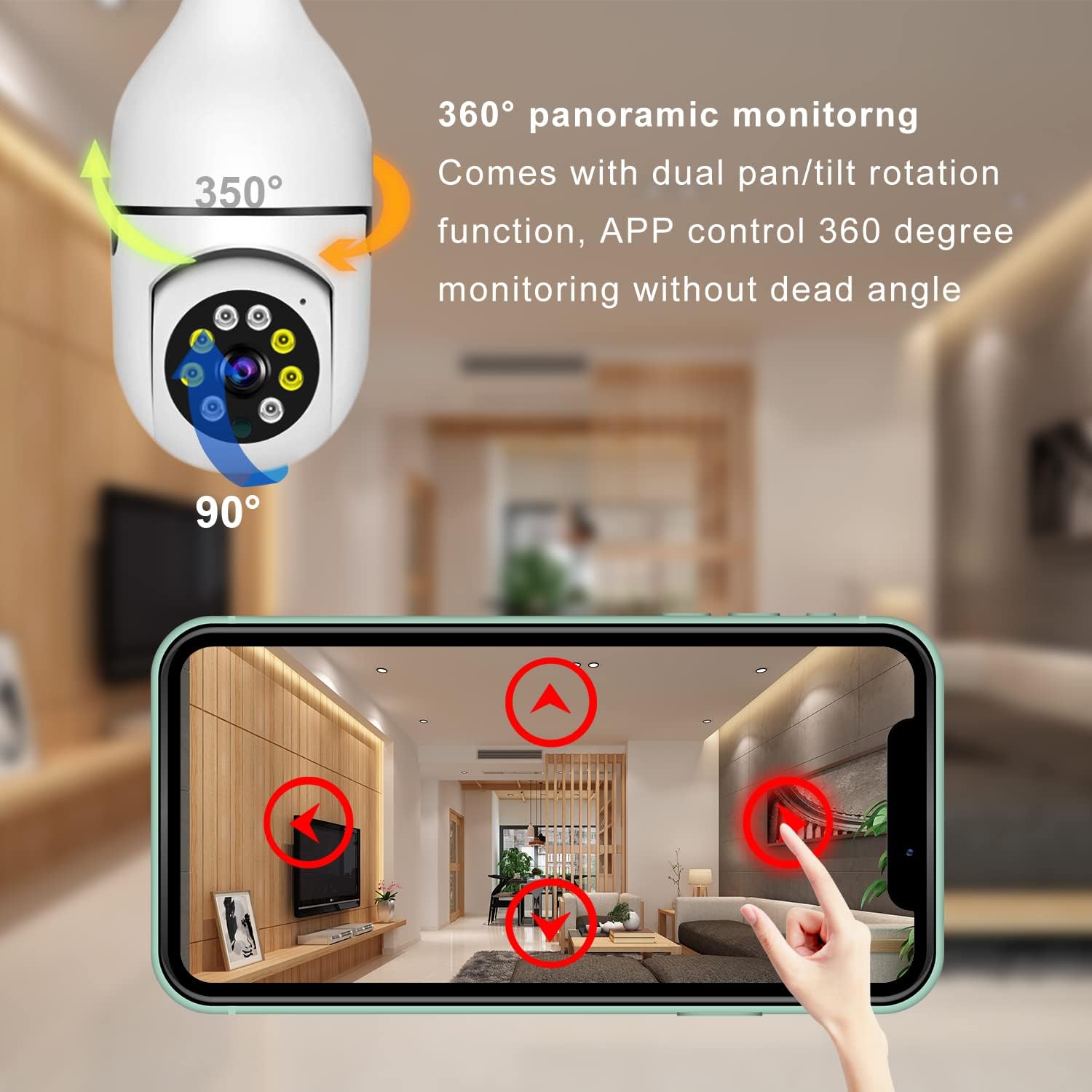
Image 5.1: 360-degree panoramic monitoring capability.
5.2. Motion Detection and Alerts
The camera is equipped with high-sensitivity motion detection. When abnormal movement is detected in the monitored area, an alarm notification will be sent to your mobile phone. You can customize alert settings within the app.
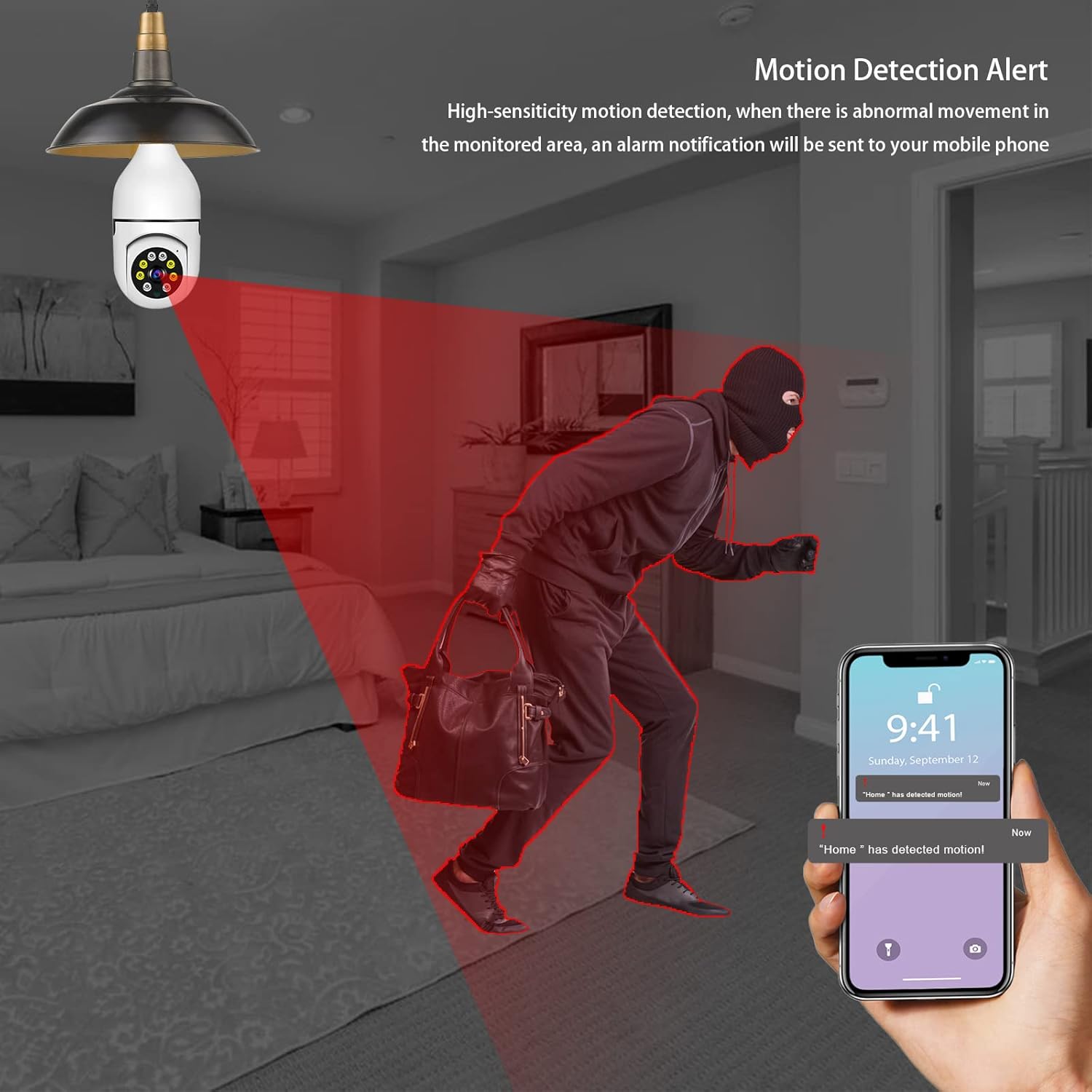
Image 5.2: Motion detection alert system.
5.3. Two-Way Audio
Utilize the built-in microphone and speaker for real-time two-way communication. This allows you to speak to individuals near the camera and hear their responses directly through the app.

Image 5.3: Two-way audio for real-time communication.
5.4. Night Vision Modes
The camera offers both infrared (IR) night vision for clear black and white images in low light, and full-color night vision, which utilizes ambient light or the camera's built-in LEDs to provide color images even in dark conditions.
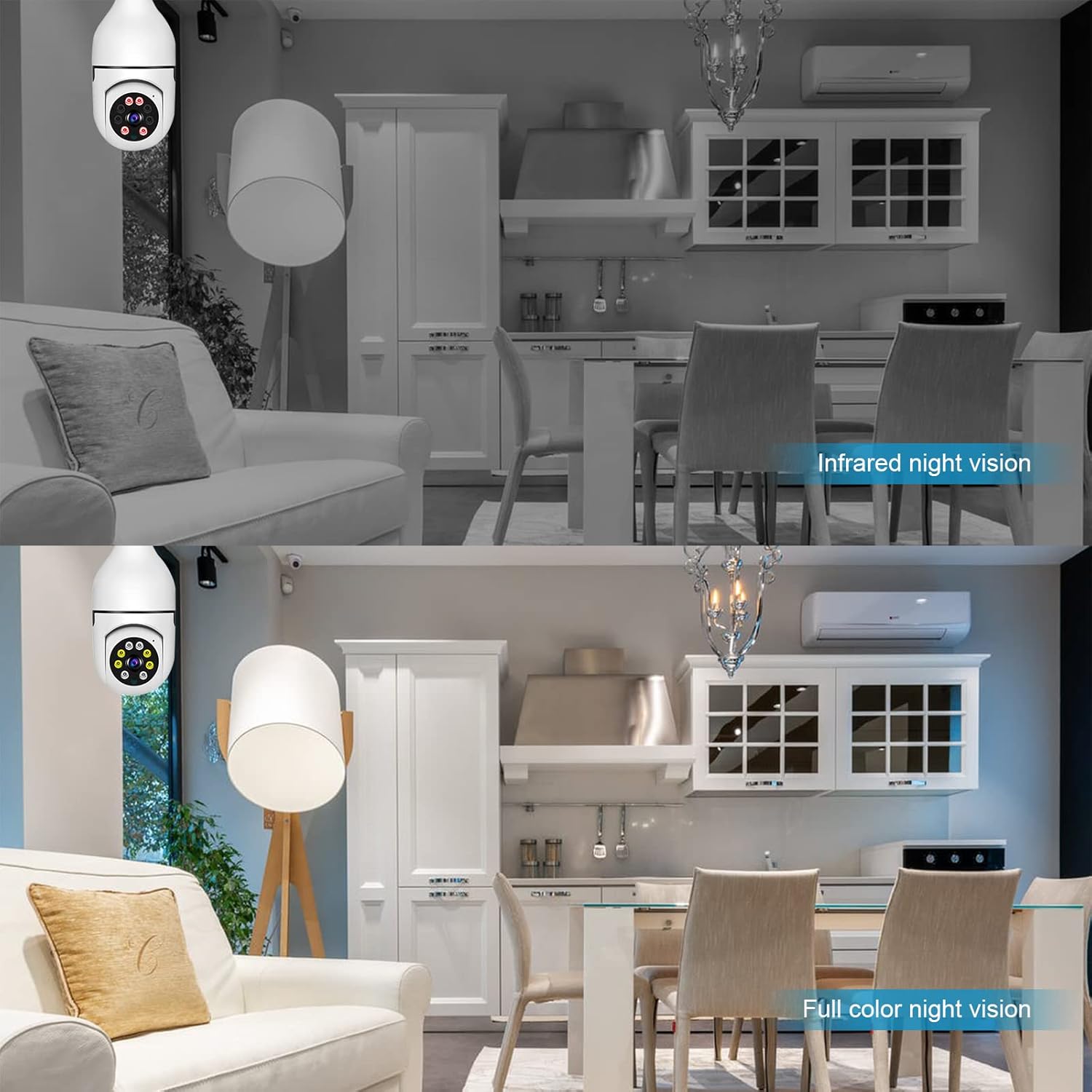
Image 5.4: Infrared and full-color night vision capabilities.
5.5. Storage Options
The camera supports both cloud storage (subscription may be required) and local storage via a TF (microSD) card. Insert a TF card into the designated slot on the camera for continuous recording or event-triggered recording.
5.6. Multi-Platform Viewing
The camera supports multi-user viewing across various platforms, including iOS, Android, and PC, allowing multiple family members or authorized users to access the live feed simultaneously.
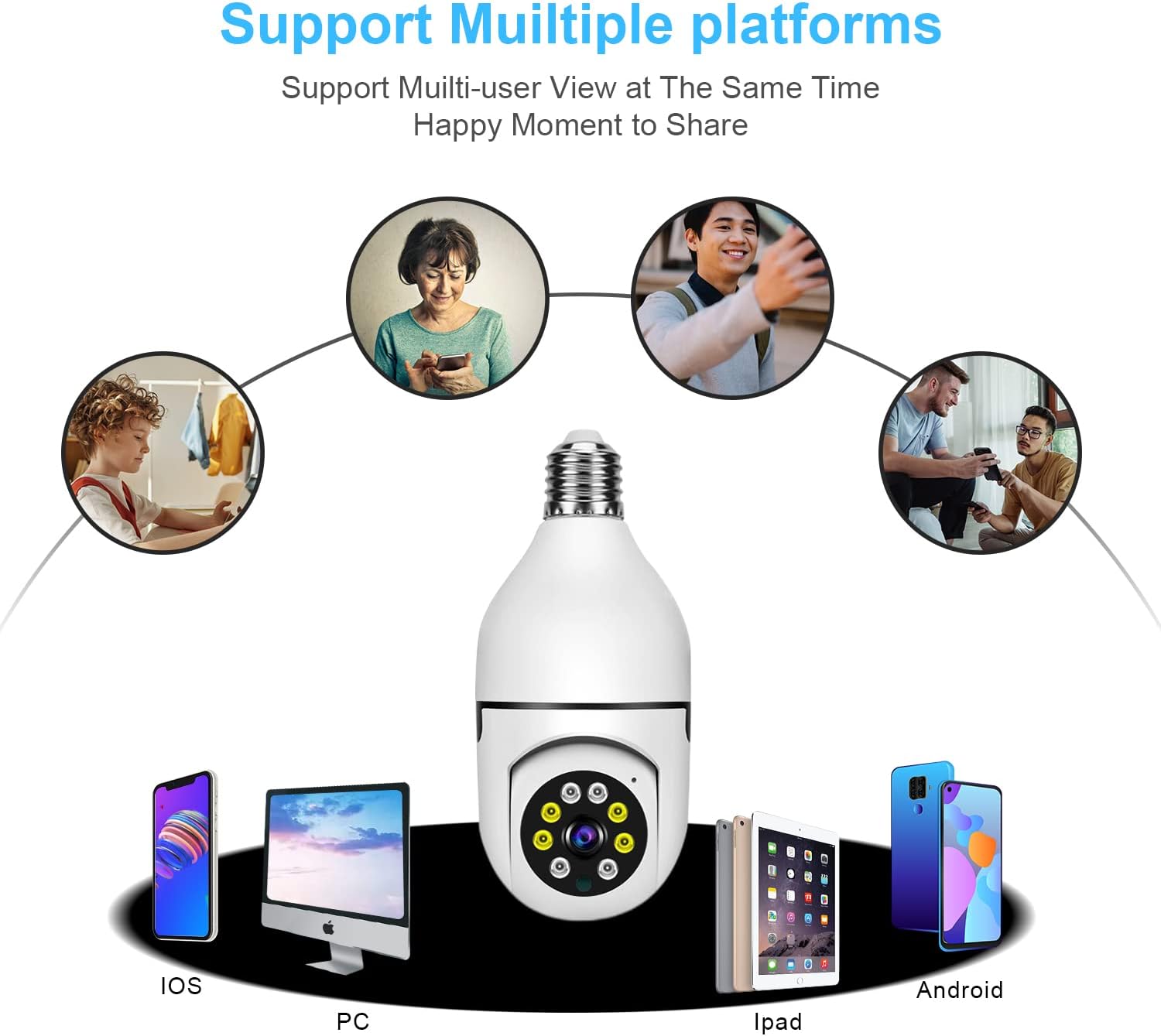
Image 5.5: Multi-platform support for viewing.
6. Maintenance
- Cleaning: Gently wipe the camera lens and body with a soft, dry cloth. Avoid using harsh chemicals or abrasive materials.
- Firmware Updates: Periodically check the V380 Pro app for available firmware updates to ensure optimal performance and security.
- SD Card Management: If using a TF card, regularly back up important recordings and format the card periodically to maintain performance.
7. Troubleshooting
- Camera not connecting to Wi-Fi:
- Ensure your Wi-Fi network is 2.4GHz. 5GHz networks are not supported.
- Verify that your Wi-Fi password contains only standard English letters and numbers, without special characters.
- Make sure the camera is within range of your Wi-Fi router.
- Restart your router and the camera, then attempt the connection process again.
- No voice prompt during setup:
- Check if the camera is properly powered on.
- Ensure the volume on your mobile device is up when scanning the QR code.
- Pan/Tilt function not responding:
- Check your internet connection stability.
- Restart the camera by powering it off and on.
- Ensure the camera is not physically obstructed.
- Poor image quality:
- Clean the camera lens with a soft cloth.
- Ensure adequate lighting for optimal image clarity, especially for color night vision.
- Check your network bandwidth; a slow connection can affect streaming quality.
- App not functioning correctly (Apple iOS users):
- Manually enable geographic location services for the V380 Pro app in your iPhone's settings.
8. Specifications
| Feature | Detail |
|---|---|
| Model | B09WY6RW81 |
| Brand | TUMAN Pro |
| Mounting Type | Ceiling Mount |
| Resolution | 3MP (Full-HD) |
| Connectivity | 2.4GHz Wi-Fi |
| Pan/Tilt | 350° Pan, 90° Tilt |
| Night Vision | Color Night Vision, Infrared Night Vision |
| Audio | Two-Way Audio |
| Motion Detection | Yes, with Alerts |
| Storage | Cloud Storage, TF (MicroSD) Card Slot |
| Power Source | AC/DC |
| Indoor/Outdoor Usage | Indoor (Outdoor with waterproof enclosure) |
| International Protection Rating | IP54 |
| Item Weight | 9.6 ounces |
| Package Dimensions | 6.65 x 4.17 x 3.62 inches |
9. Warranty and Support
For warranty information or technical support, please refer to the contact details provided with your purchase or visit the official TUMAN Pro website. Keep your purchase receipt for warranty claims.