
GNCC C1Pro
GNCC C1Pro 1080P Baby Monitor User Manual
Model: C1Pro
1. Introduction
Thank you for choosing the GNCC C1Pro 1080P Baby Monitor. This smart indoor camera is designed to provide peace of mind by allowing you to monitor your baby, pets, or home with high-definition video, advanced detection features, and two-way audio communication. This manual will guide you through the setup, operation, and maintenance of your new device.

Image: The GNCC C1Pro baby monitor shown alongside a smartphone displaying its live video feed, illustrating remote monitoring capabilities.
2. Safety Information
Please read and understand all safety instructions before using this product. Failure to follow these instructions may result in electric shock, fire, or other hazards.
- Power Source: Use only the provided power adapter. Ensure the power cable is not damaged or pinched.
- Placement: Place the camera on a stable surface or securely mount it to a wall. Keep the camera and its cable out of reach of children and pets to prevent strangulation hazards.
- Environment: This device is for indoor use only. Do not expose it to water, moisture, or extreme temperatures. Avoid placing it near heat sources.
- Cleaning: Unplug the camera before cleaning. Use a soft, dry cloth. Do not use liquid or aerosol cleaners.
- Disassembly: Do not attempt to disassemble or repair the camera yourself. Refer all servicing to qualified personnel.
3. Package Contents
Verify that all items are present in your package:
- GNCC C1Pro Surveillance Camera
- Power Supply
- Power Cable
- Wall Bracket
- Screws
- User Manual
4. Product Overview
The GNCC C1Pro camera features a compact design with essential functionalities for effective monitoring.

Image: A visual representation of the GNCC C1Pro camera highlighting its key features: 1080P Full HD resolution, two-way audio, sound and motion detection, night vision, support for SD card and cloud storage, and remote control capabilities.
Key Features:
- 1080P Full HD Resolution: Provides clear and detailed video.
- IR Night Vision: Monitors up to 26ft in complete darkness.
- 120° Viewing Angle: Offers a wide field of view.
- Motion/Sound Detection: Sends real-time alerts to your smartphone.
- Two-Way Audio: Allows for communication through the camera.
- Local & Cloud Storage: Supports Micro SD card (up to 128GB, not included) and optional cloud service.
- Works with Alexa & Google Home: For convenient voice control.
5. Setup
5.1. Download the Osaio App
The GNCC C1Pro operates via the Osaio app. Download it from the App Store (iOS) or Google Play Store (Android).
- Search for "Osaio" in your device's app store.
- Download and install the app.
- Register for a new account or log in if you already have one.
5.2. Powering On and Initial Connection
- Connect the power cable to the camera and plug the adapter into a power outlet. The camera will power on and its indicator light will begin to flash.
- Open the Osaio app and tap the "+" icon to add a new device.
- Follow the on-screen instructions to connect the camera to your 2.4GHz Wi-Fi network. Note: This camera does not support 5GHz Wi-Fi.
- The app will guide you through scanning a QR code with the camera lens to establish the connection.
5.3. Mounting Options
The GNCC C1Pro can be placed on a flat surface or mounted to a wall.

Image: The GNCC C1Pro baby monitor securely mounted on a wall above a child's crib, demonstrating a typical installation scenario.
- Tabletop Placement: Simply place the camera on a flat, stable surface like a dresser or shelf, ensuring it has a clear view of the area you wish to monitor.
- Wall Mounting: Use the included wall bracket and screws to securely attach the camera to a wall. Ensure the mounting location is sturdy and the camera cable is routed safely away from any potential hazards.
6. Operating the Camera
6.1. Live Viewing
Once connected, open the Osaio app to view the live feed from your camera. You can access the live view from anywhere with an internet connection.

Image: An illustration demonstrating the 120-degree wide viewing angle of the GNCC C1Pro camera, effectively covering a baby's crib and surrounding area.
6.2. Two-Way Audio
The built-in microphone and speaker allow you to listen in and speak through the camera. Tap the microphone icon in the app to activate two-way audio and communicate with your baby or family members.
6.3. Motion and Sound Detection
The camera is equipped with intelligent motion and sound detection. When activity is detected, the camera will automatically record a short video clip and send an instant notification to your smartphone via the Osaio app.

Image: A GNCC C1Pro camera positioned above a baby, with smartphone notifications indicating 'Motion Detected' and 'Sound Detected', demonstrating its real-time alert capabilities.
6.4. Night Vision
The GNCC C1Pro automatically switches to infrared night vision in low-light conditions, providing clear black-and-white video up to 26 feet. This ensures continuous monitoring even in complete darkness.
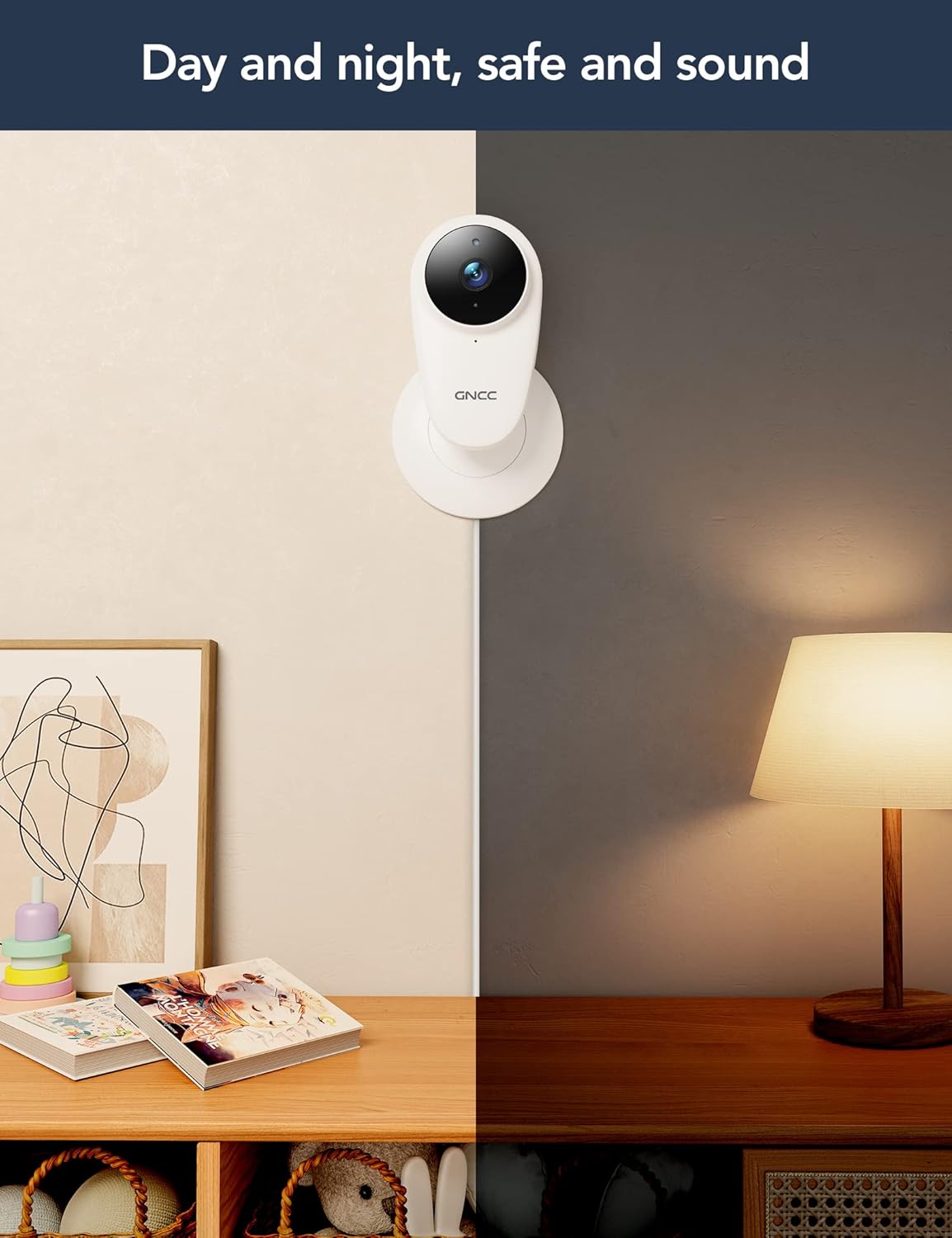
Image: A split image illustrating the GNCC C1Pro camera's performance in both daytime and nighttime conditions, highlighting its effective night vision.
6.5. Recording and Storage
The camera supports two storage options for recorded video:
- Micro SD Card: Insert a Micro SD card (up to 128GB, not included) into the camera's slot for continuous recording and local storage.
- Cloud Storage: Subscribe to the optional cloud service via the Osaio app for secure, off-site storage of your video clips. This ensures your recordings are safe even if the camera is damaged or stolen.
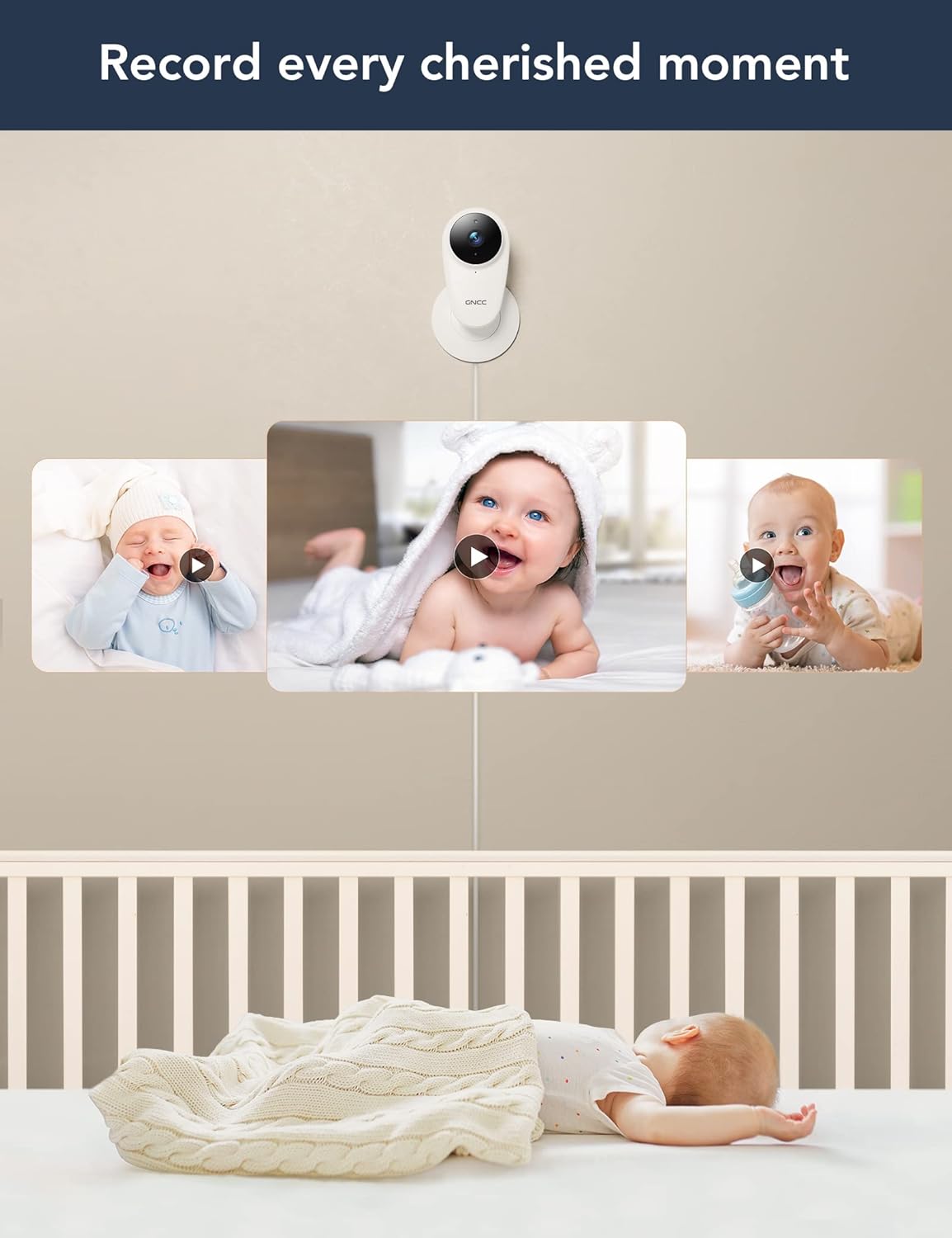
Image: The GNCC C1Pro camera capturing various precious moments of a baby, illustrating its recording capabilities for playback.
6.6. Alexa & Google Home Integration
The GNCC C1Pro can be integrated with Amazon Alexa and Google Home for convenient voice control. Follow the instructions in the Osaio app or your smart assistant's app to link your camera.
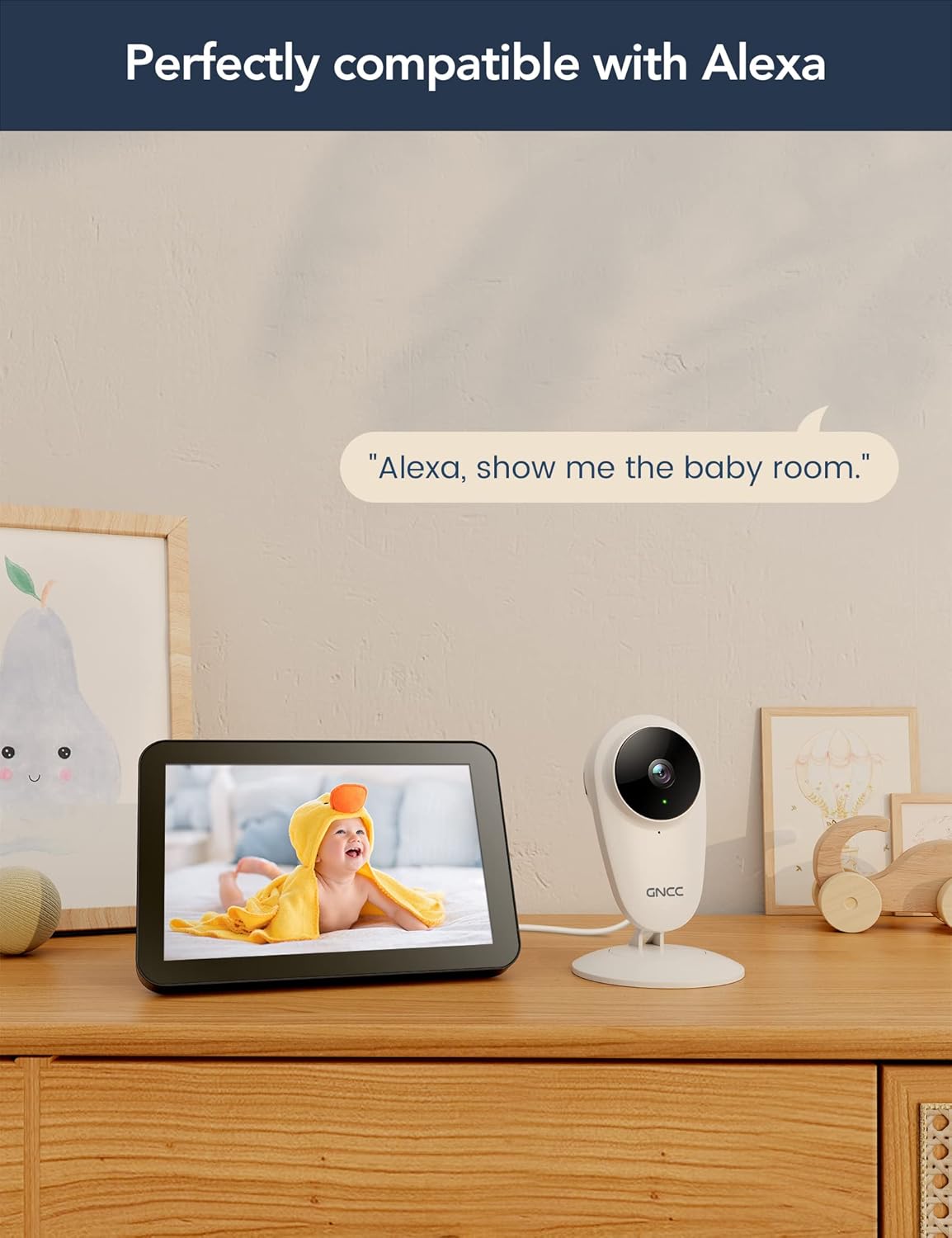
Image: The GNCC C1Pro camera next to an Amazon Echo Show, displaying a baby on its screen, with the text 'Alexa, show me the baby room.', demonstrating its compatibility with Alexa.
7. Maintenance
- Cleaning: Gently wipe the camera lens and body with a soft, dry, lint-free cloth. Do not use harsh chemicals or abrasive cleaners.
- Firmware Updates: Regularly check the Osaio app for firmware updates to ensure your camera has the latest features and security enhancements.
- Power Cycle: If the camera becomes unresponsive, unplug it from the power source for a few seconds and then plug it back in.
8. Troubleshooting
| Problem | Possible Cause | Solution |
|---|---|---|
| Camera offline in app | No Wi-Fi connection; Power issue; Router settings. | Check Wi-Fi signal strength; Ensure camera is powered on; Restart router and camera; Re-add camera in app if necessary. |
| Cannot connect to Wi-Fi | Incorrect Wi-Fi password; 5GHz Wi-Fi network; Camera too far from router. | Verify Wi-Fi password; Ensure you are connecting to a 2.4GHz network; Move camera closer to router. |
| No sound from camera / Two-way audio not working | Microphone/speaker muted in app; App permissions; Network latency. | Check mute settings in Osaio app; Grant microphone permissions to the app; Ensure stable internet connection. |
| Motion/Sound alerts not received | Detection sensitivity too low; App notifications disabled; Network issues. | Adjust detection sensitivity in app settings; Enable notifications for Osaio app on your phone; Check internet connection. |
| Poor video quality | Low bandwidth; Dirty lens. | Ensure stable and sufficient internet speed; Clean the camera lens with a soft cloth. |
9. Specifications
| Feature | Detail |
|---|---|
| Model Name | C1Pro |
| Indoor/Outdoor Usage | Indoor |
| Compatible Devices | Smartphone (Android, iOS) |
| Power Source | Corded Electric |
| Connectivity Protocol | Wi-Fi (2.4GHz only) |
| Mounting Type | Wall Mount, Tabletop |
| Video Capture Resolution | 1080p |
| Viewing Angle | 120 Degrees |
| Night-Vision Range | 26 Feet (approx. 8 meters) |
| Wattage | 6 watts |
| Product Dimensions (L x W x H) | 60 x 5 x 15 cm |
| Item Weight | 220 g |
| Special Features | Night Vision, Two-Way Audio, Motion/Sound Detection, Alexa/Google Home Compatible |
| Storage Options | Micro SD Card (up to 128GB), Cloud Storage (subscription) |
10. Warranty and Support
GNCC is committed to providing high-quality products and excellent customer service. For any product-related inquiries, technical support, or warranty claims, please refer to the contact information provided on the product packaging or visit the official GNCC website. Your feedback is valuable to us as we continuously strive to improve our products.

Image: A statement from GNCC emphasizing their dedication to providing high-quality, easy-to-install smart home electronics and their commitment to customer satisfaction and continuous product improvement.
Ask a question about this manual
Ask about setup, troubleshooting, compatibility, parts, safety, or missing instructions. Manuals+ will review the question and use this page’s manual context to help answer it.