
1. Introduction
The ROCCAT Burst Pro Air is a lightweight, symmetrical, wireless RGB gaming mouse designed for comfort and performance. It features ROCCAT Stellar Wireless technology for a virtually latency-free connection and up to 100 hours of battery life. Equipped with a 19,000 DPI Owl-Eye optical sensor and Titan Switch Optical, it offers unparalleled precision and durability. This manual will guide you through its features and usage.
2. What's in the Box
- ROCCAT Burst Pro Air Gaming Mouse (Black)
- USB-C PhantomFlex Charging Cable
- Wireless USB Dongle
- Quick Start Guide
3. Setup
3.1. Initial Setup & Connectivity
The ROCCAT Burst Pro Air offers versatile connectivity options: gaming-grade 2.4GHz wireless, multi-purpose Bluetooth 5.2, and a wired USB-C connection.
- 2.4GHz Wireless: Insert the wireless USB dongle into an available USB port on your PC. The mouse should automatically connect.
- Bluetooth 5.2: Switch the mouse to Bluetooth mode using the switch on its underside. Pair it with your device via Bluetooth settings.
- Wired Connection: Connect the PhantomFlex USB-C cable to the mouse and your PC. This also charges the mouse.

Figure 3.1: Stellar Wireless + Bluetooth connectivity options.
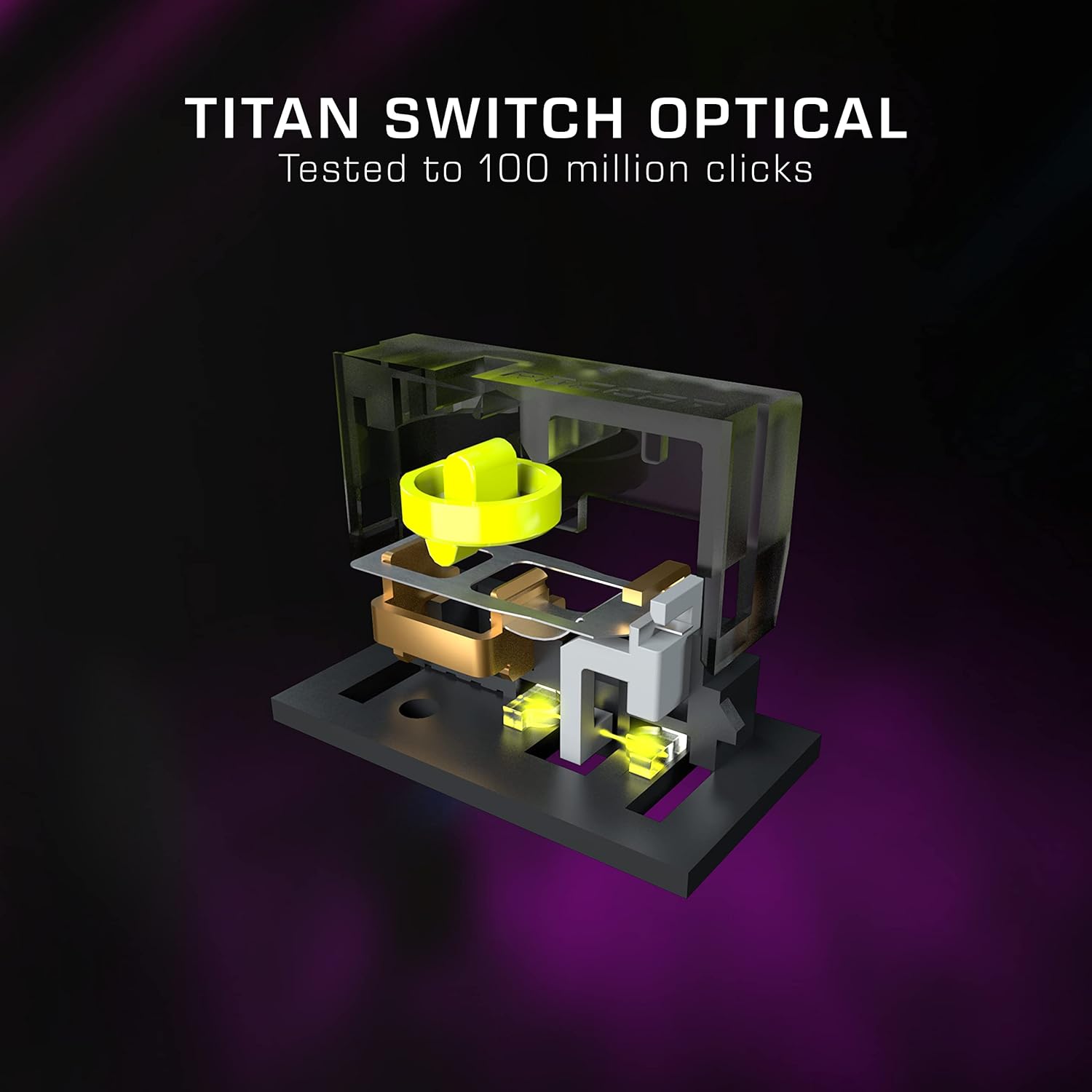
Figure 3.2: PhantomFlex USB-C rapid charging cable.
3.2. Charging the Mouse
The Burst Pro Air features rapid charging via its USB-C PhantomFlex cable. A 10-minute charge provides up to 5 hours of playtime, and a full charge can last up to 100 hours.
Video 3.1: Official ROCCAT Burst Pro Air Gaming Mouse overview, demonstrating features and connectivity.
4. Operating the Mouse
4.1. Buttons and Controls
The mouse features a symmetrical shape for maximum comfort and performance. It includes programmable buttons, a DPI button, and a Titan Wheel for precise control.

Figure 4.1: Symmetrical shape crafted for comfort and performance.
4.2. DPI Settings
Experience smooth and precise tracking with the ROCCAT Owl-Eye 19,000 DPI optical sensor, offering 400 IPS tracking speed. Use the dedicated DPI button to cycle through preset DPI levels or customize them via the ROCCAT Swarm software.
4.3. RGB Illumination
The Burst Pro Air features four RGB lighting zones with signature AIMO intelligent lighting, shining through a water and dust resistant, translucent Bionic shell. AIMO produces vibrant lighting displays in 16.8 million colors and syncs with other compatible AIMO products.

Figure 4.2: AIMO intelligent lighting system with 16.8 million colors.
5. Key Features
- SYMMETRICAL SHAPE: Crafted for maximum comfort and performance.
- STELLAR WIRELESS PLUS BLUETOOTH: Choose between gaming-grade 2.4GHz and multi-purpose Bluetooth 5.2, with up to 100 hours of battery life.
- ROCCAT BIONIC SHELL: At just 81g, features a water- and dust-resistant Bionic Shell and 4 AIMO RGB zones.
- TITAN SWITCH OPTICAL: Faster than any mechanical switch, with a 100 million click life cycle and speed-of-light actuation.
- ROCCAT OWL-EYE OPTICAL SENSOR: 19,000 DPI and 400 IPS tracking speed for smooth, precise tracking.
- AIMO ILLUMINATION: Vibrant lighting displays in 16.8 million colors, syncing with other compatible AIMO products.
- PHANTOMFLEX USB-C CHARGING CABLE & HEAT-TREATED GLIDES: Flexible and lightweight USB-C cable for play-and-charge, paired with pure PTFE glides for smooth motion.
- NVIDIA REFLEX COMPATIBLE: Delivers sub-25ms response times to help acquire targets faster and increase aim precision.
6. Specifications
| Feature | Detail |
|---|---|
| Brand | ROCCAT |
| Model Number | ROC-11-430 |
| Connectivity Technology | Bluetooth, 2.4GHz Wireless, USB-C Wired |
| Movement Detection Technology | Optical (Owl-Eye 19,000 DPI) |
| Item Weight | 81g (2.88 ounces) |
| Product Dimensions | 4.72 x 2.68 x 1.5 inches |
| Battery Life | Up to 100 hours |
| Switches | Titan Switch Optical (100 million clicks) |
| RGB Zones | 4 AIMO RGB zones |
| Platform | PC (Windows 7 and above) |
7. Maintenance
To ensure the longevity and optimal performance of your ROCCAT Burst Pro Air mouse, follow these maintenance guidelines:
- Cleaning: Use a soft, dry cloth to wipe down the mouse surface. For stubborn dirt, a slightly damp cloth can be used, but ensure no moisture enters the internal components. The Bionic Shell is water and dust resistant, but avoid submerging or exposing it to excessive liquids.
- Sensor Care: Keep the optical sensor on the underside of the mouse clean and free from dust or debris. Use a cotton swab or compressed air to gently clean the sensor area.
- Cable Care: Handle the PhantomFlex USB-C cable with care. Avoid sharp bends or excessive pulling that could damage the cable or its connectors.
- Storage: When not in use, store the mouse in a clean, dry environment away from extreme temperatures or direct sunlight.
8. Troubleshooting
8.1. Connectivity Issues
- Mouse not connecting (2.4GHz): Ensure the USB dongle is securely plugged into a working USB port. Try a different USB port. Make sure the mouse is switched to 2.4GHz wireless mode.
- Mouse not connecting (Bluetooth): Ensure the mouse is in Bluetooth pairing mode. Check your PC's Bluetooth settings and ensure Bluetooth is enabled. Try re-pairing the device.
- Intermittent connection: Ensure the mouse is within range of the dongle/Bluetooth receiver. Avoid obstacles that might block the signal. Check for potential interference from other wireless devices.
8.2. Tracking Problems
- Inaccurate or jumpy cursor: Clean the Owl-Eye optical sensor on the underside of the mouse. Ensure you are using the mouse on a suitable surface (e.g., a mouse pad). Avoid highly reflective or transparent surfaces.
- DPI not changing: Ensure the ROCCAT Swarm software is installed and updated. Check your custom DPI settings within the software.
8.3. Button Issues
- Buttons not responding: Ensure the mouse is properly connected. Check button assignments in the ROCCAT Swarm software.
- Double-clicking or unresponsive clicks: The Titan Switch Optical is designed for durability. If issues occur, check the debounce time settings in the ROCCAT Swarm software and adjust if necessary.
9. Warranty & Support
The ROCCAT Burst Pro Air Gaming Mouse comes with a 2-YEARS MANUFACTURER WARRANTY. For warranty claims, technical support, or further assistance, please visit the official ROCCAT support website or contact their customer service directly.
For the latest drivers, software updates (ROCCAT Swarm), and FAQs, please refer to the ROCCAT support page.


