
1. Introduction
The ROCCAT Burst Pro Air is a lightweight, symmetrical wireless RGB gaming mouse designed for performance and comfort. It features ROCCAT Stellar Wireless technology, a 19,000 DPI Owl-Eye optical sensor, and Titan Switch Optical buttons. This manual provides instructions for setting up, operating, maintaining, and troubleshooting your Burst Pro Air mouse.

Figure 1: ROCCAT Burst Pro Air Wireless RGB Gaming Mouse
2. Setup
2.1 Package Contents
- ROCCAT Burst Pro Air Wireless RGB Gaming Mouse
- USB-C to USB-A PhantomFlex Charging Cable
- USB-A Wireless Dongle
- Quick Start Guide (this document)
- Extra set of heat-treated pure PTFE glides
2.2 Connecting the Mouse
The Burst Pro Air offers multiple connectivity options:
- 2.4GHz Wireless (Recommended for Gaming):
- Insert the USB-A wireless dongle into an available USB port on your computer.
- Turn on the mouse using the switch on the underside. The mouse will automatically connect to the dongle.
- Bluetooth 5.2:
- Turn on the mouse and switch to Bluetooth mode (refer to the underside switch).
- On your computer, navigate to Bluetooth settings and pair with 'ROCCAT Burst Pro Air'.
- Wired (USB-C):
- Connect the USB-C end of the PhantomFlex cable to the mouse and the USB-A end to your computer.
- The mouse will function as a wired device and charge simultaneously.

Figure 2: Wireless Connectivity Options
2.3 Charging the Mouse
To charge the Burst Pro Air, connect it to your computer using the provided USB-C PhantomFlex cable. A 10-minute charge provides approximately 5 hours of battery life, and a full charge can last up to 100 hours depending on usage and RGB settings.
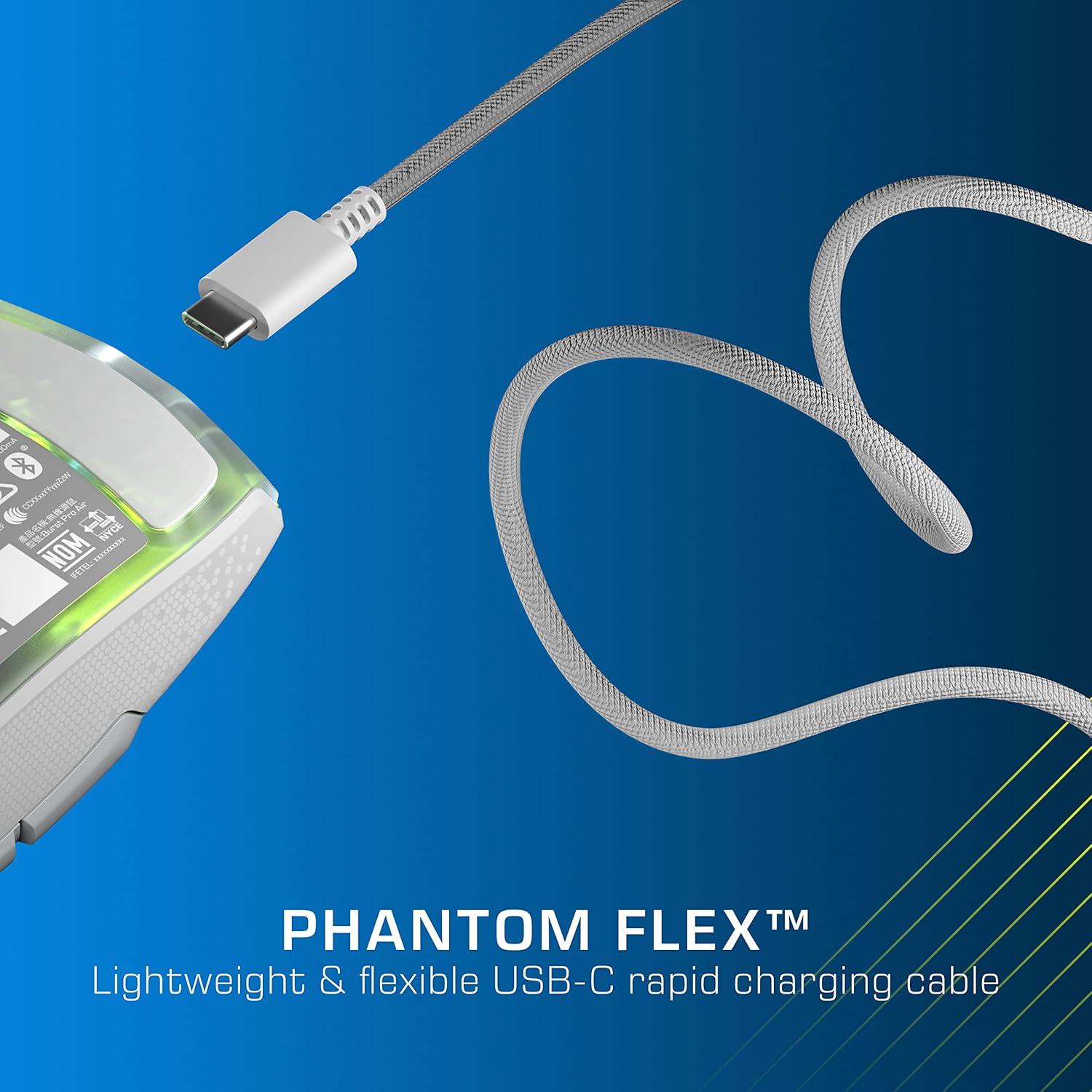
Figure 3: PhantomFlex USB-C Charging Cable
2.4 Software Installation (ROCCAT Swarm)
For full customization of your mouse, including DPI settings, button assignments, and RGB lighting, download and install the ROCCAT Swarm software from the official ROCCAT website (www.roccat.com/pages/swarm). Follow the on-screen instructions for installation.
3. Operating the Mouse
3.1 Button Functions
- Left Click (M1): Primary mouse button.
- Right Click (M2): Secondary mouse button.
- Scroll Wheel: Scrolls content up/down. Can also be pressed for a middle-click function.
- DPI Button: Cycles through pre-set DPI sensitivity levels. These can be customized in ROCCAT Swarm.
- Side Buttons (M4, M5): Typically used for 'forward' and 'back' navigation, customizable via Swarm.
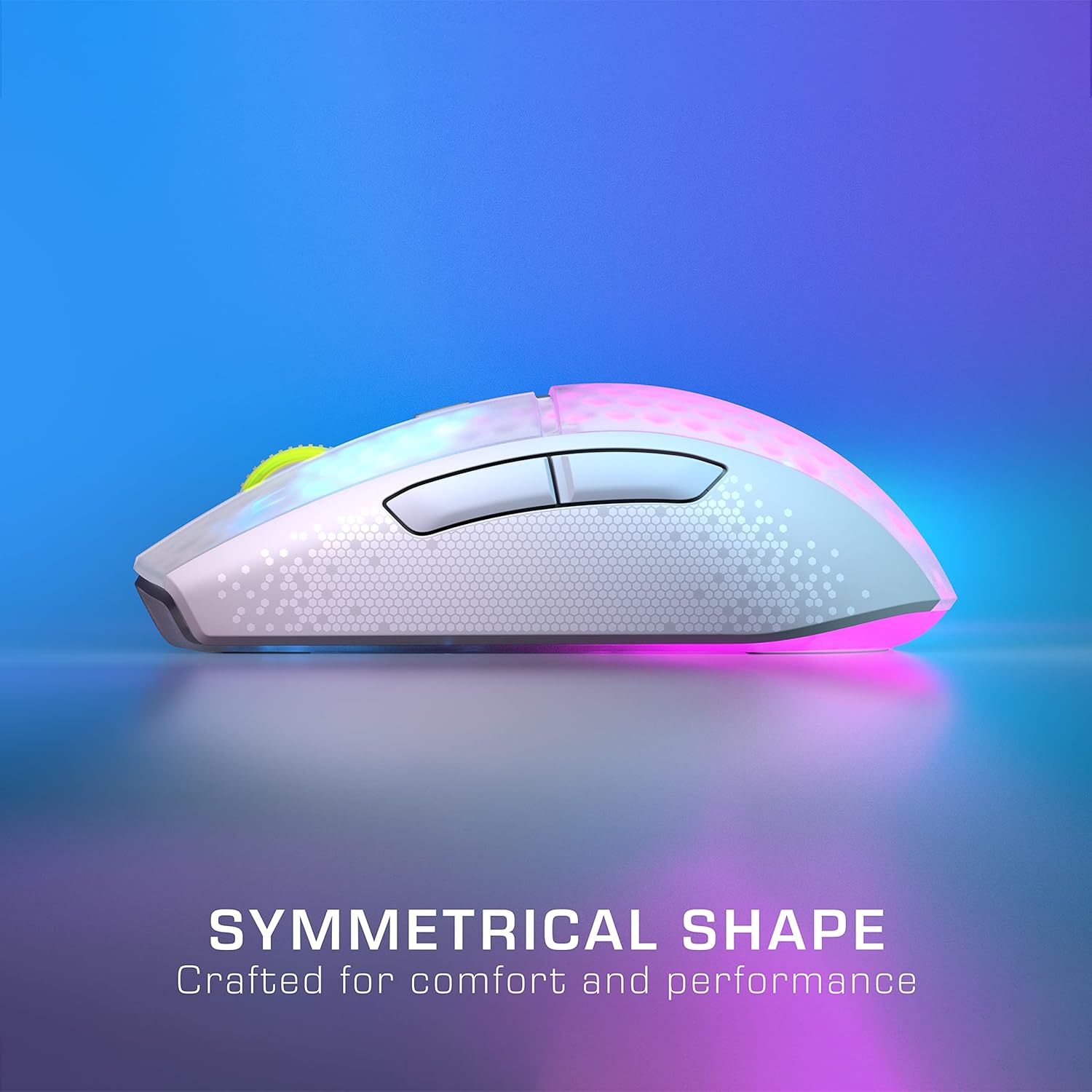
Figure 4: Mouse Buttons and Symmetrical Shape
3.2 DPI Adjustment
Press the DPI button located behind the scroll wheel to cycle through different sensitivity settings. The default DPI stages can be reconfigured using the ROCCAT Swarm software, allowing you to set your preferred sensitivity levels up to 19,000 DPI.
3.3 RGB Lighting (AIMO Illumination)
The Burst Pro Air features four customizable RGB lighting zones with AIMO intelligent lighting. You can configure lighting effects, colors, and synchronization with other AIMO-compatible devices using the ROCCAT Swarm software.
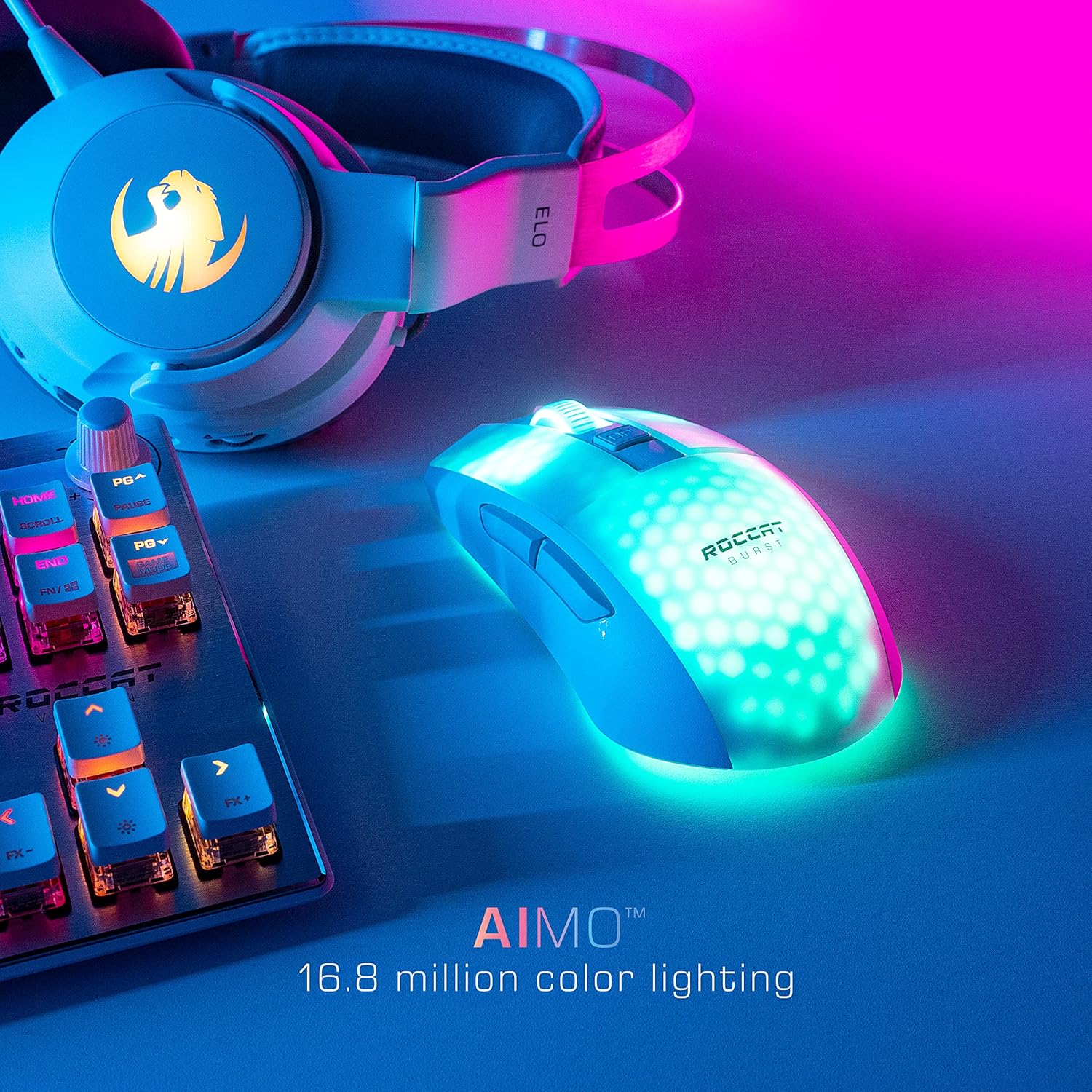
Figure 5: AIMO RGB Lighting
3.4 NVIDIA Reflex Compatibility
The ROCCAT Burst Pro Air is NVIDIA Reflex compatible, which, when paired with GeForce RTX 30 Series GPUs and NVIDIA G-SYNC monitors, helps reduce system latency for faster target acquisition and improved aim precision.
4. Maintenance
4.1 Cleaning
To clean your mouse, use a soft, dry, or slightly damp cloth. Avoid using harsh chemicals or abrasive materials, as these can damage the surface or internal components. Ensure no liquid enters the mouse.
4.2 PTFE Glides Replacement
The Burst Pro Air comes with heat-treated pure PTFE glides for smooth movement. A spare set is included in the package. If the existing glides show significant wear, carefully peel them off and replace them with the new set, ensuring the surface is clean before application.

Figure 6: Heat-Treated Pure PTFE Glides
5. Troubleshooting
- Mouse not responding: Ensure the mouse is charged and turned on. Check that the wireless dongle is securely plugged into a USB port, or that the USB-C cable is properly connected. If using Bluetooth, ensure it is paired correctly.
- Intermittent connectivity: Try moving the wireless dongle to a different USB port, preferably a front-facing one, or closer to the mouse. Ensure there are no major obstructions or sources of interference (e.g., other wireless devices) between the mouse and the dongle.
- Tracking issues: Clean the optical sensor on the underside of the mouse with a soft, dry cloth. Ensure you are using the mouse on a suitable surface (a mouse pad is recommended).
- Buttons not registering: Ensure the ROCCAT Swarm software is up to date. If the issue persists, try resetting the mouse to factory defaults via the Swarm software.
- Software not detecting mouse: Reinstall the ROCCAT Swarm software. Ensure your operating system is up to date.
For further assistance, please visit the official ROCCAT support website or contact customer service.
6. Specifications
| Feature | Detail |
|---|---|
| Brand | ROCCAT |
| Model Number | ROC-11-435 |
| Connectivity Technology | 2.4GHz Wireless, Bluetooth 5.2, USB-C Wired |
| Movement Detection Technology | Optical (Owl-Eye Sensor) |
| Max DPI | 19,000 DPI |
| Tracking Speed | 400 IPS |
| Switches | Titan Switch Optical (100 million click lifecycle) |
| Weight | 81 grams |
| RGB Lighting | AIMO Illumination (4 zones) |
| Battery Life | Up to 100 hours |
| Rapid Charging | 10 min charge for 5 hours play time |
| Glides | Heat-treated pure PTFE |
| Operating System | Windows |
| Product Dimensions (LxWxH) | 4.72 x 2.68 x 1.5 inches |
7. Warranty and Support
7.1 Manufacturer Warranty
The ROCCAT Burst Pro Air mouse is covered by a 2-year limited manufacturer warranty. This warranty covers defects in materials and workmanship under normal use. Please retain your proof of purchase for warranty claims.
7.2 Customer Support
For technical support, warranty information, or frequently asked questions, please visit the official ROCCAT support website: www.roccat.com/pages/support.


