1. Introduction
This manual provides essential information for the safe and efficient installation, operation, and maintenance of your PUSOKEI ATX-250W PC Power Supply. Please read this manual thoroughly before using the product and retain it for future reference.

Figure 1: PUSOKEI ATX-250W PC Power Supply. This image shows the overall design of the power supply unit, including the main cooling fan and the rear power input.
2. Safety Information
Always observe the following safety precautions to prevent electric shock, fire, or damage to the product and connected devices:
- Do not open the power supply unit. Hazardous voltages are present inside. There are no user-serviceable parts.
- Ensure the power supply is disconnected from the main power outlet before installation or maintenance.
- Operate the power supply only within the specified voltage range (115V/230V). Verify the voltage selector switch setting matches your local power grid before connecting.
- Avoid exposing the unit to moisture, dust, or extreme temperatures.
- Ensure proper ventilation around the power supply to prevent overheating.
- Use only the provided power cable or a certified equivalent.
3. Package Contents
Verify that all items are present in the package:
- 1 x PUSOKEI ATX-250W PC Power Supply
- 1 x Power Cable (approximately 1.1 meters / 3.6 feet)
4. Product Features
- Clear marked connectors for quick and easy installation.
- Designed for low energy consumption and low noise, suitable for basic desktop systems.
- Manual 115V/230V voltage switching for adjustable and flexible use.
- Integrated thermal sensor automatically controls fan speed for optimal cooling and reduced noise.
- Equipped with a 1.1-meter power cord for convenient setup.
5. Specifications

Figure 2: Power Supply Specification Label. This label provides detailed electrical input and output ratings for the unit.
| Feature | Description |
|---|---|
| Model | ATX-250W |
| Rated Power | 250W |
| Dimensions (L x W x H) | Approx. 140 x 150 x 86mm / 5.5 x 5.9 x 3.4in |
| Fan Size | Approx. 12cm / 4.7in |
| PFC | None, manual switching |
| Efficiency | > 80% |
| Motherboard Interface | 20 + 4 Pin |
| CPU 12V Interface | 4 Pin |
| Fan Interfaces | 2 |
| SATA Interfaces | 2 |
| Video Card Interface | 6 Pin |
| Input Voltage | 115/230V (manual switch) |
| Service Life | 100,000 Hours |
| Holding Time | > 10ms |
| Power Cord Length | Approx. 1.1 meter / 3.6 ft |
| Item Weight | 2.21 pounds |
| Form Factor | ATX |
| Cooling Method | Air |
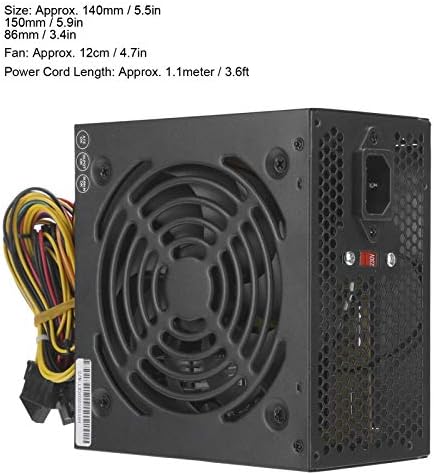
Figure 3: Power Supply Dimensions. This image illustrates the physical measurements of the power supply unit.
6. Setup and Installation
Follow these steps to install the ATX-250W PC Power Supply into your desktop computer:
- Prepare Your System: Disconnect your computer from the power outlet. Open your computer case. If replacing an existing power supply, carefully disconnect all cables from the old unit and remove it.
- Set Voltage Switch: Locate the red voltage selector switch on the back of the power supply. Set it to 115V for North America and Japan, or 230V for Europe and other regions. Incorrect setting can damage the power supply and your computer.

Figure 4: Voltage Selector Switch. This image highlights the manual voltage switch on the rear of the power supply, which must be set correctly for your region.
- Mount the Power Supply: Insert the ATX-250W into the power supply bay of your computer case. Secure it with screws (not included, typically provided with the PC case).
- Connect Main Power (20+4 Pin): Connect the large 20+4 pin connector to the corresponding port on your motherboard. Ensure both parts of the connector are securely latched.
- Connect CPU Power (4 Pin): Connect the 4-pin CPU 12V connector to the CPU power port on your motherboard. This is usually located near the CPU socket.
- Connect SATA Devices: Use the SATA power connectors to power your SATA hard drives, SSDs, and optical drives.
- Connect Video Card (6 Pin): If your video card requires additional power, connect the 6-pin video card interface.
- Connect Fan Interfaces: If your case fans require power from the PSU, use the available fan interfaces.
- Cable Management: Route cables neatly to improve airflow and aesthetics.
- Close Case and Connect Power: Close your computer case. Connect the provided power cable to the power supply and then to a wall outlet or surge protector.
7. Operating Instructions
Once installed, operating the PUSOKEI ATX-250W PC Power Supply is straightforward:
- Power On: After connecting all components and the main power cable, press the power button on your computer case. The power supply will provide power to your system.
- Fan Operation: The integrated thermal sensor will automatically control the speed of the 12cm cooling fan. The fan will spin faster under higher loads or temperatures to maintain optimal cooling and slower during lighter use to reduce noise.
- Power Off: Shut down your computer through the operating system. The power supply will cease operation. For complete power disconnection, unplug the main power cable from the wall outlet.

Figure 5: Top View with Cooling Fan. This image displays the large 12cm fan responsible for cooling the power supply components.
8. Maintenance
Regular maintenance helps ensure the longevity and optimal performance of your power supply:
- Dust Removal: Periodically (e.g., every 3-6 months), disconnect the power supply from the wall outlet and open your computer case. Use compressed air to gently blow dust out of the power supply's fan and vents. Accumulation of dust can hinder cooling and lead to overheating.
- Cable Inspection: Check all power cables for any signs of wear, fraying, or damage. Ensure all connectors are securely seated.
- Ventilation: Ensure that the air intake and exhaust vents of the power supply are not obstructed by cables or other components within the PC case.
9. Troubleshooting
If you encounter issues with your PUSOKEI ATX-250W PC Power Supply, refer to the following common problems and solutions:
| Problem | Possible Cause | Solution |
|---|---|---|
| Computer does not power on. |
|
|
| System powers on but shuts down unexpectedly. |
|
|
| Loud fan noise from PSU. |
|
|
10. Warranty Information
This PUSOKEI product is covered by a standard manufacturer's warranty. Please refer to the retailer or your purchase documentation for specific warranty terms and duration. The warranty typically covers defects in materials and workmanship under normal use. Damage resulting from improper installation, misuse, unauthorized modification, or natural disasters is not covered.
11. Support
For technical assistance or customer service inquiries, please contact the retailer where you purchased the PUSOKEI ATX-250W PC Power Supply. You may also visit the PUSOKEI official website for additional resources or contact information.


