
Star Micronics BSH-HR2081BT BLK
Star Micronics BSH-HR2081BT Wireless Bluetooth 1D/2D Barcode Scanner User Manual
Model: BSH-HR2081BT BLK
1. Introduction
This manual provides comprehensive instructions for the setup, operation, maintenance, and troubleshooting of your Star Micronics BSH-HR2081BT Wireless Bluetooth 1D/2D Barcode Scanner. Designed for efficiency and durability, this scanner is a reliable solution for various point-of-sale and inventory management applications.
The BSH-HR2081BT scanner is equipped with a high-power CPU, enabling it to effortlessly capture high-density, high-volume, and even distorted barcodes from both printed materials and digital screens. Its robust design, coupled with advanced wireless capabilities, ensures seamless integration into your workflow.
2. Key Features
- High-Performance Scanning: Powerful CPU captures high-density, high-volume, and distorted 1D/2D barcodes on paper or screen.
- Extended Battery Life: Offers up to 12 hours of continuous operation (one scan every six seconds) with its 2200mAh battery.
- Versatile Connectivity: Connects directly to the host device via Bluetooth Low Energy (BLE) or wirelessly to a Star printer using the included USB dongle.
- Reliable Wireless Range: Maintains a stable wireless connection to transmit data, with communication distances up to 50 meters (approximately 164 feet).
- Durable Construction: Features an IP42-rated design and a drop-resistant housing, capable of withstanding drops from up to 1.2 meters (approximately 4 feet).
3. Setup Guide
3.1. Unboxing and Initial Inspection
Carefully remove all components from the packaging. Verify that the following items are present:
- Star Micronics BSH-HR2081BT Barcode Scanner
- USB Charging Cable
- USB Dongle (for wireless connection to Star printers)
- Scanner Stand

Figure 3.1: Barcode scanner and its USB dongle.
3.2. Charging the Scanner
Before first use, fully charge the scanner. Connect the USB charging cable to the scanner's charging port (located at the bottom of the handle) and plug the other end into a USB power adapter (not included) or a computer's USB port. The charging indicator light will show the charging status.

Figure 3.2: USB charging port at the base of the scanner handle.
3.3. Connecting the Scanner
The BSH-HR2081BT scanner offers two primary connection methods:
3.3.1. Bluetooth Connection (Direct to Host Device)
- Ensure the scanner is powered on.
- On your host device (smartphone, tablet, or computer), enable Bluetooth.
- Search for available Bluetooth devices. The scanner should appear as "Star Micronics BSH-HR2081BT" or similar.
- Select the scanner to pair. Follow any on-screen prompts to complete the pairing process.
3.3.2. Wireless Connection (via USB Dongle to Star Printer)
- Insert the provided USB dongle into an available USB port on your compatible Star printer (e.g., mC-Print, mPOP).
- Power on the scanner. The scanner and dongle should automatically establish a connection.
- Refer to your Star printer's manual for specific instructions on connecting external devices.

Figure 3.3: Barcode scanner placed in its included stand.
4. Operating Instructions
4.1. Basic Scanning Operation
To scan a barcode, point the scanner's window at the barcode and press the trigger button. A successful scan will typically be indicated by an audible beep and/or a visual confirmation light.
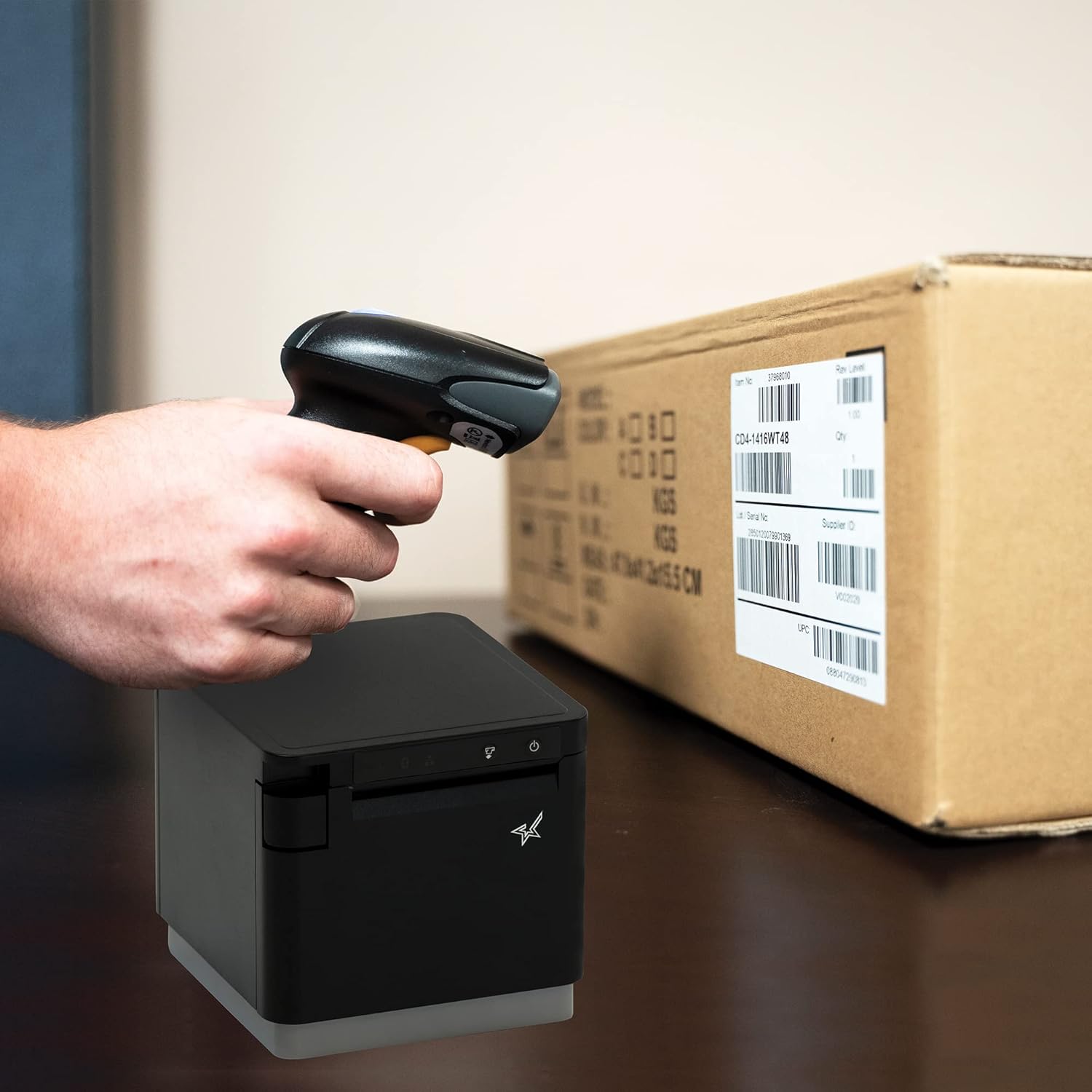
Figure 4.1: Example of scanning a barcode on a package.
4.2. Scanning Modes
The BSH-HR2081BT scanner supports six different scanning modes to accommodate various operational needs:
- Level Mode: The scanner's trigger will activate the decode session.
- Trigger Mode: A trigger pull activates a decode session.
- Sense Mode: The scanner activates a decode session every time it detects a barcode.
- Continuous Mode: The scanner automatically starts one decode session after another.
- Pulse Mode: When the trigger is pulled and released, scanning is activated until a barcode is decoded or the decode session timeout expires.
- Batch Mode: When the trigger is pulled and released, scanning is activated until the trigger is released.
Refer to the full user guide (link in Section 7) for detailed instructions on how to switch between these modes and configure specific settings.
5. Maintenance
5.1. Cleaning the Scanner
To maintain optimal performance, keep the scanner's window clean. Use a soft, lint-free cloth lightly dampened with water or a mild, non-abrasive cleaner. Do not use harsh chemicals or abrasive materials, as they may damage the scanner's surface or optical components.
5.2. Battery Care
The scanner is equipped with a Lithium Ion battery. To prolong battery life:
- Avoid fully discharging the battery frequently.
- Store the scanner in a cool, dry place when not in use for extended periods.
- Charge the battery regularly, even if the scanner is not in frequent use.
6. Troubleshooting
6.1. Scanner Not Connecting
- Check Power: Ensure the scanner is fully charged and powered on.
- Bluetooth Pairing: For Bluetooth connections, ensure Bluetooth is enabled on your host device and the scanner is in pairing mode. Try unpairing and re-pairing the device.
- USB Dongle: If using the USB dongle, ensure it is securely plugged into the Star printer and the printer is powered on.
- Range: Ensure the scanner is within the effective communication range (up to 50m) of the host device or dongle.
6.2. Scanner Not Reading Barcodes
- Barcode Condition: Ensure the barcode is clear, not smudged, torn, or excessively reflective.
- Distance and Angle: Adjust the distance and angle of the scanner to the barcode. Try different scanning modes if applicable.
- Lighting: Ensure adequate lighting. Avoid direct glare on the barcode.
- Scanner Window: Clean the scanner's reading window as described in the Maintenance section.
6.3. Short Battery Life
- Full Charge: Ensure the scanner is charged until the indicator shows a full charge.
- Usage Pattern: Continuous heavy usage will deplete the battery faster.
- Battery Age: Over time, rechargeable batteries naturally lose capacity.
7. Technical Specifications
| Specification | Detail |
|---|---|
| Product Dimensions | 5.7 x 4 x 2.7 inches |
| Item Weight | 1.06 pounds |
| Model Number | BSH-HR2081BT BLK |
| Batteries | 1 Lithium Ion battery required (included) |
| Manufacturer | Star Micronics |
| Compatible Devices | Smartphone, Tablet |
| Power Source | Battery Powered |
| Connectivity Technology | Bluetooth, USB Cable |
| IP Rating | IP42 |
| Drop Resistance | Up to 1.2 meters |
8. Warranty and Support
For warranty information and technical support, please contact Star Micronics directly or visit their official website. Keep your purchase receipt as proof of purchase for warranty claims.
A detailed User Guide in PDF format is available for download:
Related documentsBSH-HR2081BT BLK


Ask a question about this manual
Ask about setup, troubleshooting, compatibility, parts, safety, or missing instructions. Manuals+ will review the question and use this page’s manual context to help answer it.