1. Introduction
Welcome to the comprehensive user manual for your Keydous NJ80-AP Wireless Mechanical Keyboard. This guide provides detailed instructions for setup, operation, maintenance, and troubleshooting to ensure you get the most out of your new keyboard.
2. Key Features
- 75% Layout with Multi-function Rotary Knob
- Triple Mode Connectivity: Bluetooth 5.0, 2.4G Wireless, USB-C Wired
- Hot-Swappable Switch Sockets for Easy Customization
- Full RGB Backlighting with Customizable Effects
- Programmable Keys and Macro Creation via Software
- Durable PBT Keycaps
- Wide Compatibility: Windows, Mac, iOS, Android, and Linux
- Built-in 4800 mAh Lithium Ion Battery
3. Package Contents
- Keydous NJ80-AP Mechanical Keyboard
- USB-C to USB-A Cable
- 2.4G Wireless Receiver
- Keycap Puller
- Switch Puller
- Additional Keycaps (e.g., Mac/PC specific, accent keys)
- User Manual (this document)
4. Setup and Connectivity
4.1 Connectivity Modes
4.1.1 Wired Mode Connection
Connect the keyboard to your computer using the provided USB-C cable. The keyboard will automatically switch to wired mode and begin charging.

4.1.2 2.4GHz Wireless Connection
- Locate the 2.4G wireless receiver. It is usually stored in a dedicated slot on the back of the keyboard.
- Plug the 2.4G receiver into an available USB port on your computer.
- Toggle the switch on the back of the keyboard to the 2.4G wireless mode (often indicated by a 'G' or 2.4G icon).
- The keyboard should connect automatically. If not, press Fn + 4 to initiate pairing.

4.1.3 Bluetooth Connection (Up to 3 Devices)
- Toggle the switch on the back of the keyboard to Bluetooth mode (often indicated by a 'B' or Bluetooth icon).
- On your device (PC, Mac, tablet, smartphone), enable Bluetooth and search for new devices.
- To enter pairing mode on the keyboard, press and hold Fn + 1, Fn + 2, or Fn + 3 for 3-5 seconds until the corresponding key flashes rapidly. This indicates it's ready to pair.
- Select "Keydous NJ80-AP" from the list of available Bluetooth devices on your computer/device.
- Once connected, the corresponding Fn key (Fn+1, Fn+2, or Fn+3) will stop flashing and remain steadily lit.
- To switch between paired Bluetooth devices, simply press Fn + 1, Fn + 2, or Fn + 3.

5. Operating Instructions
5.1 Keyboard Layout and Key Functions
The NJ80-AP features a compact 75% layout with dedicated function keys and a multi-function rotary knob.
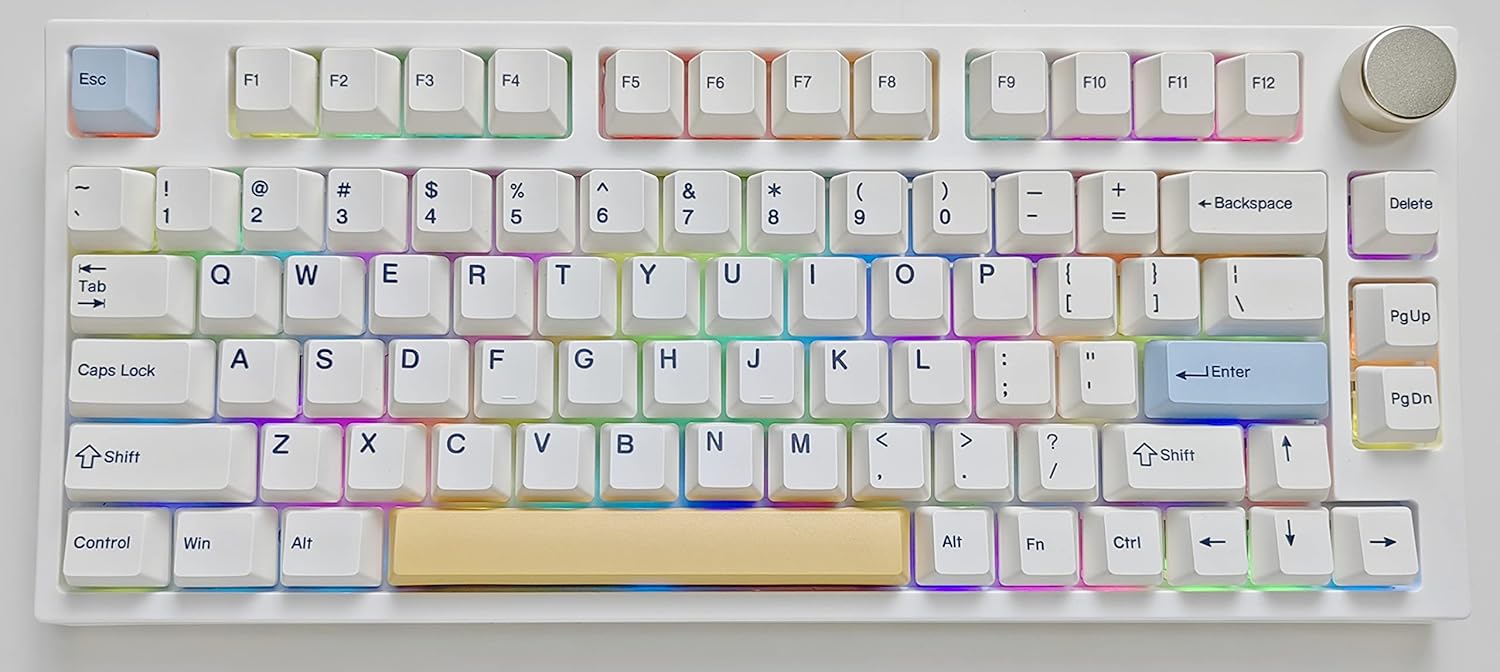
5.1.1 Rotary Knob Functionality
- Rotate: Adjusts system volume (clockwise to increase, counter-clockwise to decrease).
- Press: Mutes/unmutes audio.
5.1.2 Function (Fn) Key Combinations
The Fn key (located near the right Alt key) can be combined with other keys to access additional functions:
| Combination | Function |
|---|---|
| Fn + F1-F12 | Standard F-key functions (e.g., F5 for refresh) |
| Fn + 1/2/3 | Switch Bluetooth devices (hold for pairing) |
| Fn + 4 | Switch to 2.4G Wireless mode (hold for pairing) |
| Fn + Backspace | Delete (alternative) |
| Fn + Left Shift | Toggle Mac/Windows layout (if applicable) |
| Fn + Right Alt | Check battery status (F12 and 4 keys may indicate) |
| Fn + \ (Backslash) | Cycle RGB lighting effects |
| Fn + [ { | Decrease RGB brightness |
| Fn + ] } | Increase RGB brightness |
| Fn + ; : | Decrease RGB effect speed |
| Fn + ' " | Increase RGB effect speed |
| Fn + Enter | Toggle RGB backlight on/off |
5.2 RGB Lighting Control
The Keydous NJ80-AP features extensive RGB backlighting customization. Use the Fn key combinations listed above to cycle through various effects, adjust brightness, and change speed.
For advanced customization, including per-key lighting and creating custom effects, please use the official Keydous software.
5.3 Software Customization
Unlock the full potential of your NJ80-AP keyboard with the official Keydous software. The software allows for:
- Key remapping and macro creation.
- Advanced RGB lighting customization (per-key, custom effects).
- Firmware updates.
The software can typically be downloaded from the official Keydous website or the product support page.


5.4 Typing Experience (Gateron Pro Milky Yellow)
The Keydous NJ80-AP with Gateron Pro Milky Yellow switches offers a smooth and satisfying typing experience. Listen to the sound profile below:
6. Maintenance
6.1 Cleaning Your Keyboard
To maintain optimal performance and appearance, regularly clean your keyboard:
- Disconnect the keyboard from all power sources.
- Use the provided keycap puller to carefully remove keycaps.
- Use compressed air to remove dust and debris from between the switches.
- Wipe keycaps with a damp, lint-free cloth and mild soap solution if necessary. Ensure they are completely dry before reattaching.
- Wipe the keyboard chassis with a soft, dry cloth.

6.2 Switch and Keycap Replacement
The NJ80-AP features hot-swappable switch sockets, allowing you to easily change switches without soldering.
- Removing Keycaps: Use the provided keycap puller to gently pull keycaps straight up.
- Removing Switches: Use the provided switch puller to grasp the top and bottom clips of the switch and pull it straight up.
- Installing Switches: Align the pins of the new switch with the holes on the PCB. Press down firmly until the switch clicks into place. Ensure pins are not bent.
- Installing Keycaps: Align the keycap stem with the switch stem and press down firmly.
6.3 Battery Information
The keyboard is equipped with a 4800 mAh Lithium Ion battery. To check the battery status, press Fn + Right Alt. The F12 and 4 keys may indicate battery level.
Charge the keyboard using the USB-C cable connected to a powered USB port or charger.

7. Troubleshooting
7.1 Keyboard Not Responding
- Ensure the keyboard is charged.
- Check the connection mode switch (Wired, 2.4G, Bluetooth) is set correctly.
- For wired mode, try a different USB port or cable.
- For 2.4G wireless, ensure the receiver is properly plugged in and try re-pairing (Fn + 4).
- For Bluetooth, ensure Bluetooth is enabled on your device and try re-pairing (Fn + 1/2/3).
- Restart your computer/device.
7.2 RGB Lighting Not Working
- Ensure the backlight is turned on (Fn + Enter).
- Adjust brightness (Fn + [ { / ] }).
- Try cycling through effects (Fn + \).
- Ensure the keyboard firmware is up to date using the Keydous software.
7.3 Keys Not Registering / Double Typing
- This could indicate a faulty switch. Use the switch puller to remove the problematic switch and inspect its pins. Try re-inserting it or replacing it with a new one.
- Ensure the keycap is properly seated on the switch.
- Clean any debris under the keycap or around the switch.
7.4 Connectivity Lag or Disconnections
- Ensure the keyboard is fully charged.
- Reduce interference by moving other wireless devices away from the keyboard and receiver.
- Ensure your device's Bluetooth drivers are up to date.
- Try connecting to a different USB port (for 2.4G receiver).
8. Specifications
| Feature | Detail |
|---|---|
| Model Number | NJ80-AP |
| Connectivity | Bluetooth 5.0, 2.4G Wireless, USB-C Wired |
| Layout | 75% (80 keys) |
| Switch Type | Hot-swappable (Gateron Pro Milky Yellow included) |
| Keycap Material | PBT |
| Backlighting | Full RGB |
| Battery Capacity | 4800 mAh Lithium Ion |
| Product Dimensions | 15 x 13 x 12 inches |
| Item Weight | 2.2 pounds |
| Compatibility | Windows, Mac, iOS, Android, Linux |
9. Warranty and Support
For warranty information, technical support, and driver downloads, please visit the official Keydous website or contact Keydous Direct customer service.
A PDF version of the user guide is also available for download: https://manuals.plus/m/216d6acd653ac75dbcae637b953d1d2c0df0f04d0a092d6f8bbbca6263b50b48


