1. Introduction
The Panasonic DMP-BD90P-K Blu Ray DVD Player is designed to deliver high-quality video and audio performance in a compact form factor. This player supports Full HD 1080p up-conversion for standard DVDs, providing enhanced picture detail. It features Dolby Digital sound for clear and immersive audio, and offers versatile connectivity including HDMI-CEC and USB ports. The unit is compatible with a wide range of media formats, including Blu-ray discs, DVDs, CDs, and various digital files such as MKV, MP4, MP3, FLAC, ALAC, DSD, and WAV.
Its space-saving design allows for flexible placement in various entertainment setups.
2. Package Contents
Please ensure all items listed below are included in your package:
- Panasonic DMP-BD90P-K Blu Ray DVD Player
- Remote Control
- Batteries for Remote Control
- AC Adaptor
Note: An HDMI cable is not included and must be purchased separately for connecting to your television.
3. Product Overview
Front Panel

Figure 3.1: Front view of the Blu Ray DVD Player, showing the disc tray, power button, power indicator, and USB port.
- Disc Tray: Insert Blu-ray discs, DVDs, or CDs.
- Power Button: Turns the unit on or off.
- Power Indicator: Illuminates when the unit is powered on.
- USB Port: Connect external USB storage devices for media playback.
Rear Panel

Figure 3.2: Rear view of the Blu Ray DVD Player, showing the DC IN, HDMI OUT, and AV OUT ports.
- DC IN 12V: Connect the supplied AC adaptor.
- HDMI OUT: Connect to your TV or AV receiver for high-definition video and audio output. Supports HDMI-CEC.
- AV OUT: (If applicable, based on image) Connect for analog video/audio output.
Remote Control
Figure 3.3: The Blu Ray DVD Player with its remote control, highlighting key features and ports.
The remote control provides full functionality for operating the player. Insert the supplied batteries into the remote control before use. Familiarize yourself with the buttons for power, disc playback (Play, Pause, Stop, Fast Forward, Rewind), menu navigation, and volume control (if applicable via HDMI-CEC).
4. Setup
4.1 Connecting to Your TV
For the best picture and sound quality, connect the player to your TV using an HDMI cable.
- Ensure both the Blu Ray DVD player and your TV are turned off.
- Connect one end of an HDMI cable (not included) to the HDMI OUT port on the rear of the player.
- Connect the other end of the HDMI cable to an available HDMI IN port on your TV.
- If your TV supports HDMI-CEC, ensure this feature is enabled on your TV for integrated control.
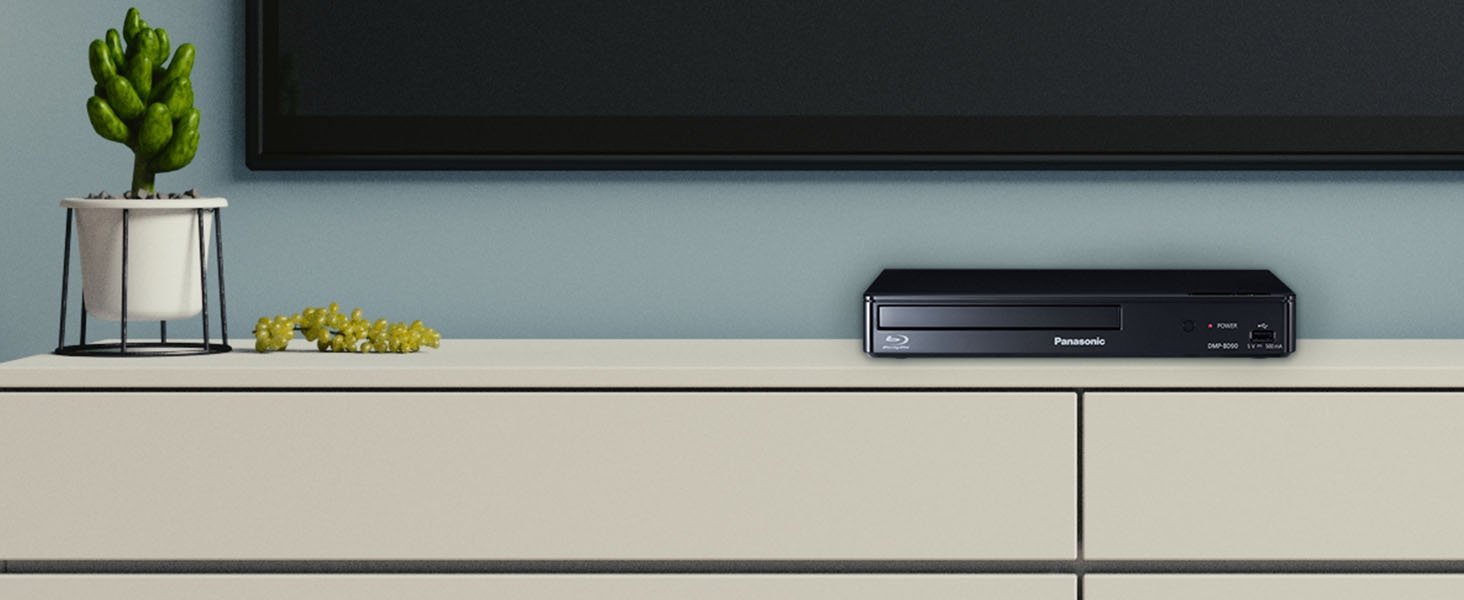
Figure 4.1: The player seamlessly integrated into a home entertainment setup.
4.2 Power Connection
- Connect the supplied AC adaptor to the DC IN 12V port on the rear of the player.
- Plug the AC adaptor into a wall outlet.
4.3 External Storage Connection
The player features a USB port for connecting external hard drives or USB flash drives to play compatible media files.
- Locate the USB port on the front panel of the player.
- Connect your USB storage device to this port.
- The player will automatically detect the device, and you can navigate its contents via the on-screen menu.

Figure 4.2: Connecting an external hard drive to the player's USB port.
5. Operating Instructions
5.1 Basic Disc Playback
- Turn on your TV and select the correct HDMI input source.
- Press the Power button on the player or remote control to turn on the unit.
- Press the Eject button on the player or remote control to open the disc tray.
- Place a Blu-ray disc, DVD, or CD onto the disc tray with the label side facing up.
- Press the Eject button again to close the disc tray.
- The player will automatically load the disc and begin playback or display the disc menu.
- Use the remote control's navigation buttons (Up, Down, Left, Right, Enter) to select options from the disc menu.
- Use the Play, Pause, Stop, Fast Forward, and Rewind buttons for playback control.
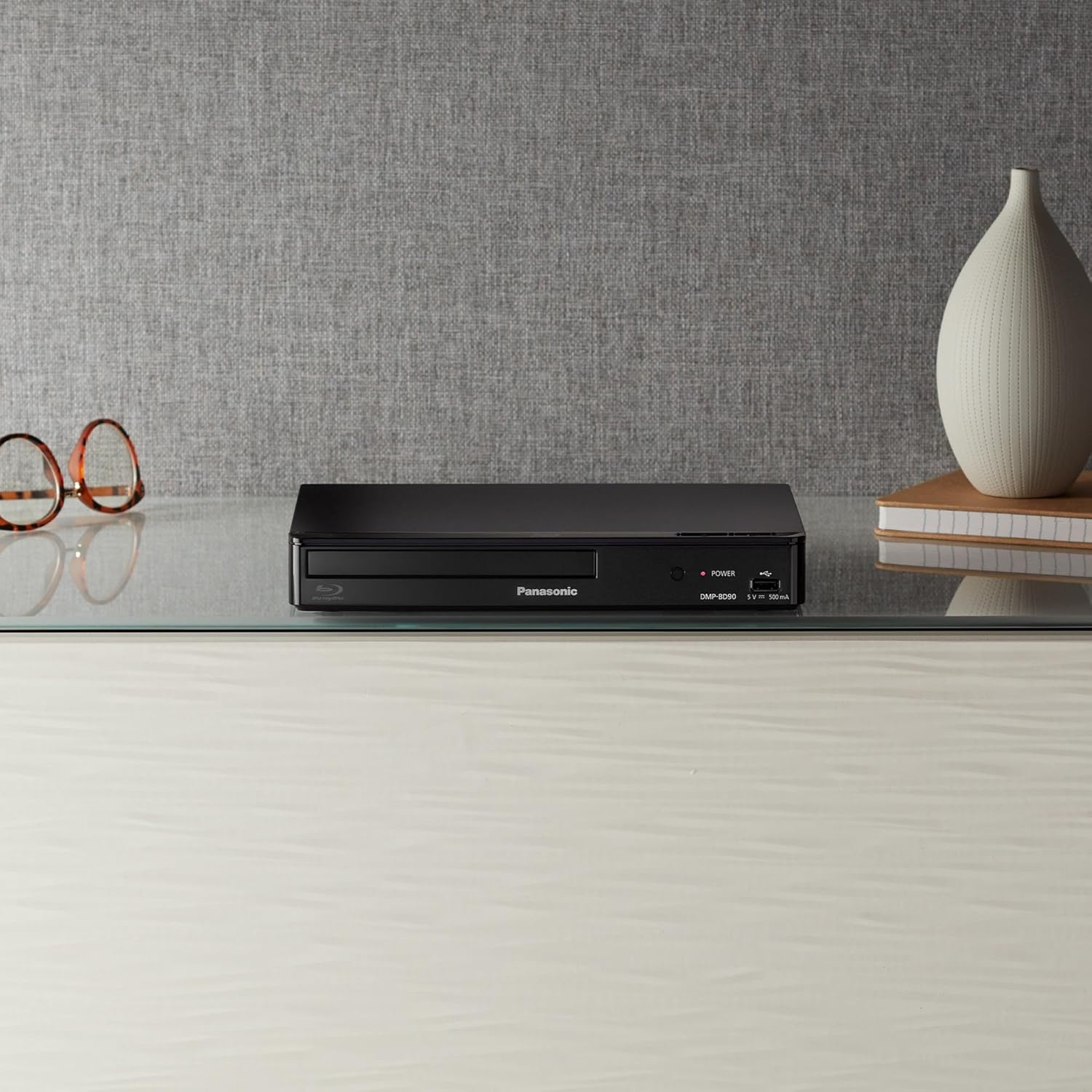
Figure 5.1: Inserting a disc into the player, compatible with CD, DVD, and Blu-ray formats.
5.2 Playing Media from USB
After connecting a USB storage device, the player will typically prompt you to select the media type (Video, Photo, Music).
- Navigate through the folders and files on your USB device using the remote control.
- Select the desired file and press Enter to begin playback.
Supported File Formats:
- Video: MKV, MP4
- Audio: MP3, FLAC, ALAC, DSD, WAV
5.3 Picture and Sound Quality
The DMP-BD90P-K enhances your viewing experience with advanced picture and sound technologies.
- Full HD 1080p Up-conversion: Standard definition DVDs are up-converted to near Full HD quality, providing sharper images and more detail on compatible displays.
- Dolby Digital Sound: Experience clear, high-resolution audio for movies, music, and other content. This technology ensures rich and dynamic sound reproduction.
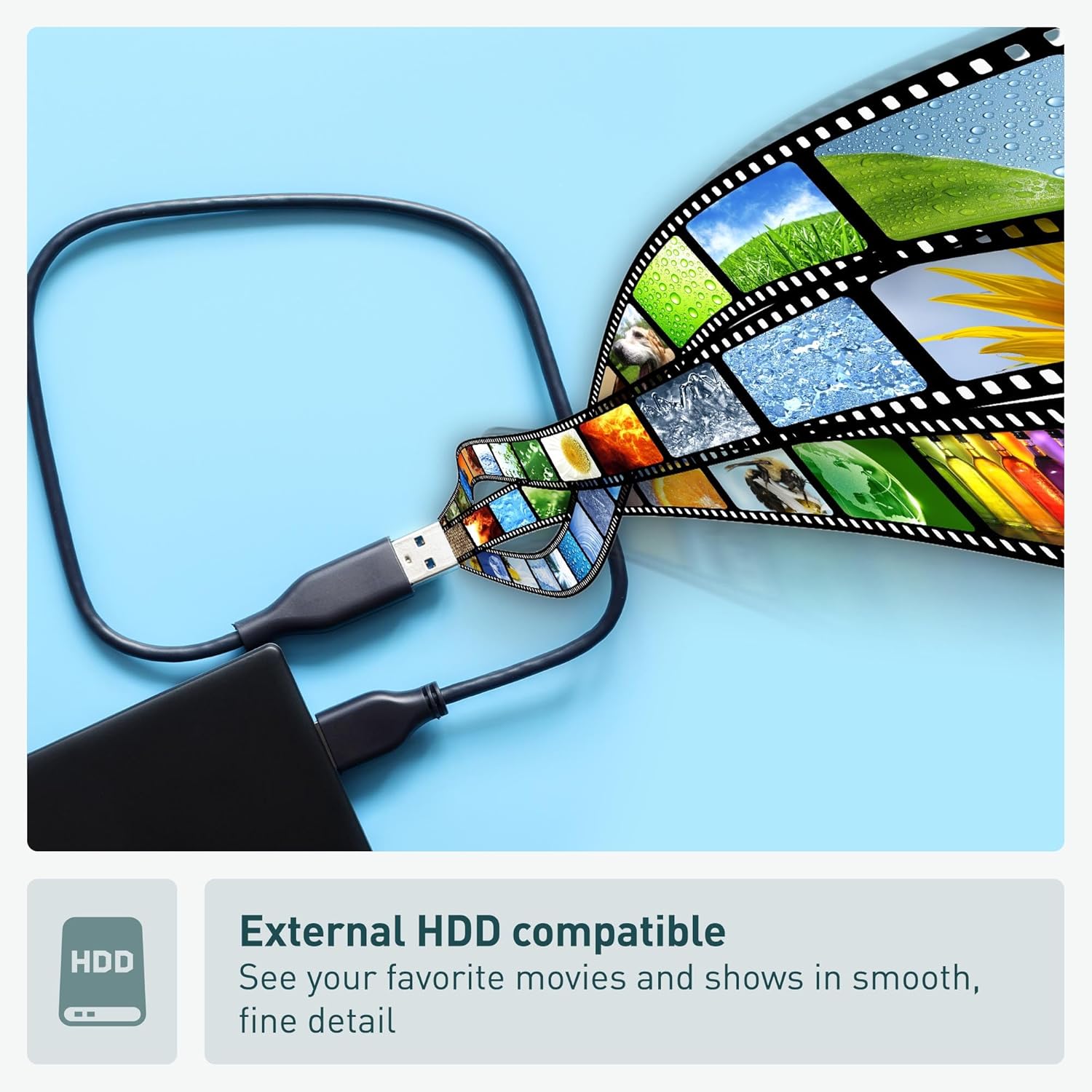
Figure 5.2: Visual representation of Full HD 1080p up-conversion quality.
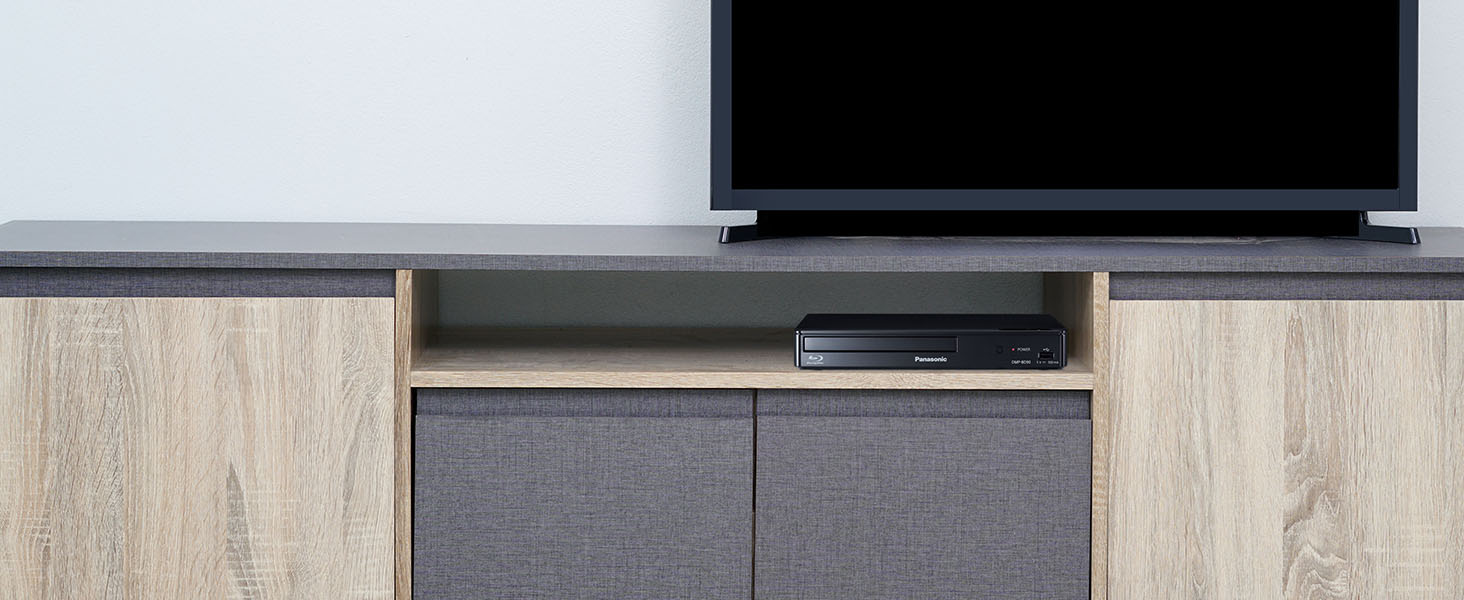
Figure 5.3: The Dolby Digital logo, indicating superior audio processing.
6. Maintenance
6.1 Cleaning the Unit
To maintain the appearance and performance of your player, follow these cleaning guidelines:
- Always unplug the player from the power outlet before cleaning.
- Wipe the exterior of the unit with a soft, dry cloth.
- For stubborn marks, slightly dampen the cloth with water and then wipe dry immediately.
- Do not use abrasive cleaners, waxes, or solvents (e.g., alcohol, benzene, thinners) as they can damage the finish.
6.2 Disc Handling
Proper handling of discs helps ensure optimal playback and longevity:
- Hold discs by their edges to avoid touching the playing surface.
- Keep discs clean and free from dust, fingerprints, and scratches.
- If a disc is dirty, wipe it gently from the center outwards with a soft, lint-free cloth. Do not wipe in circular motions.
- Store discs in their cases when not in use to protect them from damage.
7. Troubleshooting
If you encounter issues with your Panasonic Blu Ray DVD Player, refer to the following common problems and their solutions.
| Problem | Possible Cause | Solution |
|---|---|---|
| No power | Power cord not securely connected. | Ensure the AC adaptor is firmly plugged into the player and the wall outlet. |
| No picture | Incorrect HDMI connection or TV input. | Check HDMI cable connection. Select the correct HDMI input on your TV. |
| No sound | TV volume is muted or too low; incorrect audio settings. | Increase TV volume. Check audio settings on both the player and TV. Ensure HDMI audio is selected. |
| Disc not playing | Disc is dirty, scratched, or inserted incorrectly; unsupported disc format. | Clean the disc. Ensure the disc is inserted label-side up. Verify the disc format is supported (Blu-ray, DVD, CD). |
| Remote control not working | Batteries are dead or inserted incorrectly; obstruction between remote and player. | Replace batteries. Ensure correct polarity. Remove any obstructions. Point remote directly at the player's front panel. |
8. Specifications
| Feature | Description |
|---|---|
| Model Name | DMP-BD90P-K |
| Product Dimensions (W x D x H) | 9.7 x 7 x 1.5 inches (Approx. 24.6 x 17.8 x 3.8 cm) |
| Item Weight | 2 pounds (Approx. 0.91 kg) |
| Media Type | Blu-Ray Disc, DVD, CD |
| Resolution | 1920x1080 (Full HD) |
| Connector Type | HDMI, USB |
| Connectivity Technology | HDMI, USB |
| Color | Black |
| Manufacturer | Panasonic |
| Special Feature | Compact Design, Full HD Up-conversion, Dolby Digital Sound, External HDD Playback, Multi-format Playback |
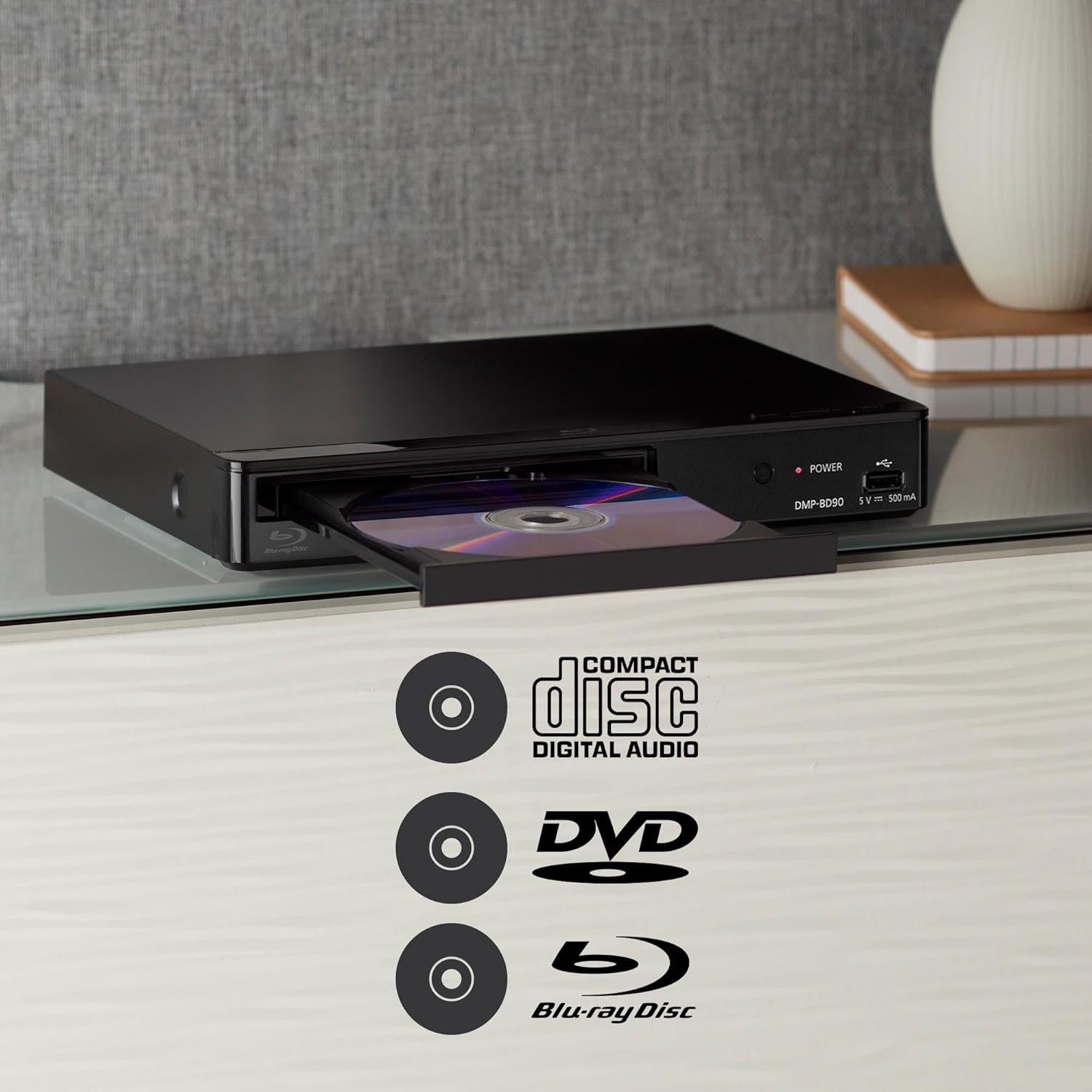
Figure 8.1: Player dimensions for placement reference.
9. Warranty and Support
For detailed warranty information, please refer to the warranty card included with your product or visit the official Panasonic website. Warranty terms and conditions may vary by region.
If you require technical assistance or customer support, please contact Panasonic customer service through their official channels. You can typically find contact information on the Panasonic website or in the documentation provided with your product.


