
1. Introduction
Welcome to the user manual for your new Cheerlux C50 Projector. This guide provides essential information on setting up, operating, maintaining, and troubleshooting your device. Please read this manual thoroughly before using the projector to ensure optimal performance and safety. Keep this manual for future reference.
2. Safety Instructions
To prevent fire, electric shock, or injury, please observe the following safety precautions:
- Do not block the ventilation openings. Ensure adequate space around the projector for proper airflow.
- Do not expose the projector to rain or moisture. Avoid placing objects filled with liquids, such as vases, on the projector.
- Do not open the projector casing. Refer all servicing to qualified service personnel.
- Use only the power adapter supplied with the projector.
- Avoid looking directly into the projector lens when the lamp is on, as the bright light can damage your eyes.
- Place the projector on a stable, level surface to prevent it from falling.
- Unplug the projector from the power outlet during lightning storms or when unused for long periods.
3. Package Contents
Please check that all items are present and in good condition:
- Cheerlux C50 Projector
- Remote Control
- Power Cable
- HDMI Cable
- AV Cable
- User Manual
4. Product Overview
Familiarize yourself with the components and ports of your Cheerlux C50 Projector.

This image displays the Cheerlux C50 Projector from a front-top angle, highlighting its lens, focus ring, and control panel buttons on the top surface. The projector features a white and grey casing.
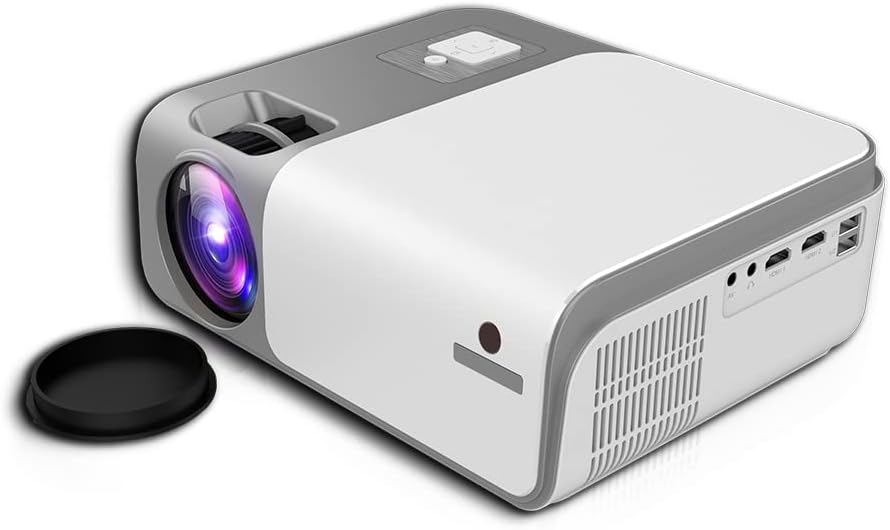
This image shows the rear and side of the Cheerlux C50 Projector, revealing various input/output ports such as HDMI, USB, and AV, along with ventilation grilles. A lens cap is visible next to the lens.
4.1. Front Panel
- Projection Lens: Emits the image.
- Focus Ring: Adjusts image sharpness.
4.2. Top Panel
- Control Buttons: Power, Menu, Source, Navigation (Up/Down/Left/Right), OK.
4.3. Rear Panel
- Power Input: Connects to the power cable.
- HDMI Ports (x2): Connect to HDMI-enabled devices (laptops, gaming consoles, Blu-ray players).
- USB Ports (x2): Connect USB drives for media playback.
- AV Port: Connect to older devices using an AV cable.
- Audio Out (3.5mm): Connect external speakers or headphones.
- IR Receiver: For remote control signals.
5. Setup
5.1. Power Connection
- Connect the power cable to the projector's power input port.
- Plug the other end of the power cable into a wall outlet.
- The power indicator light on the projector will illuminate.
5.2. Placement
Position the projector on a stable, flat surface. The ideal projection distance for the Cheerlux C50 is between 1.5 to 6 meters, depending on the desired screen size. Ensure the projector is centered with your projection screen or wall.
5.3. Focus and Keystone Correction
- Focus Adjustment: Turn the focus ring on the front of the projector until the projected image appears sharp and clear.
- Keystone Correction (4P): If the projected image appears trapezoidal (wider at the top or bottom), use the 4P keystone correction function. This can typically be accessed via the projector's menu or dedicated buttons on the remote control. Adjust each of the four corners independently to achieve a perfectly rectangular image.
6. Operating
6.1. Power On/Off
- Power On: Press the power button on the projector or the remote control. The projector will start up, and the lamp will illuminate.
- Power Off: Press the power button again. Confirm shutdown if prompted. Allow the projector to cool down before unplugging it.
6.2. Input Sources
Connect your desired device to the projector using the appropriate cable (HDMI, AV, USB). Then, press the 'Source' button on the projector or remote control to select the corresponding input source.
- HDMI: For high-definition video and audio from laptops, game consoles, etc.
- USB: For playing media files (photos, videos, music) directly from a USB flash drive.
- AV: For standard definition video and audio from older devices like DVD players.
6.3. Wireless Connectivity (WiFi & Bluetooth)
The Cheerlux C50 Projector features built-in WiFi and Bluetooth for enhanced connectivity.
- WiFi Connection: Navigate to the 'Settings' menu, select 'Network' or 'WiFi Settings'. Choose your desired WiFi network from the list and enter the password.
- Bluetooth Connection: In the 'Settings' menu, select 'Bluetooth'. Turn on Bluetooth and pair with your Bluetooth-enabled speakers or headphones.
6.4. Screen Mirroring
The projector supports wireless screen mirroring from compatible smartphones and tablets.

This image illustrates the Cheerlux C50 Projector wirelessly connected to a smartphone. The phone's screen, displaying a movie scene, is being mirrored to the projector, indicated by a Wi-Fi signal icon between the devices.
- Ensure both your projector and mobile device are connected to the same WiFi network.
- On the projector, select the 'Screen Mirroring' or 'Wireless Display' option from the main menu.
- On your mobile device, activate its screen mirroring feature (e.g., 'Smart View' for Samsung, 'Screen Mirroring' for Android, 'AirPlay' for iOS).
- Select the projector's name from the list of available devices on your phone.
- The mobile device's screen content will now be projected.
6.5. Menu Navigation
Use the navigation buttons (Up, Down, Left, Right) and 'OK' button on the projector or remote control to browse through the on-screen menu. The 'Menu' button typically opens the main settings, and the 'Return' or 'Exit' button closes menus.
7. Maintenance
7.1. Cleaning
- Lens: Use a soft, lint-free cloth specifically designed for optical lenses. Do not use abrasive cleaners.
- Casing: Wipe the projector's exterior with a soft, dry cloth. For stubborn dirt, slightly dampen the cloth with water.
- Ventilation Vents: Periodically clean the vents with a soft brush or compressed air to prevent dust buildup, which can affect cooling.
7.2. Storage
When not in use for extended periods, store the projector in a cool, dry place, away from direct sunlight and extreme temperatures. Cover the lens with its cap to protect it from dust and scratches.
8. Troubleshooting
If you encounter issues with your projector, refer to the following common problems and solutions:
| Problem | Possible Cause | Solution |
|---|---|---|
| No image projected | Power cable loose, incorrect input source, device not connected. | Check power connection, select correct input source, ensure source device is on and connected. |
| Image is blurry | Focus not adjusted, projector too close/far. | Adjust the focus ring. Reposition the projector within the recommended distance. |
| Image is trapezoidal | Projector not perpendicular to screen. | Use the 4P keystone correction function in the menu. |
| No sound | Volume too low, external speakers not connected, source device muted. | Increase projector volume, check external speaker connection, unmute source device. |
| Remote control not working | Batteries dead, obstruction, not pointing at IR receiver. | Replace batteries, remove obstructions, point remote directly at the projector's IR receiver. |
9. Specifications
Technical specifications for the Cheerlux C50 Projector:
| Feature | Specification |
|---|---|
| Brand Name | Generic (Cheerlux C50) |
| Connectivity Technology | Wi-Fi, Bluetooth |
| Native Resolution | 1920 x 1080 |
| Brightness | 4000 Lumen |
| Form Factor | Portable |
| Mounting Type | Tabletop Mount |
| Controller Type | Remote Control |
| Maximum Throw Distance | 6 Meters |
| Wattage | 3 watts |
| Special Features | Built In Wi Fi, Portable, Wireless, 4P Keystone Correction |
10. Warranty and Support
The Cheerlux C50 Projector comes with a standard manufacturer's warranty. Please refer to the warranty card included in your package for specific terms and conditions, including warranty period and coverage details. For technical support, service, or further inquiries, please contact your retailer or the manufacturer's customer service department.
Keep your purchase receipt as proof of purchase for warranty claims.


