Introduction
This manual provides comprehensive instructions for the setup, operation, maintenance, and troubleshooting of your HP DeskJet 2755e Series Wireless Inkjet All-in-One Color Printer. Please read this manual thoroughly before using your device to ensure optimal performance and longevity.

Figure 1: Front view of the HP DeskJet 2755e All-in-One Printer, showing its compact design and paper output tray.
Setup Guide
1. Unpacking and Contents Verification
Carefully remove all components from the packaging. Ensure all items listed below are present. Retain packaging for future transport or service.
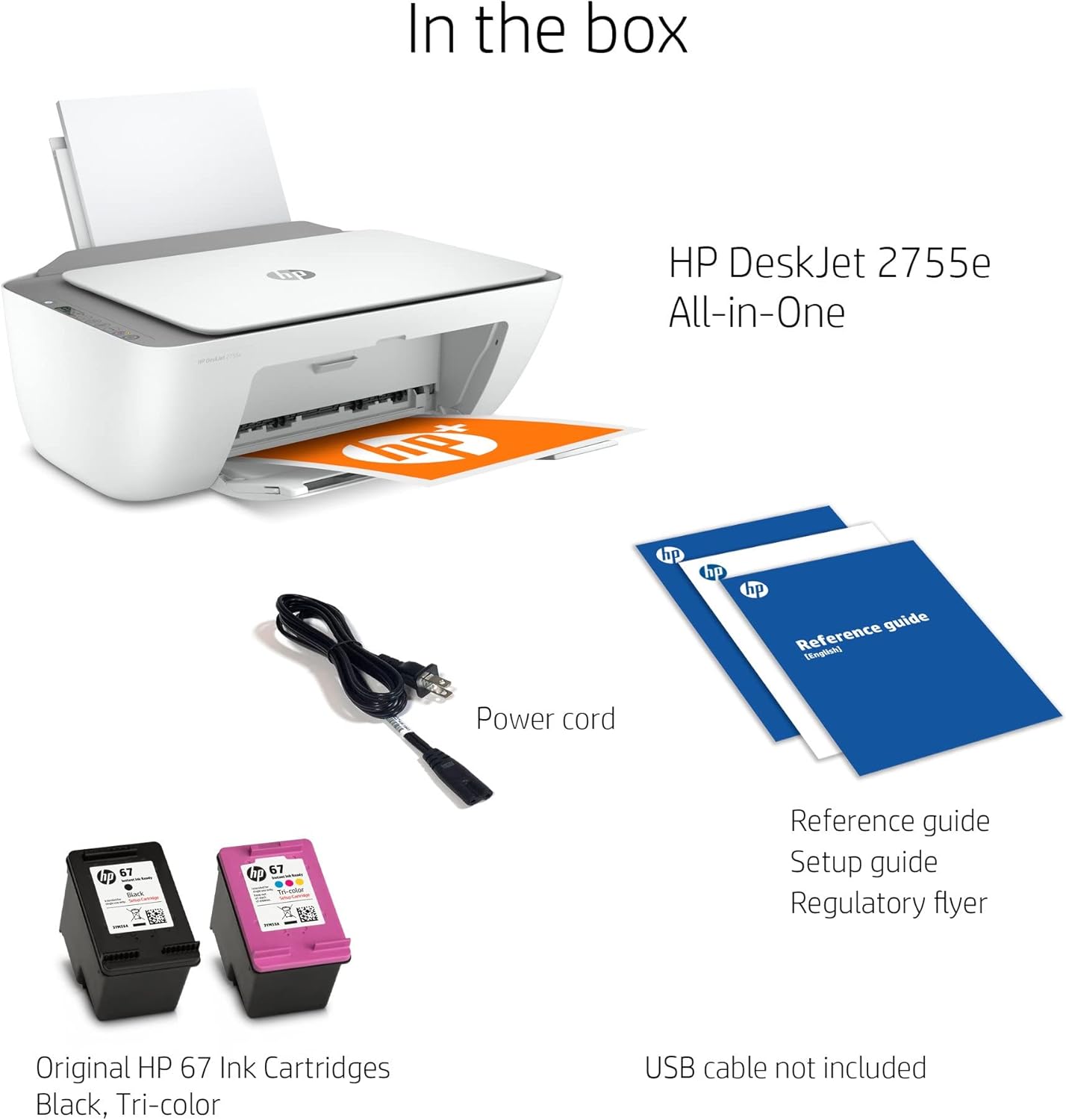
Figure 2: Items included in the box for the HP DeskJet 2755e. Note that a USB cable is not included and must be purchased separately for wired connection.
- HP DeskJet 2755e All-in-One Printer
- Power Cord
- Original HP 67 Ink Cartridges (Black, Tri-color)
- Reference Guide, Setup Guide, Regulatory Flyer
- HDMI Cable (included as part of this renewed product package)
Note: A USB cable for direct PC connection is not typically included and may need to be purchased separately.
2. Physical Connection
- Place the printer on a stable, flat surface.
- Connect the power cord to the printer's power port and then to a wall outlet.
- For a wired connection, connect a USB cable (not included) from the printer's USB 2.0 port to your computer.

Figure 3: Rear view of the printer, highlighting the 60-sheet rear input tray and the USB 2.0 port for PC connection.
3. Ink Cartridge Installation
Open the ink cartridge access door. Wait for the carriage to move to the center. Gently insert the black and tri-color ink cartridges into their respective slots until they click into place. Close the access door.
4. Paper Loading
Extend the input tray. Load a stack of plain paper into the input tray, print-side down. Adjust the paper guides to fit the paper snugly.
5. Software Installation and Wireless Setup
Turn on the printer. For initial setup and full functionality, download the HP Smart app from your device's app store or visit hp.com/go/hpsmart. Follow the on-screen instructions within the app to connect your printer to your wireless network and install necessary drivers.
Operating Instructions
Printing
The HP DeskJet 2755e supports wireless and USB printing. It offers a maximum print resolution of 4800 x 1200 dpi for both color and black & white, with print speeds up to 5.5 pages per minute (PPM).
- From a Computer: Open the document or image you wish to print. Select "Print" from the application's menu. Choose your HP DeskJet 2755e printer, adjust settings (e.g., paper size, quality), and click "Print".
- Mobile Printing: Use the HP Smart app on your smartphone or tablet to print documents and photos directly from your mobile device.
Copying
Place the original document face-down on the scanner glass. Use the control panel's copy buttons to select color or black & white copy and the number of copies. Press the copy button to start.
Scanning
The printer features a flatbed scanner. Place the document or photo face-down on the scanner glass. Open the HP Smart app on your computer or mobile device, select the scan function, and follow the prompts to scan your item. You can choose scan resolution and destination.
Maintenance
Ink Cartridge Replacement
When an ink cartridge is low or empty, the printer's display or the HP Smart app will indicate it. Purchase genuine HP 67 ink cartridges. Open the cartridge access door, press down on the old cartridge to release it, and pull it out. Insert the new cartridge firmly until it clicks into place. Close the door.
Cleaning the Printer
- Exterior: Use a soft, lint-free cloth dampened with water to wipe the exterior surfaces.
- Scanner Glass: Use a soft, lint-free cloth lightly dampened with glass cleaner (non-abrasive) to clean the scanner glass. Avoid spraying cleaner directly onto the glass.
Clearing Paper Jams
If a paper jam occurs, the printer's display will show an error. Carefully open the access doors and remove any jammed paper, pulling gently to avoid tearing. Check the input tray, output tray, and inside the printer. Close all doors and the printer should resume operation.
Troubleshooting
This section addresses common issues you might encounter with your HP DeskJet 2755e printer.
Printer Not Responding
- Ensure the printer is powered on and connected to a power outlet.
- Check USB cable connection (if applicable) or wireless network connection.
- Restart the printer and your computer/mobile device.
- Verify that the correct printer is selected in your print dialog.
Poor Print Quality
- Check ink levels and replace any low or empty cartridges.
- Run a print head cleaning cycle from the HP Smart app or printer software.
- Ensure you are using appropriate paper for your print job.
- Verify print settings (e.g., print quality, paper type) in your print dialog.
Paper Jams
Refer to the "Clearing Paper Jams" section under Maintenance for detailed steps.
Connectivity Issues
- Wireless: Ensure your printer is within range of your Wi-Fi router. Restart your router and printer. Re-run the wireless setup using the HP Smart app.
- USB: Try a different USB port on your computer or a different USB cable.
For more detailed troubleshooting, visit the official HP support website or consult the HP Smart app.
Technical Specifications
| Feature | Specification |
|---|---|
| Model Name | DeskJet 2755e |
| Functions | Print, Copy, Scan (All-in-One) |
| Printing Technology | Inkjet |
| Connectivity | Wireless, USB |
| Max Print Resolution (Color) | Up to 4800 x 1200 dpi |
| Max Print Resolution (Black & White) | Up to 4800 x 1200 dpi |
| Print Speed | Up to 5.5 PPM (pages per minute) |
| Scanner Type | Flatbed |
| Max Input Sheet Capacity | 60 sheets |
| Output Sheet Capacity | 25 sheets |
| Supported Sheet Sizes | 4x6, 5x7, 8x10 inches, A3 (Max Media Size) |
| Duplex Printing | Simplex (Manual Duplex Supported via Software) |
| Product Dimensions (W x D x H) | 16.7 x 11.97 x 6.06 inches |
| Control Method | Remote (via HP Smart App), Icon LCD Display |
| Compatible Devices | Smartphones, Computers (Windows, macOS) |

Figure 4: Dimensions of the HP DeskJet 2755e printer, with input and output trays extended.
Warranty and Support
Warranty Information
This HP DeskJet 2755e printer, being a renewed product, comes with a 90-day limited warranty. Please refer to the warranty documentation included with your product for specific terms and conditions regarding coverage and claims.
Customer Support
For technical assistance, driver downloads, or further troubleshooting, please visit the official HP support website. You can also utilize the HP Smart app for guided support and resources.
HP Support Website: support.hp.com