
Introduction
The Hexgears G5 is a full-size 104-key mechanical keyboard designed for both wireless (2.4 GHz) and wired (USB Type-C) connectivity. It features Kailh Box switches for durability and tactile feedback, and a blue monochrome backlight with adjustable modes. This keyboard is compatible with Windows and Mac OS, offering an ergonomic design for comfortable extended use.
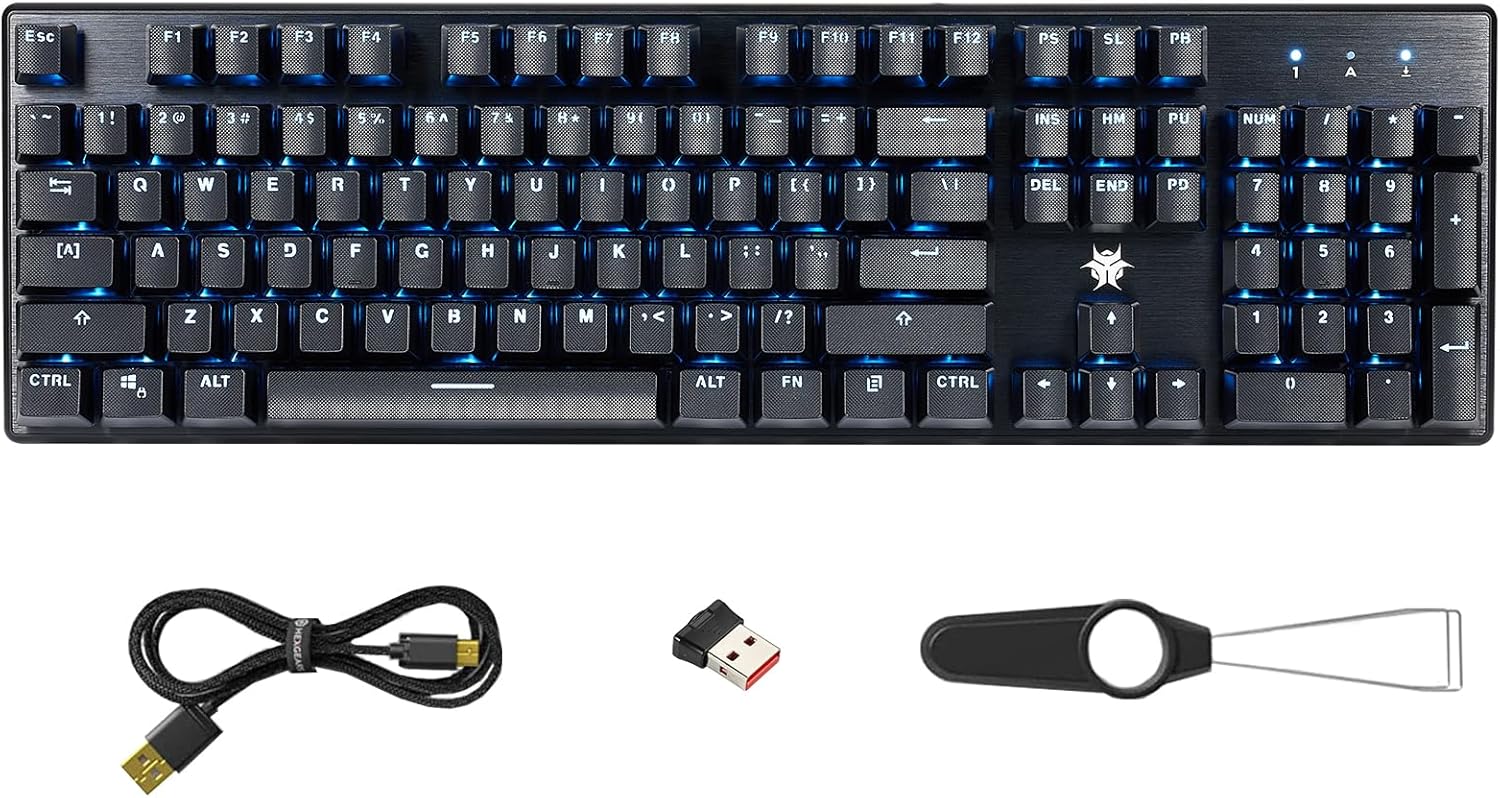
Image: Hexgears G5 Wireless Mechanical Keyboard, showing the full layout, blue backlighting, included USB cable, 2.4G wireless dongle, and a keycap puller tool.
Key Features
- 104-Key Full-size Layout: Provides a complete set of keys, including a numeric keypad, for comprehensive functionality.
- Dual-Mode Connectivity: Supports both 2.4 GHz wireless for a clean desktop and low-latency connection, and wired USB Type-C for charging and stable gaming.
- Kailh Box Switches: Equipped with durable switches (80 million click life) that are dust and moisture resistant. Available in White (crisp, clicky), Brown (tactile, quiet), and Red (linear, quiet) options.
- Blue Backlighting: Features a clear blue monochrome backlight with adjustable interactive, breathing, and constant brightness modes. Backlight speed can also be adjusted.
- Ergonomic Design: Includes height-adjustable stands to reduce wrist fatigue during prolonged use.
- ABS Textured Keycaps: Non-slip keycaps provide enhanced tactility and comfort.
- Wide Compatibility: Supports Windows (all versions), Mac OS, and Android operating systems.
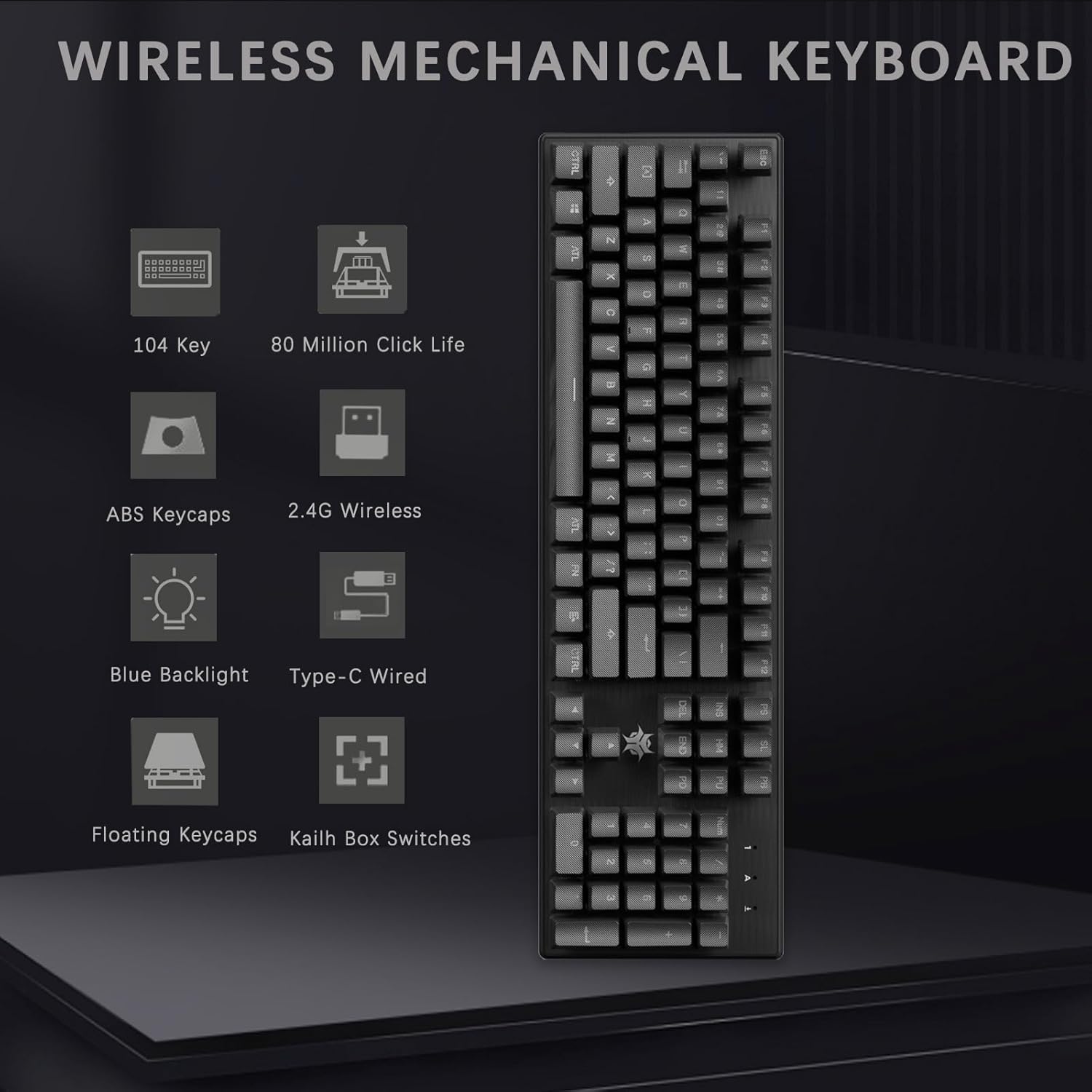
Image: Overview of the Hexgears G5 Wireless Mechanical Keyboard's main features, including its 104-key layout, 80 million click life, ABS keycaps, 2.4G wireless and Type-C wired connectivity, blue backlight, floating keycaps, and Kailh Box switches.
Setup
Package Contents:
- Hexgears G5 Wireless Mechanical Keyboard
- USB Type-C Cable
- 2.4 GHz USB Receiver (stored in the keyboard's underside)
- Keycap Puller (may be included)
Connecting the Keyboard:
- Wireless Connection (2.4 GHz):
- Locate the 2.4 GHz USB receiver stored in the compartment on the underside of the keyboard.
- Remove the receiver and plug it into an available USB port on your computer (PC or Mac).
- Turn on the keyboard using the power switch, usually located on the back or side. The keyboard should automatically connect to the receiver.
- Wired Connection (USB Type-C):
- Connect one end of the provided USB Type-C cable to the keyboard's Type-C port.
- Connect the other end of the cable to an available USB port on your computer.
- The keyboard will function in wired mode and charge simultaneously.

Image: Illustration of the two connection methods for the Hexgears G5 keyboard: 2.4G wireless via a USB dongle and wired via a USB Type-C cable.
Operating the Keyboard
Backlight Control:
The Hexgears G5 features a blue monochrome backlight with several adjustable modes. Refer to the keyboard's function keys (often combined with the 'FN' key) for specific controls.
- Adjusting Modes: Cycle through interactive mode, breathing mode, and constant brightness mode.
- Adjusting Brightness: Increase or decrease the backlight intensity.
- Adjusting Speed: Change the speed of dynamic backlight effects (e.g., breathing mode).
- Note: The backlight color cannot be changed; it is fixed to blue.

Image: The Hexgears G5 keyboard illuminated with its ice blue backlight, illustrating the adjustable backlight interactive mode, breathing mode, constant brightness mode, and light change speed.
Function (FN) Key Combinations:
The FN key allows access to various multimedia and system functions. Specific combinations may vary slightly, but common functions include:
- FN + F1-F12: Multimedia controls (e.g., play/pause, volume up/down, mute, previous/next track).
- FN + WIN: Locks/unlocks the Windows key to prevent accidental presses during gaming.
- FN + ESC (hold for 5 seconds): Resets keyboard settings to default.
- FN + INS/HOME/PGUP/PGDN/DEL/END: Controls various backlight effects and patterns.
- FN + ` (tilde key): Toggles between N-key rollover and 6-key rollover modes.

Image: A close-up view of the right side of the Hexgears G5 keyboard, showing the numeric keypad and arrow keys illuminated with blue backlighting, indicating their functionality.
Maintenance
Regular maintenance helps prolong the life and performance of your Hexgears G5 keyboard.
- Cleaning Keycaps: Use a soft, damp cloth to wipe down the keycaps. For deeper cleaning, use the included keycap puller (if provided) to remove keycaps and clean underneath with compressed air or a small brush.
- Dust Removal: Regularly use compressed air to clear dust and debris from between the keys and around the switches.
- Surface Cleaning: Wipe the keyboard's surface with a dry or slightly damp cloth. Avoid harsh chemicals or abrasive materials.
- Storage: When not in use, especially during travel, store the USB receiver securely in its designated slot on the keyboard's underside.

Image: A detailed view of the Hexgears G5 keyboard's ABS textured keycaps, with a few keycaps removed to reveal the underlying mechanical switches, demonstrating their design for comfortable and durable typing.
Troubleshooting
If you encounter issues with your Hexgears G5 keyboard, try the following solutions:
- Keyboard Not Responding (Wireless):
- Ensure the keyboard is turned on.
- Check if the USB receiver is securely plugged into your computer.
- Verify the keyboard battery is charged. Connect via USB-C cable to charge.
- Try plugging the USB receiver into a different USB port.
- Re-pair the keyboard with the receiver if necessary (refer to specific pairing instructions if available in the full manual).
- Keyboard Not Responding (Wired):
- Ensure the USB Type-C cable is securely connected to both the keyboard and the computer.
- Try using a different USB port on your computer.
- Test with a different USB Type-C cable if available.
- Backlight Not Working or Incorrect:
- Ensure the keyboard is powered on.
- Use the FN key combinations (e.g., FN + INS/HOME/PGUP/PGDN/DEL/END) to cycle through backlight modes and adjust brightness.
- Perform a factory reset (FN + ESC, hold for 5 seconds) if backlight issues persist.
- Keys Not Registering or Double-Typing:
- Clean around the affected key(s) to remove any debris.
- If using wireless, ensure there is no interference and the receiver is close to the keyboard.
- Consider updating keyboard drivers if available from the manufacturer's website.
Specifications
| Feature | Detail |
|---|---|
| Brand | Hexgears |
| Model | G5 |
| Connectivity Technology | 2.4G Wireless/Type-C Wired |
| Keyboard Description | Mechanical |
| Number of Keys | 104 |
| Switch Type | Kailh Box Switches (White, Brown, Red options) |
| Switch Life | 80 million clicks |
| Backlight Color | Single Color (Blue) |
| Compatible Devices | Laptop, PC, Mac |
| Item Weight | 2.46 pounds |
| Package Dimensions | 17.83 x 6.77 x 1.85 inches |
| Batteries | 1 Lithium Ion battery (included) |
Warranty and Support
For detailed warranty information and further support, please refer to the official Hexgears documentation or contact their customer service.
An official User Manual (PDF) is available for download: Download User Manual (PDF)
