
1. Introduction
This manual provides essential information for setting up, operating, and maintaining your Lenovo ThinkPad E15 Gen 2 Business Laptop. Please read this guide thoroughly to ensure proper use and to maximize the performance and longevity of your device. Keep this manual for future reference.
2. Package Contents
Verify that all items are present in your product package. If any item is missing or damaged, contact your retailer.
- Lenovo ThinkPad E15 Gen 2 Laptop
- AC Power Adapter and Power Cord
- Battery (internal or external, depending on configuration)
- Quick Start Guide (if included)
3. Product Overview
Familiarize yourself with the key components and features of your ThinkPad E15 Gen 2 laptop.
3.1 Front View
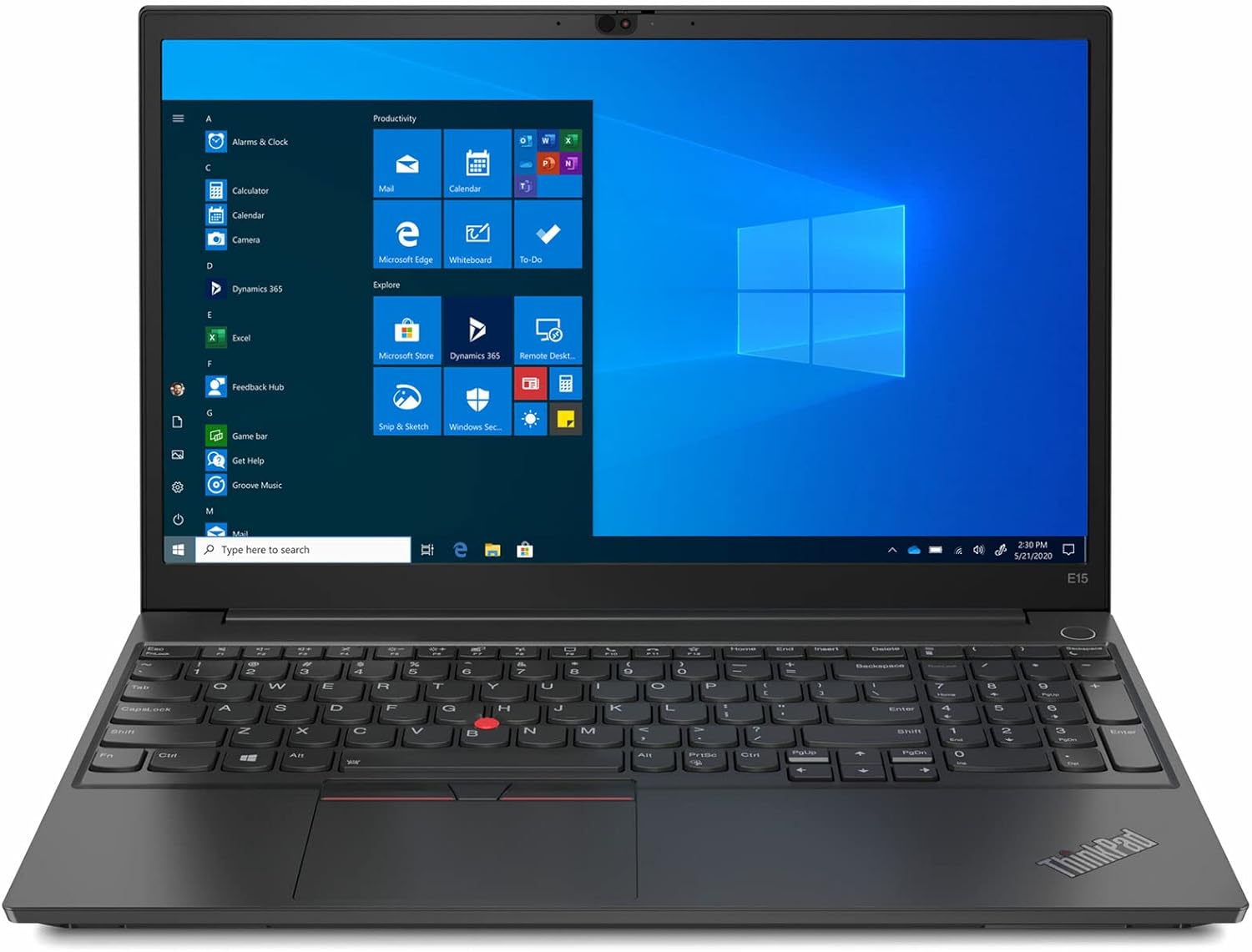
Figure 3.1: Front view of the Lenovo ThinkPad E15 Gen 2 laptop, showcasing the 15.6-inch display and full-size keyboard with numeric keypad.
3.2 Left Side Ports

Figure 3.2: Left side of the laptop, typically featuring power input, USB-C (Thunderbolt 4), USB-A, HDMI, and audio jack.
3.3 Right Side Ports

Figure 3.3: Right side of the laptop, typically featuring additional USB-A ports and a Kensington Nano Security Slot.
3.4 Keyboard and Touchpad

Figure 3.4: Close-up of the keyboard, TrackPoint, and touchpad, highlighting the backlit keys and fingerprint reader.
4. Setup
4.1 Initial Power On
- Connect the AC power adapter to the laptop's power input port and then to a power outlet.
- Open the laptop lid.
- Press the power button, usually located on the side or top-right of the keyboard deck.
- Follow the on-screen instructions to complete the Windows 11 Pro setup process.
4.2 Connecting Peripherals
Your ThinkPad E15 Gen 2 supports various peripherals:
- USB Devices: Connect USB mice, keyboards, external drives, or other accessories to the available USB-A or USB-C ports.
- External Display: Use the HDMI port or a Thunderbolt 4 enabled USB-C port with an appropriate adapter to connect an external monitor.
- Audio Devices: Plug headphones or external speakers into the headphone/mic combo jack.
4.3 Power Management
The laptop is equipped with an internal battery. For optimal performance, keep the laptop connected to the AC adapter when possible. Windows 11 Pro offers various power plans to balance performance and battery life, accessible via the Settings menu.
5. Operating Your Laptop
5.1 Using the Keyboard and Touchpad
The ThinkPad E15 Gen 2 features a full-size backlit keyboard and a precision touchpad. The integrated TrackPoint provides an alternative navigation method.
- Backlit Keyboard: Press Fn + Spacebar to cycle through backlight brightness levels (off, low, high).
- Function Keys: Use the Fn key in combination with F1-F12 for quick access to system functions like volume, brightness, and wireless toggles.
- Touchpad: Supports multi-touch gestures for scrolling, zooming, and more.
5.2 Fingerprint Reader
For enhanced security, your laptop includes a fingerprint reader. Set up your fingerprint for Windows Hello login in Windows Settings > Accounts > Sign-in options.
5.3 Display Features
The 15.6-inch FHD IPS display offers wide viewing angles and vibrant colors. Adjust display settings (resolution, scaling, night light) through Windows Settings > System > Display.
5.4 Connecting to Networks (Wi-Fi 6E)
Your laptop supports Wi-Fi 6E for fast and reliable wireless connectivity. To connect to a Wi-Fi network:
- Click the Wi-Fi icon in the taskbar.
- Select your desired network from the list.
- Enter the network security key if prompted.
5.5 Using Thunderbolt 4 Ports
The Thunderbolt 4 USB Type-C ports provide versatile connectivity for data transfer, video output (up to 5K), and power delivery (up to 15W). These ports are compatible with USB-C devices and Thunderbolt accessories.
6. Maintenance
6.1 Cleaning
- Use a soft, lint-free cloth slightly dampened with water or a screen cleaner to clean the display.
- For the keyboard and chassis, use a soft cloth. Avoid harsh chemicals or abrasive materials.
- Ensure the laptop is powered off and unplugged before cleaning.
6.2 Battery Care
- Avoid extreme temperatures.
- Do not fully discharge the battery frequently.
- If storing the laptop for an extended period, ensure the battery is charged to approximately 50-60%.
6.3 Storage
When not in use, store your laptop in a cool, dry place away from direct sunlight and extreme temperatures. Use a protective sleeve or bag to prevent scratches and dust accumulation.
7. Troubleshooting
This section addresses common issues you might encounter with your ThinkPad E15 Gen 2 laptop.
| Problem | Possible Solution |
|---|---|
| Laptop does not power on. | Ensure the AC adapter is securely connected and the power outlet is functional. Try a different outlet. If the battery is removable, ensure it is properly seated. |
| Screen is blank or black. | Check display brightness (Fn + F5/F6). Ensure no external monitor is set as the primary display. Restart the laptop. |
| Wi-Fi connection issues. | Ensure Wi-Fi is enabled (Fn + F7 or through Windows settings). Restart your router/modem. Update Wi-Fi drivers. |
| Keyboard or touchpad unresponsive. | Restart the laptop. Ensure no external devices are interfering. Check for driver updates in Device Manager. |
| System is slow or unresponsive. | Close unnecessary applications. Check Task Manager for high resource usage. Run a virus scan. Ensure Windows is updated. |
8. Specifications
Key technical specifications for the Lenovo ThinkPad E15 Gen 2 laptop.
| Feature | Specification |
|---|---|
| Model | Lenovo ThinkPad E15 Gen 2 |
| Display | 15.6 Inches FHD (1920 x 1080) IPS, Anti-Glare |
| Processor | Intel Core i7-1165G7 (up to 4.2 GHz) |
| Graphics | Integrated Intel Iris Xe Graphics |
| RAM | 32 GB LPDDR4X |
| Storage | 1 TB M.2 NVMe SSD |
| Operating System | Windows 11 Pro |
| Wireless Connectivity | Wi-Fi 6E (802.11ax) |
| Ports | 2x USB-A 3.2 Gen 1, 2x USB Type-C Thunderbolt 4 (Power In, Data, Display), 1x HDMI 2.0, 1x Headphone/Mic Combo, 1x Kensington Nano Security Slot |
| Special Features | Fingerprint Reader, Backlit Keyboard, FHD Webcam with ThinkShutter |
| Battery Life | Up to 10 hours (average) |
| Dimensions (LxWxH) | 14.37 x 9.45 x 0.74 inches |
| Weight | 3.75 pounds |
9. Warranty and Support
Your Lenovo ThinkPad E15 Gen 2 laptop comes with a standard manufacturer's warranty. For detailed warranty terms and conditions, please refer to the warranty information provided with your purchase or visit the official Lenovo support website.
For technical assistance, driver downloads, or service requests, please visit the Lenovo Support website or contact their customer service. Have your product's serial number ready when contacting support.
Lenovo Support Website: support.lenovo.com