
1. Introduction
This manual provides comprehensive instructions for the installation, operation, and maintenance of your ASUS RT-AX1800S AX1800 WiFi 6 Router. Please read this manual thoroughly before using the device to ensure proper setup and optimal performance. The ASUS RT-AX1800S is a high-performance dual-band router designed to deliver fast and reliable wireless internet connectivity using WiFi 6 (802.11ax) technology.
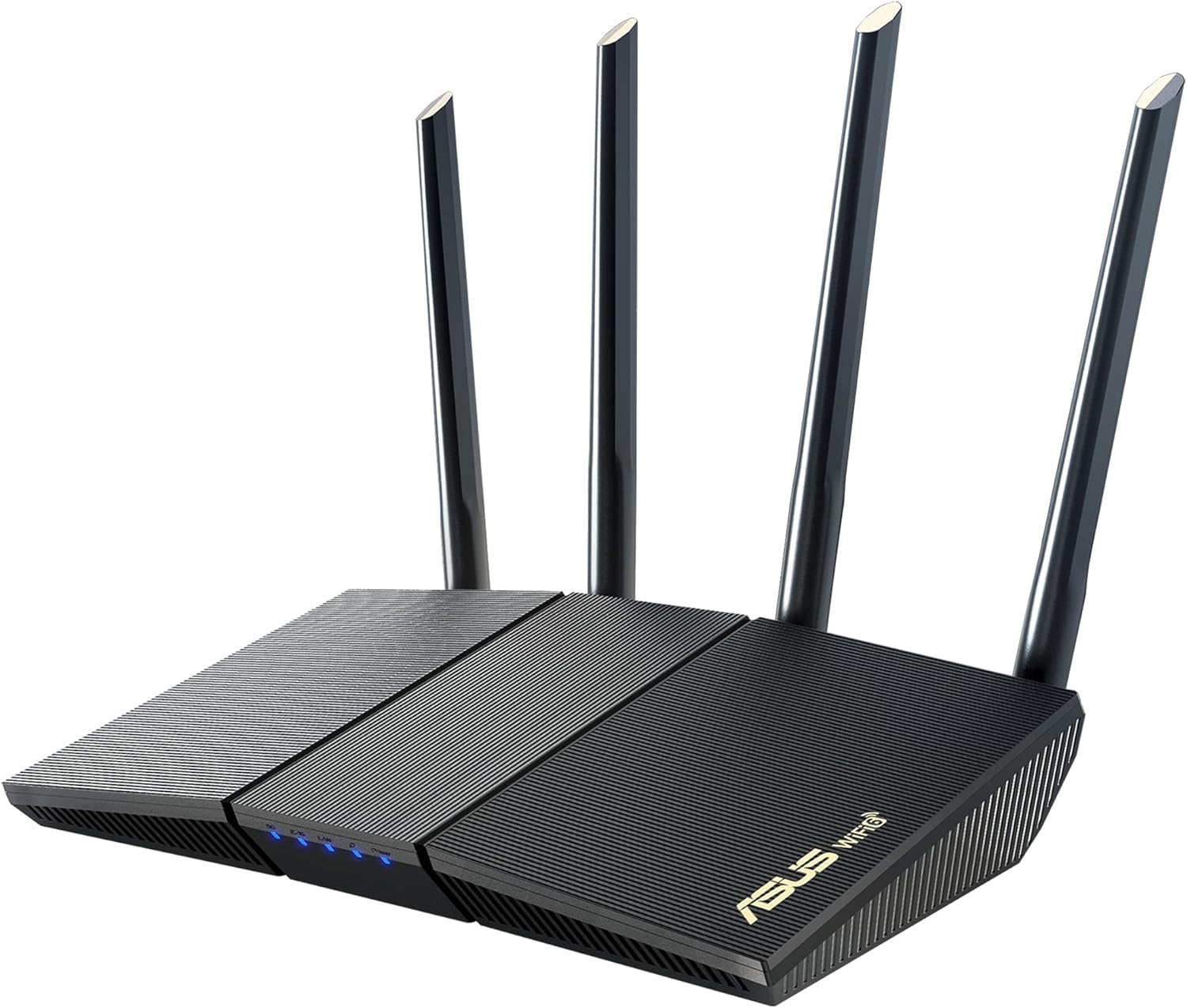
Figure 1: Front view of the ASUS RT-AX1800S AX1800 WiFi 6 Router.
2. Package Contents
Verify that all items are present in your product package. If any item is missing or damaged, contact your retailer.
- RT-AX1800S Router
- RJ-45 cable
- Power adapter
- Warranty card
- Quick start guide
3. Product Overview
3.1. Router Ports and Buttons
Familiarize yourself with the ports and buttons on the rear panel of your router:
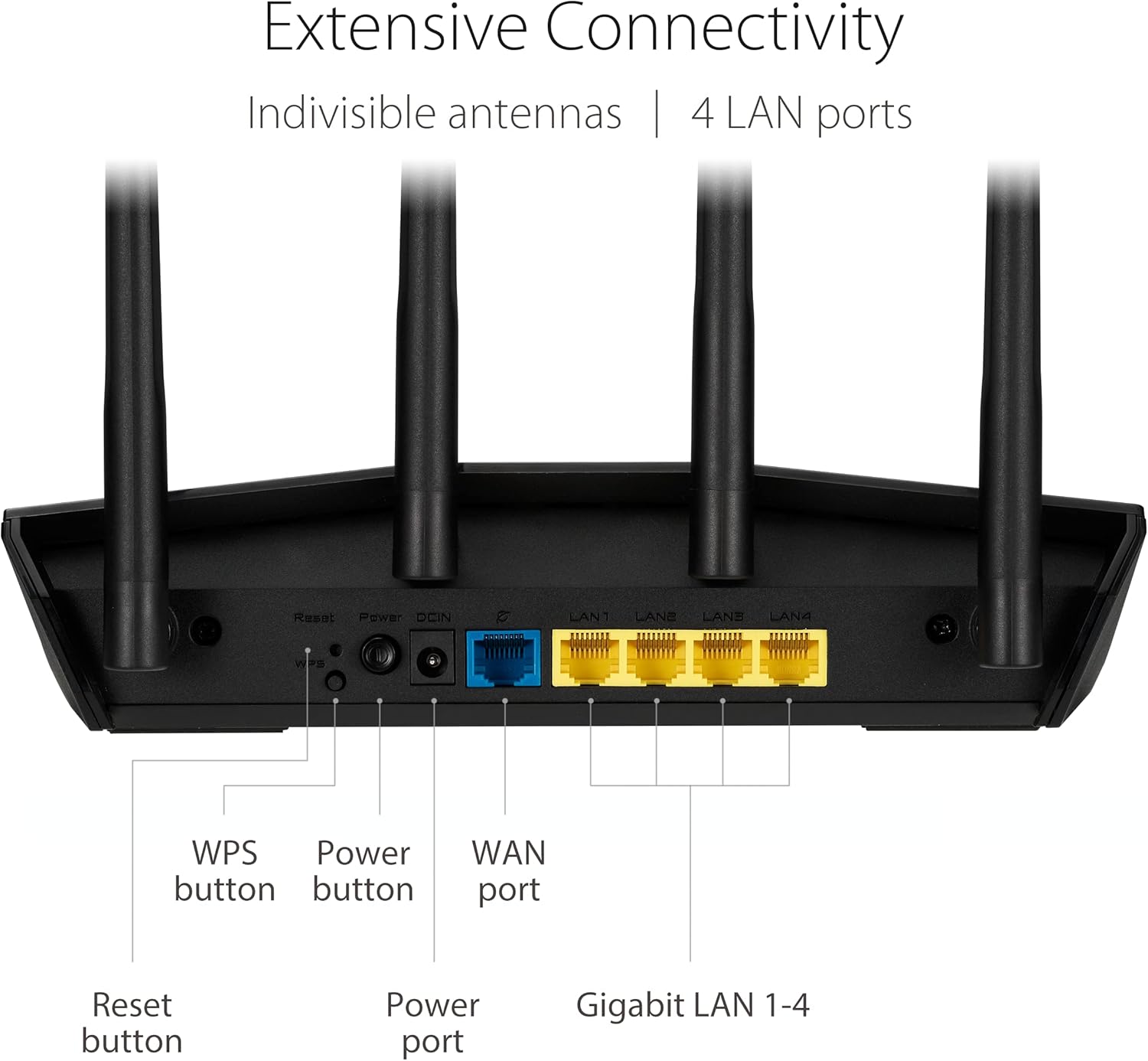
Figure 2: Rear panel of the ASUS RT-AX1800S Router with labeled ports and buttons.
- Reset button: Press and hold for 5-10 seconds to restore factory default settings.
- WPS button: Press to activate Wi-Fi Protected Setup for easy device connection.
- Power button: Press to turn the router on or off.
- Power port (DCIN): Connects to the included power adapter.
- WAN port (Blue): Connect your modem's Ethernet cable here for internet access.
- Gigabit LAN 1-4 ports (Yellow): Connect wired devices such as computers, gaming consoles, or network storage.
3.2. LED Indicators
The LED indicators on the front of the router provide status information:
- Power LED: Solid blue indicates power on. Blinking indicates firmware upgrade or recovery mode.
- WAN LED: Solid blue indicates a successful internet connection. Blinking indicates data activity.
- LAN LEDs (4): Solid blue indicates a device is connected to the corresponding LAN port. Blinking indicates data activity.
- 2.4GHz WiFi LED: Solid blue indicates the 2.4GHz wireless network is active. Blinking indicates data activity.
- 5GHz WiFi LED: Solid blue indicates the 5GHz wireless network is active. Blinking indicates data activity.
4. Setup
4.1. Hardware Installation
- Position the Router: Place the router in a central location to maximize Wi-Fi coverage. Avoid placing it near large metal objects, concrete walls, or devices that emit electromagnetic interference (e.g., microwaves, cordless phones).
- Connect the Modem: Connect one end of the RJ-45 Ethernet cable to your modem's LAN port and the other end to the blue WAN port on your ASUS router.
- Connect Power: Plug the power adapter into the router's DCIN port and then into a power outlet. Press the Power button to turn on the router.
- Wait for Initialization: Allow approximately 1-2 minutes for the router to boot up. The Power and WAN LEDs should turn solid blue.
4.2. Initial Configuration
You can configure your router using a web browser or the ASUS Router App.
Using a Web Browser:
- Connect to the Router: Connect your computer to one of the router's yellow LAN ports using an Ethernet cable, or connect wirelessly to the default Wi-Fi network (SSID and password are on the router's label).
- Open a Browser: Launch a web browser and navigate to http://router.asus.com.
- Follow Setup Wizard: The ASUS Setup Wizard will guide you through the internet connection setup, Wi-Fi network name (SSID), and password creation.
Using the ASUS Router App:
The ASUS Router App provides an intuitive way to set up and manage your router from your mobile device.

Figure 3: The ASUS Router App for easy setup and control.
- Download the App: Search for 'ASUS Router' in the Apple App Store or Google Play Store and install it on your smartphone.
- Connect to Router's Wi-Fi: Connect your smartphone to the router's default Wi-Fi network.
- Launch App: Open the ASUS Router App and follow the on-screen instructions to complete the setup.
5. Operating Instructions
5.1. Connecting Devices
After initial setup, you can connect your devices to the router:
- Wired Connection: Connect an Ethernet cable from your device to any of the yellow LAN ports on the router.
- Wireless Connection: On your device, search for available Wi-Fi networks and select the SSID you configured during setup. Enter the Wi-Fi password when prompted.
5.2. Advanced Features
AiProtection Classic
The RT-AX1800S includes AiProtection Classic, powered by Trend Micro, offering lifetime free network security features.
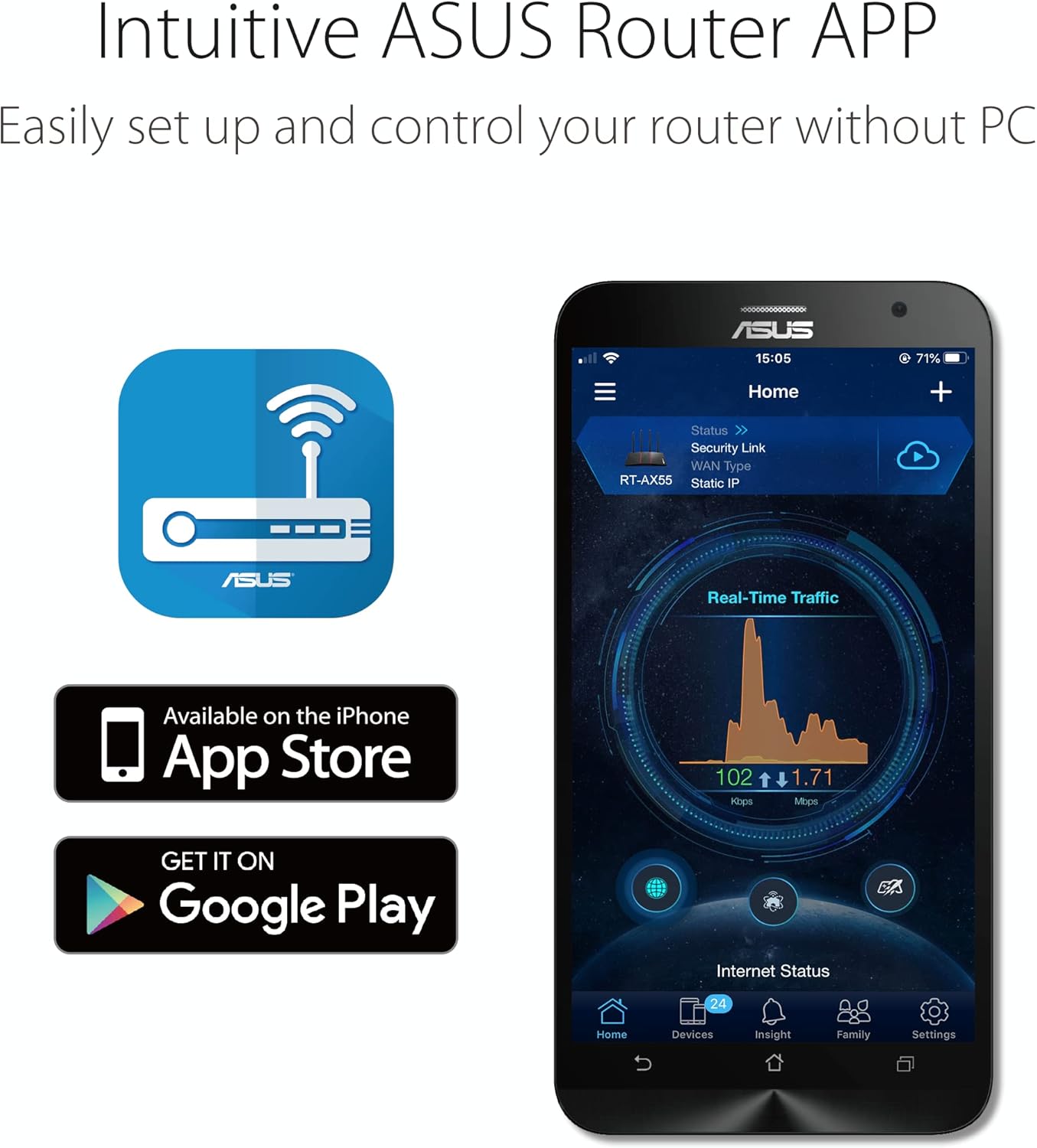
Figure 4: AiProtection Classic provides parental controls and internet security.
- Parental Control: Manage and schedule internet access for connected devices.
- Internet Security: Protect your network from malicious sites, intrusions, and infected devices.
AiMesh (Extendable Network)
The RT-AX1800S supports ASUS AiMesh, allowing you to create a whole-home Wi-Fi system by adding other AiMesh-compatible ASUS routers. This extends your network coverage and eliminates Wi-Fi dead zones.
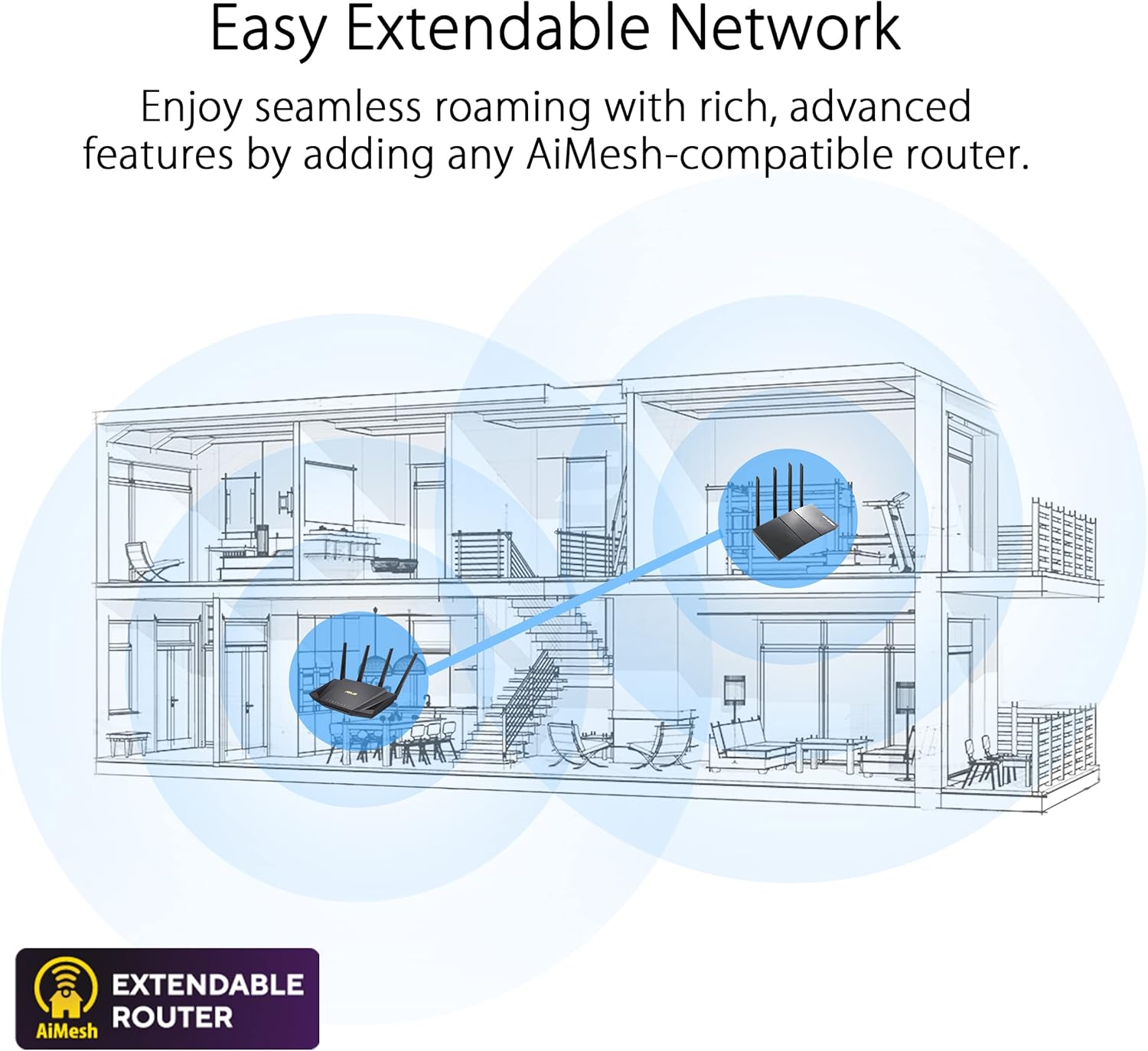
Figure 5: AiMesh allows for seamless roaming and extended network coverage.
Refer to the ASUS website or the ASUS Router App for detailed instructions on setting up an AiMesh network.
6. Maintenance
- Firmware Updates: Regularly check for and install firmware updates through the ASUS Router App or the web interface. Firmware updates provide security enhancements, bug fixes, and new features.
- Cleaning: Keep the router clean and free from dust. Use a soft, dry cloth. Do not use liquid cleaners or aerosols.
- Ventilation: Ensure the router is placed in a well-ventilated area to prevent overheating. Do not block the ventilation holes.
- Restarting: If you experience network issues, try restarting the router by unplugging the power adapter for 10 seconds and then plugging it back in.
7. Troubleshooting
7.1. No Internet Connection
- Check Cables: Ensure the Ethernet cable from your modem is securely connected to the router's blue WAN port.
- Modem Status: Verify that your modem is working correctly and has an active internet connection.
- Router LEDs: Check if the WAN LED on the router is solid blue. If not, restart both your modem and router.
- ISP Settings: Confirm your Internet Service Provider (ISP) settings are correctly configured in the router's web interface.
7.2. Slow Wi-Fi Speed
- Router Placement: Move the router to a more central location, away from obstructions and interference sources.
- Channel Interference: Use the router's web interface or app to analyze Wi-Fi channels and select a less congested one.
- Device Compatibility: Ensure your devices support Wi-Fi 6 (802.11ax) to benefit from the router's full speed capabilities.
- Firmware Update: Ensure your router's firmware is up to date.

Figure 6: Benefits of New-Gen WiFi 6 (802.11ax) technology.
7.3. Cannot Access Router Settings
- Verify IP Address: Ensure your device is connected to the router's network. Try accessing http://router.asus.com or the router's default IP address (e.g., 192.168.1.1).
- Clear Browser Cache: Clear your web browser's cache and cookies, or try a different browser.
- Factory Reset: If all else fails, perform a factory reset by pressing the Reset button for 5-10 seconds. Note that this will erase all your custom settings.
8. Specifications
| Feature | Description |
|---|---|
| Model Name | RT-AX1800S |
| Wireless Standard | 802.11ax (WiFi 6) |
| Frequency Band | Dual-Band (2.4GHz & 5GHz) |
| Data Rate | AX1800 (up to 1800Mbps) |
| Ethernet Ports | 1x Gigabit WAN, 4x Gigabit LAN |
| Special Features | Internet Security (AiProtection Classic), WPS, AiMesh |
| Dimensions (L x W x H) | 9.06 x 5.28 x 2.2 inches |
| Item Weight | 13.1 ounces (0.82 Pounds) |
| Manufacturer | Asus |
9. Warranty and Support
Your ASUS RT-AX1800S router comes with a limited warranty. Please refer to the warranty card included in your package for specific terms and conditions. For technical support, driver downloads, manuals, and FAQs, please visit the official ASUS support website:
You may also contact ASUS customer service for assistance.