
1. Introduction
Welcome to the user manual for your new NEC LAVIE Direct N15(S) 15.6-inch laptop. This guide provides essential information to help you set up, operate, maintain, and troubleshoot your device. Please read this manual thoroughly to ensure optimal performance and longevity of your laptop.

Figure 1.1: Front view of the NEC LAVIE Direct N15(S) laptop.
2. Product Overview
The NEC LAVIE Direct N15(S) is a versatile 15.6-inch laptop designed for everyday computing. It features a powerful Intel Core i7-1165G7 processor, 8GB of RAM, and a dual storage solution with a 256GB SSD for fast boot times and a 1TB HDD for ample storage capacity. The laptop comes pre-installed with Windows 11 Home and Microsoft Office Home & Business 2021.
2.1 Key Features
- Operating System: Windows 11 Home
- Processor: Intel Core i7-1165G7 (up to 4.70GHz)
- Memory: 8GB DDR4 (4GB onboard + 4GB, dual channel)
- Storage: 256GB SSD (PCIe) + 1TB HDD (5400rpm)
- Display: 15.6-inch Wide LED LCD (Full HD, 1920x1080 pixels) with non-glare finish
- Optical Drive: DVD Super Multi Drive (supports DVD-R/+R 2-layer recording)
- Wireless Connectivity: Wi-Fi 5 (IEEE802.11ac/a/b/g/n) and Bluetooth
- Wired Connectivity: 1000BASE-T/100BASE-TX/10BASE-T Ethernet
- Audio: Dolby Audio for immersive sound
- Webcam: Integrated webcam with physical privacy shutter
- Battery Life: Approximately 8.8 hours (JEITA 2.0 standard)
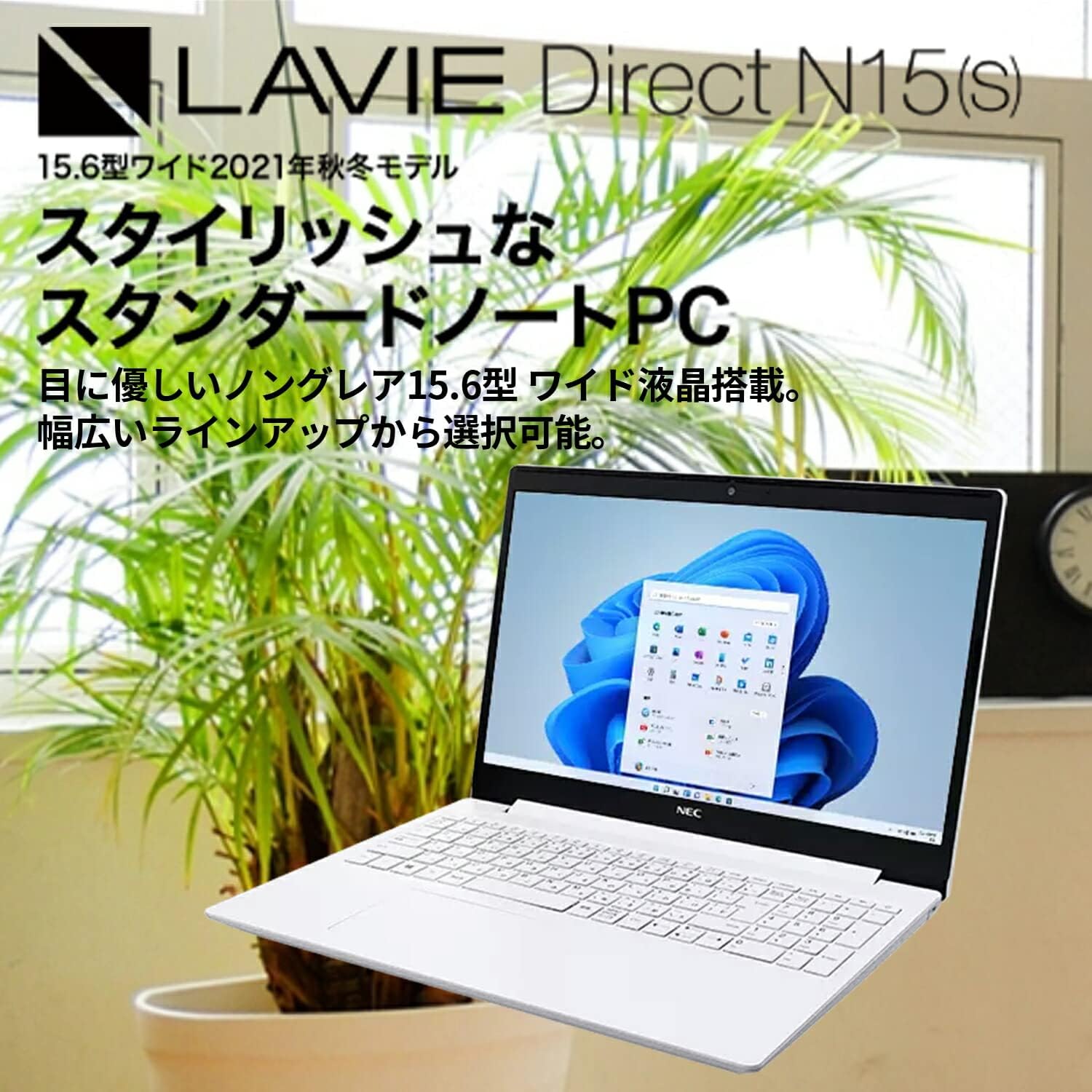
Figure 2.1: The LAVIE Direct N15(S) laptop featuring a 15.6-inch wide display.
2.2 Windows 11 Interface
The laptop comes with Windows 11 Home, offering a refreshed user interface with a redesigned Start menu and icons. It includes features like chat integration, widgets for quick information access, and improved multi-app screen management for enhanced productivity. Advanced security and network management functions are also integrated.

Figure 2.2: Windows 11 Start menu and taskbar.
2.3 Processor Options
The LAVIE Direct N15(S) is equipped with an 11th Generation Intel Core processor, providing efficient performance for various tasks. While this model features an Intel Core i7-1165G7, other configurations with Intel Core i5 or Intel Celeron processors may be available, catering to different performance needs from high-resolution photo/video editing to general internet browsing.

Figure 2.3: Intel Core processor options.
2.4 Fast Storage and Responsive Keyboard
Experience rapid boot times and accelerated application loading thanks to the 256GB PCIe SSD. This model also includes a 1TB HDD for extensive data storage. The keyboard is designed for comfortable operation, featuring convenient hotkeys and function keys for quick access to features like webcam and microphone on/off toggles. The keyboard area is slightly lowered, contributing to the laptop's sleek design.

Figure 2.4: Laptop keyboard and fast storage capabilities.
2.5 Integrated Optical Drive
The slim body of the laptop integrates a DVD Super Multi Drive, allowing you to play commercial video titles, back up your video and photo data, and easily transfer files. This feature provides convenient data management and entertainment options.

Figure 2.5: Optical disc drive for backups and media playback.
2.6 Display and Design
The 15.6-inch wide LED LCD features a non-glare finish, which is gentle on the eyes. Its narrow bezels on two sides contribute to a compact and stylish body. The laptop's slim profile allows it to fit neatly into various spaces. The main body is available in elegant colors, including Calm White, reflecting a focus on refined aesthetics.

Figure 2.6: Stylish body with narrow bezels and non-glare display.
2.7 Immersive Audio with Dolby Audio
Enjoy an immersive sound experience for movies, music, and games with integrated Dolby Audio. The system includes preset sound settings optimized for different content types, such as 'Movie', 'Music', and 'Game', allowing you to easily enjoy rich, lifelike audio.

Figure 2.7: Enhanced audio experience with Dolby Audio.
2.8 Privacy Shutter and Connectivity
The integrated webcam features a physical privacy shutter, allowing you to cover the camera lens when not in use to prevent unintended recording and enhance your privacy. For connectivity, the laptop is equipped with versatile ports including a USB Type-C port (not for video output), USB 3.0 Type-A ports, an HDMI output terminal, and a headphone/microphone jack. The reversible design of the USB Type-C port allows for easy connection without concern for orientation.

Figure 2.8: Webcam privacy shutter and available ports.
3. Setup
3.1 Initial Power-On
- Unpack your laptop and all accessories.
- Connect the AC adapter to the laptop's power port and then to a power outlet.
- Open the laptop lid and press the power button.
- Follow the on-screen instructions to complete the initial Windows 11 setup, including language, region, network connection, and user account creation.
3.2 Connecting Peripherals
- USB Devices: Connect USB mice, keyboards, external drives, or other peripherals to the available USB 3.0 Type-A or USB 3.0 Type-C ports.
- External Display: Use the HDMI output port to connect an external monitor or projector.
- Audio Devices: Plug headphones or external speakers into the headphone/microphone jack.
- Wired Network: Connect an Ethernet cable to the LAN port for a wired internet connection.
4. Operating Instructions
4.1 Basic Usage
- Keyboard: Utilize the full-size keyboard for typing. Function keys (F1-F12) often have secondary functions (e.g., volume control, screen brightness) accessible by pressing the Fn key simultaneously.
- Touchpad: Use the integrated touchpad for cursor control and gestures. Refer to Windows settings for touchpad customization.
- Power Management: To shut down, restart, or put the laptop to sleep, click the Start button, then the Power icon.
4.2 Using the Optical Drive
- Press the eject button on the optical drive to open the tray.
- Carefully place a CD or DVD onto the tray, ensuring it is centered.
- Gently push the tray back into the laptop until it clicks shut.
- The operating system will typically prompt you with options for playing or viewing the disc content.
4.3 Connecting to Wi-Fi
- Click the Network icon (Wi-Fi or Ethernet) in the taskbar.
- Select the desired Wi-Fi network from the list of available networks.
- Enter the network security key (password) if prompted.
- Click 'Connect'.
4.4 Webcam Privacy Shutter
To ensure privacy, slide the physical shutter located above the webcam lens to cover or uncover the camera as needed. This provides a clear visual indication of the webcam's status.
4.5 Audio Settings (Dolby Audio)
Access the Dolby Audio settings through the Windows sound control panel or a dedicated Dolby application (if installed). Here you can select preset sound profiles (e.g., Movie, Music, Game) or customize settings to optimize your audio experience.
5. Maintenance
5.1 Cleaning the Laptop
- Always power off the laptop and disconnect the AC adapter before cleaning.
- Use a soft, lint-free cloth slightly dampened with water or a specialized screen cleaner to clean the display.
- For the keyboard and chassis, use a soft cloth. A can of compressed air can help remove dust from crevices.
- Avoid using harsh chemicals, abrasives, or solvents.
5.2 Battery Care
- To prolong battery life, avoid fully discharging the battery frequently.
- Store the laptop in a cool, dry place when not in use for extended periods.
- If storing for a long time, ensure the battery is charged to about 50-60%.
5.3 Software Updates
Regularly check for and install Windows updates and driver updates from the NEC support website to ensure optimal performance, security, and compatibility.
6. Troubleshooting
This section addresses common issues you might encounter. For more detailed troubleshooting, refer to the NEC support website or contact customer service.
6.1 Laptop Does Not Power On
- Ensure the AC adapter is securely connected to both the laptop and a working power outlet.
- Check if the power outlet is functional by plugging in another device.
- If the battery is completely drained, it may take a few minutes of charging before the laptop can power on.
6.2 No Wi-Fi Connection
- Verify that Wi-Fi is enabled in Windows settings.
- Check if your Wi-Fi router is powered on and functioning correctly.
- Ensure you have entered the correct Wi-Fi password.
- Try restarting your laptop and your Wi-Fi router.
6.3 Slow Performance
- Close unnecessary applications running in the background.
- Check for and install any pending Windows updates.
- Ensure your storage drives (SSD and HDD) have sufficient free space.
- Run a virus scan to check for malware.
7. Specifications
| Feature | Specification |
|---|---|
| Brand | NEC |
| Model Name | LAVIE Direct N15S (YS-NS78-N15S) |
| Operating System | Windows 11 Home |
| Processor | Intel Core i7-1165G7 (up to 4.7 GHz) |
| RAM Memory | 8 GB (SODIMM, 4GB onboard + 4GB dual channel) |
| Storage | 256 GB SSD + 1 TB HDD (5400 rpm) |
| Display Size | 15.6 inches |
| Display Resolution | Full HD (1920x1080 pixels) |
| Graphics Card | Integrated Intel Graphics |
| Optical Drive | DVD Super Multi |
| Wireless Type | Wi-Fi 5 (802.11ac/a/b/g/n), Bluetooth |
| Communication Format | Bluetooth |
| Ports | USB 3.0 Type-C, USB 3.0 Type-A, HDMI Output, Headphone/Microphone Jack |
| Audio Output | Headphones |
| Color | Calm White |
| Product Dimensions | 25.5 x 36.3 x 2.29 cm |
| Item Weight | 2.2 Kilograms |
8. Warranty and Support
8.1 Warranty Information
Your NEC LAVIE Direct N15(S) laptop comes with a 1-year manufacturer's warranty. This warranty covers defects in materials and workmanship under normal use. Please retain your proof of purchase for warranty claims.
8.2 Customer Support
For technical assistance, warranty service, or additional information, please visit the official NEC support website or contact their customer service department. You can typically find contact details and support resources on the manufacturer's website by searching for your specific model number (YS-NS78-N15S).


