
AXYMLEN V380 Pro
AXYMLEN V380 Pro Wireless HD Security CCTV Camera User Manual
Model: V380 Pro
1. Introduction
Thank you for choosing the AXYMLEN V380 Pro Wireless HD Security CCTV Camera. This manual provides detailed instructions for setting up, operating, maintaining, and troubleshooting your new security camera. Please read this manual thoroughly before use to ensure proper installation and optimal performance.
The AXYMLEN V380 Pro is a versatile security camera designed for both indoor and outdoor use, offering 1080P High Definition video, night vision, two-way audio, and smart motion detection capabilities. Its wireless connectivity and 360-degree coverage provide comprehensive surveillance for your peace of mind.
2. Package Contents
Please verify that all items are present in your package:
- AXYMLEN V380 Pro Wireless HD Security CCTV Camera
- 30-Minute Charger (Power Adapter)
- USB Power Cable
- Mounting Screws and Wall Plugs
- Mounting Base/Bracket
- User Manual (this document)

Image: Contents of the AXYMLEN V380 Pro package, including the camera, power adapter, cable, and mounting hardware.
3. Product Overview
Familiarize yourself with the various components of your AXYMLEN V380 Pro camera:
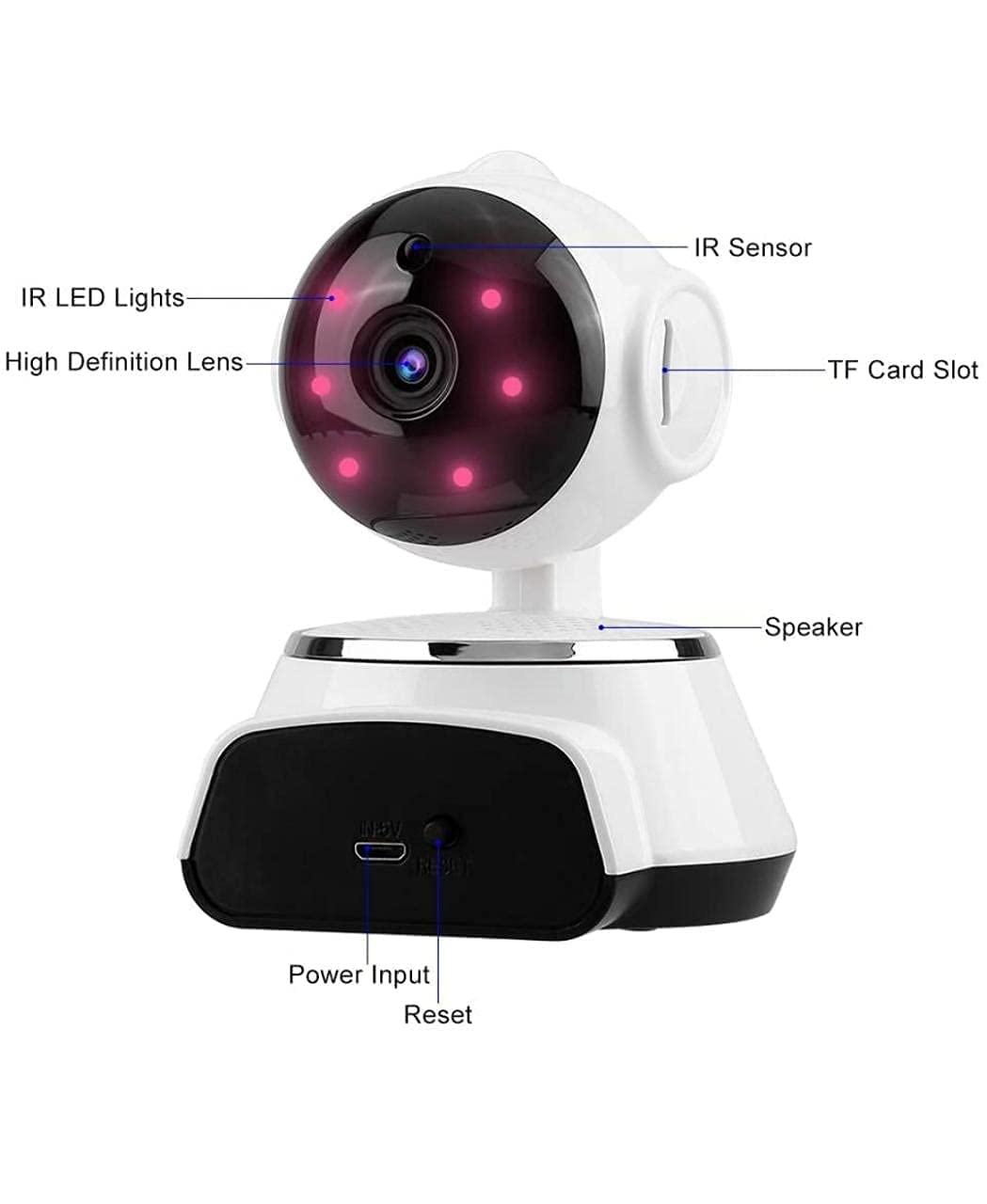
Image: Labeled diagram showing the key components of the AXYMLEN V380 Pro camera, including the lens, IR LEDs, IR sensor, TF card slot, speaker, power input, and reset button.
- High Definition Lens: Captures 1080P video.
- IR LED Lights: Infrared LEDs for night vision.
- IR Sensor: Detects ambient light for automatic night vision activation.
- TF Card Slot: For inserting a microSD card (up to 64GB) for local storage.
- Speaker: For two-way audio communication and alarm sounds.
- Power Input (DC 5V): Connects to the power adapter.
- Reset Button: Used to restore factory settings.
4. Setup Guide
4.1 Powering On
- Connect the provided power adapter to the camera's Power Input port.
- Plug the power adapter into a standard AC power outlet.
- The camera will power on and initiate its self-test sequence.
4.2 App Installation
The AXYMLEN V380 Pro camera uses the V380 Pro application for remote viewing and control.
- Download the "V380 Pro" app from your mobile device's app store (Google Play Store for Android or Apple App Store for iOS).
- Install the app and create an account if you are a new user.
4.3 Network Connection
There are two primary methods for connecting your camera to a network:
A. Direct AP Mode (No Wi-Fi Router Needed)
This mode allows direct connection to the camera's built-in Wi-Fi hotspot within a 10-meter range.
- Ensure the camera is powered on.
- On your mobile device, go to Wi-Fi settings and connect to the camera's Wi-Fi hotspot (usually starts with "MV" or "V380").
- Open the V380 Pro app, and the camera should automatically be detected.
B. Router Mode (Connecting to Home Wi-Fi)
This mode allows remote viewing from anywhere with internet access.
- Connect your mobile device to your home Wi-Fi network.
- Open the V380 Pro app and tap the "+" icon to add a new device.
- Follow the on-screen instructions to select your Wi-Fi network and enter the password. The camera will connect to your router.
4.4 SD Card Installation
To enable local video recording, install a microSD card (TF card) into the camera.
- Locate the TF Card Slot on the side of the camera.
- Gently insert a microSD card (up to 64GB, Class 10 recommended) into the slot with the gold contacts facing down until it clicks into place.
- To remove, push the card in again until it pops out.
5. Operating Instructions
5.1 Remote Viewing
Once connected to your network, you can view live video from your camera on various devices:
- Open the V380 Pro app on your iPhone, iPad, Android phone, or tablet.
- Select your camera from the device list to access the live feed.
- The live video can also be viewed on a computer using compatible software.
5.2 Pan/Tilt Control
The camera offers extensive coverage with its pan and tilt capabilities:
- 360° Horizontal Rotation: Remotely control the camera to pan across a full 360 degrees, eliminating blind spots.
- 120° Vertical Rotation: Adjust the camera's vertical angle up or down by 120 degrees.
- Use the directional controls within the V380 Pro app to adjust the camera's viewing angle.

Image: Illustration of the AXYMLEN V380 Pro camera's pan and tilt capabilities, highlighting its 360-degree horizontal rotation and 120-degree vertical rotation for complete coverage.
5.3 Two-Way Audio
The built-in microphone and speaker allow for two-way communication:
- In the V380 Pro app, tap the microphone icon to speak through the camera's speaker.
- Tap the speaker icon to listen to audio from the camera's surroundings.
5.4 Motion Detection and Alerts
The camera can detect motion and send alerts to your mobile device:
- When motion is detected, the camera will automatically start recording and can emit alarm sounds.
- An alert message, often accompanied by a snapshot, will be transmitted to your phone via the V380 Pro app.
- You can view the real-time video and review recorded alerts within the app.

Image: Flowchart illustrating the motion detection process: a stranger is detected, the camera triggers an alarm, and a message with a photo is sent to the user's mobile device.
5.5 Night Vision
The camera is equipped with infrared LEDs for clear night vision:
- Built-in infrared LEDs provide clear visibility up to 10 meters in low-light or no-light conditions.
- The smart IR-cut filter automatically switches between day and night modes based on ambient light.
6. Installation Options
The AXYMLEN V380 Pro camera offers flexible installation options to suit your surveillance needs:
- Desk Placement: Simply place the camera on any flat surface like a desk or shelf.
- Wall Mounting: Use the provided mounting bracket and screws to secure the camera to a wall.
- Ceiling Mounting: The camera can also be inverted and mounted to the ceiling for a wider overhead view.

Image: Examples of flexible installation options for the AXYMLEN V380 Pro camera, including placement on a desk, mounting on a wall, and mounting on the ceiling.
7. Maintenance
To ensure the longevity and optimal performance of your camera, follow these maintenance guidelines:
- Cleaning: Use a soft, dry cloth to clean the camera lens and body. Avoid using harsh chemicals or abrasive cleaners.
- SD Card Management: Regularly back up important recordings from your microSD card. If the card becomes full, older recordings may be overwritten. Consider formatting the card periodically through the app settings to maintain performance.
- Firmware Updates: Check the V380 Pro app periodically for available firmware updates. Keeping your camera's firmware updated ensures access to the latest features and security enhancements.
- Environmental Conditions: While suitable for indoor/outdoor use, avoid exposing the camera to extreme temperatures, direct water immersion, or highly corrosive environments.
8. Troubleshooting
If you encounter issues with your AXYMLEN V380 Pro camera, refer to the following common problems and solutions:
| Problem | Possible Cause | Solution |
|---|---|---|
| Camera not powering on | No power, faulty adapter/cable | Check power connection, try a different outlet, ensure adapter/cable are not damaged. |
| Cannot connect to Wi-Fi | Incorrect Wi-Fi password, camera too far from router, router issues | Verify Wi-Fi password, move camera closer to router, restart router, ensure 2.4GHz Wi-Fi is used. |
| No video feed in app | Network issue, camera offline, app glitch | Check internet connection, restart camera, close and reopen V380 Pro app. |
| Motion detection not working | Settings disabled, sensitivity too low | Enable motion detection in app settings, adjust sensitivity level. |
| No recording to SD card | SD card full/faulty, not inserted correctly, recording settings disabled | Check SD card insertion, format card via app, ensure recording is enabled in settings. Try a different SD card. |
| Poor image quality | Dirty lens, low bandwidth, lighting issues | Clean the lens, ensure stable Wi-Fi connection, adjust camera position relative to light sources. |
Resetting the Camera
If issues persist, you may need to reset the camera to its factory default settings. Locate the Reset button (often a small pinhole) on the camera body. Use a pin or paperclip to press and hold the button for approximately 5-10 seconds until you hear a voice prompt or see an indicator light change. After resetting, you will need to reconfigure the camera as if it were new.
9. Specifications
Key technical specifications for the AXYMLEN V380 Pro Wireless HD Security CCTV Camera:
| Feature | Specification |
|---|---|
| Model Name | V380 Pro |
| Product Dimensions | 12 x 4 x 3 cm |
| Item Weight | 180 g |
| Connectivity Technology | Wireless (Wi-Fi) |
| Video Resolution | 1080P HD |
| Night Vision Distance | More than 10M IR distance |
| Storage Support | Up to 64GB SD Card (TF Card) |
| Pan/Tilt Control | 360° Horizontal, 120° Vertical |
| Audio | Two-way Audio |
| Special Features | Portable, HD Resolution, Night Vision, Motion Detection |
| Indoor/Outdoor Usage | Outdoor, Indoor |
| Power Source | AC |
| Compatible Devices | iPhone/iPad/Android/Tablet/Computer |
| Manufacturer | Nityansh Telecom |
10. Warranty and Support
10.1 Warranty Information
Your AXYMLEN V380 Pro Wireless HD Security CCTV Camera comes with a 1 Year Warranty from the date of purchase. This warranty covers manufacturing defects and ensures the product functions as intended under normal use. Please retain your purchase receipt as proof of warranty.
10.2 Customer Support
For any technical assistance, troubleshooting, or warranty claims, please contact the manufacturer:
- Manufacturer: Nityansh Telecom
- Email: nityanshtelecom01@gmail.com
Please provide your product model number (V380 Pro) and a detailed description of the issue when contacting support to facilitate a quicker resolution.
Ask a question about this manual
Ask about setup, troubleshooting, compatibility, parts, safety, or missing instructions. Manuals+ will review the question and use this page’s manual context to help answer it.