
1. Introduction and Overview
The STEAMEMO 24-Port Managed Gigabit PoE+ Switch is a robust networking device designed for efficient data and power transmission. It features 24 PoE+ ports, 2 Gigabit uplink ports, and 2 1.25G SFP slots, supporting IEEE 802.3af/at standards with a maximum of 30W per port and a total power budget of 360W. This switch is ideal for powering IP cameras, Wi-Fi 6 access points, VoIP phones, and other high-bandwidth devices.
Advanced management features include automatic Ethernet cable quality detection, precise bandwidth control, Quality of Service (QoS) optimization, 802.1Q VLAN support, static MAC assignment, storm control, port mirroring, and auto MDI/MDI-X. It also incorporates IEEE 802.3X full-duplex flow and backpressure half-duplex flow control for reliable performance.
The switch offers intuitive management and status monitoring via a user-friendly web interface or mobile application, simplifying remote monitoring, device configuration, and troubleshooting without requiring on-site visits.
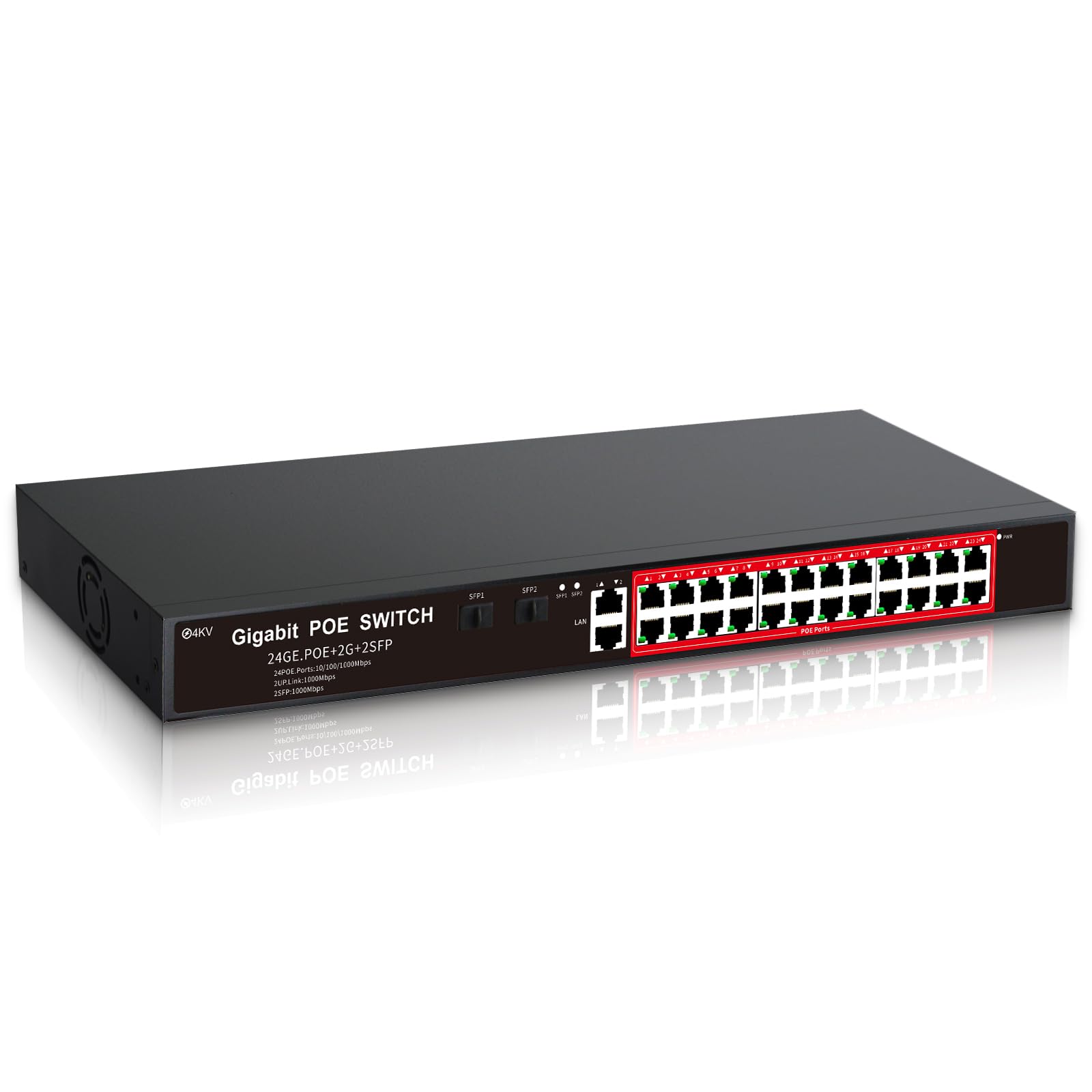
Figure 1: Front view of the STEAMEMO 24-Port Managed Gigabit PoE+ Switch, highlighting its compact design.
Video 1: An overview of the advantages and usage scenarios of the STEAMEMO PoE switch, demonstrating its versatility.
2. Setup and Installation
2.1 Package Contents
- 1x STEAMEMO 24-Port Managed Gigabit PoE+ Switch
- 1x Power Cable
- 2x Rackmount Brackets
- Screws for mounting
- User Manual (this document)
2.2 Physical Installation
The switch features a durable metal housing and a built-in 360W power supply. It supports versatile installation options:
- Desktop Placement: Simply place the switch on a flat, stable surface.
- Wall Mounting: Use the provided brackets and screws to securely mount the switch to a wall.
- Rack Mounting: The 19-inch length of the switch is designed to fit standard network racks using the included rackmount kit.

Figure 2: The 19-inch rackmount design of the switch, showing the included rackmount kit for flexible installation.
2.3 Basic Connection Steps
- Connect to Power: Plug the power cable into the switch's power input and then into a suitable power outlet.
- Connect Devices: Connect your network devices (e.g., IP cameras, access points, computers) to the PoE+ ports (1-24) using standard Ethernet cables. For non-PoE devices, ensure they have their own power source.
- Connect to Network: Use the Gigabit uplink ports or SFP slots to connect the switch to your router or main network.

Figure 3: Simple connection steps: 1. Plug in power, 2. Connect devices to PoE ports, 3. Connect to the internet via uplink.
Video 2: An unboxing and setup demonstration for a STEAMEMO AI PoE Switch, illustrating the initial steps for getting the device ready.
3. Operating the Switch
3.1 Power over Ethernet (PoE) Functionality
The switch provides Power over Ethernet (PoE) on ports 1-24, allowing compatible devices to receive both power and data through a single Ethernet cable. This simplifies installation and reduces cabling requirements.

Figure 4: Illustration of Power over Ethernet, where both data and power are transmitted over a single Ethernet cable to a connected device.
3.2 Management and Monitoring
Manage your network effortlessly through the intuitive web dashboard or a dedicated mobile application. This allows for real-time monitoring of network status, configuration of devices, and remote troubleshooting.


The switch supports management via both mobile app and web interface.
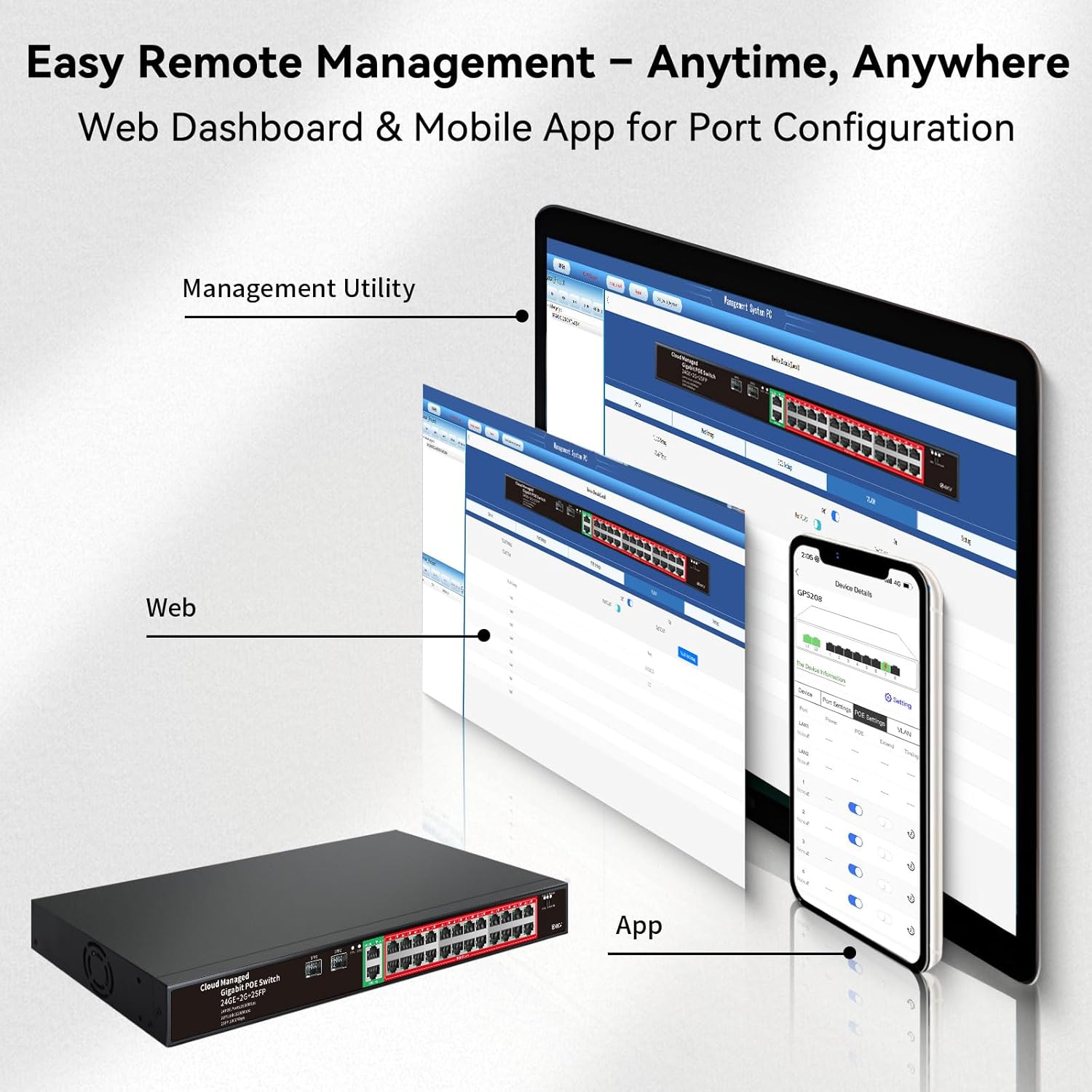
Figure 5: Remote management capabilities shown through web dashboard and mobile application interfaces.
Video 3: A demonstration on how to configure DHCP settings for the switch using the management interface.
3.3 VLAN Configuration
The switch supports 802.1Q VLANs, allowing you to segment your network for improved security and traffic management. This is particularly useful for separating different types of network traffic, such as surveillance, office, and guest networks.

Figure 6: VLAN setup illustrating how different network segments (VLAN 1, VLAN 2, VLAN 3) can be isolated to prevent broadcast messages between them.

The switch supports advanced VLAN features for network segmentation.
3.4 Quality of Service (QoS)
QoS allows you to prioritize network traffic, ensuring critical applications receive sufficient bandwidth. You can set individual upload and download limits for connected devices.

Figure 7: QoS settings interface for managing upload and download rates for individual ports.
3.5 PoE Scheduling and Auto Recovery
Automate power duration control per port with PoE scheduling, optimizing energy consumption. The Intelligent PoE Auto Recovery feature automatically restarts or reboots devices when frozen feeds or dropped connections are detected, reducing the need for manual intervention.

Figure 8: PoE scheduling options for setting power on/off times and reboot schedules.

Figure 9: The switch's ability to remotely restart or disable PoE ports and auto-reboot devices, enhancing network reliability.
Video 4: A demonstration of Intelligent PoE Auto Recovery, showing how the switch automatically troubleshoots and re-establishes connections.
3.6 Extended Mode
Activate the one-click Extended Mode to deliver PoE power and data up to 250 meters, significantly extending the reach for IP cameras and access points in large areas.

Figure 10: Extended Mode allows PoE transmission up to 250 meters, ideal for long-distance deployments.
3.7 Hardware DIP Switch
The switch includes a hardware DIP switch for instant preset switching and factory reset, offering quick configuration changes without software access.

Figure 11: The hardware DIP switch on the front panel for quick mode changes (CMG, D, AI+VLAN) and factory reset.
4. Product Features
- Ports: 24 x 10/100/1000Mbps PoE+ ports, 2 x Gigabit uplink ports, 2 x 1.25G SFP slots.
- PoE Standard: IEEE 802.3af/at compliant.
- PoE Power: Max 30W per port, 360W total power budget.
- Data Transfer Rate: 1 Gigabits Per Second.
- Management: Managed via web interface and mobile app.
- Protection: 4KV lightning protection, short-circuit protection, overload protection.
- Casing: Durable metal casing for efficient heat dissipation.
- Fanless Design: Ensures quiet operation.

Figure 12: Key features of the switch, including 24 Gigabit Ethernet ports, PoE scheduling, advanced VLAN/QoS, PoE port reboot, and smart web management.

Figure 13: The switch offers comprehensive protection against over-current, short-circuit, over-voltage, and 4KV lightning strikes.
5. Specifications
| Attribute | Value |
|---|---|
| Product Dimensions | 17.32"L x 7.09"W x 1.77"H |
| Item Weight | 2.84 Kilograms (6.24 pounds) |
| Voltage | 24 Volts |
| Case Material | Metal |
| Upper Temperature Rating | 40 Degrees Celsius |
| Interface Type | PoE, RJ45 |
| Data Transfer Rate | 1 Gigabits Per Second |
| Number of Ports | 26 (24 PoE+, 2 Uplink Gigabit, 2 SFP) |
| Color | Black |
| Compatible Devices | Desktop |

Figure 14: Detailed dimensions of the 24-Port Gigabit Managed Switch.
6. Troubleshooting
6.1 Port Status Indicators
The switch features color-coded port intelligence to instantly identify network health:
- Green: Good data transmission.
- Yellow/Orange: Poor data transmission or video stuck loading. Check network cable (ensure it's CAT5 or higher) and transmission distance (within 100m for normal mode, up to 250m for extended mode).
- Red: Powered.
- Black: Disconnected.
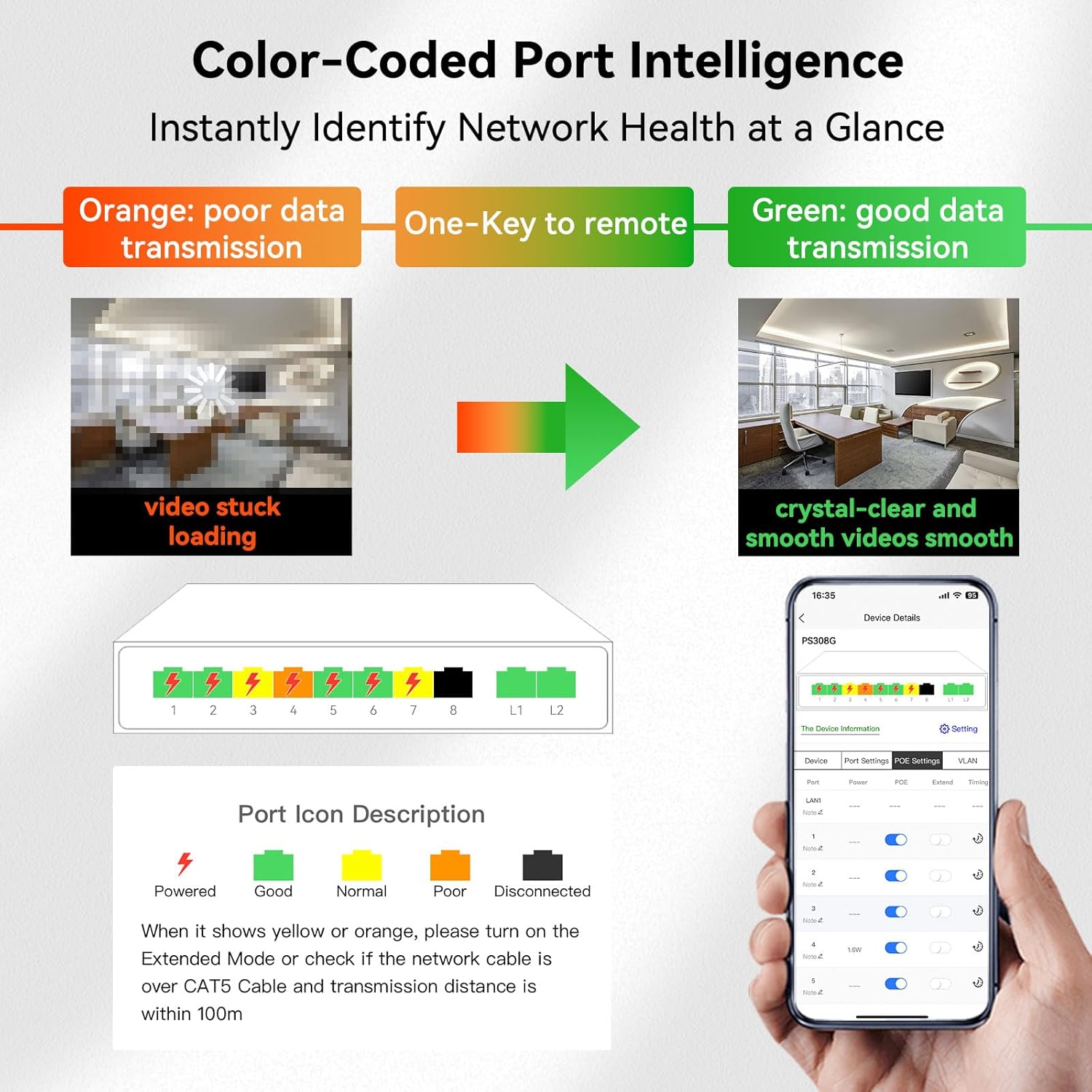
Figure 15: Port LED indicators and their meanings for quick network status assessment.
6.2 PoE Device Compatibility
Ensure that your PoE devices are active PoE (IEEE 802.3af/at compliant) for direct connection to the switch. Passive PoE devices require a PoE splitter for proper operation.
Video 5: Demonstration of correct operation when connecting an active PoE camera to an active PoE switch.
Video 6: Demonstration of connecting a passive PoE camera to an active PoE switch using a PoE splitter for correct operation.
Video 7: Demonstration of connecting a non-PoE camera to an active PoE switch using a PoE splitter for correct operation.
7. Warranty and Support
STEAMEMO provides a one-year after-sales service for this product. Within 1 year from the order date, the product is eligible for replacement rather than repair in case of unexplained failures. For any issues or support inquiries, please feel free to contact us.

