
1. Product Overview
The Srihome SH039b is a Pan/Tilt Wireless WiFi 3MP Full HD 1296p waterproof security camera designed for both indoor and outdoor surveillance. It features advanced functionalities such as auto tracking, two-way audio, smart motion detection with an audible alarm, and remote access capabilities.
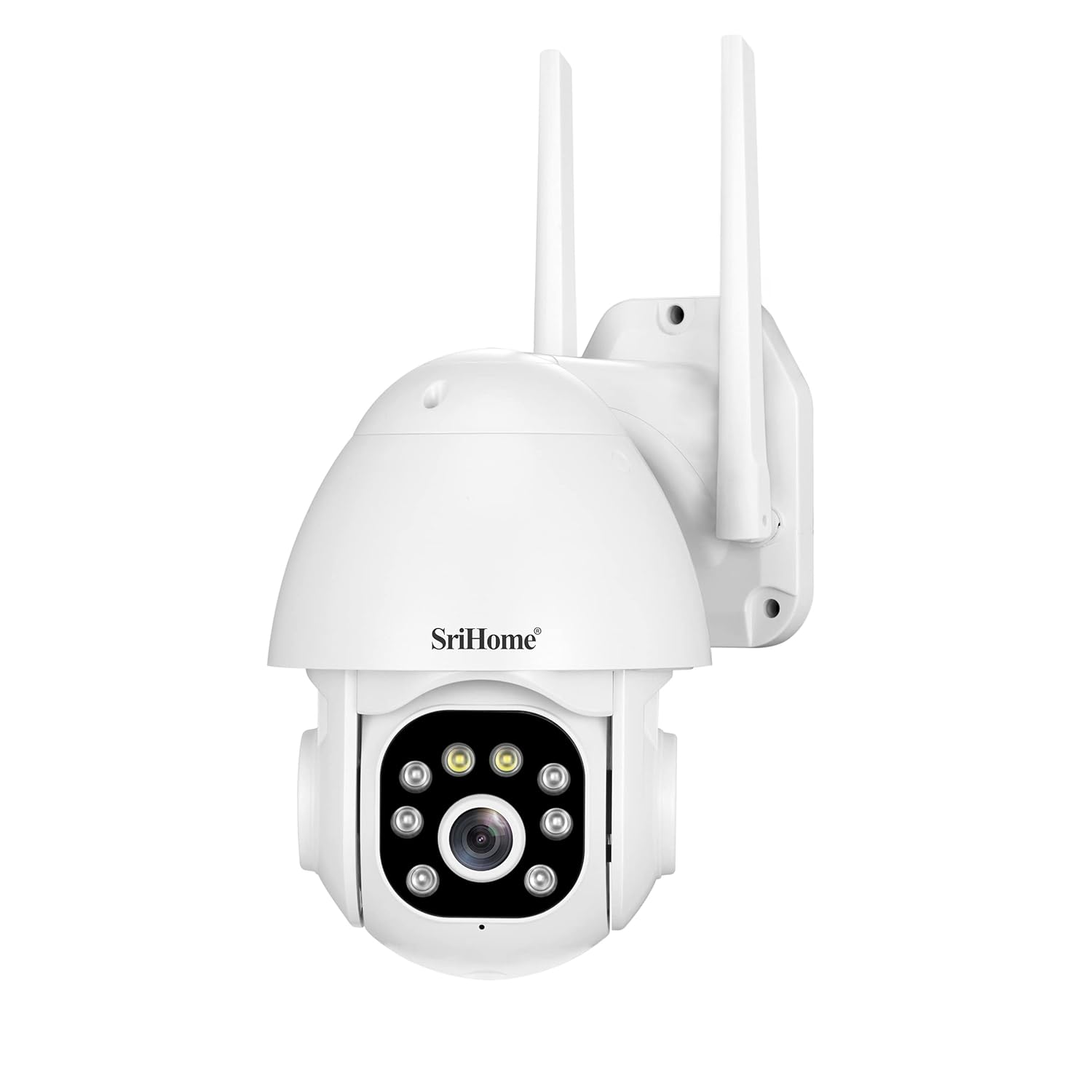
Figure 1.1: Front view of the Srihome SH039b camera, showing the lens, IR lights, and dual antennas.
Key Features:
- 3MP Full HD 1296p Resolution: Provides clear and detailed video footage.
- Pan/Tilt Functionality: Offers 355° horizontal pan and 90° vertical tilt for comprehensive coverage.
- IP66 Waterproof Rating: Ensures durability and reliable operation in various weather conditions.
- Audible Alarm: Activates red and blue lights with a sound alarm upon detection of movement.
- Auto Tracking: Automatically follows human movement within its field of view.
- Two-Way Audio: Built-in microphone and speaker for real-time communication.
- Smart Motion Detection: Sends notifications to your smartphone upon detecting movement.
- SD Card Storage: Supports up to 128GB Micro SD card for local video storage.
- Remote Access: View live feed and recordings from anywhere via the Srihome app.
2. Setup Guide
2.1 Package Contents
Ensure all items are present in the package:
- Srihome SH039b Security Camera
- Power Adapter
- Mounting Screws and Wall Plugs
- User Manual (this document)
2.2 Initial Preparation
- Power Connection: Connect the provided power adapter to the camera and plug it into a power outlet. The camera will initiate its self-test sequence.
- Micro SD Card Installation (Optional): For local storage, insert a Micro SD card (up to 128GB, Class 10 or higher recommended) into the designated slot. Ensure the camera is powered off before inserting or removing the SD card. The slot is typically located under a protective cover on the camera body.

Figure 2.1: Rear view of the Srihome SH039b camera, indicating the location of the Micro SD card slot.
2.3 App Installation and Camera Pairing
- Download the Srihome App: Search for "Srihome" in your smartphone's app store (iOS or Android) and download the official application.
- Account Registration: Open the app and register a new user account or log in if you already have one.
- Add Device: Follow the in-app instructions to add your new camera. This typically involves scanning a QR code on the camera or manually entering its ID.
- Wi-Fi Connection: Connect the camera to your 2.4GHz Wi-Fi network. Ensure your smartphone is connected to the same Wi-Fi network during the pairing process.
- Initial Reset: If you encounter issues during pairing, perform a factory reset on the camera. This is often done by pressing and holding a reset button for several seconds until an audible prompt is heard.
2.4 Mounting the Camera
The camera can be mounted on a wall or ceiling. Choose a location that provides the desired viewing angle and is within range of your Wi-Fi signal and a power outlet.
- Mark Drilling Points: Use the mounting template (if provided) or the camera base to mark the drilling points on the wall or ceiling.
- Drill Holes: Drill holes at the marked positions and insert the wall plugs.
- Secure the Camera: Align the camera base with the drilled holes and secure it using the provided screws.

Figure 2.2: Side view of the Srihome SH039b camera, illustrating its mounting bracket.
3. Operating Instructions
3.1 Live View and Pan/Tilt Control
Once the camera is connected, open the Srihome app to access the live video feed. Use the on-screen controls to remotely adjust the camera's viewing angle (355° Pan, 90° Tilt).
3.2 Two-Way Audio
The camera features a built-in microphone and speaker. In the live view interface of the app, tap the microphone icon to speak through the camera and the speaker icon to listen to audio from the camera's location.

Figure 3.1: Two-way audio functionality, enabling communication through the camera.
3.3 Smart Motion Detection and Audible Alarm
Configure motion detection settings within the Srihome app. When motion is detected, the camera can send notifications to your smartphone. If the audible alarm feature is enabled, the camera will emit sound and flash red and blue lights to deter intruders.

Figure 3.2: The camera's audible alarm and active defense system.
3.4 Auto Tracking
Enable the auto-tracking feature in the app. The camera will automatically detect and follow human movement, keeping the subject centered in the frame.

Figure 3.3: Humanoid tracking in action, showing the camera adjusting its view to follow a person.
3.5 Recording and Playback
Recordings are stored on the installed Micro SD card. Access recorded footage through the playback function in the Srihome app. You can review events based on time or motion detection triggers.
3.6 Multi-Platform Viewing
The Srihome SH039b camera supports simultaneous viewing and operation across multiple platforms, including PC, iPad, IE Browser, Android, and iPhone devices.

Figure 3.4: Multi-platform viewing capability of the Srihome SH039b camera.
3.7 AP Hotspot Monitoring (Offline)
In situations where a Wi-Fi router is unavailable, the camera can create its own wireless access point (AP hotspot). This allows direct connection to your smartphone for local monitoring within a limited range.

Figure 3.5: Monitoring the camera using its AP Hotspot when offline.
4. Maintenance
4.1 Cleaning
To maintain optimal performance, periodically clean the camera lens and housing with a soft, damp cloth. Avoid using harsh chemicals or abrasive materials that could damage the lens or finish.
4.2 Firmware Updates
Regularly check the Srihome app for available firmware updates. Keeping the camera's firmware updated ensures access to the latest features, security enhancements, and bug fixes.
4.3 SD Card Management
If using a Micro SD card for storage, it is recommended to format it periodically through the camera settings in the app to ensure stable recording and prevent data corruption. Replace the SD card if it shows signs of malfunction or reaches its end of life.
5. Troubleshooting
5.1 Camera Not Connecting to Wi-Fi
- Ensure your Wi-Fi network is 2.4GHz. The camera does not support 5GHz Wi-Fi.
- Verify that the Wi-Fi password entered in the app is correct.
- Move the camera closer to your Wi-Fi router to improve signal strength.
- Perform a factory reset on the camera and attempt the pairing process again.
5.2 Weak AP Hotspot Signal
- The camera's AP hotspot has a limited range. Ensure your smartphone is within 10-20 feet of the camera for a stable connection.
- If possible, use a Wi-Fi router for a more reliable and extended connection range.
5.3 Poor Night Vision Quality
- Ensure there are no obstructions directly in front of the camera lens that could reflect infrared light.
- Check for external light sources that might interfere with the camera's night vision sensors.
- Verify that the night vision mode is enabled in the app settings.
5.4 Playback Limitations
- The app may offer limited playback speed options (e.g., 2x). Check for app updates, as new versions might introduce additional features.
- Video trimming functionality may not be available directly within the app. Consider downloading footage to your device for editing with third-party software.
5.5 Camera Not Responding
- Unplug the power adapter, wait for 10 seconds, and then plug it back in to restart the camera.
- If the issue persists, perform a factory reset.
6. Specifications
| Feature | Specification |
|---|---|
| Model | SH039b |
| Video Capture Resolution | 1296p (3MP Full HD) |
| Effective Still Resolution | 3 MP |
| Wireless Communication | Wi-Fi (2.4GHz) |
| International Protection Rating | IP66 (Waterproof) |
| Pan/Tilt Range | 355° Pan, 90° Tilt |
| Storage | Micro SD Card (up to 128GB) |
| Power Consumption | 5 Watts |
| Dimensions (LxWxH) | 15 x 10 x 10 Centimeters |
| Item Weight | 900 Grams |
| Included Components | Adapter |
| Special Features | Audible Alarm, Auto Tracking, Two-Way Audio, Night Color, Auto Focus |
7. Warranty and Support
7.1 Warranty Information
For detailed warranty information regarding your Srihome SH039b camera, please refer to the warranty card included with your product or contact the retailer from whom you purchased the device. Warranty terms and conditions may vary by region and retailer.
7.2 Technical Support
If you encounter any issues not covered in this manual or require further assistance, please contact Srihome customer support through their official website or the contact information provided in the Srihome app. Ensure you have your product model (SH039b) and purchase details ready when contacting support.
