Introduction
This manual provides comprehensive instructions for the operation, maintenance, and troubleshooting of your DXPICR Smart Watch. Please read this manual carefully before using the device to ensure proper functionality and to maximize your user experience.

Image: The DXPICR Smart Watch, featuring a light pink band and a vibrant display showing various app icons.
Setup and Initial Pairing
Before using your DXPICR Smart Watch, ensure it is adequately charged. The watch comes with a Lithium Polymer battery (included). Follow these steps to set up and pair your watch with your smartphone:
- Download the App: Download the official DXPICR companion application from your mobile app store (compatible with Android and iOS).
- Enable Bluetooth: Turn on Bluetooth on your smartphone.
- Pair the Watch: Open the DXPICR app on your phone. Navigate to the "Add a device" section and search for "Y20 GT" to connect.
- Enable Call Function (for calling features): On your watch, swipe down the screen to access quick settings and turn on the 'call' function switch.
- Connect Bluetooth for Calls: Open your phone's Bluetooth settings page. Find and connect to "Y20 GT_Phone" to enable call answering and dialing directly from your watch.
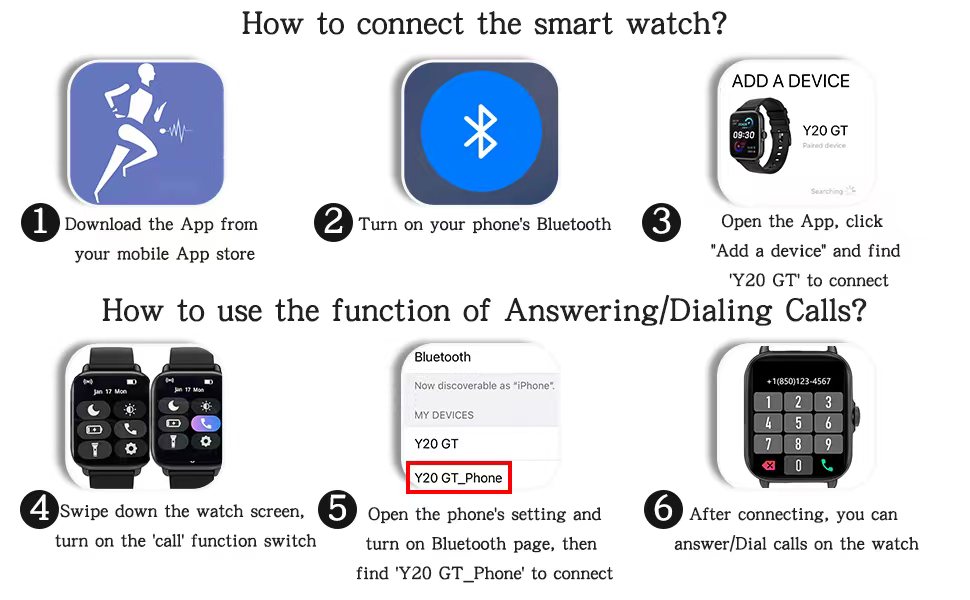
Image: A visual guide illustrating the six steps for connecting the smart watch and enabling its call answering/dialing functions via the mobile app and Bluetooth settings.

Image: A woman using her DXPICR Smart Watch to answer or dial calls directly from her wrist, demonstrating the Bluetooth call function.
Operating Your Smart Watch
Your DXPICR Smart Watch features a 1.7-inch TFT color full touch screen (240x280 pixels) for intuitive navigation. Use the touchscreen and the physical dial/button for interaction.
Key Features and Functions:
- Call Receive/Dial: Once paired, you can make and receive calls directly from your watch using the dial pad, call records, or contacts.
- Smart Notifications: Receive notifications for calls, messages, and social media apps directly on your wrist.

Image: A user interacting with their laptop while their DXPICR Smart Watch displays various notifications, including calls, messages, and social media alerts.
- Health Monitoring:
- Heart Rate Monitor: Built-in optical heart rate sensor provides real-time heart rate data.

Image: A woman meditating, with her DXPICR Smart Watch displaying her heart rate, illustrating the heart rate monitoring feature.
- Sleep Monitor: Tracks awake time, light sleep, and deep sleep patterns to help you understand your sleep quality.

Image: A person sleeping, with the DXPICR Smart Watch displaying detailed sleep monitoring data, including awake time, light sleep, and deep sleep.
- Blood Oxygen (SpO2) Monitor: Measures your blood oxygen saturation levels.
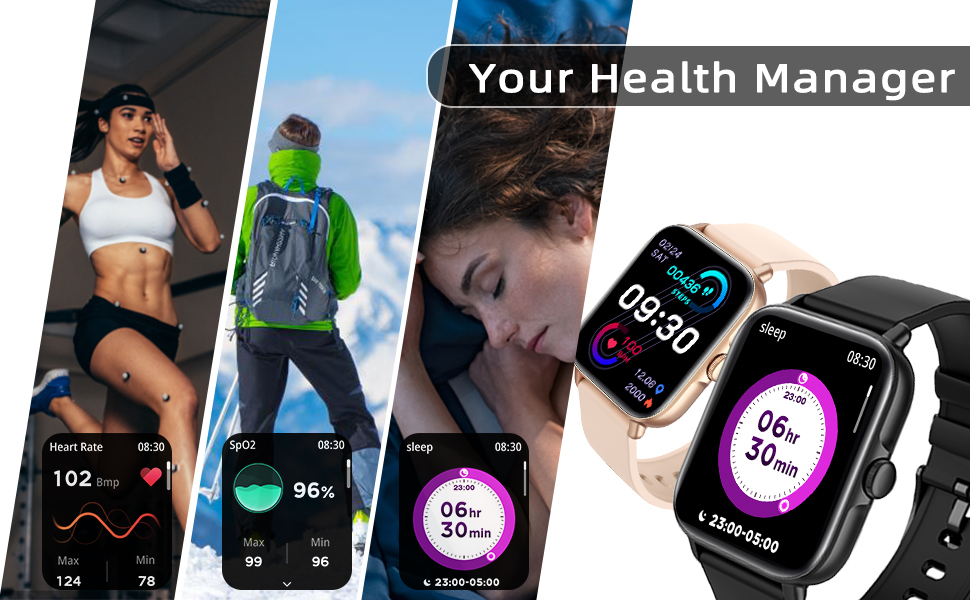
Image: A collage showcasing the health management features of the DXPICR Smart Watch, including heart rate, SpO2, and sleep tracking.
- Heart Rate Monitor: Built-in optical heart rate sensor provides real-time heart rate data.
- Activity Tracking & Sports Modes: Built-in activity tracker records steps, calories burned, distance, and active hours. It supports 28 sports modes with GPS connectivity (via phone).

Image: A woman celebrating after a workout, with her DXPICR Smart Watch displaying activity data such as steps, calories, distance, and active minutes, highlighting the 28 sports modes.

Image: A dynamic image illustrating various sports modes available on the DXPICR Smart Watch, including walking, cycling, and swimming, with corresponding activity data.
- Practical Tools: Your watch includes various useful tools:
- Voice Assistant: Access AI voice commands.
- Breathing Training: Guided breathing exercises for relaxation.
- Music Control: Control music playback on your paired smartphone.
- Camera Control: Use your watch as a remote shutter for your phone's camera.
- Sedentary Reminders: Alerts to encourage movement after periods of inactivity.
- Alarm Clock: Set alarms directly from your watch.
- Weather Display: Get real-time weather updates.
- Flashlight: A basic flashlight function.

Image: A compilation of icons representing the DXPICR Smart Watch's practical functions, including weather display, blood oxygen monitoring, music control, call features, and alarm clock.
- Personalized Watch Face: Customize your watch face with your favorite pictures or photos through the app.
Maintenance and Care
Proper care will extend the life and performance of your DXPICR Smart Watch.
- Cleaning: Regularly wipe the watch screen and band with a soft, damp cloth. Avoid using harsh chemicals or abrasive materials.
- Water Resistance: The watch is designed to be waterproof. However, avoid prolonged submersion in water, hot water, or steam. It is suitable for daily use and light water exposure like hand washing or rain.
- Charging: Use the provided charging cable. Ensure the charging contacts on the watch and cable are clean and dry before charging.
- Storage: When not in use for extended periods, store the watch in a cool, dry place.
Troubleshooting
If you encounter issues with your DXPICR Smart Watch, refer to the following common solutions:
| Problem | Possible Solution |
|---|---|
| Watch not turning on/charging. | Ensure the charging cable is properly connected to both the watch and a power source. Check if the charging contacts are clean. Allow the watch to charge for at least 30 minutes before attempting to turn it on. |
| Bluetooth disconnection. | Ensure the watch and phone are within Bluetooth range. Restart both the watch and your phone. Unpair and re-pair the devices through the app and phone's Bluetooth settings. Check if the app is running in the background and has necessary permissions. |
| Notifications not appearing. | Verify that notification permissions are enabled for the DXPICR app in your phone's settings. Ensure notifications are enabled within the DXPICR app itself. Check if "Do Not Disturb" mode is active on either the watch or phone. |
| Heart rate/SpO2 readings are inaccurate. | Ensure the watch is worn snugly on your wrist, not too tight or too loose. Keep the sensor clean and free from debris. Remain still during measurements. |
| App crashes or freezes. | Update the DXPICR app to the latest version. Clear the app's cache and data (this may require re-pairing). Reinstall the app if the issue persists. Ensure your phone's operating system is up to date. |
Product Specifications
| Feature | Detail |
|---|---|
| Brand | DXPICR |
| Model Name | DXPICR Smart Watch |
| Item Model Number | SMWACTH42 |
| Product Dimensions | 3.7 x 3.4 x 1.7 inches |
| Item Weight | 3.84 ounces |
| Color | Light Pink |
| Display Technology | TFT |
| Screen Size | 1.7 Inches |
| Resolution | 240 x 280 pixels |
| Operating System | Android, iOS compatible |
| Connectivity Technology | Bluetooth |
| Battery Type | 1 Lithium Polymer battery (included) |
| Special Features | Phone Call, Heart Rate Monitor, Sleep Monitor, Blood Oxymeter (SpO2), Music Player, Camera, Sedentary Reminder, Alarm Clock, Calorie Tracker, Time Display, Voice Call, Waterproof, Multisport Tracker, Notifications, Activity Tracker, Breath Monitor |
| Human Interface Input | Dial, Touchscreen |
Warranty and Support
For warranty information or technical support, please refer to the contact details provided with your product packaging or visit the official DXPICR website. Our customer service team is available to assist you with any questions or concerns regarding your smart watch.