
REIGY RG-210N-4124W
REIGY 3MP WiFi Security Camera System User Manual
Model: RG-210N-4124W
Product Overview
The REIGY 3MP WiFi Security Camera System is a comprehensive surveillance solution designed for outdoor home monitoring. This system includes an 8-channel Network Video Recorder (NVR) with a pre-installed 1TB hard drive and four 1296P IP cameras, two of which feature Pan-Tilt (PT) capabilities. Key features include 3MP Pro HD resolution, color night vision with floodlight, two-way audio, and motion detection with real-time alerts. The system is designed for easy plug-and-play setup and is IP66 waterproof for reliable outdoor performance.
Package Contents
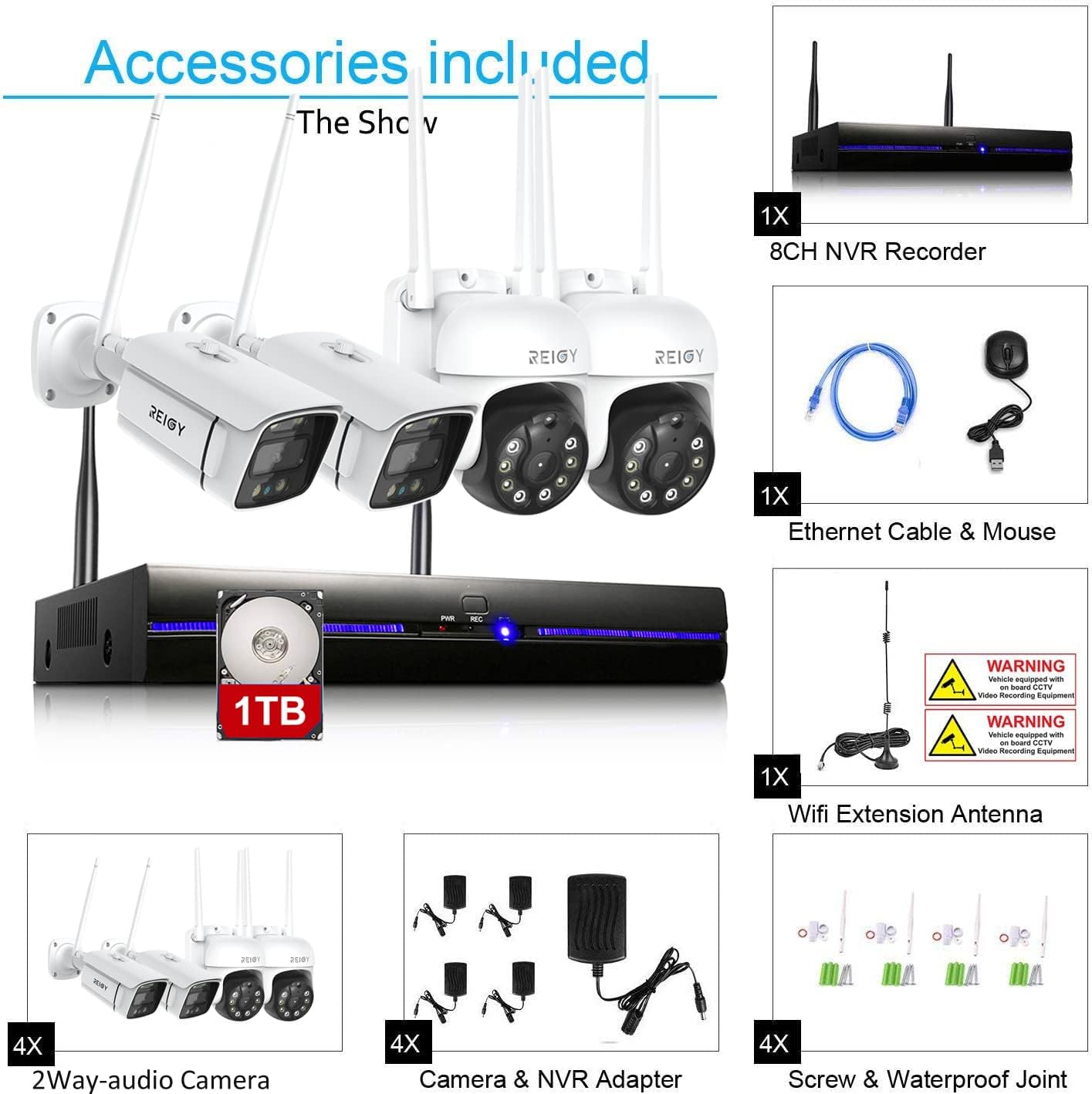
Image: Overview of all included accessories, including the NVR, four cameras (two bullet, two PTZ), Ethernet cable, mouse, WiFi extension antenna, power adapters, and mounting hardware.
Please verify all components are present upon unboxing:
- 1x 8-Channel NVR Recorder with 1TB Hard Drive Pre-installed
- 4x 1296P IP Cameras (2x Bullet, 2x PTZ)
- 4x Camera Power Adapters
- 1x NVR Power Adapter
- 1x Ethernet Cable
- 1x USB Mouse
- 1x WiFi Extension Antenna
- Mounting Screws and Waterproof Joints
- User Manual (this document)
Setup Guide
1. NVR and Camera Connection
The REIGY system is designed for plug-and-play operation. The cameras automatically pair with the NVR upon power-up.

Image: Diagram showing the NVR's back panel with ports for HDMI, VGA, LAN, USB, and power input. Connect the NVR to a display (monitor/TV) via HDMI or VGA, and to your router via the LAN cable for remote access.
- Connect the NVR to a monitor or TV using the provided HDMI or VGA cable.
- Connect the USB mouse to a USB port on the NVR.
- Connect the NVR to your router using the Ethernet cable for internet access and remote viewing.
- Plug in the NVR power adapter to power on the NVR.
- Plug in each camera's power adapter to power on the cameras. The cameras will automatically connect to the NVR wirelessly.

Image: Illustrates two connection methods: 1. NVR Transmission (wireless connection between cameras and NVR, NVR wired to router). 2. Wired Transmission (cameras wired to router, NVR wired to router).
2. Camera Installation
Select appropriate locations for your cameras, ensuring they have a clear line of sight to the areas you wish to monitor and are within range of the NVR's wireless signal. Use the provided mounting screws and waterproof joints for secure outdoor installation.
3. Mobile App Setup (Eseecloud App)
For remote viewing and control, download the Eseecloud app on your iOS or Android device.

Image: Steps for app download, connecting Wi-Fi, scanning the NVR's QR code, receiving alarm notifications, and one-click sharing for multiple viewers.
- Download the "Eseecloud" app from the App Store (iOS) or Google Play Store (Android).
- Register an account and log in.
- On the app, tap "Add Device" and scan the QR code displayed on your NVR's monitor (or found on the NVR unit).
- Follow the on-screen prompts to complete the device addition. Ensure your phone is connected to the same Wi-Fi network as the NVR during initial setup.
System Operation
1. Live View and Playback
Once connected, you can view live feeds from all cameras on your monitor or through the Eseecloud app. The 1TB pre-installed hard drive allows for continuous recording. You can access recorded footage for playback via the NVR interface or the mobile app.

Image: Illustrates the 24-hour recording capability and intelligent night vision, showing a timeline of recorded events with 1296P resolution, motion events, and colorful night vision.
2. Pan, Tilt, and Zoom (PTZ) Control
For the PTZ cameras in your system, you can remotely adjust the camera's viewing angle. The cameras offer a 355° horizontal pan and 90° vertical tilt rotation.

Image: A PTZ camera with arrows indicating 355° pan and 110° tilt movement, alongside a smartphone screen showing the PTZ control interface within the app.
To control PTZ cameras:
- Open the Eseecloud app and select the PTZ camera you wish to control.
- Use the directional controls within the app to pan (left/right) and tilt (up/down) the camera.
3. Two-Way Audio
Each camera is equipped with a microphone and speaker, enabling two-way audio communication. This allows you to hear what's happening near the camera and speak through the camera from your mobile device.

Image: Depicts a scenario where a user can speak to someone at their doorstep via the camera, and another scenario showing a user receiving a package delivery notification with audio.
To use two-way audio:
- In the Eseecloud app's live view, tap the microphone icon to speak.
- Ensure the speaker icon is enabled to hear audio from the camera's location.
4. Night Vision Modes
The system offers three night vision modes to ensure clear visibility in low-light conditions:
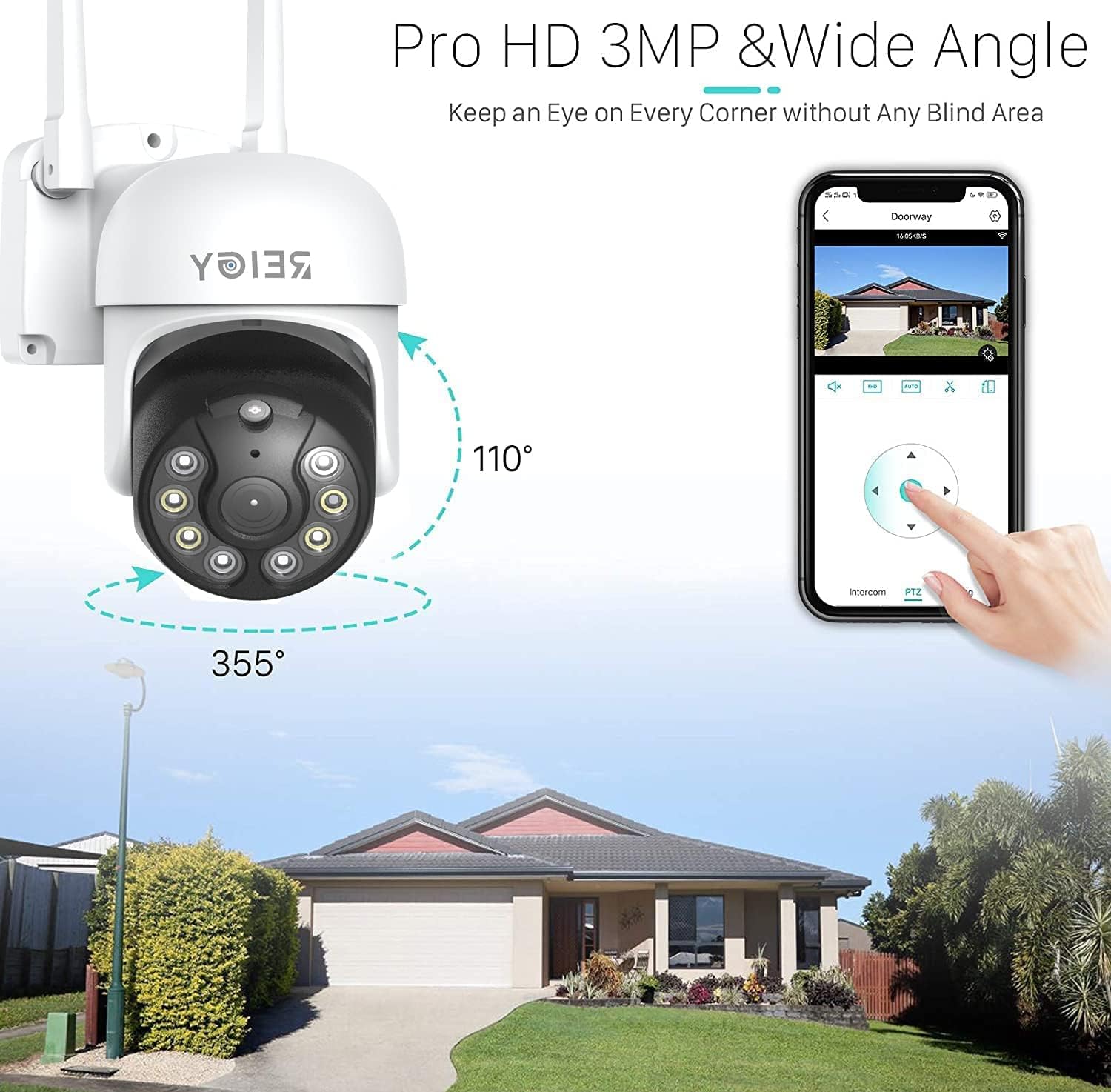
Image: Shows a camera with a spotlight illuminating a dark area, illustrating the full-color night vision capability. Icons represent Infrared, White Light, Lighting Mode, and Lighting Adjusting options.
- Infrared Mode: Provides clear black and white images in complete darkness using infrared LEDs.
- Spotlight Mode: Activates the built-in floodlight for full-color night vision, illuminating the area.
- Smart Mode: The camera operates in infrared mode normally, but automatically switches to spotlight mode (full-color) when motion is detected.
5. Motion Detection and Alerts
The system features advanced motion detection. When motion is triggered, the system can send real-time alerts with snapshots to your mobile phone.
- Configure motion detection zones and sensitivity settings via the NVR interface or the Eseecloud app.
- Ensure app notifications are enabled on your mobile device to receive alerts.
Maintenance
Regular maintenance ensures optimal performance and longevity of your security system.
- Cleaning: Periodically clean the camera lenses with a soft, damp cloth to remove dust, dirt, or water spots that may obstruct the view. Ensure power is disconnected before cleaning.
- Firmware Updates: Check for firmware updates for your NVR and cameras through the Eseecloud app or REIGY's official website. Keeping firmware updated ensures access to the latest features and security patches.
- Hard Drive Management: The 1TB hard drive is pre-installed. The NVR will automatically overwrite the oldest footage when the hard drive is full. You can configure recording schedules and overwrite settings via the NVR interface.
Troubleshooting
If you encounter issues with your REIGY security system, refer to the common problems and solutions below:
| Problem | Possible Cause | Solution |
|---|---|---|
| No video display on monitor/app | NVR/camera not powered, loose cable, network issue. | Check power connections for NVR and cameras. Ensure HDMI/VGA cable is securely connected. Verify NVR is connected to the internet. Restart NVR and cameras. |
| Cameras not connecting to NVR | Out of wireless range, interference, pairing issue. | Ensure cameras are within NVR's wireless range. Reduce obstacles. Re-pair cameras to NVR if necessary (refer to NVR menu for pairing instructions). |
| No remote viewing via app | NVR not connected to internet, app not configured, firewall issues. | Verify NVR has internet access (check LAN indicator). Ensure NVR is added correctly in the Eseecloud app. Check router firewall settings. |
| Motion detection not triggering alerts | Incorrect sensitivity, detection zone, app notifications disabled. | Adjust motion detection sensitivity and zones in NVR/app settings. Enable notifications for the Eseecloud app on your phone. |
| Poor night vision quality | Dirty lens, IR/spotlight obstructed, incorrect mode. | Clean camera lens. Ensure no obstructions are blocking IR LEDs or spotlights. Verify night vision mode settings (Infrared, Spotlight, Smart). |
For further assistance, please contact customer support.
Technical Specifications
| Feature | Specification |
|---|---|
| Brand | REIGY |
| Model Number | RG-210N-4124W |
| Connectivity Technology | Wireless |
| Video Capture Resolution | 2K (1296P), 720p |
| Special Features | Motion Sensor, Night Vision (Infrared, Spotlight, Smart), Two-Way Audio, PTZ (Pan 355°, Tilt 90°) |
| Number of Channels | 8 (NVR supports up to 8 cameras, system includes 4) |
| Memory Storage Capacity | 1 TB (Pre-installed HDD) |
| Color | White |
| Power Source | AC/DC |
| Item Dimensions (L x W x H) | 9.84 x 7.09 x 5.51 inches |
| Recommended Uses | Outdoor Surveillance |
| Compatible Devices | REIGY 1296P cameras (B09LM5WL28) |
| Signal Format | Digital |
| Low Light Technology | Night Color |
| Frame Rate | 30, 60 fps |
| Recording Mode | Motion Detection, Continuous |
| Optical Sensor Technology | CMOS |
| Total USB Ports | 1 |
| Hardware Interface | 802.11 ac/b/g/n |
| Lens Type | Wide Angle |
| Video Input | RJ45 |
| Viewing Angle | 355 Degrees (PTZ cameras) |
| Item Weight | 8.78 pounds |
Warranty and Customer Support
REIGY provides a 1-year warranty for this security camera system. Additionally, lifetime technical support is available to assist you with any questions or issues you may encounter.
If you require assistance, please contact REIGY customer support via email or through the Amazon messaging system. Please have your model number (RG-210N-4124W) and purchase details ready when contacting support.
Ask a question about this manual
Ask about setup, troubleshooting, compatibility, parts, safety, or missing instructions. Manuals+ will review the question and use this page’s manual context to help answer it.