
ASHATA T11
ASHATA T11 Smart Instant Language Translator Device User Manual
Model: T11
1. Introduction
Thank you for choosing the ASHATA T11 Smart Instant Language Translator Device. This manual provides essential information for setting up, operating, and maintaining your device. Please read it thoroughly to ensure optimal performance and longevity of your translator.
The ASHATA T11 is designed to facilitate communication across language barriers, offering real-time two-way translation, offline capabilities, photo translation, and recording translation for a wide range of languages.
2. Safety Information
- Do not expose the device to extreme temperatures, direct sunlight, or high humidity.
- Avoid dropping or subjecting the device to strong impacts.
- Keep the device away from water and other liquids. If it gets wet, power it off immediately and allow it to dry completely before use.
- Use only the provided charging cable or a certified Type-C cable for charging.
- Do not attempt to disassemble or repair the device yourself. Contact customer support for assistance.
- Dispose of the device and its battery responsibly according to local regulations.
3. Package Contents
Please check the package for the following items:
- ASHATA T11 Smart Instant Language Translator Device
- USB Type-C Charging Cable
- User Manual (this document)

Image: The ASHATA T11 translator device shown alongside its USB Type-C charging cable, illustrating the typical package contents.
4. Device Layout
Familiarize yourself with the various components of your ASHATA T11 translator:

Image: A detailed diagram highlighting the various parts of the ASHATA T11 translator, including the screen, buttons, microphones, speaker, camera, and ports.
- Screen: Touchscreen display for navigation and showing translations.
- Microphone 1 (Mic 1): Input for Language A.
- Microphone 2 (Mic 2): Input for Language B.
- Speaker: Outputs translated audio.
- Power Button: On/Off and screen wake/sleep.
- Volume Buttons: Adjust audio volume.
- Type-C Charging Interface: For charging the device.
- Headphone Jack: For private listening.
- Camera: For photo translation.
- Flash Lamp: Provides illumination for the camera.
- Hold for Hang: Attachment point for a lanyard or strap.
5. Setup
5.1 Charging the Device
Before first use, fully charge the device. Connect the USB Type-C charging cable to the device's Type-C port and the other end to a USB power adapter (not included) or a computer's USB port.
- The battery indicator on the screen will show charging status.
- A full charge provides approximately 4 hours of continuous use, 60 minutes of continuous recording, and 72 hours of standby time.
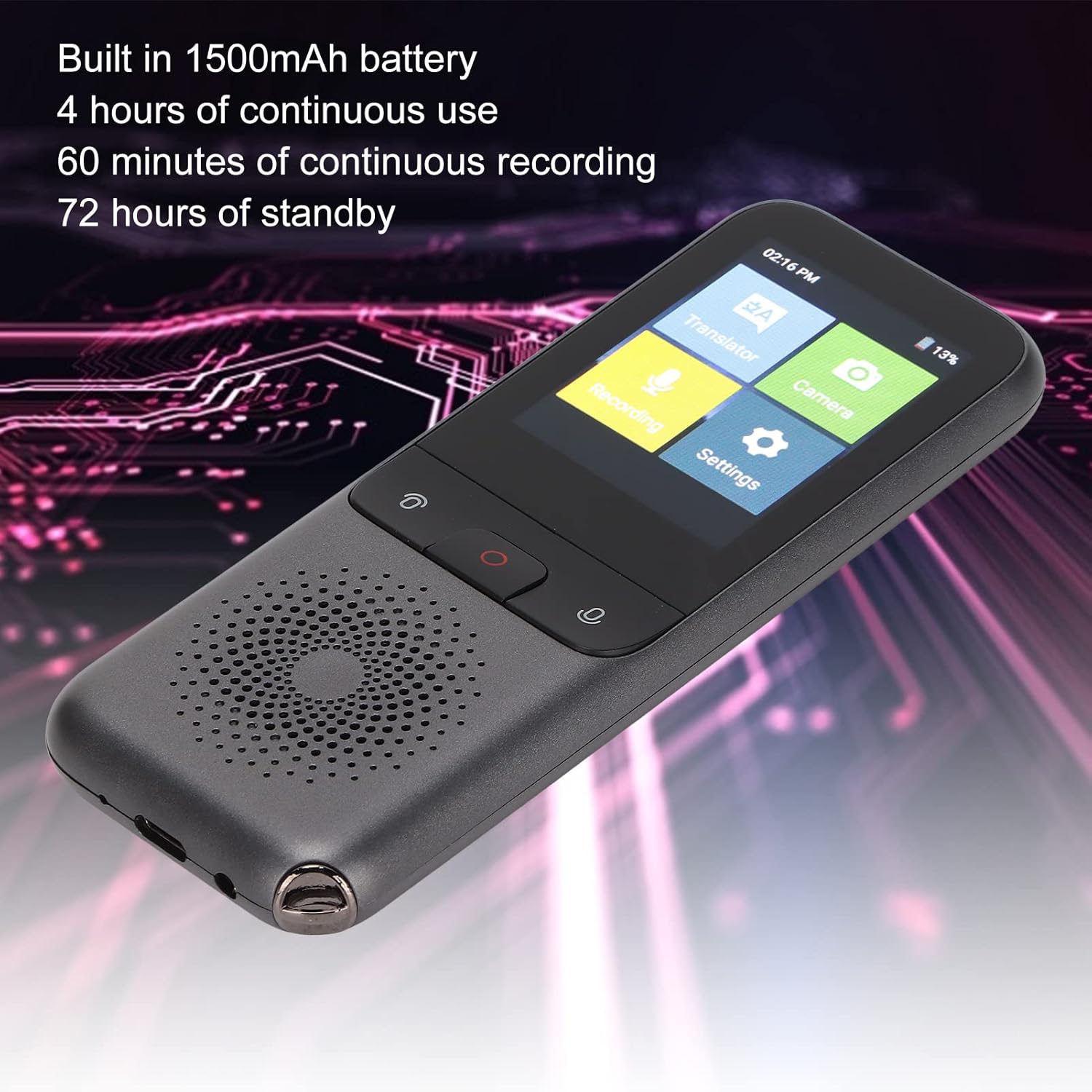
Image: The ASHATA T11 translator's screen showing battery life details, indicating its long-lasting power capabilities.
5.2 Power On/Off
- To Power On: Press and hold the Power button until the screen lights up.
- To Power Off: Press and hold the Power button, then select 'Power Off' on the screen.
- Screen On/Off: Briefly press the Power button to turn the screen on or off without powering down the device.
5.3 Initial Configuration
Upon first power-on, you may be prompted to set up basic preferences:
- Select System Language: Choose your preferred operating language for the device interface.
- Connect to Wi-Fi: For online translation features, connect the device to a stable Wi-Fi network. Go to Settings > Wi-Fi, select your network, and enter the password.
6. Operating Instructions
The ASHATA T11 offers multiple translation modes to suit various situations.

Image: The main interface of the ASHATA T11 translator, showing icons for different translation functions like Dialogue, Photo, Offline, and Quick Record.
6.1 Online Two-Way Voice Translation
This mode supports up to 138 languages with high accuracy, ideal for real-time conversations.
- Ensure the device is connected to Wi-Fi.
- From the main menu, select 'Dialogue Translation' or 'Voice Translation'.
- On the screen, select Language A (your language) and Language B (the other person's language).
- To speak in Language A, press and hold the corresponding microphone button (usually on the left). Speak clearly into the device. Release the button when finished.
- The device will translate and speak the phrase in Language B.
- To speak in Language B, the other person presses and holds the corresponding microphone button (usually on the right). Speak clearly. Release the button when finished.
- The device will translate and speak the phrase in Language A.

Image: The ASHATA T11 translator in a usage scenario, demonstrating its application for voice translation during travel or daily interactions.
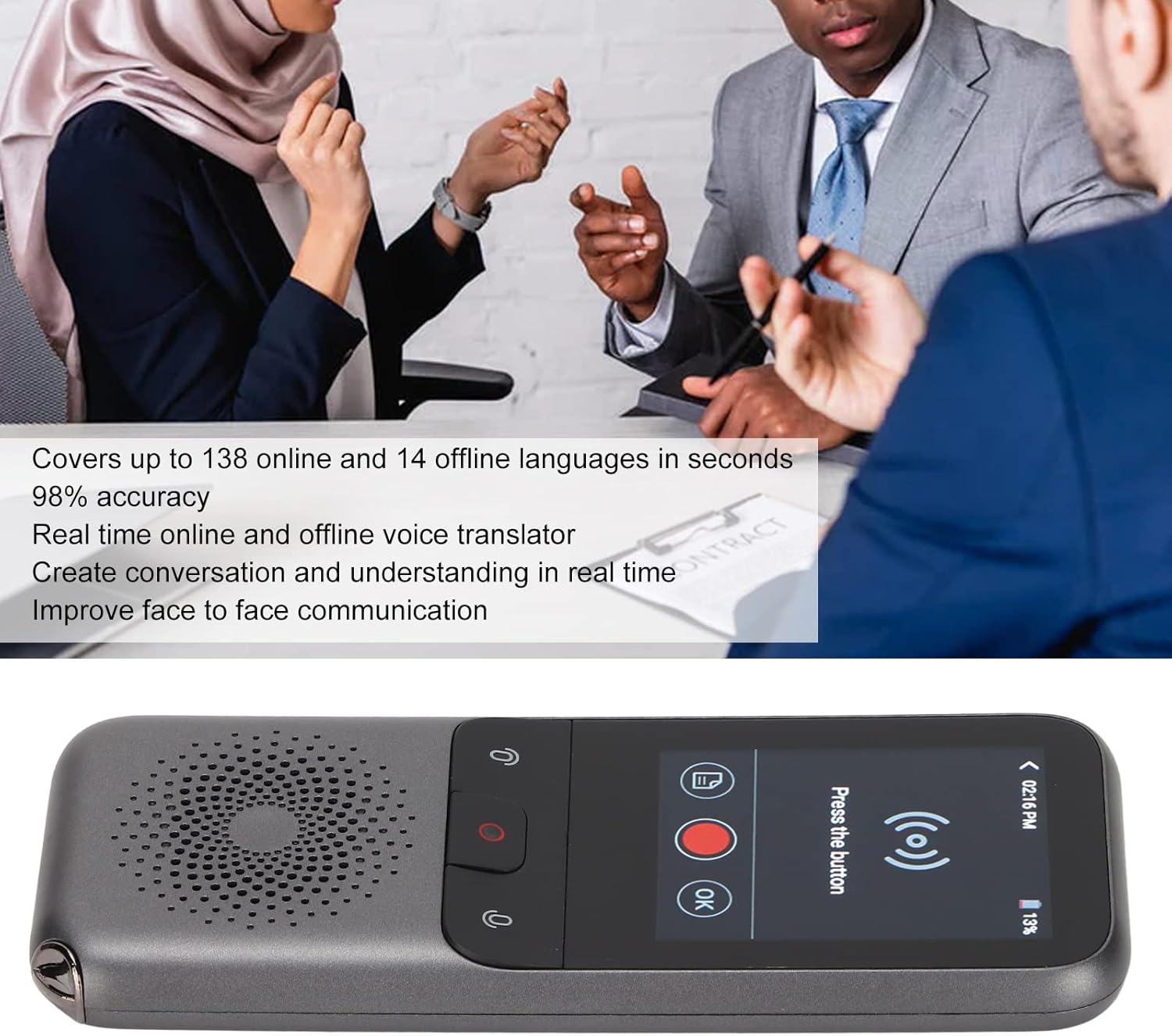
Image: The ASHATA T11 translator being used in a professional setting, highlighting its two-way translation capability for effective communication.
6.2 Offline Translation
The device supports 14 offline languages, allowing translation without an internet connection.
- From the main menu, select 'Offline Translation'.
- Ensure the required offline language packs are downloaded (this requires an initial Wi-Fi connection).
- Select the two languages for offline translation.
- Proceed with voice input as described in the Online Two-Way Voice Translation section.

Image: The ASHATA T11 translator demonstrating its offline translation feature, useful in environments without internet access like airports.
6.3 Photo Translation
Translate text from images using the built-in 500W pixel camera. Supports 43 languages.
- From the main menu, select 'Photo Translation'.
- Point the camera at the text you wish to translate (e.g., signs, menus, labels).
- Tap the screen to capture the image.
- The device will process the image and display the translated text. If the text is blurred, manual adjustment may be needed.

Image: The ASHATA T11 translator in use for photo translation, demonstrating its ability to translate text from real-world objects like street signs.

Image: A close-up of the ASHATA T11 translator's screen during photo translation, illustrating its support for both online and offline photo translation across multiple languages.
6.4 Recording Translation
Record audio and translate it into other foreign languages.
- From the main menu, select 'Quick Record' or 'Recording Translation'.
- Tap the record button to start recording.
- Tap again to stop recording.
- Select the recorded audio and choose the target language for translation.
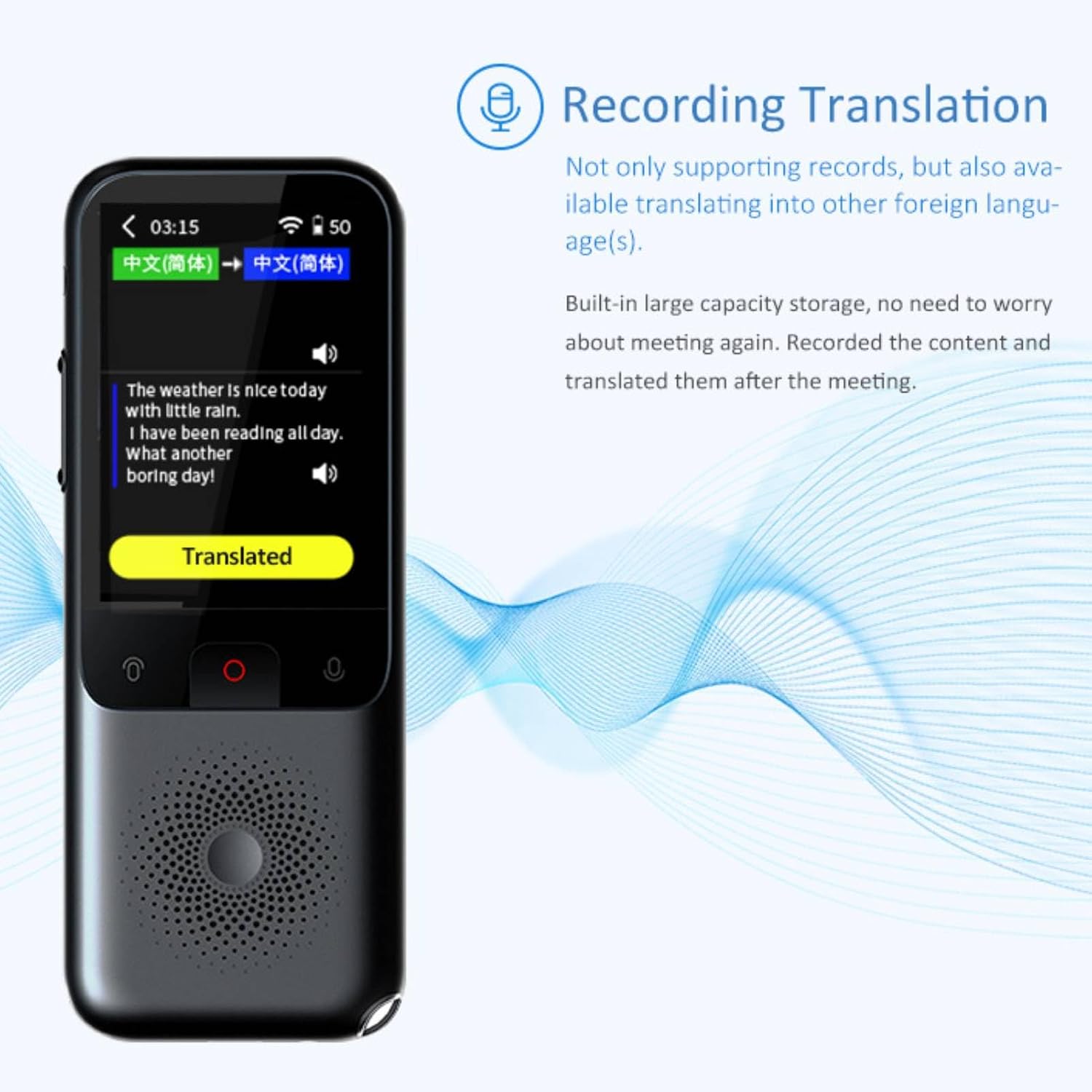
Image: The ASHATA T11 translator's screen showing a recorded conversation being translated from one language to another, demonstrating its recording translation feature.
6.5 Language Selection
To change the input or output languages for any translation mode, tap on the language displayed on the screen and select your desired language from the list.
6.6 Official Product Video
Watch this video for a visual guide on using the ASHATA T11 translator:
Video: A demonstration of the ASHATA T11 Smart Instant Language Translator Device, showcasing its features and ease of use.
7. Maintenance
- Cleaning: Use a soft, dry, lint-free cloth to clean the device. Do not use abrasive cleaners or solvents.
- Storage: Store the device in a cool, dry place away from direct sunlight and extreme temperatures.
- Battery Care: To prolong battery life, avoid fully discharging the battery frequently. Charge the device regularly, even if not in use for extended periods.
8. Troubleshooting
If you encounter issues with your ASHATA T11 translator, refer to the following common solutions:
- Device not turning on: Ensure the device is fully charged. Press and hold the Power button for several seconds.
- Translation inaccuracy: Check your Wi-Fi connection for online translation. Speak clearly and at a moderate pace. Ensure there is minimal background noise.
- Offline translation not working: Verify that the necessary offline language packs have been downloaded and installed.
- Photo translation blurry: Ensure adequate lighting. Hold the device steady and at an appropriate distance from the text. Clean the camera lens if necessary.
- Short battery life: Ensure the device is fully charged. Close unused applications running in the background. Reduce screen brightness.
- No audio output: Check the volume settings. Ensure headphones are not plugged in if you expect sound from the speaker.
If the problem persists, try restarting the device. For more complex issues, contact ASHATA customer support.
9. Specifications
| Feature | Detail |
|---|---|
| Model | T11 |
| Online Languages | Up to 138 |
| Offline Languages | Up to 14 |
| Photo Translation Languages | Up to 43 |
| Camera Resolution | 500W pixels |
| Battery Capacity | 1500mAh |
| Continuous Use Time | Approx. 4 hours |
| Continuous Recording Time | Approx. 60 minutes |
| Standby Time | Approx. 72 hours |
| Item Weight | 8.1 ounces |
| Package Dimensions | 5.2 x 4.21 x 2.13 inches |
| Manufacturer | ASHATA |
| Country of Origin | China |
10. Warranty and Support
ASHATA products are manufactured to high quality standards. For information regarding warranty coverage, technical support, or service inquiries, please refer to the warranty card included with your purchase or visit the official ASHATA website. Please have your product model (T11) and purchase details ready when contacting support.
Ask a question about this manual
Ask about setup, troubleshooting, compatibility, parts, safety, or missing instructions. Manuals+ will review the question and use this page’s manual context to help answer it.