
realme Realme 9 5G SE
Contents
realme 9 5G Speed Edition User Manual
Model: Realme 9 5G SE
Introduction
This manual provides detailed instructions for the realme 9 5G Speed Edition smartphone. It covers essential information regarding device setup, operation, maintenance, and troubleshooting to ensure optimal performance and user experience. Please read this manual thoroughly before using your device.
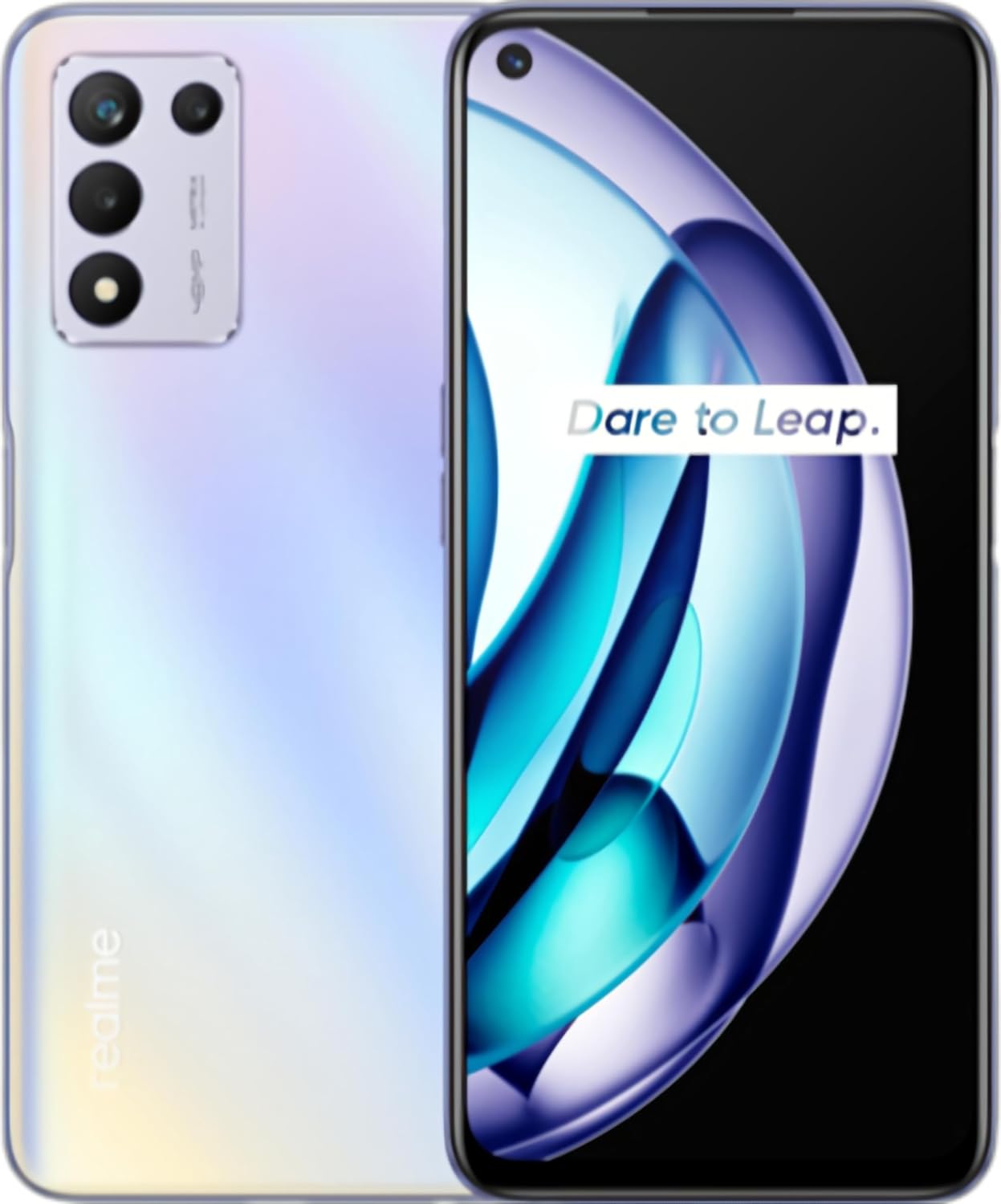
Figure 1: realme 9 5G Speed Edition (Starry Glow) - Front and Back View
This image displays the realme 9 5G Speed Edition smartphone in Starry Glow color, showing both its front with the display and its back with the camera module and realme branding.
Setup
1. Unboxing and Package Contents
Upon opening the package, verify that all components are present. The standard package for the realme 9 5G Speed Edition includes:
- realme 9 5G Speed Edition Smartphone
- USB Cable
- Quick Start Guide (not included in this manual)
- SIM Ejector Tool (may vary by region)
- Power Adapter (may vary by region)
2. Inserting SIM Cards and microSDXC Card
The realme 9 5G Speed Edition supports Dual-SIM functionality and a microSDXC card for expandable storage. Locate the SIM card tray on the side of the device.
- Power off the device before inserting or removing SIM/microSDXC cards.
- Insert the SIM ejector tool into the small hole on the SIM card tray and push gently until the tray pops out.
- Place your Nano-SIM cards into the designated slots (SIM CARD 1 and SIM CARD 2). Ensure the gold contacts face downwards.
- If using a microSDXC card, place it into the shared slot.
- Carefully push the tray back into the device until it clicks into place.

Figure 2: Rear View of realme 9 5G Speed Edition
This image shows the back of the realme 9 5G Speed Edition, highlighting the camera array and the realme logo, which helps in identifying the device's orientation for SIM tray access.
3. Initial Power On and Network Compatibility
Press and hold the Power button (located on the right side of the device) until the realme logo appears. Follow the on-screen prompts to complete the initial setup, including language selection, Wi-Fi connection, and Google account setup.
This smartphone is factory unlocked and compatible with various GSM and CDMA networks. For specific network compatibility (2G GSM, 3G, 4G/LTE, 5G), please refer to the detailed frequency bands below or consult your network provider:
- 2G GSM: 850 / 900 / 1800 / 1900
- CDMA: BC0, CDMA2000 BC0
- 3G WCDMA: 800(B6) / 800(B19) / 850(B5) / 900(B8) / 1700|2100(B4) / 1900(B2) / 2100(B1)
- 4G LTE FDD: 700(B28) / 850(B5) / 850(B19) / 900(B8) / 1700|2100(B4) / 1800(B3) / 2100(B1) / 2600(B7)
- 4G LTE TDD: 1900(B39) / 2000(B34) / 2300(B40) / 2500(B41) / 2600(B38)
- 5G SA: N1/N28/N41/N78
- 5G NSA: N77/N78/N41
Note: This phone will not work with CDMA Networks such as VERIZON, SPRINT, US CELLULAR in the USA.
Operating Instructions
1. Device Layout and Buttons

Figure 3: Top and Bottom Ports
This image illustrates the top and bottom edges of the realme 9 5G Speed Edition, detailing the placement of the USB-C port, 3.5mm headphone jack, microphone, and speaker grille.

Figure 4: Side Buttons
This image displays the side profile of the realme 9 5G Speed Edition, indicating the location of the power button and volume rocker.
- Power Button: Located on the right side. Press to wake/sleep the screen, press and hold to power on/off or restart.
- Volume Buttons: Located on the left side. Press to adjust media volume, call volume, or alarm volume.
- USB-C Port: Located at the bottom. Used for charging and data transfer.
- 3.5mm Headphone Jack: Located at the bottom. For connecting wired headphones.
2. Display and Navigation
The device features a 6.6-inch IPS LCD display with a resolution of 1080 x 2412 pixels. Navigation is primarily touch-based. Swipe gestures and on-screen navigation buttons are used to interact with the Android 11 (upgradable to Android 12) operating system with Realme UI 3.0.

Figure 5: realme 9 5G Speed Edition Display
This image shows the front of the realme 9 5G Speed Edition, highlighting its display and the "realme 9 5G SPEED EDITION" branding, demonstrating the screen's clarity and size.
3. Camera Usage
The realme 9 5G Speed Edition is equipped with a triple rear camera system and a single front camera:
- Main Camera: 48 MP, f/1.8, 26mm (wide), 1/2.0", 0.8µm, PDAF
- Macro Camera: 2 MP, f/2.4
- Depth Sensor: 2 MP, f/2.4
- Front Camera: 16 MP, f/2.1, 26mm (wide), 1/3.09", 1.0µm
To open the camera app, tap the camera icon on your home screen or app drawer. Select different modes (Photo, Video, Portrait, Night, Macro, etc.) by swiping across the bottom of the viewfinder. Tap the shutter button to capture photos or start/stop video recording.
Maintenance
1. Battery Care
The device is powered by a 5000mAh non-removable battery. To prolong battery life:
- Avoid extreme temperatures.
- Use the original charger and USB cable provided.
- Avoid fully discharging the battery frequently.
- Enable battery saver mode when battery is low.
- Close background apps when not in use.
2. Cleaning Your Device
To clean the exterior of your realme 9 5G Speed Edition:
- Use a soft, lint-free cloth.
- Do not use abrasive cleaners, solvents, or aerosol sprays.
- For stubborn smudges, slightly dampen the cloth with water or a screen cleaner designed for electronics.
- Avoid getting moisture into ports.
3. Software Updates
Regular software updates provide new features, security enhancements, and bug fixes. To check for updates:
- Ensure your device is connected to Wi-Fi and has sufficient battery.
- Go to Settings > About phone > Realme UI version (or similar, depending on exact UI version).
- Tap Check for updates.
- Follow the on-screen instructions to download and install any available updates.
Troubleshooting
This section addresses common issues you might encounter with your realme 9 5G Speed Edition.
1. Device Not Powering On
- Ensure the battery is charged. Connect the device to the charger for at least 15 minutes.
- Press and hold the Power button for 10-15 seconds to force a restart.
2. Battery Draining Quickly
- Check for apps running in the background that consume excessive power. Close unnecessary apps.
- Reduce screen brightness or enable adaptive brightness.
- Disable Wi-Fi, Bluetooth, GPS, or mobile data when not in use.
- Go to Settings > Battery to identify power-hungry apps.
3. Network Connectivity Issues
- Ensure SIM cards are correctly inserted and activated.
- Check if you are within network coverage.
- Restart the device.
- Go to Settings > Network & internet > SIMs and ensure mobile data is enabled for the correct SIM.
- Reset network settings: Settings > System > Reset options > Reset Wi-Fi, mobile & Bluetooth.
4. Apps Crashing or Freezing
- Clear the cache and data of the problematic app: Settings > Apps & notifications > See all apps > [App Name] > Storage & cache > Clear cache / Clear storage.
- Update the app from the Google Play Store.
- Restart the device.
Specifications
| Feature | Specification |
|---|---|
| Model Name | Realme 9 5G Speed Edition |
| Dimensions | 6.46 x 2.95 x 0.31 inches |
| Item Weight | 1.14 pounds |
| Display | 6.6 inches IPS LCD, 1080 x 2412 pixels, Panda Glass |
| Operating System | Android 11, upgradable to Android 12, Realme UI 3.0 |
| Processor | Qualcomm SM7325 Snapdragon 778G 5G (6 nm), Octa-core |
| RAM | 8GB |
| Internal Storage | 128GB |
| Expandable Storage | microSDXC (uses shared SIM slot) |
| Rear Camera | 48 MP (wide), 2 MP (macro), 2 MP (depth) |
| Front Camera | 16 MP (wide) |
| Battery Capacity | 5000mAh (non-removable) |
| SIM Support | Dual-SIM |
| Network Technology | GSM / CDMA / HSPA / LTE / 5G |
| Wireless Connectivity | Wi-Fi, Bluetooth |
| Color | Starry Glow |
| What's in the box | USB Cable |
Warranty and Support
For warranty information and detailed support, please refer to the warranty card included with your product or visit the official realme support website. Keep your proof of purchase for warranty claims.
For further assistance, you may contact realme customer service through their official channels.
realme Official Website: www.realme.com
Ask a question about this manual
Ask about setup, troubleshooting, compatibility, parts, safety, or missing instructions. Manuals+ will review the question and use this page’s manual context to help answer it.