
1. Introduction
This manual provides detailed instructions for the installation, operation, and maintenance of your ASURE 4+64G Android 15 Car Stereo Radio. Please read this manual thoroughly before using the product to ensure proper function and safety.
2. Vehicle Compatibility
This in-dash video player is designed for Ford Focus 2011, 2012, 2013, 2014, and 2015, 2016, 2017, 2018 Low-end Version vehicles. It is compatible with models without a factory navigation screen and does not support audio systems with "Sony" branding. For optimal fitment, verify your car model, year, and dashboard configuration.

Image 2.1: After-installation view of the ASURE car stereo in a Ford Focus, with examples of compatible and incompatible factory dashboards.
3. What's in the Box
The product package includes the following components:
- 1x Car Stereo Radio Unit
- 1x Install Bezel
- 1x Wiring Harness
- 1x USB Cable
- 1x Microphone
- 1x Screwdriver and User Manual
- 1x Audio Video Ports Cable
- 1x Wifi/BT Antenna
- 1x GPS Cable
- 1x Reversing Camera Input Cable
- 1x Can Bus Box
- 1x USB Adaptor
- 1x Radio Cable
- 1x Din Radio Aerial Adaptor
- 1x Reversing Camera (optional, if included in package)
- Bracket and Bottom Bezel

Image 3.1: Overview of all components included in the ASURE car stereo package.
4. Setup & Installation
The ASURE car stereo is designed for plug-and-play installation with the provided wired harness. However, some vehicles may require manual wiring for specific functions like steering wheel controls.
4.1 Wiring Connections
Refer to the wiring diagram for proper connections. Ensure all plugs are securely connected.
- Connect the main power plug to the new radio's rear power socket.
- Connect the 6-Pin socket.
- Connect to the factory Emergency light plug.
- Connect to factory plugs (as indicated by numbers 4, 5, 7).
- Connect the reversing camera input port.
- Connect the 8-Pin plug (integrated in the power harness) to the radio's rear 8-Pin socket for steering wheel control functionality.
- Ensure the white plug is connected to the main device for Bluetooth and Wi-Fi signals.

Image 4.1: Main wiring harness connections for the car stereo.

Image 4.2: Wiring diagram for the optional AHD Reversing Camera.
4.2 CAN-BUS and Steering Wheel Control Setup
If your package includes a CAN-BUS Box, you will need to configure it to enable steering wheel controls and other vehicle-specific functions. Navigate to CarSetting > Factory Setting (password: 1617 or 3368, or search online if these do not work) > CAN Type Set. Select Hiworld > Ford > Focus > 2012-2018 (3Gen) > ALL. This will program your steering wheel control buttons.
4.3 Screen Brightness Adjustment
To adjust screen brightness for night driving, access the factory settings (password 3368). Go to "backlight current adjustment" and lower the "Minimum" value. Save and confirm the settings. You can also slide down from the top of the screen to access quick settings for brightness control.
4.4 Touch Screen Calibration
If the touchscreen responsiveness is not optimal, it can be recalibrated. In the factory settings, locate the "Touch Screen Calibration" option and follow the on-screen prompts.
Video 4.1: This video demonstrates how to access and adjust various settings, including screen brightness, CAN-BUS configuration for steering wheel controls, and touchscreen calibration.
5. Operating Instructions
5.1 Wireless CarPlay and Android Auto
Connect your smartphone wirelessly via Bluetooth to enable CarPlay or Android Auto. This allows access to navigation, calls, music, and voice assistants directly from the car stereo display. Ensure your phone's Bluetooth is discoverable and pair it with the car stereo.

Image 5.1: Wireless CarPlay and Android Auto interfaces.

Image 5.2: Wireless connectivity options for CarPlay, Android Auto, and Screen Mirroring.
5.2 GPS Navigation & Wi-Fi Connection
The unit supports online and offline GPS navigation. Connect to Wi-Fi (2.4G/5G dual-band) to stream music, download apps, and update maps. You can download offline maps from the Play Store for navigation without an internet connection.
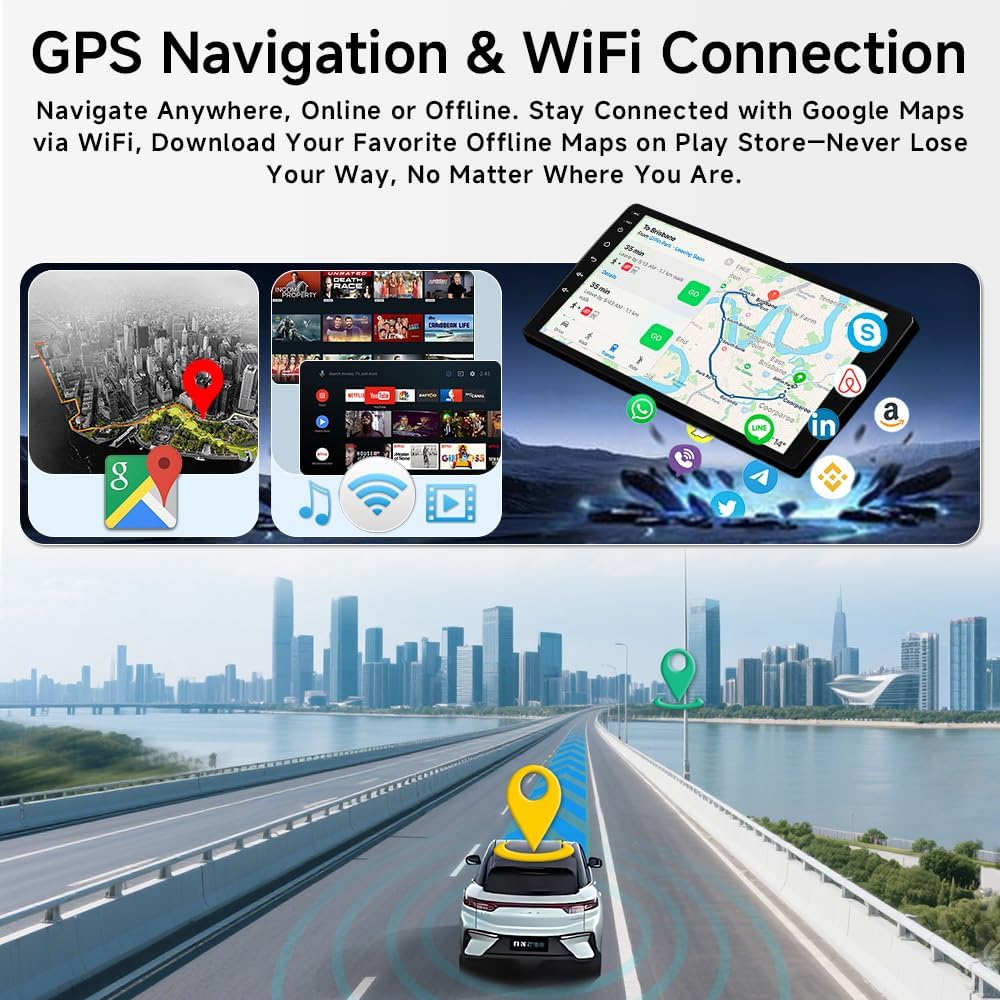
Image 5.3: GPS Navigation and Wi-Fi connectivity features.

Image 5.4: Online and offline navigation support through CarPlay and Android Auto.
5.3 Bluetooth & FM/RDS Radio
Utilize Bluetooth 5.4 for stable audio streaming, faster device pairing, and clear hands-free calls. The unit also features an FM/RDS radio for listening to local broadcasts.

Image 5.5: Bluetooth and FM/RDS Radio interfaces.
5.4 AHD Reversing Camera
The system supports an AHD reversing camera input, providing clear day and night vision with a 170° wide-angle view. It includes distance level warnings to assist with parking and maneuvering.

Image 5.6: AHD Reversing Camera features and display.
5.5 Voice Control (Siri)
If the "Listen for Hey Siri" function is enabled on your iPhone, you can activate Siri by simply saying "Hey Siri" after hearing the audible alert. This allows for hands-free control of various functions.
6. Maintenance
To ensure the longevity and optimal performance of your ASURE car stereo, follow these maintenance guidelines:
- Screen Cleaning: Use a soft, lint-free cloth to gently wipe the touchscreen. Avoid abrasive cleaners or harsh chemicals that could damage the screen.
- Software Updates: Periodically check for software updates to ensure you have the latest features and bug fixes. Updates can typically be found through the system settings or the manufacturer's website.
- Connection Checks: Ensure all wiring connections remain secure. Loose connections can lead to intermittent functionality.
- Temperature Control: Avoid exposing the unit to extreme temperatures for extended periods.
7. Troubleshooting
This section addresses common issues you might encounter:
- No Volume Control / Buttons Not Working: This often indicates incorrect CAN-BUS settings. Access Factory Settings (password: 1617 or 3368) and configure the CAN Box type. Ensure the correct car model is selected.
- Steering Wheel Controls Not Functioning: Verify the 8-Pin plug for steering wheel control is correctly connected to the radio's rear socket. If a CAN-BUS box is present, ensure it is properly configured in Factory Settings. Some vehicles may require manual wiring for SWC.
- Screen Too Bright at Night: Adjust the backlight current in Factory Settings. Lower the "Minimum" value and save.
- Poor Screen Visibility in Sunlight: The screen may be difficult to see in direct sunlight due to glare. Adjusting the screen angle or using a screen protector designed to reduce glare may help.
- Physical Fitment Issues (Vents, Screws): Some installations may require minor modifications to vehicle vents or may not allow for all original screw points to be used. Ensure the unit is securely mounted to prevent movement.
- Incorrect Speed/Temperature Units: If your instrument cluster displays incorrect units (e.g., KM instead of Miles, Celsius instead of Fahrenheit), check the system settings on the car stereo to change these preferences.
- Bluetooth/Wi-Fi Issues: Ensure the white plug for Bluetooth and Wi-Fi signals is securely connected to the main device.
- Previous/Next or Volume Controls Reversed: In Factory Settings, locate options for "Reversal Previous And Next" or "Reversal Volume" and toggle them to correct the behavior.
8. Specifications
| Feature | Specification |
|---|---|
| Brand | ASURE |
| Model Name | Car Stereo Radio |
| Operating System | Android 15 |
| CPU | 4-core |
| RAM | 4 GB |
| Memory Storage Capacity | 64 GB |
| Screen Size | 9 Inches |
| Resolution | 1280x800 (Capacitive Touchscreen) |
| Connectivity Technology | Bluetooth 5.4, USB, Wi-Fi 6 (2.4G/5G Dual Band) |
| Supported Navigation System | GLONASS, GPS (Worldwide Map Type) |
| Audio Output Mode | Stereo (with built-in DSP) |
| Mounting Type | Dashboard Mount |
| Item Dimensions (L x W x H) | 17"L x 14"W x 8"H |

Image 8.1: Key features and specifications of the ASURE car stereo.

Image 8.2: Performance comparison highlighting 4GB RAM and 64GB storage.
9. Warranty & Support
Your ASURE Car Stereo Radio comes with a 30-day free return and replacement policy and a 1-year repair warranty from the date of purchase. For any technical assistance, troubleshooting, or warranty claims, please contact ASURE customer support through the retailer where the product was purchased or refer to the official ASURE website for contact information.

