
1. Introduction
The Phomemo M120 Label Maker is a compact and versatile Bluetooth thermal label printer designed for various labeling needs, from small business organization to personal use. This manual provides detailed instructions on how to set up, operate, maintain, and troubleshoot your M120 label maker to ensure optimal performance.
Key Features:
- Lightweight & Ultra-Portable: Weighing just 200g, the M120 is designed for on-the-go labeling, fitting easily into pockets or backpacks.
- Versatile & Easy to Use: Supports 20-50mm label sizes with an adjustable paper slot, suitable for barcodes, QR codes, addresses, and various organizational labels.
- Smart App with AI Recognition: The "Print Master" App offers voice and image (OCR) recognition, one-tap printing, and a vast library of symbols, templates, and fonts.
- Seamless Compatibility: Connects wirelessly via Bluetooth to iOS and Android devices, and via USB to PC (Windows, Mac OS, Chrome OS, Linux) using the "Labelife" software.
- Crisp, Ink-Free Printing: Utilizes thermal printing technology for clear, smudge-free results without the need for ink or toner.
2. What's in the Box
Upon unboxing your Phomemo M120 Label Maker, please verify that all the following components are included:
- Phomemo M120 Label Maker
- USB Charging Cable
- 3 Rolls Thermal Labels (2 rolls of 40x30mm, 1 roll of 50x30mm)
- User Manual (this document)
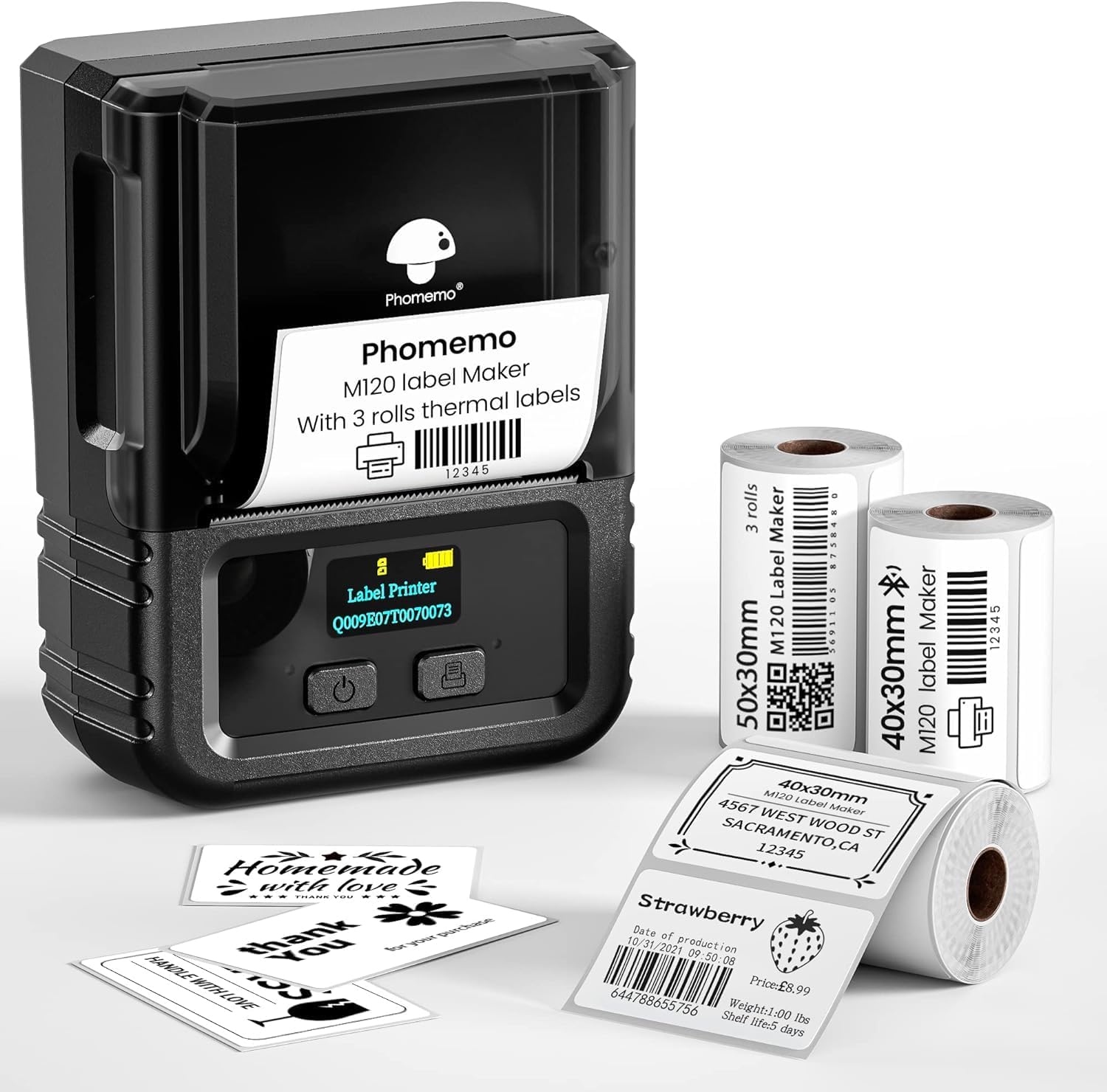
The Phomemo M120 Label Maker, a compact thermal printer, shown with various printed labels and rolls of thermal label paper.
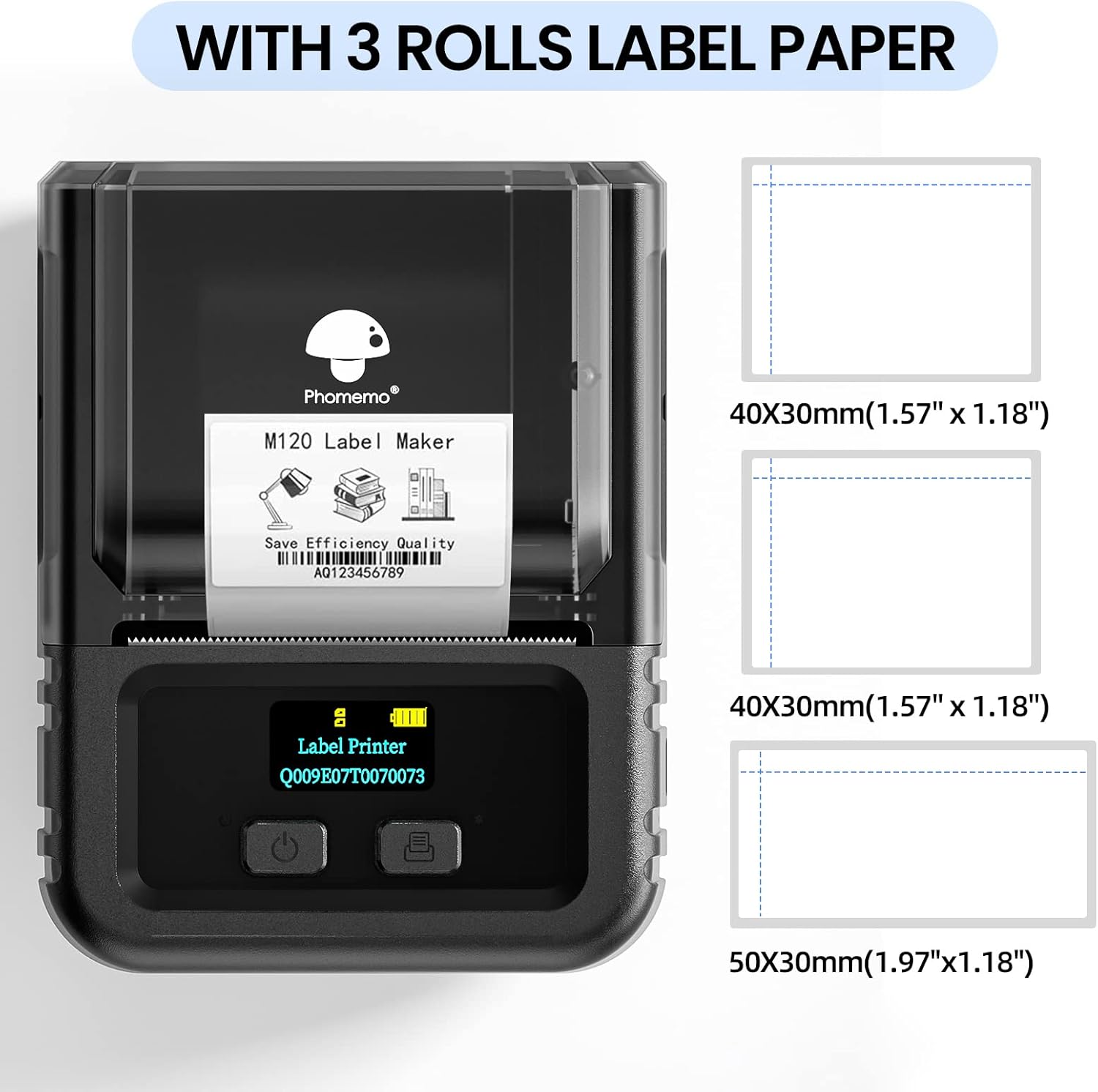
This image illustrates the Phomemo M120 Label Maker alongside the three included thermal label rolls: two 40x30mm rolls and one 50x30mm roll, highlighting the different label dimensions.
3. Setup
3.1 Loading Labels
- Open the top cover of the label maker by gently lifting it.
- Attach the label roll to the holder, ensuring the labels face upwards and feed smoothly into the printer slot.
- Close the machine cover, making sure it clicks securely into place.
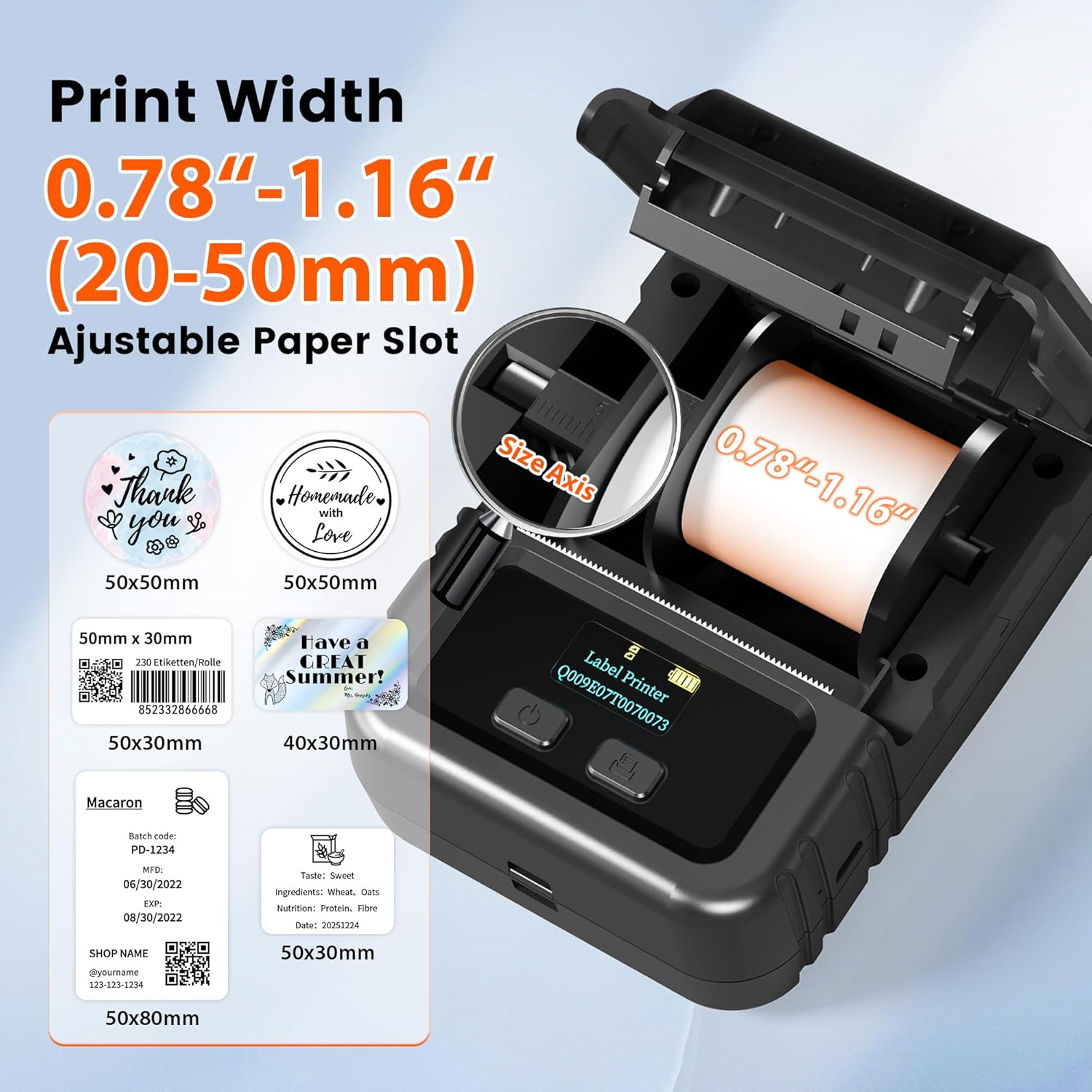
An open view of the Phomemo M120 Label Maker's paper compartment, demonstrating the adjustable paper slot that accommodates label widths from 20mm to 50mm, along with examples of various label sizes and designs.
3.2 Installing the App (for Mobile Devices)
The "Print Master" app is required for mobile use.
- Download "Print Master" from the App Store (iOS) or Google Play Store (Android).
- Ensure your phone's Bluetooth is turned on.
3.3 Connecting to Device
For Mobile (Bluetooth Connection):
- Open the "Print Master" app.
- In the app, find your printer (e.g., "M120") and tap to connect. The app will guide you through the pairing process.
- Once connected, you can edit your label and start printing.
For PC (USB Connection):
- Download the "Labelife" software and drivers from the official Phomemo website.
- Connect the M120 Label Maker to your computer using the provided USB data cable.
- Open the "Labelife" software. You can then select a document or images for printing, or edit your label directly within the software.

This image displays the Phomemo M120 Label Maker's versatile connectivity, showing it connected via USB to a laptop and wirelessly via Bluetooth to a smartphone, indicating compatibility with Mac OS, Windows, Chrome OS, Linux, iOS, Android, and iPad devices.
4. Operating Instructions
4.1 Basic Printing
Once your M120 is connected to your device and labels are loaded, you can begin printing:
- Design your label using the "Print Master" app or "Labelife" software.
- Preview the label to ensure it meets your requirements.
- Adjust print density and speed settings if necessary for optimal output.
- Initiate the print command from the app or software.
4.2 Using the Print Master App (Mobile)
The "Print Master" app offers extensive features for label creation:
- AI Recognition: Utilize voice and image (OCR) recognition to effortlessly convert text into printable labels.
- Templates & Symbols: Access a library of over 7000 symbols and 200+ templates for quick and creative label designs.
- Fonts & Languages: Choose from 660+ fonts across more than 20 languages.
- Custom Designs: Create custom designs for barcodes, QR codes, addresses, and more.
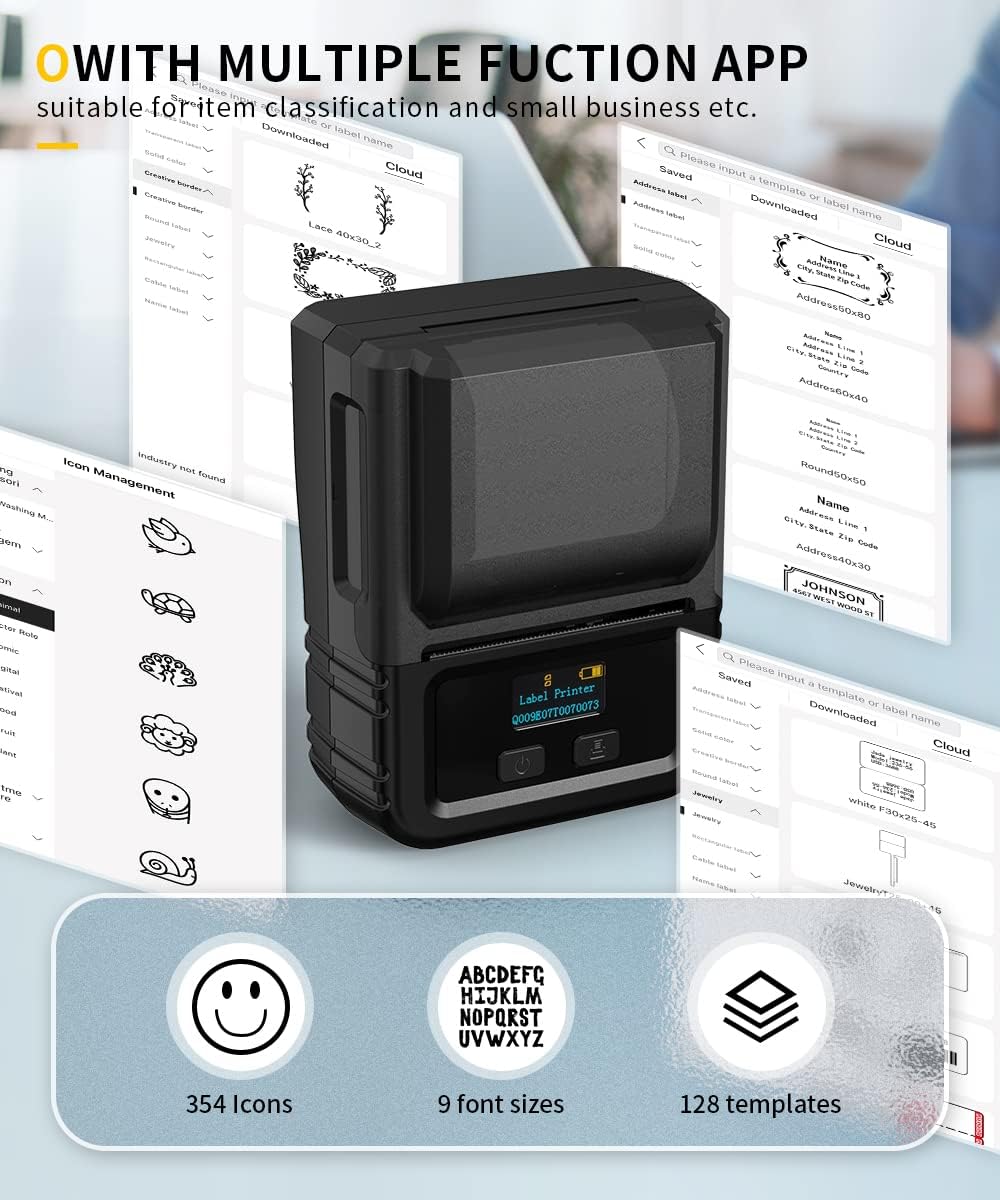
Screenshots of the Phomemo 'Print Master' app interface, showcasing its multiple functions including icon selection, font sizes, and template options for diverse labeling needs.
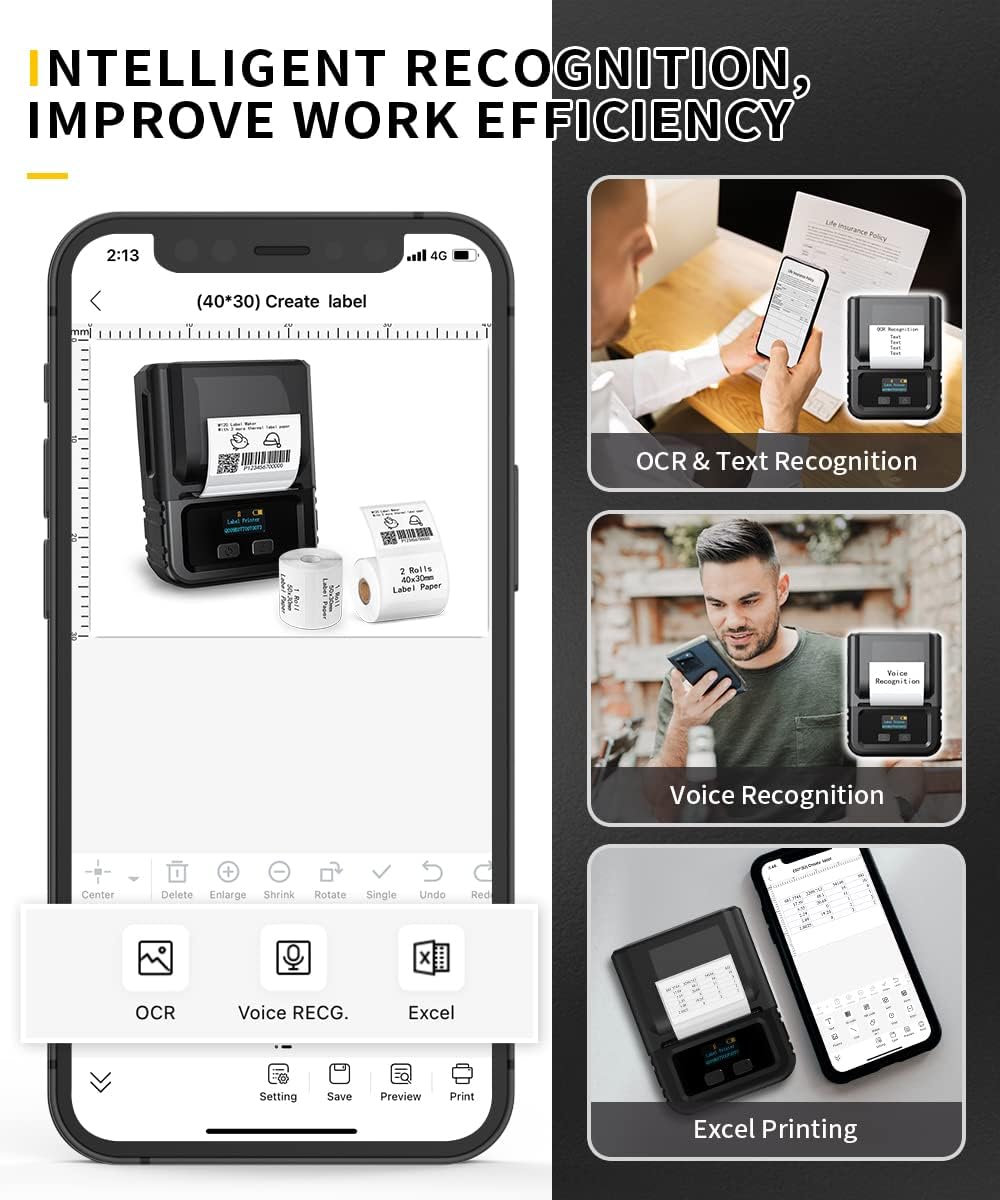
The 'Print Master' app's intelligent recognition features are highlighted, including Optical Character Recognition (OCR) for text conversion, voice recognition for input, and direct printing from Excel files, enhancing work efficiency.
4.3 Supported Label Types and Applications
The M120 supports various label types and is ideal for:
- Barcode labels (e.g., 644788655756, AQ123456789, 452357888888, 080480015305)
- QR code labels
- Address labels
- Jar labels
- Food labels
- Storage tags
- Holiday stickers
- Product labels
- Gift labels

This image emphasizes the Phomemo M120 Label Maker's lightweight and compact design, illustrating its portability by showing it easily fitting into a pocket and being held comfortably in hand. Dimensions are noted as 3.38 x 4.37 x 2.32 inches.
5. Maintenance
5.1 Cleaning the Print Head
To maintain print quality, regularly clean the print head:
- Turn off the label maker and disconnect it from any power source.
- Open the top cover to access the print head.
- Gently wipe the print head with a cotton swab lightly dampened with isopropyl alcohol.
- Allow the print head to dry completely before closing the cover and resuming use.
5.2 Battery Care
The M120 features a 1200mAh battery. To prolong battery life:
- Charge the device fully before first use.
- Avoid completely draining the battery frequently.
- Store the device in a cool, dry place when not in use for extended periods.
- The auto-sleep mode activates after 5 minutes of inactivity to conserve power.
5.3 Label Compatibility
For best performance and to prevent damage, use only genuine Phomemo thermal labels. The M120 supports label widths from 20mm to 50mm.
6. Troubleshooting
If you encounter issues with your Phomemo M120 Label Maker, refer to the common problems and solutions below:
| Problem | Possible Cause | Solution |
|---|---|---|
| Printer not connecting via Bluetooth | Bluetooth is off on device; App not recognizing printer; Printer is off or low battery. | Ensure Bluetooth is enabled. Restart the app and printer. Charge the printer. Try connecting within the "Print Master" app, not directly from phone's Bluetooth settings. |
| Poor print quality (faint, blurry) | Print head is dirty; Incorrect label type; Low battery; Print density setting is too low. | Clean the print head (see Maintenance section). Ensure you are using Phomemo thermal labels. Charge the printer. Adjust print density settings in the app/software. |
| Labels not feeding or jamming | Labels incorrectly loaded; Paper path obstructed; Labels are not compatible. | Re-load labels correctly, ensuring they are aligned. Check for any debris in the paper path. Use only Phomemo thermal labels of the correct size (20-50mm width). |
| Printer not responding | Printer is off; Low battery; Software/app issue. | Ensure the printer is turned on and charged. Restart the printer, app, or computer. Reinstall the app/software if necessary. |
| Cannot find correct replacement labels | Incorrect size ordered; Misunderstanding of compatible sizes. | The M120 supports label widths from 20mm to 50mm. Ensure replacement labels match these dimensions and are specifically designed for thermal printers. Refer to Phomemo's official store for compatible labels. |
For further assistance, please refer to the "Print Master" app's help section or the "Labelife" software's user guide.
7. Specifications
| Feature | Detail |
|---|---|
| Model Name | M120 |
| Item Model Number | M120-BK-SET |
| Brand | Phomemo |
| Printing Technology | Thermal |
| Printer Output | Monochrome |
| Connectivity Technology | Bluetooth, USB |
| Compatible Devices | Laptops, PC, Smartphones, Tablets |
| Control Method | App (Android, iOS) |
| Max Copy Resolution (B&W) | 203x203 dpi |
| Maximum Black and White Print Resolution | 800 x 480 pixels |
| Maximum Media Size | 50 x 35 mm |
| Supported Label Widths | 20-50 mm |
| Item Weight | 15.9 ounces (450 Grams) |
| Product Dimensions | 7.01 x 5.83 x 2.83 inches |
| Batteries | 1 Lithium Polymer battery (included) |
| Included Components | Labels |
| Special Features | Bluetooth, Lightweight, Portable, Wireless |
8. Warranty Information
The Phomemo M120 Label Maker comes with a limited warranty. For specific details regarding the warranty period, coverage, and terms and conditions, please refer to the warranty card included in your product packaging or visit the official Phomemo website. Please retain your proof of purchase for warranty claims.
9. Support
For technical support, customer service, or additional resources, please utilize the following options:
- Phomemo Official Website: Visit the official Phomemo website for FAQs, driver downloads, software updates, and contact information.
- "Print Master" App: The app often includes a help section or FAQs that can assist with common queries.
- "Labelife" Software: The PC software may offer built-in help or links to support resources.
- Customer Service: Contact Phomemo customer support directly through their website for personalized assistance.


