
1. Introduction
This manual provides essential information for the proper installation, operation, and maintenance of your PowerColor Red Devil AMD Radeon RX 6650 XT Graphics Card. Please read this guide thoroughly before proceeding with installation to ensure optimal performance and longevity of your product.
The PowerColor Red Devil AMD Radeon RX 6650 XT is designed for high-performance gaming and demanding graphical tasks, featuring 8GB of GDDR6 memory and advanced cooling solutions.
2. Package Contents
Verify that all items listed below are present in your product package:
- PowerColor Red Devil AMD Radeon RX 6650 XT Graphics Card
- Quick Installation Guide / User Manual
- Graphics Card Holder (for support)
- ARGB LED Cable (for lighting synchronization)
- Mounting Screws
3. System Requirements
Before installation, ensure your system meets the following minimum requirements:
- Motherboard: PCI Express compatible motherboard with one x16 PCIe slot.
- Power Supply: Minimum 650W or greater power supply.
- System Memory (RAM): Minimum 8GB, Recommended 16GB.
- Display: A display with HDMI or DisplayPort input is required.
- Input Devices: Keyboard and mouse required for installation software.
- Operating System: 64-bit operating system required. Supported OS include Linux, Windows 7/10/11.
- API Support: DirectX 12 and Vulkan support.
4. Setup
4.1. Physical Installation
- Prepare Your System:
- Turn off your computer and disconnect the power cable from the wall outlet.
- Open your computer case to access the motherboard.
- If replacing an existing graphics card, disconnect its power cables and display cables. Carefully unlatch the PCIe retention clip and remove the old card.
- Insert the Graphics Card:
- Locate an available x16 PCIe slot on your motherboard.
- Align the graphics card with the PCIe slot and press down firmly until it is securely seated and the retention clip locks into place.
- Secure the Graphics Card:
- Use the provided mounting screws to secure the graphics card to your computer case's expansion slot brackets.
- Install the included graphics card holder to prevent GPU sag, adjusting its height as needed.
- Connect Power Cables:
- Connect the 8-pin and 6-pin PCIe power connectors from your power supply to the corresponding ports on the graphics card. Ensure a firm connection.
- Connect Display Cables:
- Connect your monitor(s) to the graphics card using HDMI or DisplayPort cables. The card supports 1 HDMI and 3 DisplayPort outputs.
- Close Case and Power On:
- Close your computer case and reconnect the power cable.
- Power on your computer.
4.2. Software Installation
- Download Drivers:
- Visit the official AMD or PowerColor website to download the latest Radeon Software drivers for your specific operating system.
- Uninstall Old Drivers (if applicable):
- If you had a previous graphics card, it is recommended to uninstall its drivers using a utility like Display Driver Uninstaller (DDU) in Safe Mode to prevent conflicts.
- Install New Drivers:
- Run the downloaded Radeon Software installer. Follow the on-screen prompts to complete the installation.
- During installation, your display may flicker or go black temporarily. This is normal.
- Restart System:
- Restart your computer after the driver installation is complete.
- Configure Display Settings:
- Once Windows loads, right-click on the desktop and select "Display settings" or open Radeon Software.
- Adjust your display resolution and refresh rate to match your monitor's capabilities.
- Enable AMD FreeSync (if your monitor supports it) for a smoother gaming experience.
5. Operating Modes and Features
5.1. Dual BIOS Switch
Your graphics card features a Dual BIOS switch, allowing you to choose between two performance profiles:
- OC (Overclock) Mode: Provides higher clock speeds for maximum performance.
- Silent Mode: Offers quieter operation with slightly reduced clock speeds.
The BIOS switch is located on the side of the card, near the power connectors. Ensure your system is powered off before changing the BIOS mode.
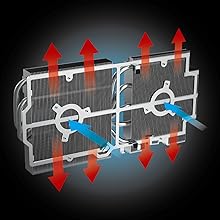
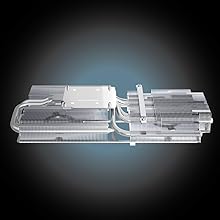
5.2. Advanced Cooling System
The Red Devil series is equipped with a robust cooling solution to maintain optimal temperatures during intense gaming sessions:
- Triple-Fan Design: Features three optimized static pressure fans for efficient airflow.
- Large Heatsink: A massive heatsink with vertical aluminum fins maximizes heat dissipation.
- Copper Base Direct Touch: Ensures efficient heat transfer from the GPU to the heatsink.
5.3. Customizable RGB Lighting
The graphics card features customizable RGB lighting on the fans, side shroud, and backplate. Use the PowerColor Devil Zone RGB software to personalize lighting effects and colors to match your system's aesthetic. The output LEDs on the display ports also illuminate for easy connection in low-light conditions.


Video: OVERVIEW | Red Devil AMD Radeon RX 6600 XT Graphics Card. This video provides an overview of the PowerColor Red Devil AMD Radeon RX 6600 XT, highlighting its design and features. While the video specifically mentions the RX 6600 XT, many features and design elements are similar to the RX 6650 XT model.
6. Specifications
| Feature | Value |
|---|---|
| Video Memory | 8GB GDDR6 |
| Stream Processors | 2048 |
| Game Clock (OC/Silent) | 2523 MHz / 2447 MHz |
| Boost Clock (OC/Silent) | 2694 MHz / 2669 MHz |
| Memory Clock | 17.5 Gbps |
| Minimum System Power | 650W |
| Max Screen Resolution | 7680x4320 |
| Graphics Coprocessor | AMD Radeon RX 6650 XT |
| Chipset Brand | AMD |
| Video Output Interface | 1x HDMI, 3x DisplayPort |
| Item Weight | 3.17 pounds |
| Product Dimensions (LxWxH) | 10.39 x 5.94 x 2.13 inches |
7. Maintenance
To ensure the longevity and optimal performance of your graphics card, regular maintenance is recommended:
- Dust Removal: Periodically clean dust from the fans and heatsink using compressed air. Ensure the system is powered off before cleaning.
- Airflow: Ensure your computer case has adequate airflow to prevent overheating. Keep cables tidy and clear of fan pathways.
- Driver Updates: Regularly check the AMD website for the latest driver updates to benefit from performance improvements and bug fixes.
8. Troubleshooting
If you encounter issues with your graphics card, consider the following troubleshooting steps:
- No Display/Black Screen:
- Ensure all power cables (8-pin and 6-pin) are securely connected to the graphics card.
- Verify that display cables are firmly connected to both the graphics card and the monitor.
- Check if your monitor is set to the correct input source.
- Try a different display cable or monitor if available.
- System Instability/Crashes:
- Ensure your power supply meets the minimum 650W requirement.
- Update your graphics drivers to the latest version.
- Monitor GPU temperatures using Radeon Software or third-party tools. Ensure adequate cooling.
- If overclocking, try reverting to default clock speeds or switching to Silent BIOS mode.
- Poor Performance:
- Ensure your graphics drivers are up to date.
- Check in-game settings and reduce demanding options if necessary.
- Verify that your system's CPU and RAM meet recommended specifications.
- Ensure AMD FreeSync is enabled if your monitor supports it.
9. Warranty and Support
Your PowerColor Red Devil AMD Radeon RX 6650 XT Graphics Card is covered by a manufacturer's warranty. Please refer to the warranty information included in your product packaging or visit the official PowerColor website for details on warranty terms, registration, and technical support. Keep your proof of purchase for warranty claims.
For further assistance, visit the PowerColor support website or contact their customer service team.


