
1. Introduction
The iFLYTEK A.I.Note X2 XF-DX-T210E is an advanced E-ink smart notebook designed for reading, note-taking, drawing, and on-the-go use. It features a 10.3-inch HD Carta flexible E-ink screen, a powerful 2.3GHz 8-Core CPU, and runs on Android 9.0. This manual provides essential information for setting up, operating, and maintaining your device.
2. Package Contents
Please verify that all items listed below are present in your product package.
- iFLYTEK A.I.Note X2 Device
- Electromagnetic Pen (No battery required)
- USB Type-C Cable
- Protective Cover (may vary by package)
- Quick Start Guide
- Warranty Card

Image: Contents of the iFLYTEK A.I.Note X2 retail package, showing the device, stylus, charging cable, and documentation laid out.
3. Device Overview
3.1 Physical Dimensions
The iFLYTEK A.I.Note X2 measures 243mm in length, 173mm in width, and has a thickness of 5.8mm. Its lightweight design makes it suitable for portability.
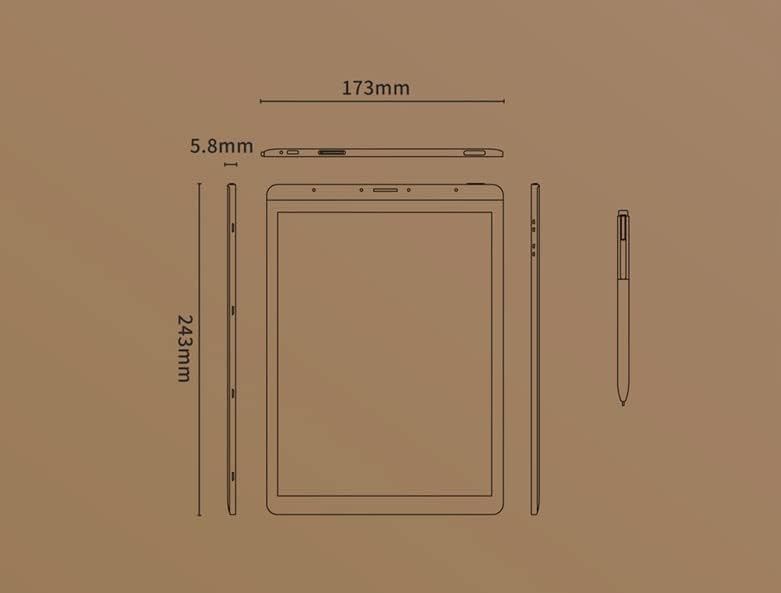
Image: Diagram illustrating the precise dimensions of the iFLYTEK A.I.Note X2 device and its accompanying stylus.
3.2 Components and Ports
Familiarize yourself with the device's external features:
- 10.3" HD Carta Flexible E-ink Screen: Main display for reading and interaction.
- USB Type-C Port: For charging and data transfer.
- Power Button: To turn the device on/off or put it to sleep.
- Microphone Array: Four-microphone array for audio input.
- 3.5 mm Headphones Jack: For audio output.
- Electromagnetic Pen: For precise input, note-taking, and drawing.
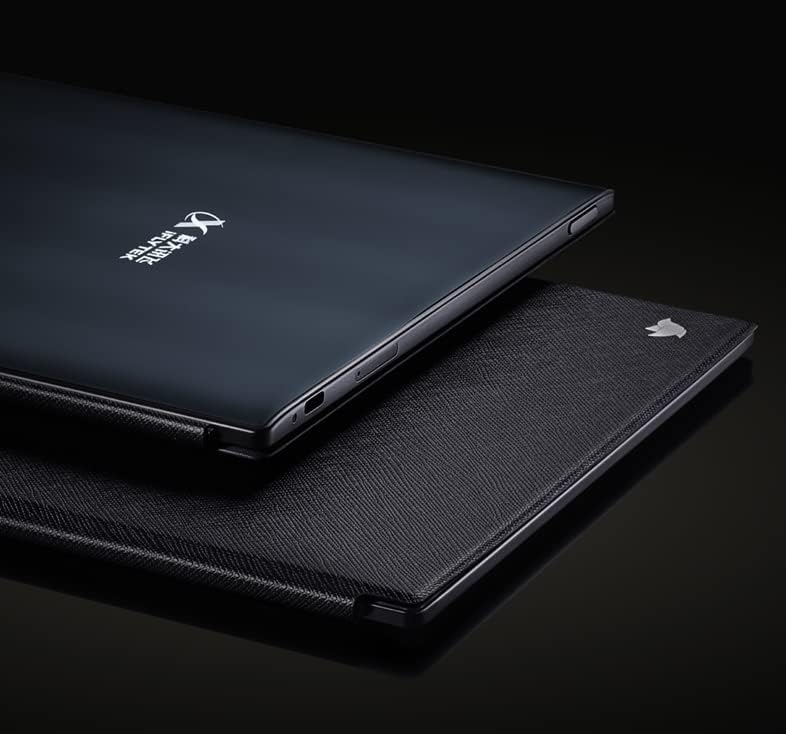
Image: Close-up view of the iFLYTEK A.I.Note X2's side profile, highlighting the slim design and the location of the USB-C port and other physical controls.
4. Setup
4.1 Initial Charging
Before first use, fully charge your iFLYTEK A.I.Note X2. Connect the provided USB Type-C cable to the device's charging port and a compatible USB power adapter (not included) or a computer's USB port. The charging indicator will show the charging status.
4.2 Powering On/Off
- To Power On: Press and hold the Power button until the screen illuminates.
- To Power Off: Press and hold the Power button, then select "Power Off" from the on-screen options.
- To Sleep/Wake: Briefly press the Power button.
4.3 Initial Configuration
Upon first power-on, follow the on-screen prompts to complete the initial setup, which may include:
- Language selection
- Wi-Fi network connection
- Time and date settings
- User account setup (if applicable)
5. Operating Instructions
5.1 Navigating the Interface
The device uses a capacitive touch screen for navigation. Swipe, tap, and pinch gestures are supported. The electromagnetic pen provides precise input for writing and drawing.
5.2 Note-Taking and Drawing
Access the note-taking application to create new notes or drawings. The electromagnetic pen offers 4096 levels of pressure sensitivity for a natural writing experience. Various pen types, line thicknesses, and colors (simulated grayscale) are available within the application.

Image: The iFLYTEK A.I.Note X2 screen displaying detailed handwritten notes, demonstrating its digital ink capabilities.
5.3 Reading Documents
The E-ink screen is designed for comfortable reading. Transfer documents (e.g., PDF, EPUB) to the device via USB or cloud services. Open the reading application to browse and read your files. You can annotate documents directly with the pen.

Image: The iFLYTEK A.I.Note X2 displaying a document with text, alongside its stylus, illustrating its use for reading and interaction.
5.4 Connectivity
The device supports Wi-Fi for internet access and content synchronization. It also features cellular connectivity (4G) for broader network access. Bluetooth may be available for connecting accessories.
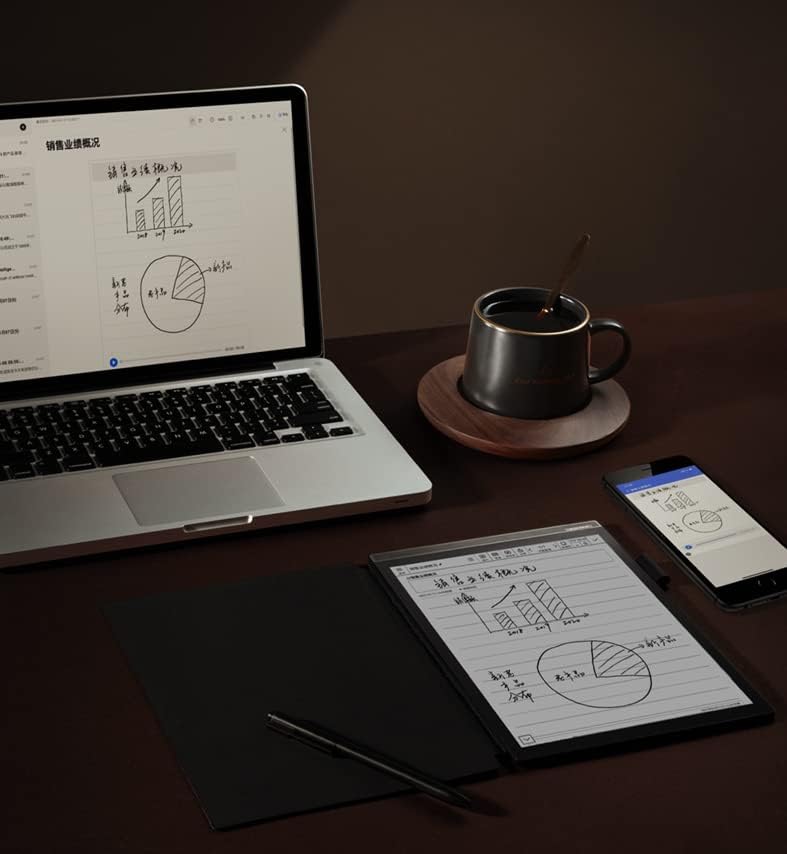
Image: The iFLYTEK A.I.Note X2 on a desk, demonstrating its integration with a laptop and smartphone for a connected workflow.
6. Maintenance
6.1 Cleaning the Device
Use a soft, lint-free cloth to gently wipe the screen and body of the device. Do not use abrasive cleaners, alcohol, or solvents, as these can damage the screen and finish. Avoid getting moisture into ports.
6.2 Battery Care
The device is equipped with a 4200mAh Polymer Li-ion battery. For optimal battery life, avoid exposing the device to extreme temperatures. Charge the device regularly, but avoid leaving it fully discharged for extended periods.
7. Troubleshooting
If you encounter issues with your iFLYTEK A.I.Note X2, refer to the following common solutions:
- Device not turning on: Ensure the device is charged. Connect it to a power source and try again.
- Screen not responding: Perform a soft reset by holding the power button for 10-15 seconds. If the issue persists, ensure the screen is clean and free of debris.
- Pen not writing: Check if the pen tip is worn or damaged. Ensure the pen is within the screen's active area. The pen does not require batteries.
- Wi-Fi connectivity issues: Verify your Wi-Fi password and ensure the device is within range of the router. Try restarting both the device and the router.
- Slow performance: Close unused applications and clear cache if available in settings. Consider a factory reset as a last resort (this will erase all data).
8. Specifications
Detailed technical specifications for the iFLYTEK A.I.Note X2 XF-DX-T210E:
| Feature | Specification |
|---|---|
| Model Number | XF-DX-T210E |
| Dimensions | 243mm x 173mm x 5.8mm |
| Display | 10.3" HD Carta flexible E-ink screen, 1872 x 1404 (227DPI), 16 level grayscale |
| Touch | Capacitive touch + Electromagnetic pen |
| Pen | No battery, 4096 levels of pressure sensitivity |
| CPU | 2.3GHz 8-Core |
| RAM | 2GB |
| Internal Storage | 64GB |
| Operating System | Android 9.0 (Android 9 Pie) |
| Battery | 4200mAh Polymer Li-ion |
| Connectivity | USB Type-C, Wi-Fi, 4G Cellular |
| Audio | Four-Microphone array, 3.5 mm Headphones Jack |
| Biometric Security | Fingerprint Recognition |
9. Warranty and Support
For warranty information and customer support, please refer to the warranty card included in your package or visit the official iFLYTEK website. Keep your proof of purchase for warranty claims.
Manufacturer: iFLYTEK
ASIN: B09VXKMMJS


