
Introduction
This manual provides detailed instructions for the setup, operation, maintenance, and troubleshooting of your Garmin Drive 52 GPS navigator. Familiarize yourself with the device's features and functions to ensure a safe and efficient navigation experience.
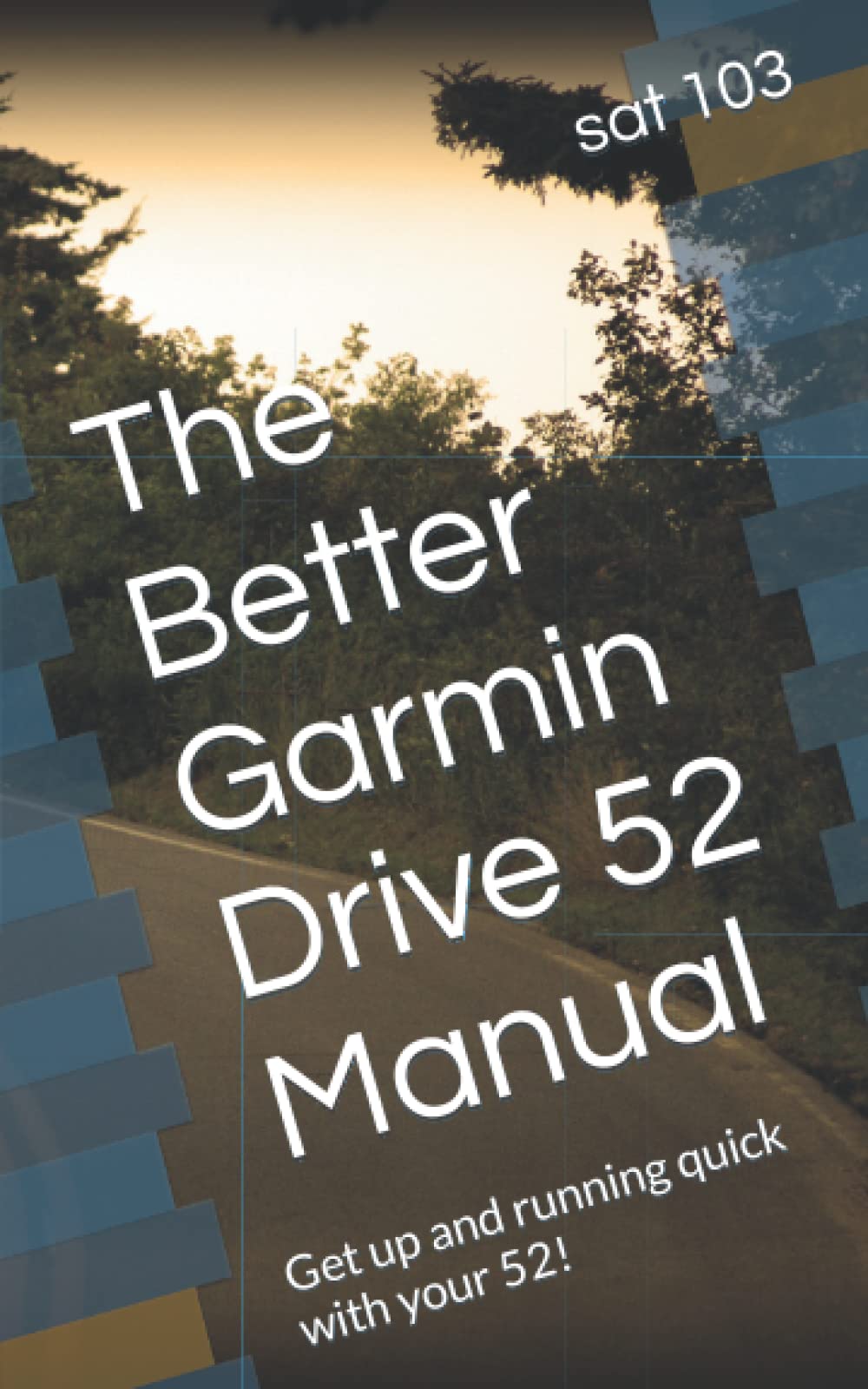
Image: Front cover of "The Better Garmin Drive 52 Manual" book. This guide offers a plain English approach to using the Garmin Drive 52 navigator.
Getting Started
Unpacking and Components
Upon opening the package, ensure all components are present:
- Garmin Drive 52 device
- Vehicle suction cup mount
- Vehicle power cable
- USB cable
- Documentation (this manual)
Charging the Device
Before first use, fully charge your Garmin Drive 52. Connect the vehicle power cable to the device and plug it into your vehicle's power outlet. Alternatively, use the USB cable to connect the device to a computer or a USB wall charger.
Mounting in Vehicle
Attach the suction cup mount to your vehicle's windshield or dashboard, ensuring it does not obstruct your view of the road. Secure the Garmin Drive 52 device to the mount.
Powering On/Off
To power on the device, press and hold the power button until the screen illuminates. To power off, press and hold the power button again and follow the on-screen prompts.
Initial Setup
Upon first power-on, the device will guide you through initial setup steps, including selecting your preferred language, region, and accepting user agreements.
Basic Operation
Main Menu Overview
The main menu provides access to all primary functions. Typically, you will find options for "Where To?", "View Map", "Volume", and "Settings".
Searching for Destinations
Tap "Where To?" from the main menu. You can search by:
- Address: Enter street number, street name, city, and state/province.
- Points of Interest (POIs): Search for restaurants, gas stations, attractions, etc.
- Categories: Browse predefined categories of destinations.
- Recent: Select from recently visited locations.
Starting a Route
After selecting your destination, the device will calculate a route. Review the route details and tap "Go!" to begin navigation. Follow the spoken turn-by-turn directions and on-screen prompts.
Map View and Navigation
During navigation, the map displays your current location, the route, and upcoming turns. You can zoom in/out, pan the map, and view route information such as estimated arrival time and distance to destination.
Volume and Brightness
Adjust the volume of spoken directions and alerts via the "Volume" option in the main menu. Screen brightness can be adjusted in the "Settings" menu under "Display".
Advanced Features
Traffic Information
The Garmin Drive 52 may offer real-time traffic updates. If available, traffic incidents and delays will be displayed on the map, and the device may suggest alternative routes to avoid congestion.
Speed Limit Display
The device displays the current speed limit for most major roads. This feature is for informational purposes only and should not replace your awareness of posted speed limits.
Driver Alerts
Receive alerts for upcoming sharp curves, speed changes, school zones, and more to enhance driving awareness.
Customizing Settings
Access the "Settings" menu to personalize your device. Options include map display preferences, navigation preferences (e.g., shortest route, fastest route), unit formats, and system information.
Maintenance and Updates
Cleaning the Device
Clean the device screen and exterior with a soft, lint-free cloth. Avoid abrasive cleaners or solvents that could damage the surfaces.
Software Updates
Regularly update your device's software and maps using Garmin Express. Connect your device to a computer via the USB cable and follow the instructions on the Garmin Express application. Keeping your software updated ensures optimal performance and the latest map data.
Battery Care
To prolong battery life, avoid exposing the device to extreme temperatures. If storing the device for an extended period, charge it to approximately 50% before storage.
Troubleshooting
Device Will Not Power On
- Ensure the device is fully charged.
- Verify the power cable is securely connected to both the device and the power source.
- Attempt a soft reset by holding the power button for 10-15 seconds.
No GPS Signal
- Ensure the device has a clear view of the sky.
- Move away from tall buildings or dense foliage.
- Allow several minutes for the device to acquire satellites, especially after being off for a long time or moved a significant distance.
Screen Not Responding
- Clean the screen to remove any dirt or debris.
- Perform a soft reset.
- Ensure your fingers are dry and clean when interacting with the touchscreen.
Route Calculation Problems
- Verify that the map data is up to date.
- Check navigation preferences in settings (e.g., avoidances, route calculation method).
- Ensure the device has a strong GPS signal.
Specifications
| ASIN | B09VWMW82Y |
| Publisher | Independently published |
| Publication Date | March 20, 2022 |
| Language | English |
| Print Length | 95 pages |
| ISBN-13 | 979-8436192765 |
| Item Weight | 5.6 ounces |
| Dimensions | 5 x 0.22 x 8 inches |
Note: The specifications listed above pertain to "The Better Garmin Drive 52 Manual" book, which is the product this manual describes. For technical specifications of the Garmin Drive 52 GPS device, please refer to Garmin's official documentation.
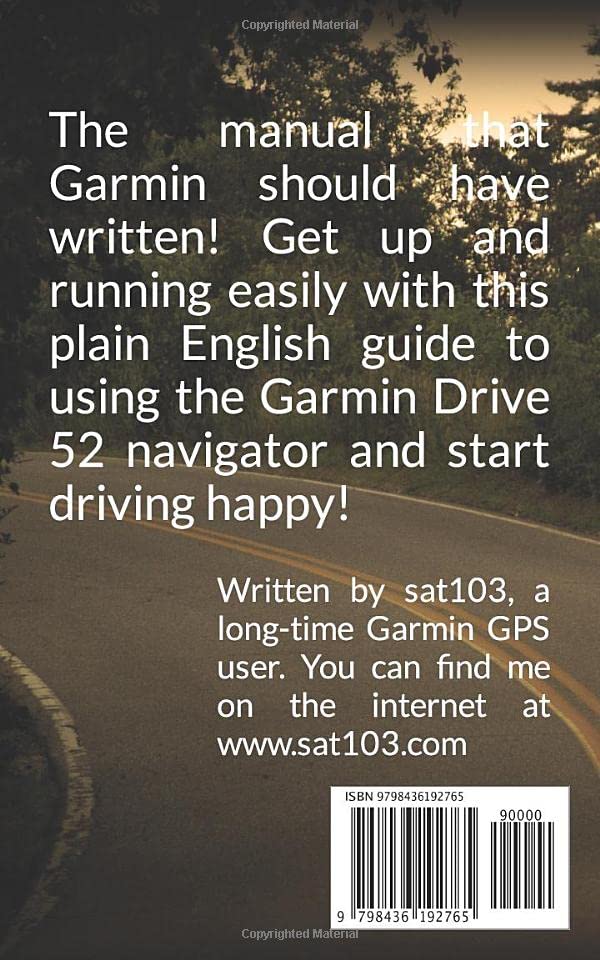
Image: Back cover of "The Better Garmin Drive 52 Manual" book, showing ISBN and barcode information.
Support and Warranty
For technical support, warranty information, or additional assistance with your Garmin Drive 52 GPS navigator, please visit the official Garmin support website or contact their customer service. Warranty terms and conditions are provided by the manufacturer, Garmin.
This manual is a third-party guide designed to assist users with their Garmin Drive 52 device. For official Garmin documentation, please refer to the resources provided by Garmin International.