
1. Introduction
The TP-Link Deco XE75 AXE5400 Tri-Band WiFi 6E Mesh System provides seamless, whole-home Wi-Fi coverage, eliminating dead zones and buffering. This system replaces traditional Wi-Fi routers and extenders, utilizing AI-Driven Mesh technology and the new 6GHz band for enhanced performance. It is designed to deliver high-speed internet across large areas, supporting numerous devices simultaneously.
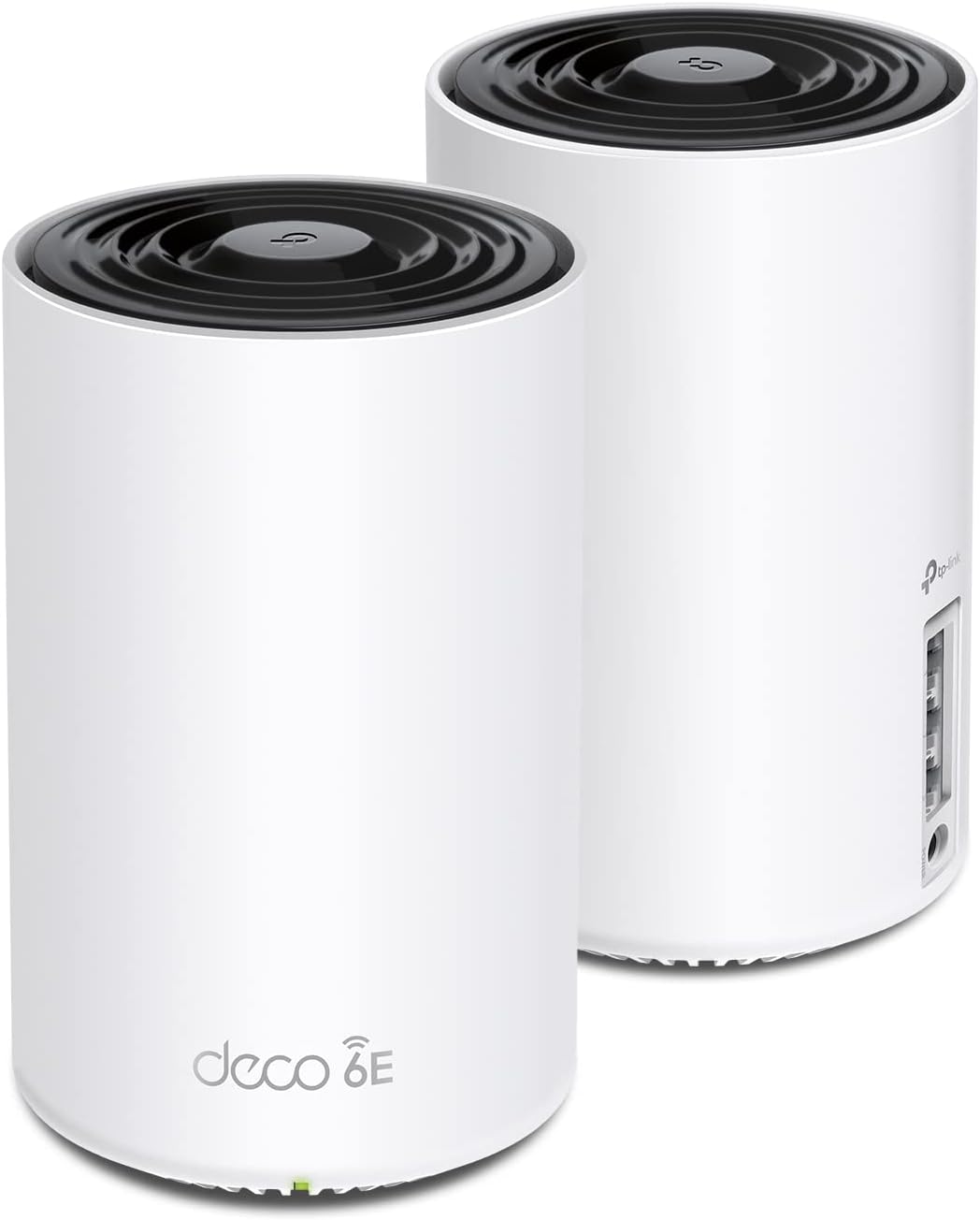
Figure 1: TP-Link Deco XE75 AXE5400 Tri-Band WiFi 6E Mesh System (2-pack).

Figure 2: The compact and aesthetic design of a Deco unit blends into home environments.
2. What's in the Box
The TP-Link Deco XE75 (2-pack) package includes the following components:
- 2 x Deco XE75 units
- 1 x RJ45 Ethernet cable
- 2 x Power adapters
- 1 x Quick Installation Guide
3. Setup Guide
Follow these steps to set up your TP-Link Deco XE75 Mesh System:
- Download the Deco App: Search for "TP-Link Deco" in your mobile device's app store (Google Play Store or Apple App Store) and download the application.
- Prepare Your Modem: Power off your existing modem and remove any backup battery if it has one. Disconnect your old router from the modem before proceeding.
- Connect the First Deco Unit:
- Connect one end of the provided Ethernet cable to your modem's LAN port.
- Connect the other end of the Ethernet cable to any Ethernet port on your first Deco unit.
- Plug in the power adapter to the Deco unit and an electrical outlet.

Figure 3: Rear view of a Deco unit with Ethernet and power ports.
- Power On and Wait: Power on your modem. Wait approximately 2 minutes for the modem to fully start up and stabilize. The Deco unit's LED will pulse blue when it's ready for setup.
- Follow In-App Instructions: Open the Deco app on your mobile device. The app will guide you through the remaining steps, including connecting your Deco to the internet, creating your Wi-Fi network name (SSID) and password, and adding additional Deco units for expanded coverage.
- Connect Devices: Once your Deco network is online, connect all your devices (smartphones, laptops, smart home devices, etc.) to the new Deco Wi-Fi network for optimal performance.
4. Operating Instructions
The TP-Link Deco XE75 system is designed for ease of use and powerful performance. Here are key operational aspects:
4.1. Tri-Band WiFi 6E Technology
The Deco XE75 utilizes Tri-Band WiFi 6E, featuring 2.4 GHz, 5 GHz, and the new 6 GHz band. The 6 GHz band minimizes interference and can serve as a dedicated backhaul for stable connections between Deco units, ensuring maximum speed and efficiency for your devices.

Figure 4: Overview of Wi-Fi 6E capabilities and features.
4.2. AI-Driven Mesh
The AI-Driven Mesh technology intelligently learns your network environment, client quality, and user behaviors to deliver optimized Wi-Fi coverage. This ensures seamless roaming and stable connections as you move throughout your home.
4.3. TP-Link HomeShield Security
HomeShield is TP-Link's premium security service integrated into the Deco system, providing comprehensive network and IoT protection. Key features include:
- Network Security Scan
- Basic Parental Controls
- Quality of Service (QoS)
- Weekly/Monthly Reports
- IoT Device Identification
An optional Pro Plan offers advanced features like DDoS Attack Prevention, IoT Device Protection, Advanced Parental Controls (including Time Rewards), and Antivirus Protection.

Figure 5: TP-Link's commitment to cybersecurity and HomeShield features.

Figure 6: HomeShield security features overview.
4.4. Ethernet Backhaul
Each Deco unit features multiple Gigabit Ethernet ports, allowing for wired connections to devices or for creating an Ethernet backhaul between Deco units for even more stable and faster connections, especially in larger homes or with high-bandwidth applications.
5. Maintenance
To ensure optimal performance and longevity of your TP-Link Deco XE75 system, consider the following maintenance tips:
- Regular Firmware Updates: Check the Deco app regularly for firmware updates. Updates often include performance improvements, security patches, and new features.
- Optimal Placement: Ensure Deco units are placed in open areas, away from obstructions (e.g., large metal objects, thick walls) and sources of interference (e.g., microwaves, cordless phones).
- Cleanliness: Keep the Deco units clean and free from dust buildup, especially around ventilation areas, to prevent overheating. Use a soft, dry cloth for cleaning.
- Reboot Periodically: Periodically rebooting your Deco system (and modem) can help clear network caches and resolve minor connectivity issues.
- Monitor Network: Use the Deco app to monitor connected devices, network traffic, and potential security threats.
6. Troubleshooting
If you encounter issues with your TP-Link Deco XE75 system, try the following troubleshooting steps:
- No Internet Connection:
- Check if your modem is working correctly.
- Ensure all cables are securely connected between the modem and the main Deco unit.
- Reboot your modem and the main Deco unit.
- Weak Wi-Fi Signal or Dead Zones:
- Relocate Deco units to optimize coverage. Try placing them equidistant from each other and the main Deco unit.
- Ensure there are no major physical obstructions (e.g., concrete walls, large appliances) between Deco units.
- Consider adding more Deco units if your coverage area is larger than recommended.
- Devices Not Connecting:
- Verify the Wi-Fi password entered on your device is correct.
- Reboot the problematic device.
- Check the Deco app to see if the device is blocked or paused.
- Slow Speeds:
- Run a speed test using the Deco app to check the internet speed reaching your main Deco unit.
- Ensure your devices are connecting to the optimal band (5GHz or 6GHz for faster speeds, if supported).
- Check for high network traffic or bandwidth-intensive activities (e.g., large downloads, 4K streaming) and use QoS settings in the Deco app to prioritize devices.
- Deco App Issues:
- Ensure your Deco app is updated to the latest version.
- Clear the app's cache or reinstall it if issues persist.
- Factory Reset: As a last resort, if issues persist, you can perform a factory reset on your Deco units. This will erase all settings, and you will need to set up the system again from scratch using the Deco app. Refer to the Quick Installation Guide for factory reset instructions.
7. Specifications
| Feature | Detail |
|---|---|
| Product Dimensions | 4.13 x 4.13 x 6.67 inches |
| Item Weight | 2.69 pounds |
| Model Number | Deco XE75 (2-pack) |
| Manufacturer | TP-Link |
| Frequency Band Class | Tri-Band (2.4 GHz, 5 GHz, 6 GHz) |
| Wireless Communication Standard | 802.11ac, 802.11ax, 802.11b, 802.11g, 802.11n |
| Connectivity Technology | Ethernet, Wi-Fi |
| Coverage | Up to 5,500 Sq.Ft (2-pack) |
| Max Connected Devices | Up to 200 devices |
| Included Components | 2 x Deco XE75 units, 1 x RJ45 Ethernet cable, 2 x Power adapters, 1 x Quick Installation Guide |

Figure 7: Physical dimensions and port layout of the Deco XE75 unit.
8. Warranty and Support
TP-Link offers comprehensive support for its products:
- Warranty: TP-Link provides a 2-year warranty for most home products.
- Technical Support: 24/7 technical support is available for assistance with setup, configuration, and troubleshooting.
- User Guides: Additional user guides and documentation are available online. You can find the official User Guide (PDF) here and User Manual (PDF) here.
- Online Resources: Visit the official TP-Link website for FAQs, forums, and additional support resources.


