
1. Introduction
This manual provides detailed instructions for the setup, operation, maintenance, and troubleshooting of your Rampage KB-R29 GRAND Series RGB LED Mechanical Gaming Keyboard. Please read this manual thoroughly before using the product to ensure proper functionality and longevity.
2. Package Contents
Verify that all items are present in the package:
- Rampage KB-R29 GRAND Series RGB LED Mechanical Gaming Keyboard
- User Manual
3. Product Overview
The Rampage KB-R29 GRAND is a high-performance mechanical gaming keyboard featuring RGB LED backlighting and durable Blue Optical Switches. It is designed for gaming and general computer use, offering a responsive and tactile typing experience.
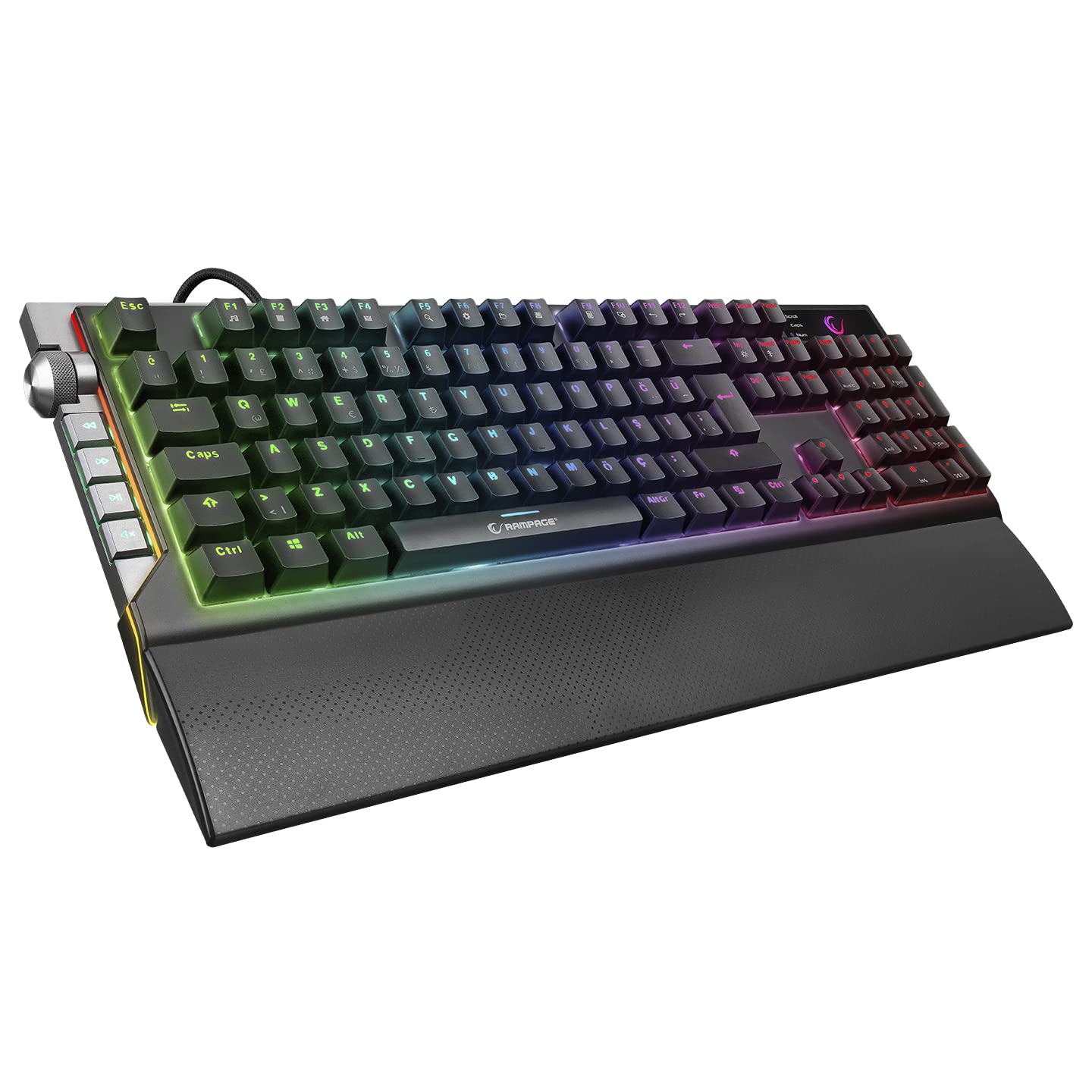
Image: Close-up view of the Rampage KB-R29 GRAND keyboard, highlighting the Blue Optical Switches beneath removed keycaps. This illustrates the mechanical switch design.
Key Features:
- Switch Type: Blue Optical Switches for tactile feedback and durability.
- Layout: Turkish-Q (87 keys).
- Backlighting: RGB LED customizable lighting.
- Connectivity: Wired USB.
- Dimensions: Approximately 445mm x 212.8mm x 33mm.
4. Setup Instructions
- Unpack the Keyboard: Carefully remove the keyboard from its packaging.
- Connect to Computer: Plug the USB connector of the keyboard into an available USB port on your computer.
- Driver Installation: The keyboard is typically plug-and-play. Your operating system should automatically detect and install the necessary drivers. No additional software installation is usually required for basic functionality.
- Placement: Place the keyboard on a stable, flat surface. Ensure comfortable wrist positioning.
5. Operating Instructions
Basic Keyboard Functions:
- Typing: Use the keys for standard text input.
- Function Keys (Fn): The keyboard features an Fn key. Combine the Fn key with other keys (e.g., F1-F12) to access multimedia controls or other special functions. Refer to the keycap legends for specific combinations.
RGB LED Backlighting Control:
The Rampage KB-R29 GRAND keyboard offers various RGB lighting effects and customization options. Specific key combinations are used to cycle through modes, adjust brightness, and change colors.
- Changing Lighting Modes: Typically, a combination of the Fn key and specific function keys (e.g., Fn + F9, Fn + F10) or dedicated lighting keys will cycle through different RGB effects.
- Adjusting Brightness: Use Fn + Up/Down arrow keys or similar combinations to increase or decrease LED brightness.
- Adjusting Speed/Direction: Some lighting effects allow adjustment of speed or direction using Fn key combinations.
Note: Refer to the keycap legends on your specific keyboard for the exact key combinations for lighting control, as these can vary slightly.
6. Maintenance and Care
- Cleaning:
- Disconnect the keyboard from your computer before cleaning.
- Use a soft, damp cloth to wipe the surface of the keyboard. Avoid harsh chemicals or abrasive materials.
- For dust and debris between keys, use compressed air.
- Keycaps can be carefully removed for deeper cleaning, but exercise caution to avoid damaging the switches.
- Storage: Store the keyboard in a dry, cool environment away from direct sunlight and extreme temperatures.
- Avoid Liquids: Do not expose the keyboard to liquids. Liquid damage can void the warranty.
- Handle with Care: Avoid dropping the keyboard or subjecting it to strong impacts.
7. Troubleshooting
| Problem | Possible Cause | Solution |
|---|---|---|
| Keyboard not responding | Loose USB connection, faulty USB port, driver issue. |
|
| Keys not registering | Dust/debris under keycap, switch malfunction. |
|
| RGB lighting not working | Lighting mode off, brightness set to minimum, software conflict. |
|
8. Specifications
| Brand | Rampage |
| Model Number | KB-R29 GRAND |
| Switch Type | Blue Optical Switch |
| Number of Keys | 87 |
| Layout | Turkish-Q |
| Connectivity | Wired USB |
| Compatible Devices | Laptop, Desktop PC |
| Dimensions (LxWxH) | 445mm x 212.8mm x 33mm |
| Color | Black |
9. Warranty Information
This product comes with a manufacturer's warranty. Please refer to the warranty card included with your product or contact Rampage customer support for detailed warranty terms and conditions. Keep your purchase receipt as proof of purchase for warranty claims.
10. Support
For technical assistance, troubleshooting, or product inquiries, please contact Rampage customer support. Contact information can typically be found on the manufacturer's official website or on the product packaging.
Online Resources: Visit the official Rampage website for updated drivers, FAQs, and additional support resources.