
1. Product Overview
The G-Homa 2K Wireless Security Camera is designed for comprehensive indoor and outdoor home security. It features 2K resolution, color night vision, two-way audio, smart motion detection with AI capabilities, and a rechargeable battery for wire-free operation. This manual provides essential information for setting up, operating, and maintaining your security camera.

Figure 1.1: G-Homa 2K Wireless Security Camera highlighting features like 2K Ultra-high Resolution, SD-Card Enabled, 2.4GHz WiFi Connection, PIR Motion Detection, IP65 Waterproof, Two-way Audio, Spotlight Night Vision, Cloud Storage, Smart Siren, and Mobile Monitoring.
2. Package Contents
Verify that all components are present in your package:
- G-Homa 2K Wireless Security Camera
- User Manual
- USB Charging Cable
- Mounting Bracket
- Screws Set (for installation)
- Reset Tool
Video 2.1: Unboxing and initial setup guide for the G-Homa Wireless Security Camera, demonstrating how to access the power button, reset button, and the contents of the package including the camera, user manual, reset tool, screws set, USB cable, and mounting bracket.
3. Setup and Installation
3.1 Initial Camera Activation
- Charge the Camera: Before first use, fully charge the camera using the provided USB cable.
- Power On: Press and hold the power button located under the rubber cover on the camera's underside to turn it on. A red light will flash, indicating it's ready for connection.
- Reset (if necessary): If the red light does not flash, or if you encounter connection issues, use the reset tool to press and hold the reset button (also under the rubber cover) for 4-5 seconds until the red light flashes.
3.2 App Download and Connection
The G-Homa camera uses the CloudEdge app for setup and control.
- Download App: Search for 'CloudEdge' in your smartphone's app store (iOS or Android) and install it.
- Register/Login: Open the app and follow the on-screen instructions to register a new account or log in if you already have one.
- Add Device: Tap the '+' icon or 'Add Device' button in the app. Select 'Battery Camera' from the device list.
- Wi-Fi Setup: Ensure your smartphone is connected to a 2.4GHz Wi-Fi network. The camera does not support 5GHz Wi-Fi. Enter your Wi-Fi password in the app.
- Scan QR Code: The app will display a QR code. Remove any protective film from the camera lens. Hold your phone 5-8 inches (15-25 cm) in front of the camera lens. The camera will emit a prompt sound when the QR code is successfully scanned.
- Complete Setup: Follow the remaining prompts in the app to name your camera and complete the setup process.
Video 3.1: Detailed instructions on how to connect the G-Homa camera with the CloudEdge App, including powering on, resetting, Wi-Fi selection, and QR code scanning.
3.3 Mounting the Camera
The camera can be mounted indoors or outdoors using the provided mounting bracket and screws.
- Choose Location: Select a location with good Wi-Fi signal strength. For outdoor installation, ensure the camera is placed at a height of 2-3 meters for optimal coverage. Avoid direct sunlight on the camera lens.
- Install Bracket: Secure the mounting bracket to the desired surface using the screws.
- Attach Camera: Screw the camera onto the mounting bracket. Adjust the angle for the desired viewing area.
4. Operation
4.1 Live View and Recording
Access the live feed and recorded events through the CloudEdge app.
- Live Stream: Open the app and select your camera to view the live feed.
- Recording: The camera automatically records when motion is detected. You can also manually record from the live view. Recordings are stored on a microSD card (not included) or in the cloud (subscription may be required).
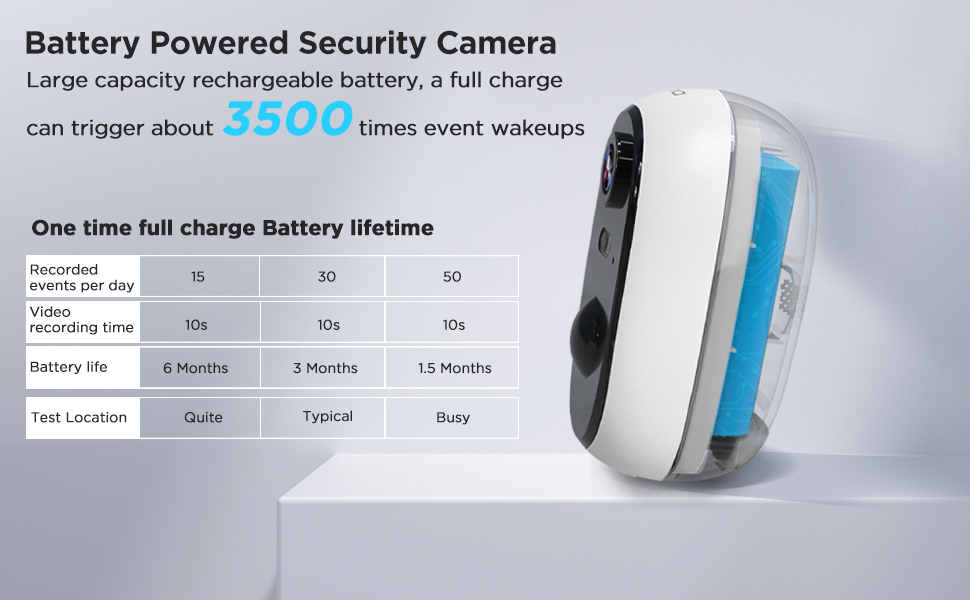
Figure 4.1: Multi-device view allows monitoring of multiple cameras simultaneously from the app.
4.2 Motion Detection and Alerts
The camera features a PIR motion sensor and AI detection to minimize false alarms.
- PIR Motion Sensor: Detects movement based on heat signatures, reducing triggers from non-human objects.
- AI Detection: When enabled, the camera can differentiate between human and other movements, sending alerts only for people.
- Custom Area: Set specific detection zones within the camera's view to focus on critical areas and avoid frequent disturbances.
- Instant Alerts: Receive real-time notifications on your smartphone when motion is detected.

Figure 4.2: PIR motion detection in action, focusing on human activity.

Figure 4.3: Setting custom motion detection zones via the app.
4.3 Night Vision and Spotlight/Siren
The camera provides clear visibility even in low-light conditions.
- 2K Color Night Vision: The integrated spotlight enables full-color video recording at night when motion is detected.
- Infrared Night Vision: Provides clear black and white video in complete darkness up to 33 feet.
- Spotlight/Siren: Can be activated automatically upon motion detection or manually via the app to deter intruders.

Figure 4.4: 2K Color Night Vision with spotlight activated.
Video 4.1: Demonstrates the 2K 3MP Battery Powered Camera with Spotlight, showcasing its ability to detect movement and activate the spotlight for clear night vision and deterrence.
4.4 Two-Way Talk and Multi-User Sharing
Communicate through the camera and share access with family members.
- Two-Way Talk: Use the built-in microphone and speaker to communicate with visitors or deter unwanted guests directly from your smartphone.
- Multi-User Sharing: Share camera access with multiple family members, allowing them to view live feeds and receive alerts simultaneously.

Figure 4.5: Two-way audio communication via the camera.
5. Battery and Charging
The G-Homa camera is equipped with a rechargeable battery for wire-free convenience.
- Battery Capacity: 6000 mAh Lithium Ion battery.
- Charging: Use the provided USB cable and a 5V adapter (not included) to charge the camera.
- Battery Life: Battery life varies based on activity. A full charge can support approximately 3500 event wake-ups. For typical usage (30 recorded events per day, 10s video recording time), the battery can last up to 3 months.

Figure 5.1: Battery life estimates based on usage frequency.
6. Maintenance
Proper maintenance ensures optimal performance and longevity of your camera.
- Weather Resistance: The camera has an IP65 international protection rating, making it suitable for outdoor use in various weather conditions like rain and snow.
- Cleaning: Periodically clean the camera lens and housing with a soft, dry cloth to ensure clear image quality.
- Firmware Updates: Keep the camera's firmware updated through the CloudEdge app for improved features and security.
- Storage Management: Regularly check the storage status (microSD card or cloud) and manage recordings as needed.

Figure 6.1: The camera is designed to withstand various weather conditions.
7. Specifications
| Feature | Specification |
|---|---|
| Brand | G-Homa |
| Model | B09VTFHYQZ |
| Video Capture Resolution | 3 MP (2K) |
| Effective Still Resolution | 3 MP |
| Connectivity Technology | Wireless (Wi-Fi) |
| Connectivity Protocol | Wi-Fi (2.4GHz only) |
| Power Source | AC/DC (Rechargeable Battery) |
| Battery Power | 6000 Milliampere Hour (mAh) |
| Indoor/Outdoor Usage | Indoor, Outdoor |
| International Protection Rating | IP65 |
| Viewing Angle | 130 Degrees |
| Night Vision Range | 33 Feet |
| Special Features | Motion Sensor, Night Vision, Two-Way Talk, Spotlight, Siren |
| Compatible Devices | Smartphone |
| Control Method | App (CloudEdge) |
| Product Dimensions | 4.84 x 2.8 x 5 inches |
| Item Weight | 12.6 ounces |
8. Troubleshooting
If you encounter issues with your G-Homa camera, refer to the following common solutions:
- Camera Not Powering On: Ensure the battery is fully charged. Press and hold the power button for several seconds.
- Cannot Connect to Wi-Fi:
- Confirm your Wi-Fi network is 2.4GHz. The camera does not support 5GHz networks.
- Ensure your Wi-Fi password is entered correctly in the CloudEdge app.
- Move the camera closer to your Wi-Fi router during setup.
- Reset the camera using the reset tool and try the setup process again.
- Poor Image Quality:
- Clean the camera lens.
- Ensure adequate lighting for optimal night vision performance.
- Check your Wi-Fi signal strength; a weak signal can affect video quality.
- False Motion Alerts:
- Adjust the motion detection sensitivity in the app.
- Enable AI Human Detection to filter out non-human movements.
- Set custom detection zones to exclude areas with frequent irrelevant movement (e.g., busy streets, swaying trees).
- Two-Way Audio Issues:
- Ensure your phone's volume is up and the microphone is enabled in the app.
- Check the camera's speaker and microphone for any obstructions.
9. Warranty and Support
The G-Homa 2K Wireless Security Camera comes with a one-year warranty service. We are committed to providing excellent customer support.
If you encounter any problems during use or have questions, please feel free to contact us through the following channels:
- After-sale mailbox: support@g-homa.com
- Official website: https://www.g-homa.com
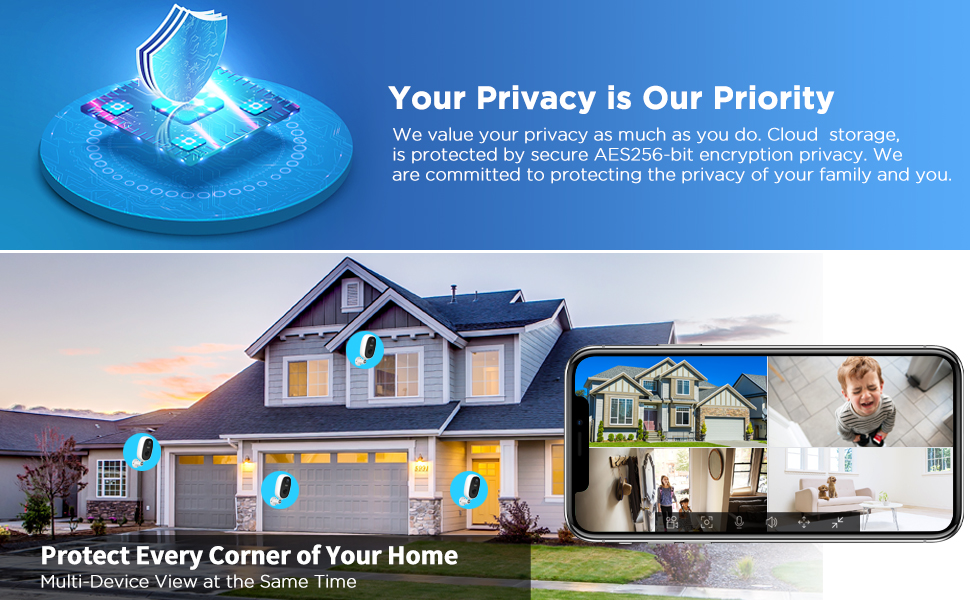
Figure 9.1: Your privacy is a priority, with military-grade AES-256 data encryption ensuring footage is kept private.