1. Introduction
This manual provides detailed instructions for the setup, operation, and maintenance of your Lazmin112 Wireless Numeric Keypad with Touchpad. This device offers dual-mode connectivity (2.4G wireless and Bluetooth) and is designed for enhanced productivity across various operating systems.

Figure 1: Lazmin112 Wireless Numeric Keypad with Touchpad
2. Product Features
- Dual Mode Connection: Supports both 2.4G wireless and Bluetooth connectivity for versatile use.
- Integrated Touchpad: Features a large touchpad with left and right click buttons, functioning like a laptop touchpad.
- Durable Material: Constructed from ABS material for durability.
- Portable Design: Compact and lightweight, ideal for on-the-go use.
- Wide Compatibility: Automatically identifies and supports Windows, iOS, Android, and OS X systems.
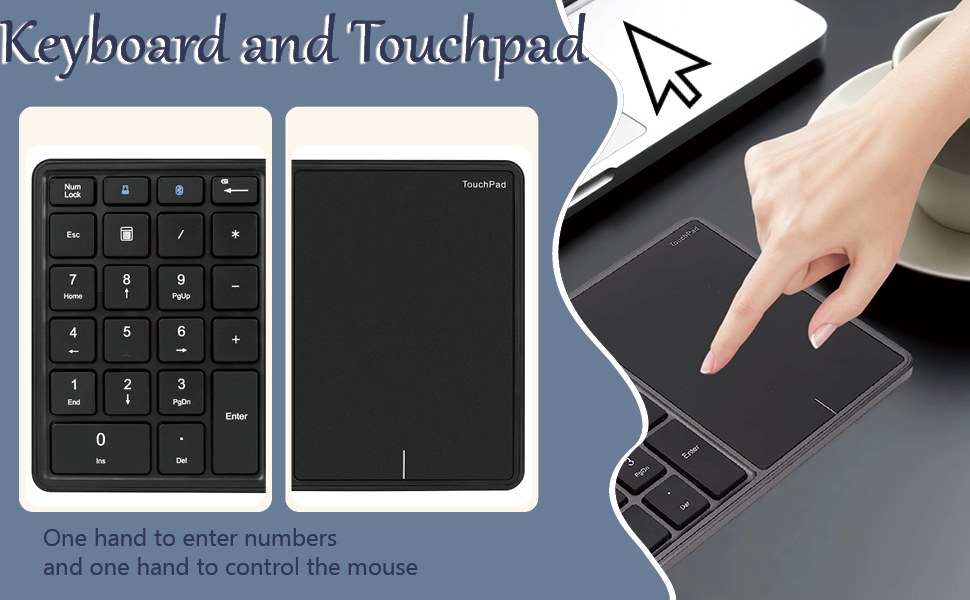
Figure 2: Touchpad Functionality
3. Setup and Connection
3.1 Powering On/Off
Locate the ON/OFF switch on the side of the keypad. Slide the switch to 'ON' to power on the device and to 'OFF' to power it off.

Figure 3: Power Switch and Type-C Port
3.2 Dual Mode Connection
The keypad supports two connection modes: 2.4G Wireless and Bluetooth.
3.2.1 2.4G Wireless Mode
- Ensure the keypad is powered on.
- Locate the 2.4G USB dongle, typically stored in a compartment on the keypad.
- Insert the USB dongle into an available USB port on your computer or device.
- Short press the Esc key followed by the 2.4G button (usually indicated by a small computer icon). The green indicator light will blink and then become constant, indicating a successful connection.

Figure 4: 2.4G Wireless Connection
3.2.2 Bluetooth Mode
- Ensure the keypad is powered on.
- Short press the Esc key followed by the BT button (usually indicated by a Bluetooth icon). The blue indicator light will blink, signifying it is in pairing mode.
- On your device (computer, tablet, smartphone), go to Bluetooth settings and search for new devices.
- Select "Numeric Keypad" or a similar name from the list of available devices.
- Once paired, the blue indicator light on the keypad will become constant.

Figure 5: Dual Mode Switching Instructions
4. Operating Instructions
4.1 Numeric Keypad Usage
The numeric keypad functions like a standard 22-key number pad. Ensure the 'Num Lock' key is active (indicated by a light) to enable numeric input. Press 'Num Lock' again to toggle its state.
4.2 Touchpad Usage
The integrated touchpad allows for precise cursor control. It supports standard gestures similar to a laptop touchpad. The left and right click buttons are located on the touchpad itself.
When connected to a phone or tablet via Bluetooth, a mouse cursor will appear on the screen, allowing for touch screen and touchpad control simultaneously.
4.3 Special Functions
- Calculator Button: Short press the dedicated calculator button (usually indicated by a calculator icon) to launch the calculator application on your connected device.
- Esc Key: In addition to its standard function, the Esc key is used in combination with the 2.4G and BT buttons to switch between connection modes.
5. Care and Maintenance
- Cleaning: Use a soft, dry cloth to clean the keypad and touchpad. Avoid using abrasive cleaners or solvents.
- Storage: Store the keypad in a cool, dry place away from direct sunlight and extreme temperatures.
- Charging: Charge the keypad using the provided Type-C interface. The charging signal light will be on during charging.
- Battery Life: To maximize battery life, power off the keypad when not in use for extended periods.
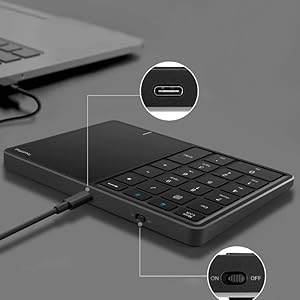
Figure 6: Type-C Charging Port Detail
6. Troubleshooting
| Problem | Possible Cause | Solution |
|---|---|---|
| Keypad not connecting via 2.4G. | USB dongle not inserted correctly or driver issue. Keypad not in 2.4G mode. | Ensure dongle is fully inserted. Try a different USB port. Re-select 2.4G mode (Esc + 2.4G button). Check device manager for driver status. |
| Keypad not connecting via Bluetooth. | Keypad not in Bluetooth pairing mode. Bluetooth on host device is off. Interference. | Re-enter Bluetooth pairing mode (Esc + BT button). Ensure Bluetooth is enabled on your device. Move closer to the device. Remove other Bluetooth devices. |
| Keys not responding. | Num Lock is off. Low battery. Connection lost. | Press 'Num Lock' to activate. Charge the keypad. Re-establish connection. |
| Touchpad not working. | Not supported by current OS/application. Connection issue. | Ensure your operating system supports touchpad input. Reconnect the keypad. |
7. Specifications
| Feature | Detail |
|---|---|
| Model Number | Lazmin112xtps7qv8au6062-12 |
| Connectivity Technology | Bluetooth, 2.4G Wireless |
| Number of Keys | 22 |
| Material | Acrylonitrile Butadiene Styrene (ABS) |
| Interface | Type-C (for charging) |
| Transmission Distance | Up to 10m (33 feet) |
| Item Weight | 9.1 ounces (approx. 258 grams) |
| Package Dimensions | 7.09 x 4.92 x 1.38 inches (approx. 180 x 125 x 35 mm) |
| Compatible Devices | Win, iOS, Android, OS X Systems |
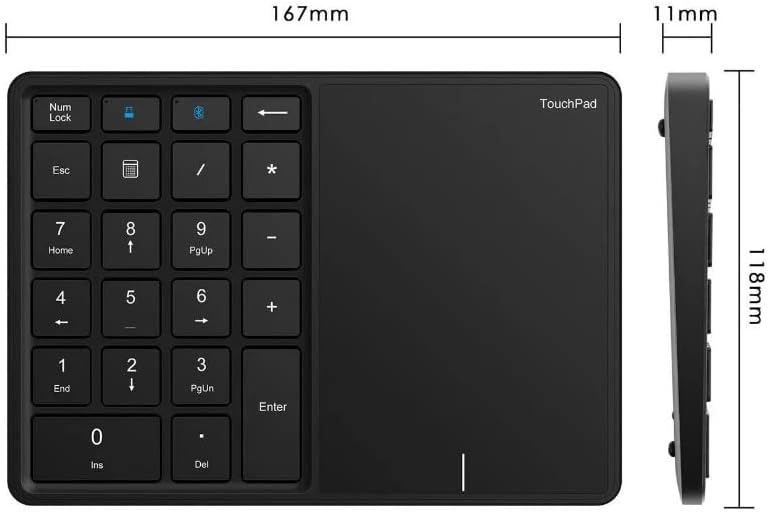
Figure 7: Product Dimensions
8. Warranty and Support
For warranty information and technical support, please refer to the product packaging or contact Lazmin112 customer service through the retailer where the product was purchased. Keep your purchase receipt for warranty claims.


