1. Introduction
Thank you for choosing the UrbanX Ultra-Slim Bluetooth Rechargeable Keyboard. This manual provides detailed instructions for the setup, operation, and maintenance of your new keyboard. Designed for convenience and portability, this keyboard offers broad compatibility across multiple operating systems and devices.
Key Features:
- Cable-Free Connectivity: Utilizes Bluetooth for a clean, wireless setup with an operating range of up to 10 meters (33 feet).
- Broad Compatibility: Supports Bluetooth 5.2 and is backward compatible with older Bluetooth versions. Works with iOS, Android, Mac OS, and Windows devices.
- Convenient Layout: US QWERTY layout with dedicated hot keys for iPad functions, including volume and media control.
- Long Battery Life: Energy-saving design with an automatic sleep mode provides up to 4 months of use on a single charge (based on 2 hours of daily non-stop use).
2. Package Contents
Please ensure all items are present in your package:
- UrbanX Ultra-Slim Bluetooth Rechargeable Keyboard (Model R175)
- USB Charging Cable
- Welcome Guide
3. Setup
3.1. Charging the Keyboard
Before initial use, fully charge your keyboard. The keyboard features a built-in rechargeable Li-On battery.
- Connect the small end of the included USB charging cable to the charging port on the keyboard.
- Connect the larger end of the USB cable to a USB power source (e.g., computer USB port, USB wall adapter).
- The 'Charge Power' indicator light on the keyboard will illuminate during charging and turn off when fully charged.
3.2. Pairing with Your Device
Follow these steps to connect your UrbanX keyboard to your Bluetooth-enabled device:
- Locate the OFF/ON switch on the keyboard and slide it to the ON position.
- Press the Connect button, usually located near the power switch. The Bluetooth indicator light will begin to flash, indicating the keyboard is in pairing mode.
- On your device (tablet, smartphone, PC), go to the Bluetooth settings and ensure Bluetooth is enabled.
- Your device will search for available Bluetooth devices. Select "UrbanX Keyboard" (or a similar name) from the list of found devices.
- If prompted, enter the pairing code displayed on your device's screen using the UrbanX keyboard, then press Enter.
- Once paired, the Bluetooth indicator light on the keyboard will stop flashing and remain solid for a few seconds before turning off, indicating a successful connection.

Image: The UrbanX keyboard is compatible with iOS, Android, and Windows operating systems, indicated by logos and key labels.
4. Operating the Keyboard
4.1. Power On/Off and Sleep Mode
- To turn the keyboard on or off, use the OFF/ON switch.
- The keyboard will automatically enter power-saving sleep mode after 10 minutes of inactivity.
- To wake the keyboard, press any key and wait 2-3 seconds for it to reconnect to your device.
4.2. Operating System Hot Keys
The keyboard features a US QWERTY layout with specific hot keys. To optimize functionality for your operating system, use the Fn key in combination with the designated OS keys:
- Press Fn + Q for Android devices.
- Press Fn + W for Windows devices.
- Press Fn + E for iOS devices (iPads, iPhones).
Note: While the keyboard is compatible with Windows, some dedicated hot keys may not function 100% as they are primarily optimized for iOS devices.
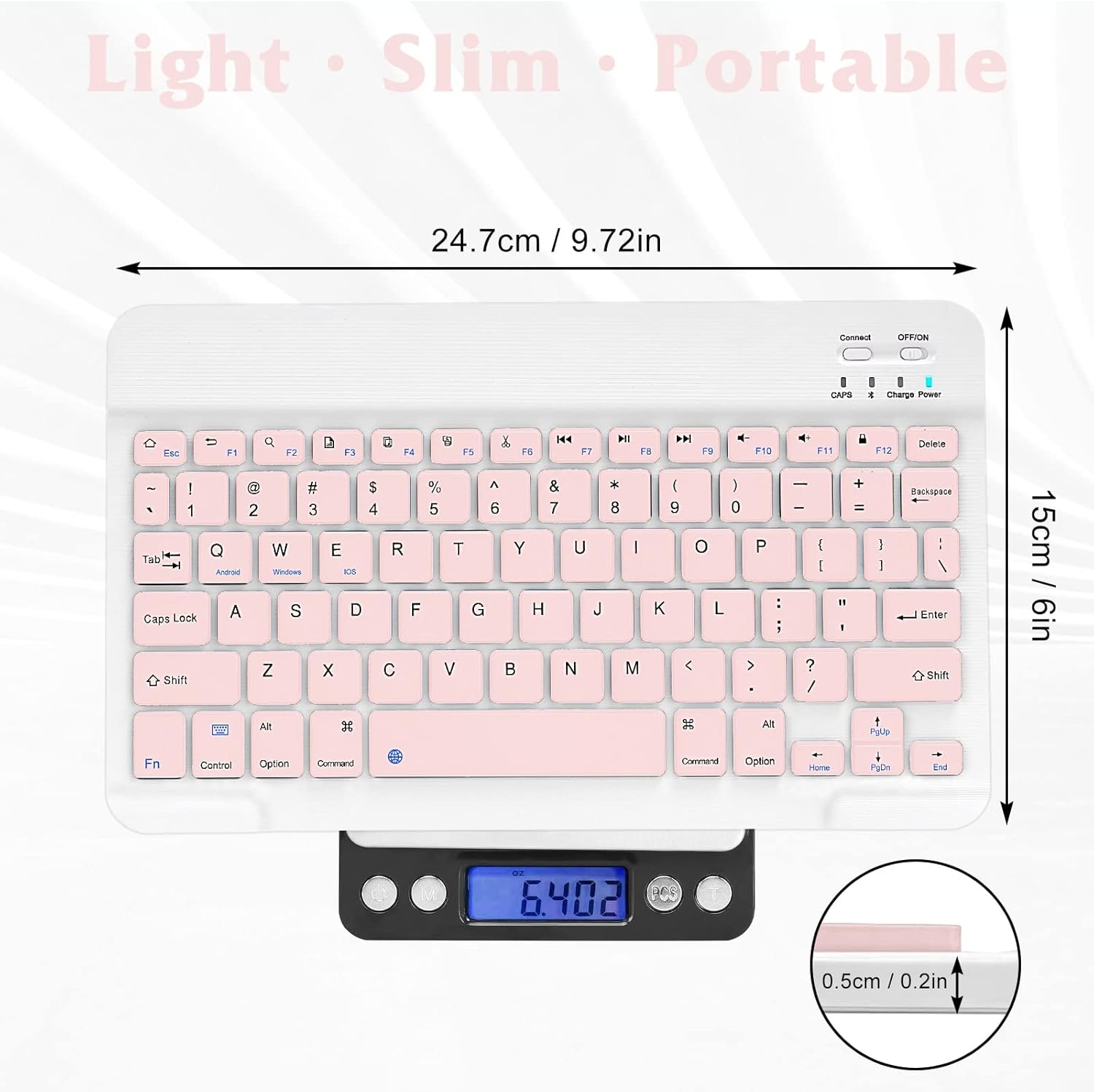
Image: The keyboard's compact size is comparable to an iPad Air, making it highly portable.
5. Maintenance
To ensure the longevity and optimal performance of your UrbanX keyboard, follow these maintenance guidelines:
- Cleaning: Use a soft, dry, lint-free cloth to wipe the keyboard surface. For stubborn dirt, slightly dampen the cloth with water or a mild, non-abrasive cleaner. Avoid excessive moisture.
- Storage: Store the keyboard in a cool, dry place away from direct sunlight and extreme temperatures.
- Battery Care: Recharge the keyboard regularly, especially if it has been stored for an extended period. Avoid fully depleting the battery frequently to prolong its lifespan.
- Avoid Liquids: Do not expose the keyboard to liquids, as this can cause internal damage.
- Handle with Care: The keyboard is designed to be durable, but avoid dropping it or applying excessive force to the keys.

Image: The keyboard features a scissor-kick key structure, designed for comfortable and quiet keystrokes with a lifespan of over 3 million presses.
6. Troubleshooting
If you encounter issues with your UrbanX keyboard, please refer to the following common solutions:
- Keyboard Not Connecting/Pairing:
- Ensure the keyboard is fully charged.
- Verify that the keyboard's power switch is in the ON position.
- Make sure Bluetooth is enabled on your device and that the keyboard is within the 10-meter operating range.
- Try turning off and on both the keyboard and your device's Bluetooth, then attempt the pairing process again.
- Remove any previous pairings of the keyboard from your device's Bluetooth settings and re-pair.
- Keys Not Responding:
- The keyboard may be in sleep mode. Press any key and wait a few seconds for it to wake up.
- Check the battery level and recharge the keyboard if necessary.
- Ensure the keyboard is properly paired and connected to your device.
- Hot Keys Not Functioning Correctly:
- Ensure you have selected the correct operating system mode (Fn + Q/W/E) for your device.
- Note that some hot keys may not be fully functional when used with Windows operating systems.
7. Specifications
| Feature | Detail |
|---|---|
| Model Number | R175 |
| Bluetooth Edition | Bluetooth 3.0 and 5.2 support |
| Dimensions | 285 x 120 x 6 mm (11.2 x 4.7 x 0.2 inches) |
| Number of Keys | 78 (including 13 iPad hot keys) |
| Weight | 217g (7.65 oz) / 10 ounces |
| Operating Range | Up to 10 meters (33 feet) |
| Material | Superior Plastic |
| Battery Type | Rechargeable Li-On |
| Battery Life | Up to 4 months (2 hours/day non-stop use) |
| Key Lifespan | Over 3 million presses |
| Compatible Devices | iPads, iPhones, Android Tablets/Smartphones, Windows PCs/Laptops |

Image: Detailed dimensions and weight of the UrbanX Ultra-Slim Bluetooth Keyboard, highlighting its light, slim, and portable design.
8. Warranty and Support
The UrbanX Ultra-Slim Bluetooth Rechargeable Keyboard comes with a 90-day warranty from the date of purchase. If you experience any issues or have questions regarding your product, please refer to the welcome guide for customer service contact information or visit the UrbanX official support channels for friendly assistance.


