
1. Product Overview
The NGTeco MB2 Time Clock is an advanced 4-in-1 time tracking solution designed for small to mid-sized businesses. It integrates face recognition, fingerprint scanning, RFID card, and PIN verification methods to provide accurate and efficient employee time management. This device automatically calculates employee hours, eliminating the need for manual payroll processing and offering a paperless alternative to traditional time card systems. With no monthly fees and a user-friendly design, the MB2 simplifies attendance tracking for offices, factories, hotels, schools, and restaurants.

Figure 1.1: NGTeco MB2 Time Clock with its multiple verification methods.
2. What's in the Box
Upon unboxing your NGTeco MB2 Time Clock, please ensure all the following components are present:
- 4-in-1 Time Clock: The main MB2 device.
- 5 Pcs RFID Cards: For RFID verification.
- Power Adapter (5V/0.8A): To power the device.
- 8G USB: For data transfer and report download.
- Mounting Hardware: For wall installation.
Video 2.1: An unboxing video for the NGTeco MB2 Time Clock, demonstrating the contents of the package and initial appearance of the device.
3. Key Features
- Automatic Hour Calculation: The NGTeco 4-in-1 time clock supports face recognition, fingerprint scanning, RFID, and password verification. It automatically calculates employee hours for streamlined and accurate time tracking.
- Ideal for Small to Mid-Sized Businesses: Designed for workplaces such as offices, factories, hotels, schools, and restaurants, this time clock is ideal for small and mid-sized businesses with up to 200 employees.
- Upgrade from Paper Card Systems: Eliminate the need for costly paper cards, messy ink ribbons, and common errors. This modern solution offers a paperless approach to time tracking.
- User-Friendly Design: No need to worry about complex setups. The time clock is easy to use and does not require complicated programming.
- No Monthly Fees: The time clock operates right out of the box with no monthly subscription costs. You can effortlessly send time reports to your email using the free NGTeco Time App.

Figure 3.1: The system automatically calculates employee hours, simplifying payroll.

Figure 3.2: The NGTeco MB2 offers a modern, paperless alternative to traditional time card systems.
4. Setup Guide
4.1 Physical Installation
The NGTeco MB2 can be mounted on a wall or placed on a countertop. Use the provided mounting hardware for wall installation. Ensure the device is placed in a location with stable Wi-Fi signal if you plan to use the app features.

Figure 4.1: Wall and countertop mounting options for the time clock.
4.2 Initial Configuration and App Connection
Follow these steps to set up your device and connect it to the NGTeco Time App:
- Download NGTeco Time App: Search for "NGTeco Time" in your mobile app store (iOS or Android) and download the application.
- Configure Device's Wi-Fi: On the time clock, navigate to the network settings and connect the device to your Wi-Fi network.
- Scan QR Code to Connect: Open the NGTeco Time App and follow the prompts to scan the QR code displayed on the time clock's screen to establish a connection.
- Use the Device: Once connected, you can manage employees, settings, and download reports directly from the app.

Figure 4.2: Quick setup steps for the NGTeco MB2 Time Clock.
Video 4.1: A detailed setup guide for the NGTeco MB2 Time Clock, covering initial configuration.
Video 4.2: Instructions on how to set up the Wi-Fi connection for the time clock.
Video 4.3: Guide on downloading and effectively using the NGTeco Time App.
5. Operating Instructions
5.1 Employee Enrollment
Before employees can punch in, they must be enrolled in the system. This involves registering their face, fingerprints, RFID cards, or setting up a PIN.
Video 5.1: Instructions on how to enroll employees and improve the quality of fingerprint reads for accurate attendance.
Video 5.2: Guide to entering the main menu and setting up rules for attendance tracking.
5.2 Punching In/Out
The NGTeco MB2 supports multiple verification methods for punching in and out:
Face Recognition:
Stand in front of the device, and it will automatically recognize your face for a quick punch.


Figure 5.1: Face recognition for quick and touchless clock-ins.
Fingerprint Scan:
Place your registered finger on the scanner for verification.

Video 5.3: Demonstrates fingerprint and password verification models for employee attendance.
RFID Card:
Tap your registered RFID card near the sensor to punch in/out.


Figure 5.2: Using an RFID card for quick and convenient clock-ins.
PIN Punching:
Enter your unique PIN on the keypad to record your attendance.


Figure 5.3: Securely clocking in or out using a personal identification number (PIN).
The device is designed for automatic in/out detection, reducing errors from forgetting to press specific keys.

Figure 5.4: Automatic IN/OUT detection helps prevent common punching errors.
5.3 Managing Punch Records and Reports
You can manage and download attendance reports in two primary ways:
- USB Drive Download: Insert the provided 8G USB drive into the time clock to directly download attendance data.
- App Email Download: Use the NGTeco Time App to generate and send time reports directly to your email.
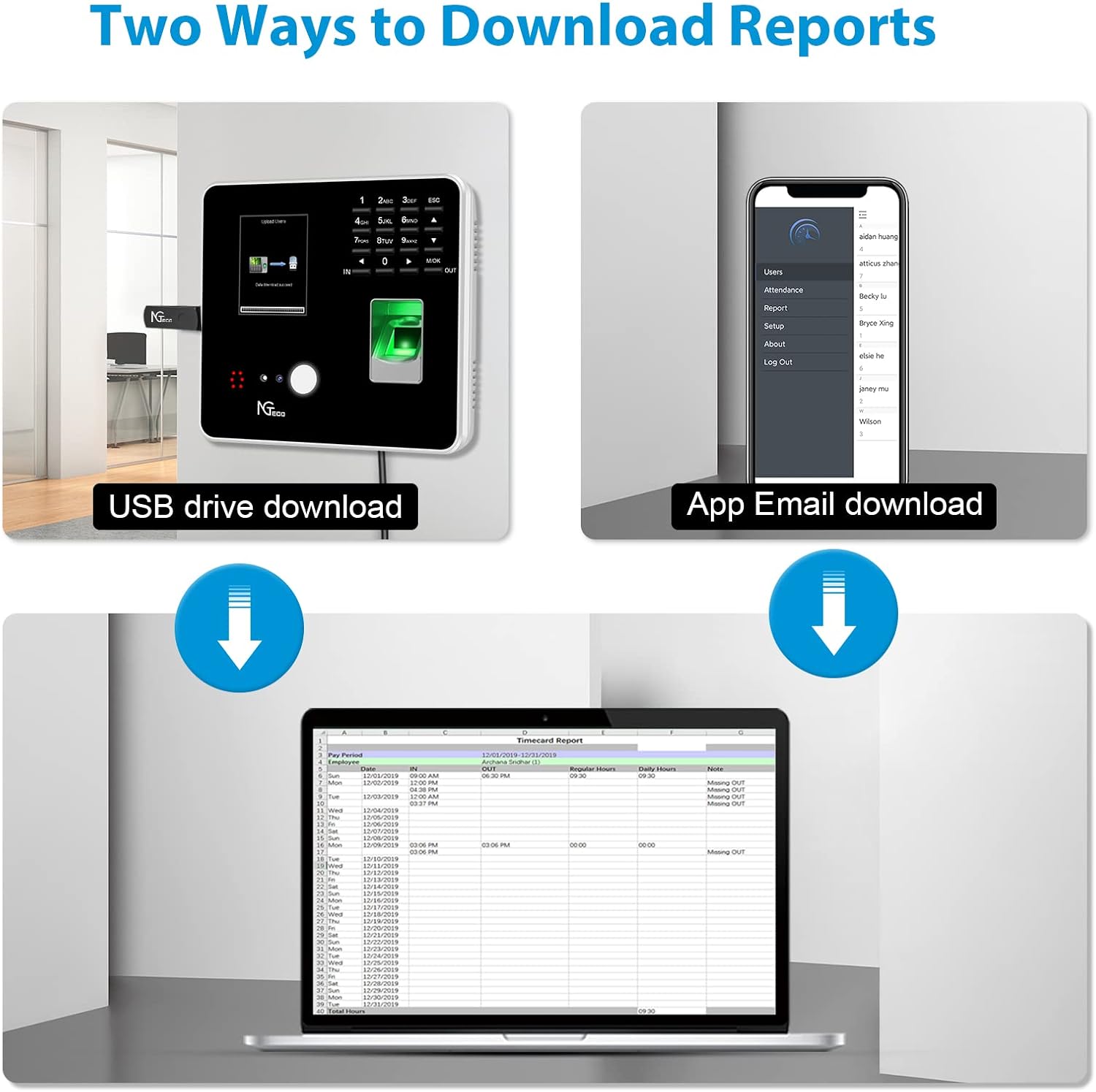
Figure 5.5: Options for downloading attendance reports from the device.
Video 5.4: Learn how to add, modify, or delete punch records on the NGTeco MB2 Time Clock.
Video 5.5: A guide to the two available methods for downloading time reports from your device.
6. Maintenance
To ensure the longevity and optimal performance of your NGTeco MB2 Time Clock, follow these general maintenance guidelines:
- Cleaning: Regularly wipe the device's screen and body with a soft, dry cloth. Avoid using abrasive cleaners or solvents that could damage the surface.
- Environment: Keep the device in a dry environment, away from direct sunlight, excessive heat, or extreme cold.
- Power Supply: Always use the original power adapter provided with the device.
- Fingerprint Sensor: Ensure the fingerprint sensor is clean and free of dust or debris for accurate readings.
- Software Updates: Check for and install any available firmware updates to ensure the device operates with the latest features and security enhancements.
7. Troubleshooting
If you encounter issues with your NGTeco MB2 Time Clock, consider the following common troubleshooting steps:
- Device Not Powering On:
- Ensure the power adapter is securely connected to both the device and a working power outlet.
- Verify the power outlet is functional by plugging in another device.
- Wi-Fi Connection Issues:
- Check if your Wi-Fi network is active and within range.
- Re-enter the Wi-Fi password on the device to ensure it's correct.
- Restart both the time clock and your Wi-Fi router.
- Inaccurate Fingerprint/Face Recognition:
- Ensure the sensor/camera is clean and free from smudges.
- Re-enroll the employee's fingerprint or face, ensuring proper placement and lighting during enrollment.
- Ensure the employee's finger is clean and dry when using the fingerprint scanner.
- App Connection Problems:
- Ensure the time clock and your mobile device are connected to the same Wi-Fi network.
- Verify the QR code scan was successful.
- Restart the app and the time clock.
- Reports Not Generating/Downloading:
- For USB download, ensure the USB drive is properly inserted and formatted correctly (FAT32 recommended).
- For app email download, check your internet connection and email settings within the app.
If these steps do not resolve the issue, please contact NGTeco customer support for further assistance.
8. Specifications
| Feature | Detail |
|---|---|
| Brand | NGTeco |
| Model | MB2 |
| Color | Silver |
| Display Type | Digital |
| Special Feature | NO Monthly Fees, Online and Offline Use, Auto Calculate Hours, Free NGTeco Time APP, Face, Finger, RFID and Password 4-in-1 |
| Product Dimensions | 1.5"W x 5.96"H |
| Power Source | Corded Electric |
| Material | Acrylonitrile Butadiene Styrene (ABS) |
| Mounting Type | Wall Mount |
| Item Weight | 1.83 pounds |
| Operation Mode | Electrical |
9. Warranty and Support
NGTeco provides a one-year warranty period for the MB2 Time Clock, along with lifetime customer support.
For technical assistance, troubleshooting, or any inquiries, please contact NGTeco customer service:
- Phone: +1 (770) 800-2321
- E-mail: ngtime@ngteco.com
- Operating Hours: Monday - Friday, 6:00 AM - 6:00 PM (EST)

Figure 9.1: NGTeco customer support contact details.