
1. Introduction
This manual provides detailed instructions for the Zunate RF304 22-Key Wireless Numeric Keypad. Please read this manual thoroughly before using the product to ensure proper operation and to maximize its lifespan. This keypad is designed for enhanced data entry and compatibility across multiple operating systems.
Key Features:
- 22-Key Layout: Standard numeric keypad with essential function keys.
- Wireless Connectivity: 2.4G USB wireless connection for convenience.
- Plug and Play: No drivers required for most operating systems.
- Wide Compatibility: Supports Android, Windows, and Mac OS systems.
- Ergonomic Design: Engineered for comfortable use during extended periods.
- Durable Keys: Key presses rated for up to 3 million cycles.
- Low Latency: Features a scissor-foot keycap structure for quick response times.
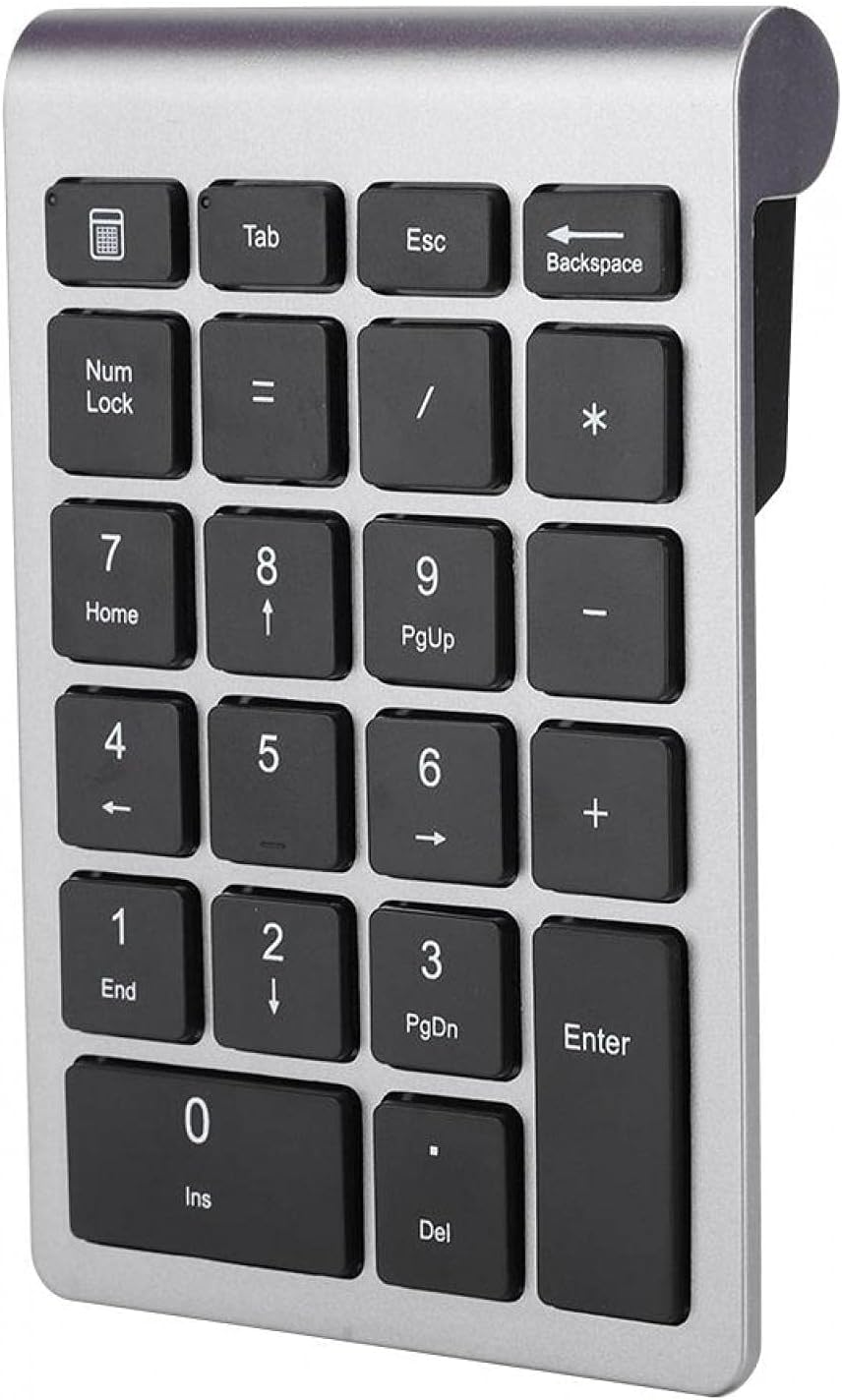
Image 1.1: The Zunate RF304 22-Key Wireless Numeric Keypad, showcasing its compact design and key layout.
2. Package Contents
Please check the package for the following items:
- 1 x Zunate RF304 22-Key Wireless Numeric Keypad
- 1 x USB Receiver
- 1 x User Manual (this document)
Note: AAA batteries are not included and must be purchased separately.

Image 2.1: The Zunate RF304 numeric keypad shown alongside its compact USB receiver.
3. Setup
Follow these steps to set up your Zunate RF304 Wireless Numeric Keypad:
- Install Batteries:
- Locate the battery compartment on the back of the keypad.
- Open the battery cover.
- Insert two (2) AAA batteries, ensuring correct polarity (+/-).
- Close the battery cover securely.

Image 3.1: Front and back view of the keypad, illustrating the location of the battery compartment and ON/OFF switch.
- Connect USB Receiver:
- Take the USB receiver out of its storage slot (usually located in the battery compartment or on the side).
- Plug the USB receiver into an available USB port on your computer or device.

Image 3.2: The wireless numeric keypad positioned next to a laptop, demonstrating its compact size and wireless connectivity via the USB receiver.
- Power On:
- Slide the ON/OFF switch (located on the back or side of the keypad) to the 'ON' position.
- The keypad should automatically connect to your device. No additional software installation is typically required.
4. Operating Instructions
The Zunate RF304 keypad is designed for intuitive use. Once connected, it functions like a standard numeric keypad.
Basic Operation:
- Numeric Input: Press the number keys (0-9) to input digits.
- Arithmetic Operations: Use the '+', '-', '*', '/' keys for calculations.
- Enter Key: Functions as the 'Enter' key on a standard keyboard.
- Num Lock: Press the 'Num Lock' key to toggle the numeric function of the keys. When Num Lock is off, some keys may function as navigation keys (Home, End, PgUp, PgDn, Ins, Del).
- Esc Key: Functions as the 'Escape' key.
- Tab Key: Functions as the 'Tab' key.
- Backspace Key: Functions as the 'Backspace' key.
System Compatibility:
The keypad is compatible with a variety of operating systems, including:
- Android
- Windows (all modern versions)
- Mac OS

Image 4.1: The keypad shown next to a laptop, indicating its multi-system compatibility with Android, Windows, and Mac OS.

Image 4.2: A hand demonstrating the use of the keypad, highlighting its ergonomic design and responsive keys.
5. Maintenance and Care
To ensure the longevity and optimal performance of your Zunate RF304 Numeric Keypad, follow these maintenance guidelines:
- Cleaning: Use a soft, dry cloth to wipe the surface of the keypad. For stubborn dirt, slightly dampen the cloth with water or a mild, non-abrasive cleaner. Avoid excessive moisture.
- Avoid Liquids: Do not expose the keypad to liquids. Spills can cause internal damage.
- Battery Replacement: Replace batteries when the keypad's performance degrades or it stops responding. Always use fresh AAA batteries.
- Storage: When not in use for extended periods, turn off the keypad and remove the batteries to prevent leakage. Store in a cool, dry place.
- USB Receiver: Keep the USB receiver in a safe place when not plugged into a device, preferably in its designated storage slot on the keypad.
6. Troubleshooting
If you encounter issues with your Zunate RF304 Numeric Keypad, refer to the following common solutions:
- Keypad Not Responding:
- Ensure the keypad is turned ON.
- Check if the batteries are correctly installed and have sufficient charge. Replace if necessary.
- Verify that the USB receiver is securely plugged into a working USB port on your device. Try a different USB port.
- Move the keypad closer to the USB receiver to ensure it's within the wireless range (approx. 10 meters / 32.8 feet).
- Restart your computer or device.
- Keys Not Functioning Correctly (e.g., navigation instead of numbers):
- Press the 'Num Lock' key to toggle its state. The Num Lock indicator light (if present) should confirm its status.
- Intermittent Connection:
- Ensure there are no large metallic objects or other wireless devices causing interference between the keypad and the receiver.
- Replace batteries.
7. Specifications
| Feature | Specification |
|---|---|
| Model Name | RF304 |
| Material | ABS |
| Number of Keys | 22 Keys |
| Wireless Support | 2.4G Wireless |
| Keypad Lifespan (Key Presses) | 3 Million Times |
| Response Speed | 5 Milliseconds |
| Wireless Transmission Distance | Approx. 10 m / 32.8 ft |
| Working Current/Voltage | 0.25 MA / 3 V |
| Battery Type | 2 x AAA (not included) |
| Usage Time | 80 Hours (approx.) |
| Compatible Systems | Android, Windows, Mac OS |
| Package Dimensions | 14.5 x 9.2 x 2.7 cm |
| Weight | 110 g |
8. Warranty and Support
Zunate products are manufactured with quality and performance in mind. For any questions, technical support, or warranty claims, please contact your retailer or the manufacturer directly. Keep your purchase receipt as proof of purchase.
For more information about Zunate products, you may visit the official Zunate store or website.