1. Introduction
This manual provides comprehensive instructions for the WD 20TB Elements Desktop External Hard Drive (Model WDBWLG0200HBK-NESN). This device offers high-capacity, reliable storage for your digital files, featuring fast data transfer rates via USB 3.0 and universal compatibility with USB 3.0 and USB 2.0 devices. It is designed for plug-and-play use with Windows PCs and can be reformatted for use with macOS.

Image 1.1: Front view of the WD Elements Desktop External Hard Drive.
2. What's in the Box
Verify that all components are present in the packaging:
- WD Elements hard drive
- USB 3.0 cable
- AC adapter
- Quick Install Guide
3. Setup
Follow these steps to set up your WD Elements Desktop External Hard Drive:
- Connect the AC Adapter: Plug the AC adapter into the power port on the back of the WD Elements drive. Connect the other end of the AC adapter to a power outlet.
- Connect the USB Cable: Connect one end of the included USB 3.0 cable to the USB port on the back of the WD Elements drive. Connect the other end of the USB cable to an available USB 3.0 or USB 2.0 port on your computer.
- Power On: The drive will typically power on automatically when connected. The LED indicator on the front of the drive will illuminate.
- Initial Recognition: For Windows PCs, the drive is pre-formatted and ready for immediate use. It should appear as a new drive in 'This PC' or 'My Computer'. For macOS, reformatting is required. Refer to your macOS documentation for instructions on how to format an external drive using Disk Utility.

Image 3.1: Rear view of the drive, highlighting the power and USB 3.0 ports.
4. Operating Instructions
The WD Elements Desktop External Hard Drive is designed for simple plug-and-play operation.
- Accessing the Drive: Once connected and recognized by your computer, the drive will appear as a removable storage device. You can access it like any other drive on your system.
- Transferring Files: Drag and drop files or folders to and from the WD Elements drive. You can also use copy and paste functions. The USB 3.0 interface ensures fast data transfers for large files.
- Safe Removal: Always safely eject the drive before disconnecting it from your computer to prevent data corruption.
- Windows: Click the 'Safely Remove Hardware and Eject Media' icon in the system tray, then select your WD Elements drive.
- macOS: Drag the drive icon from your desktop to the Trash, or right-click (Control-click) the drive icon and select 'Eject'.

Image 4.1: The WD Elements drive integrated into a typical desktop setup.
5. Maintenance
Proper maintenance ensures the longevity and optimal performance of your external hard drive:
- Physical Care: Keep the drive in a stable, well-ventilated area. Avoid exposing it to extreme temperatures, direct sunlight, or moisture. Do not block the ventilation slots.
- Cleaning: Use a soft, dry cloth to clean the exterior of the drive. Do not use liquid cleaners or aerosols.
- Data Backup: While the WD Elements drive provides reliable storage, it is recommended to maintain backups of critical data on multiple devices or cloud services to prevent data loss from unforeseen circumstances.
- Firmware Updates: Periodically check the official WD support website for any available firmware updates for your drive model. Updates can improve performance and stability.
6. Troubleshooting
If you encounter issues with your WD Elements drive, try the following solutions:
- Drive Not Detected:
- Ensure the AC adapter is securely connected to both the drive and a working power outlet.
- Verify the USB cable is firmly connected to both the drive and your computer.
- Try connecting the drive to a different USB port on your computer.
- Test with a different USB cable if available.
- Restart your computer.
- Slow Transfer Speeds:
- Ensure you are connected to a USB 3.0 port on your computer for optimal performance. USB 2.0 ports will result in slower speeds.
- Avoid running multiple demanding applications during large file transfers.
- Check your computer's drivers for USB ports are up to date.
- Drive Making Unusual Noises:
- A slight hum or whirring is normal for a mechanical hard drive. However, if you hear clicking, grinding, or loud scraping sounds, safely disconnect the drive immediately and contact WD support.
- Drive Requires Formatting (Windows): If your Windows PC prompts you to format the drive, it may indicate a file system issue. If you have data on the drive, do not proceed with formatting without attempting data recovery first. If it's a new drive and you intend to use it with macOS, proceed with macOS formatting.
For further assistance, visit the official WD support website.
7. Specifications
| Feature | Detail |
|---|---|
| Model Number | WDBWLG0200HBK-NESN |
| Digital Storage Capacity | 20 TB (20000 GB) |
| Hard Drive Type | Mechanical Hard Disk |
| Hard Drive Interface | USB 3.0 |
| Connectivity Technology | USB |
| Hardware Platform | PC, Mac (reformatting required for macOS) |
| Item Weight | 1.98 pounds |
| Product Dimensions (LxWxH) | 5.31 x 1.89 x 6.53 inches |
| Color | Black |
| Manufacturer | Western Digital Technologies, Inc. |
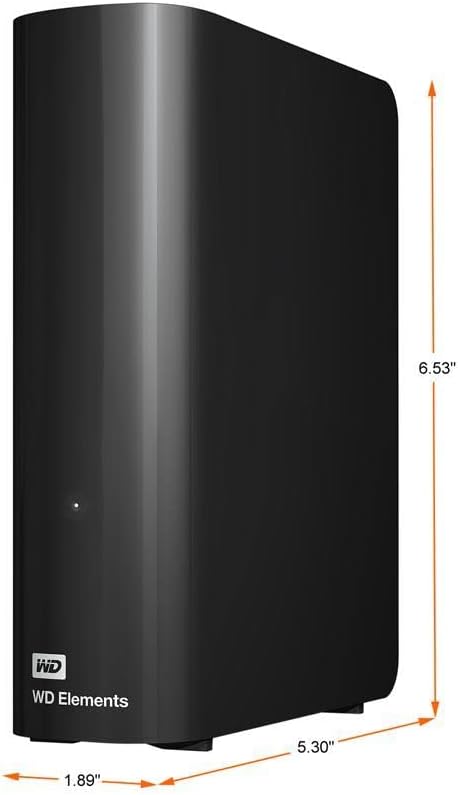
Image 7.1: Product dimensions of the WD Elements Desktop External Hard Drive.
8. Warranty and Support
Your WD Elements Desktop External Hard Drive is covered by a limited warranty. For specific warranty terms, conditions, and duration, please refer to the warranty information included with your product or visit the official Western Digital website. For technical support, product registration, and additional resources, please visit support.wdc.com.