
Ruko F11MINI
Ruko F11MINI Drone with Camera 4K User Manual
Model: F11MINI
1. Introduction
The Ruko F11MINI is a lightweight, foldable quadcopter designed for both beginners and adults, featuring a 4K camera, GPS intelligent flight modes, and extended flight time. Weighing under 249g, it does not require FAA or Remote ID registration, making it ready to fly out of the box.

Image: The Ruko F11MINI drone displayed with its remote controller, two batteries, spare propellers, USB cables, camera protector, and carrying case.
2. Package Contents
- F11MINI Drone x1
- Remote Controller x1
- 2100mAh Flight Battery x2
- Camera Protector x1
- Gift Box x1
- Carrying Case x1
- Spare Propellers (Pair) x1
- Spare Screws x10
- USB-A to Micro-USB Cable x2
- Screwdriver x1

Image: All components of the Ruko F11MINI drone package, including the drone, controller, batteries, and various accessories, neatly arranged on a wooden surface.
3. Setup
3.1 Charging the Batteries
Ensure both the drone's flight batteries and the remote controller are fully charged before use. Use the provided Ruko charger for optimal performance. Avoid using chargers with an output higher than 12V.
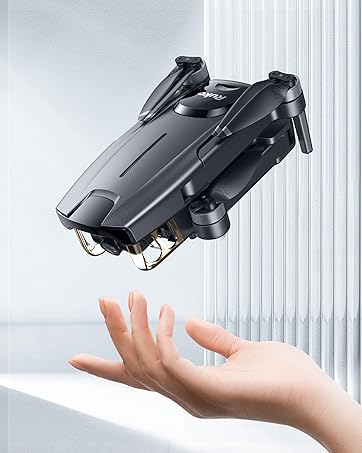
Image: Two Ruko drone batteries, one with a transparent casing revealing its internal components, highlighting the dual battery system for extended flight time.
3.2 Installing Propellers
Attach the propellers securely to the drone's motors. Ensure correct orientation as indicated in the user guide. The brushless motors provide stable hovering.
3.3 Pairing the Remote Controller
Follow the instructions in the quick start guide to pair the remote controller with the drone. This typically involves powering on both devices and initiating a pairing sequence.
3.4 App Installation and Connection
Download the official Ruko app on your smartphone. Connect your phone to the drone's Wi-Fi network to enable FPV (First Person View) and access intelligent flight features.
4. Operating the Drone
4.1 Pre-Flight Checklist
- Ensure batteries are fully charged.
- Check propellers for any damage and ensure they are securely attached.
- Verify GPS signal strength before takeoff.
- Ensure the camera protector is installed.
4.2 Takeoff and Landing
The drone features one-tap takeoff and landing functions for ease of use. Press the designated button on the remote controller or within the app to initiate.

Image: A Ruko F11MINI drone ascending from a blue landing pad, with a smartphone in the foreground showing the live FPV feed from the drone's camera.
4.3 Flight Modes and Features
- GPS Auto Return: The drone will automatically return to its home point if the battery is low, signal is weak, or the one-tap return button is pressed.
- Follow Me: The drone will automatically follow the subject, capturing footage as you move.
- Waypoint Flight: Plan a custom flight path by setting multiple points on the map within the app.
- Point of Interest: The drone will circle a designated point, providing a 360-degree view.

Image: A Ruko F11MINI drone flying above and behind a person skateboarding, illustrating the 'Follow Me' intelligent flight mode.

Image: An aerial map view of a residential area with four numbered pins, demonstrating the 'Waypoint Flight' feature where users can pre-plan a flight path.

Image: A Ruko F11MINI drone flying in a circular path around two boats on the water, demonstrating the 'Point of Interest' flight mode.
4.4 Camera Operation
The 4K UHD camera captures 4096x3072p photos and smooth 2.7K/25fps videos. The lens has a 120° wide-angle field of view and is adjustable up to 90°.

Image: A close-up view of the Ruko F11MINI drone's camera, showing arrows indicating its 90-degree adjustable range.

Image: A side-by-side comparison demonstrating the visual quality of 4K photos and 2.7K videos captured by the drone.
4.5 Beginner Mode
The drone comes with a beginner mode that limits flight distance and altitude, providing a safer learning experience. This can be adjusted or disabled in the app settings.
Image: A screenshot of the Ruko app interface showing the 'Beginner Mode' settings, where flight parameters like distance and altitude can be configured.
4.6 Official Product Video
Video: An official Ruko video titled "Ruko F11MINI - Family trip to explore the rich visual," showcasing the drone's capabilities during a family outing.
5. Maintenance
5.1 General Care
Keep the drone clean and free from dust and debris. Store it in its carrying case when not in use to protect it from damage.
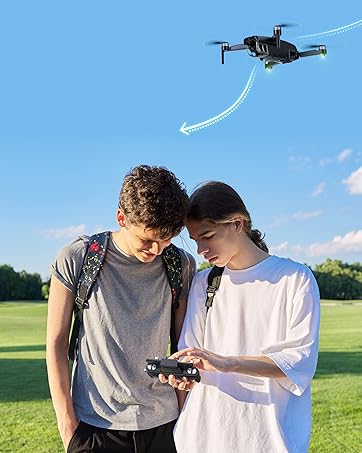
Image: Detailed views of the Ruko F11MINI drone highlighting its durable design, including the camera protector, larger blades, and thicker arms for enhanced stability and protection.
5.2 Battery Storage
For long-term storage, ensure batteries are charged to approximately 50-60% capacity. Store them in a cool, dry place away from direct sunlight.
5.3 Propeller Replacement
If propellers are damaged, replace them with the spare propellers provided in the package. Use the screwdriver to remove and install new ones.
6. Troubleshooting
6.1 Drone Not Powering On
- Ensure the flight battery is fully charged and correctly inserted.
- Check for any visible damage to the battery or drone's power port.
6.2 Loss of Signal/Connection
- Move closer to the drone to reduce interference.
- Ensure the remote controller is fully charged.
- Restart both the drone and the remote controller.
6.3 Poor Video Transmission
- Ensure your smartphone is properly connected to the drone's Wi-Fi.
- Reduce distance between the drone and the remote controller/smartphone.
- Minimize Wi-Fi interference from other devices.
6.4 Drone Drifts During Flight
- Perform a compass calibration before flight.
- Ensure GPS signal is strong.
- Check for strong winds that may affect stability.

Image: A smartphone screen displaying a map with the drone's current location marked, useful for tracking and troubleshooting lost signal issues.
7. Specifications
| Feature | Specification |
|---|---|
| Model Name | F11MINI |
| Weight | Under 249g (8.6 ounces) |
| Camera Resolution (Photo) | 4096x3072p |
| Video Resolution | 2.7K/25fps (2688x1512p) |
| Flight Time | Up to 60 minutes (with 2 batteries) |
| Battery Capacity | 2100 Milliamp Hours (per battery) |
| Max FPV Transmission Range | Up to 1,640ft |
| Max Flight Altitude | Up to 6,561ft |
| Motor Type | Brushless Motor |
| Connectivity | Wi-Fi |
| Dimensions | 5.9"L x 3.35"W x 2.17"H (Folded) |
| Skill Level | Beginner |

Image: A detailed view of the drone's brushless motor, highlighting its robust construction for stable and efficient flight.
8. Warranty and Support
8.1 Warranty Information
For detailed warranty information, please refer to the official Ruko website or contact customer support. Protection plans are available for extended coverage.
8.2 Customer Support
If you encounter any issues or have questions, please contact Ruko customer support:
- Phone: +1 (888) 892-0155 (Mon-Fri 5:00 AM – 2:00 PM PST)
- Email: service@rukoytoy.com

Image: Two Ruko customer support representatives wearing headsets, indicating available assistance for product inquiries.
8.3 Additional Resources
You can find additional support and video tutorials by searching for "Ruko F11 Mini" on platforms like YouTube.

Image: A laptop and smartphone displaying a YouTube search result for "Ruko F11 Mini," suggesting online resources for further assistance and tutorials.
Related documentsF11MINI


Ask a question about this manual
Ask about setup, troubleshooting, compatibility, parts, safety, or missing instructions. Manuals+ will review the question and use this page’s manual context to help answer it.