
Introduction
This manual provides detailed instructions for the installation, operation, and maintenance of your DAYBETTER Smart Light Bulbs. Please read this manual thoroughly before use to ensure proper functionality and safety.
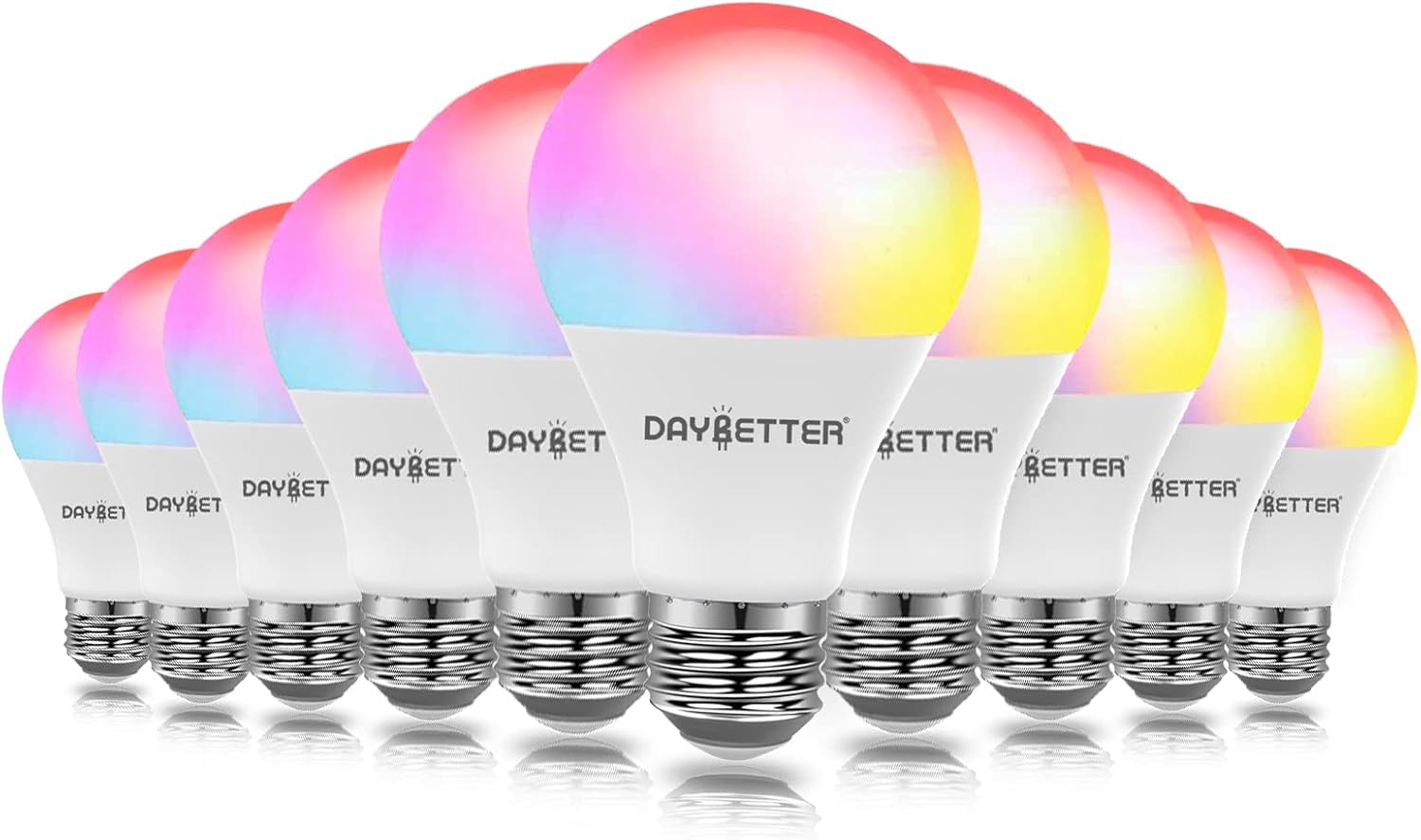
Image: A set of ten DAYBETTER Smart Light Bulbs, showcasing their ability to display a spectrum of colors.
Product Features
- Control with Alexa & Google Assistant: Voice control for on/off, dimming, and color changes.
- Tuya Smart Application: Remote control, grouping, and scene creation via mobile app.
- Timer & Schedule: Automate lighting based on your daily routine.
- Brightness Dimmable: Adjustable brightness from 1% to 100% and tunable white light (2700K-6500K).
- Energy Saving: 9W LED equivalent to 60W incandescent, saving up to 80% energy.
- RGBCW Color Changing: 16 million colors for various moods and occasions.
Safety Information
- Ensure power is off before installation or removal.
- Do not use with standard dimmers; use app or voice control for dimming.
- For indoor use only.
- Operate within the specified voltage range (100-120V AC, 60Hz).
- Keep out of reach of children.
Setup Guide
1. Initial Installation
- Power Off: Ensure the power switch to the light fixture is in the OFF position before installing the bulb.
- Install Bulb: Screw the DAYBETTER Smart Light Bulb into any standard E26/E27 light socket or fixture.
- Power On: Turn on the power switch to the light fixture. The bulb should blink rapidly, indicating it is in pairing mode. If it does not blink, turn it off and on three times quickly.

Image: Illustration of screwing the smart bulb into a standard light socket.
2. App Download and Connection
The DAYBETTER Smart Light Bulbs require the Tuya Smart application for full functionality. Ensure your Wi-Fi network is 2.4GHz, as 5GHz networks are not supported for initial setup.
- Download App: Search for "Tuya Smart" in your mobile device's app store (iOS or Android) and download it.
- Register/Login: Open the Tuya Smart app and register a new account or log in if you already have one.
- Add Device: Tap the "+" icon in the top right corner of the app to add a new device.
- Select Device Type: Choose "Lighting" > "Light Source (Wi-Fi)".
- Confirm Blinking: Confirm that the bulb is blinking rapidly. If not, reset it by turning it off and on three times quickly.
- Enter Wi-Fi Details: Select your 2.4GHz Wi-Fi network and enter the password.
- Pairing: The app will begin pairing with the bulb. Once connected, the bulb will stop blinking and glow steadily.
- Rename Device: You can rename the bulb for easier control (e.g., "Living Room Light").
Video: A step-by-step guide on connecting DAYBETTER Smart Bulbs to the phone application.

Image: The Tuya Smart app interface displaying various connected smart devices and rooms.
Operating Instructions
1. App Control
- On/Off: Tap the power icon next to the bulb's name to turn it on or off.
- Color Changing: Select the bulb, then navigate to the "Color" tab. Choose from 16 million colors using the color wheel.
- Brightness Adjustment: Use the slider to adjust brightness from 1% to 100%.
- Tunable White: Adjust the white light temperature from warm white (2700K) to cool white (6500K).
- Scene Modes: The app offers various pre-set scene modes (e.g., Reading, Party, Night) or allows you to create custom scenes.
- Grouping: Group multiple bulbs together to control them simultaneously with a single command.

Image: People enjoying a room illuminated by smart bulbs set to a purple hue, highlighting the color options and scene modes.

Image: A man reading under a tunable white light, illustrating the dimming and color temperature adjustment features.

Image: Multiple rooms showcasing the group control feature, allowing simultaneous management of several smart bulbs.
2. Voice Control (Alexa/Google Assistant)
To enable voice control, link your Tuya Smart account with Amazon Alexa or Google Assistant through their respective apps. Once linked, you can use commands such as:
- "Alexa, turn on [Light Name]."
- "Hey Google, dim [Light Name] to 50%."
- "Alexa, change [Light Name] to blue."
- "Hey Google, set [Light Name] to warm white."

Image: People in a kitchen, demonstrating voice control compatibility with Alexa and Google Assistant.
3. Timer and Schedule Functions
Within the Tuya Smart app, you can set schedules for your bulbs to turn on/off or change settings at specific times.
- Navigate to the bulb's settings in the app.
- Select "Schedule" or "Timer".
- Set desired times for actions (e.g., turn on at 7:30 AM, turn off at 11:00 PM).

Image: A person sleeping, illustrating the timer and schedule features for automated lighting.
Maintenance
DAYBETTER Smart Light Bulbs are designed for long-lasting performance with minimal maintenance. Follow these guidelines:
- Cleaning: Ensure the bulb is off and cool before cleaning. Wipe with a soft, dry cloth. Do not use liquid or abrasive cleaners.
- Storage: If storing bulbs, keep them in a cool, dry place away from direct sunlight and extreme temperatures.
- Disposal: Dispose of LED bulbs according to local electronic waste regulations.
Troubleshooting
| Problem | Possible Cause | Solution |
|---|---|---|
| Bulb not connecting/blinking | Incorrect Wi-Fi frequency (not 2.4GHz); bulb not in pairing mode; weak Wi-Fi signal. | Ensure your router is set to 2.4GHz. Reset the bulb by turning it off and on three times quickly. Move closer to the router. |
| Bulb frequently disconnects or flashes randomly | Unstable Wi-Fi connection; interference; router settings. | Check Wi-Fi stability. Ensure 2.4GHz and 5GHz networks are properly separated if your router has both. Re-pair the bulb if necessary. |
| Voice control not working | Account not linked; incorrect device name; internet connectivity issues. | Verify Tuya Smart account is linked to Alexa/Google Assistant. Check device name in the app. Ensure your smart speaker has internet access. |
| Bulb not responding to app commands | Bulb is offline; app is outdated; phone's internet connection. | Check if the bulb is powered on. Ensure your phone has internet access. Update the Tuya Smart app to the latest version. |
Video: A demonstration of controlling the smart bulb using a smartphone, which can be helpful for troubleshooting connectivity issues.
Specifications
| Feature | Detail |
|---|---|
| Brand | DAYBETTER |
| Model Name | Daybetter-Led Strip Lights & Smart Home Lighting |
| Item Model Number | DBSWTYBRGB10 |
| Light Type | LED |
| Special Feature | Dimmable, Color Changing |
| Wattage | 9 watts |
| Bulb Shape Size | A19 |
| Bulb Base | E27 |
| Incandescent Equivalent Wattage | 60 Watts |
| Brightness | 800 Lumen |
| Light Color | Warm White, Multicolor (RGBCW) |
| Color Temperature | 2700 Kelvin - 6500 Kelvin (Tunable White) |
| Voltage | 100-120 Volts (AC) |
| Frequency | 60 Hertz |
| Connectivity Technology | Wi-Fi (2.4GHz only) |
| Controller Type | Google Assistant, Amazon Alexa, App |
| Indoor/Outdoor Usage | Indoor |
| Lifetime | 15,000 Hours |
Warranty and Support
For warranty information and technical support, please refer to the product packaging or contact DAYBETTER customer service directly. Contact details are typically available on the official DAYBETTER website or through your purchase platform.
