
1. Introduction
The Roland FANTOM-06 is a 61-note velocity-sensitive synthesizer keyboard designed to integrate sonic power with a fluid workflow. This instrument incorporates technologies from the flagship FANTOM series, offering a comprehensive platform for music creation and performance. This manual provides essential information for setting up, operating, maintaining, and troubleshooting your FANTOM-06.
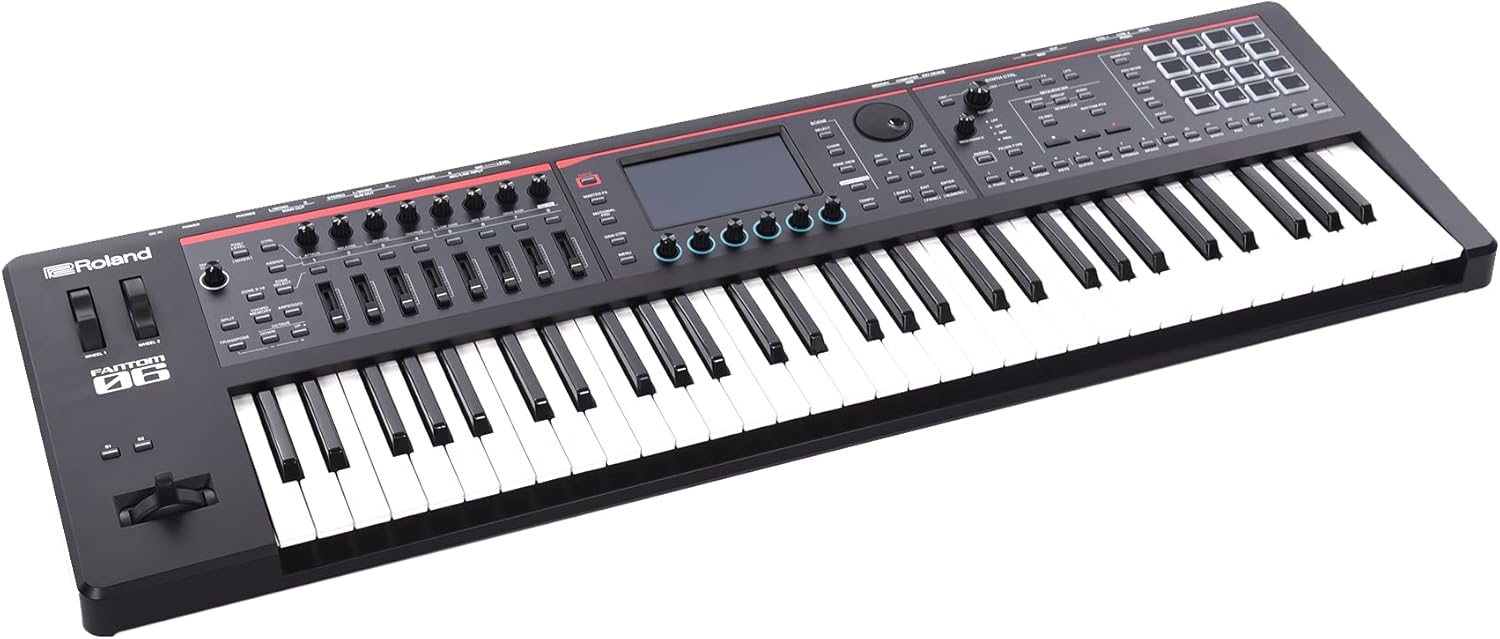
Figure 1.1: Top view of the Roland FANTOM-06 Synthesizer Keyboard, showcasing its 61-note keyboard, color touchscreen, and various controls.
2. Key Features
The FANTOM-06 is equipped with a range of features to support diverse musical applications:
- Sound Engine: Utilizes Roland’s ZEN-Core and SuperNATURAL technologies for a wide array of electronic and acoustic sounds.
- Pianos: Features new SuperNATURAL pianos, providing authentic acoustic grand piano sounds and response.
- Organ: Includes a Virtual ToneWheel Organ with harmonic bar control.
- Sampling: Offers deep onboard sampling capabilities.
- Sequencer: Incorporates a TR-REC sequencer, inspired by classic Roland drum machines, and clip-based sequencing with instant pattern recording.
- Connectivity: Functions as a 4x32 USB audio interface and provides native integration with popular DAWs such as Logic Pro, MainStage, and Ableton Live.
- Scenes: Organizes settings for all 16 layers, effects, and patterns within "Scenes" for quick recall.
- Keyboard: Features a newly designed 61-note velocity-sensitive keyboard.

Figure 2.1: The FANTOM-06 integrated into a studio environment, demonstrating its role in a music production setup.
3. Setup
Follow these steps to set up your FANTOM-06:
- Unpacking: Carefully remove the FANTOM-06 from its packaging. Ensure all included accessories are present: power adapter, owner's manual, warranty card, and Ableton Live Lite download information.
- Power Connection: Connect the included power adapter to the DC IN jack on the rear panel of the FANTOM-06 and then to a suitable AC outlet.
- Audio Output: Connect the FANTOM-06's AUDIO OUT jacks to your amplifier, mixer, or audio interface using appropriate audio cables.
- USB Connection (Optional): For computer integration, connect a USB-A to B cable (not included) from the FANTOM-06's USB COMPUTER port to your computer. This enables USB audio interface functionality and MIDI communication.
- Pedals (Optional): Connect sustain pedals or other control pedals to the designated pedal jacks on the rear panel.

Figure 3.1: Rear panel of the FANTOM-06, illustrating the power input, audio outputs, USB ports, and pedal connections.
4. Operating Instructions
This section covers basic operation of the FANTOM-06. Refer to the full owner's manual for detailed instructions on advanced features.
4.1 Power On/Off
- To power on, press the POWER button located on the rear panel.
- To power off, press and hold the POWER button until the unit shuts down.
4.2 Navigating the Touchscreen
The FANTOM-06 features a color touchscreen for intuitive control.
- Tap icons and menu items to select them.
- Drag your finger across the screen to scroll through lists or adjust parameters.
- Use pinch-to-zoom gestures where applicable for detailed editing.

Figure 4.1: Touchscreen interface displaying the sequencer, allowing for direct interaction with patterns.
4.3 Sound Selection and Editing
- Use the TONE button to access the sound browser.
- Navigate through categories and types to find desired sounds.
- Parameters can be adjusted using the physical knobs and sliders, or via the touchscreen for detailed editing.
- The ZEN-Core engine allows for deep synthesis and sound design.
4.4 Sequencer and Sampling
- The SEQUENCER section provides controls for recording and playback.
- Utilize the TR-REC sequencer for rhythmic pattern creation.
- Access the sampling features to record and manipulate audio directly on the instrument.
4.5 Computer Integration
When connected via USB, the FANTOM-06 functions as a multi-channel audio interface and MIDI controller.
- Install the necessary drivers from the Roland website for your operating system.
- Configure your Digital Audio Workstation (DAW) to recognize the FANTOM-06 as an audio input/output device and MIDI controller.
- Native integration with Logic Pro, MainStage, and Ableton Live streamlines workflow.
5. Maintenance
Proper maintenance ensures the longevity and optimal performance of your FANTOM-06.
- Cleaning: Wipe the surface of the instrument with a soft, dry cloth. For stubborn dirt, use a slightly damp cloth and then dry thoroughly. Avoid abrasive cleaners, solvents, or waxes.
- Storage: Store the FANTOM-06 in a clean, dry environment away from direct sunlight, extreme temperatures, and high humidity. If transporting, use a dedicated case or bag to protect it from physical damage.
- Dust Protection: When not in use, cover the keyboard with a dust cover to prevent dust accumulation on keys and controls.
- Software Updates: Periodically check the Roland website for firmware updates to ensure your instrument has the latest features and bug fixes.
6. Troubleshooting
If you encounter issues with your FANTOM-06, refer to the following common troubleshooting steps. For more complex problems, consult the full owner's manual or Roland's official support.
- No Sound:
- Check all audio cable connections.
- Ensure the master volume knob is turned up.
- Verify that the connected amplifier or speakers are powered on and functioning.
- Confirm that the correct output settings are selected within the FANTOM-06's system menu.
- No Power:
- Ensure the power adapter is securely connected to both the FANTOM-06 and a working electrical outlet.
- Check if the power outlet is active.
- Computer Not Recognizing FANTOM-06:
- Ensure the USB cable is properly connected.
- Verify that the latest USB drivers for the FANTOM-06 are installed on your computer. These can be downloaded from the Roland website.
- Check your computer's device manager (Windows) or System Information (macOS) to see if the device is listed.
- Restart both the FANTOM-06 and your computer.
- Unexpected Behavior:
- Perform a factory reset (refer to the owner's manual for specific instructions, as this will erase user data).
- Check for and install any available firmware updates from the Roland website.
7. Specifications
| Feature | Specification |
|---|---|
| Model Name | FANTOM-06 |
| Keyboard | 61 Keys (velocity sensitive) |
| Sound Engine | ZEN-Core, SuperNATURAL Acoustic, SuperNATURAL Acoustic Piano, SuperNATURAL Electric Piano, VTW Organ |
| Dimensions (W x D x H) | 44.4 x 18.6 x 8.8 inches (112.7 x 47.2 x 22.3 cm) |
| Weight | 1 pounds (Note: This weight appears to be an error in the source data and is likely incorrect for a full-sized keyboard. Actual weight is typically much higher.) |
| Body Material | Plastic |
| Color | Black |
| Connector Type | USB |
| UPC | 076129451498, 761294514948 |
Note: Specifications are subject to change without notice. For the most current information, please refer to the official Roland website.
8. Warranty and Support
Your Roland FANTOM-06 comes with a manufacturer's warranty. Please refer to the included warranty card for details regarding coverage, terms, and conditions.
For technical support, product registration, and additional resources, please visit the official Roland website or contact your local Roland service center. Online resources, including updated manuals and FAQs, are often available.
Roland Official Website: www.roland.com