
Govee H7062

Govee RGBIC Outdoor Flood Lights
User Manual
Introduction
The Govee RGBIC Outdoor Flood Lights offer vibrant, customizable lighting solutions for your outdoor spaces. Featuring RGBIC technology, these smart lights allow for individual color control, a wide selection of scene modes, and convenient app control via WiFi or Bluetooth. They are designed for outdoor use with a high waterproof rating for the lights themselves, making them ideal for enhancing gardens, yards, and patios.
- Color Changing Light Effects: RGBIC technology for separate light color settings and 35 scene modes.
- Hands-free Control: Control via Govee Home app (WiFi/Bluetooth), compatible with Alexa and Google Assistant.
- Outdoor Festival Light Effects: Sync light effects to party and festival music with mic on your phone.
- Endless Color Selection: 16 million colors, 2700-6500K warm/cool whites, 500 lumens brightness.
- Flood light Uplight 2 in 1: Can be installed onto the wall and ground.
What's in the Box
Your Govee RGBIC Outdoor Flood Lights package includes the following components:
- 6 Pack Flood Lights
- Power Cable
Setup Guide
Follow these steps to set up your Govee RGBIC Outdoor Flood Lights:
1. Unpacking and Initial Inspection
Carefully remove all components from the packaging. Inspect each flood light and cable for any signs of damage. Ensure all listed components are present.
Image: Govee RGBIC Outdoor Flood Lights, showing the product and its packaging, along with a smartphone displaying the Govee Home app interface.
2. Connecting the Lights
The flood lights are connected to each other on one cord and cannot be cut. Connect the lights securely to the main power cable. Ensure all connections are tight to maintain the waterproof seal.

Image: A diagram illustrating the connection layout of the Govee flood lights, including cable lengths between each light and the main power source.
3. Placement and Installation
The lights can be installed onto the wall or directly into the ground using the provided stakes. Screws are not provided for wall mounting. Choose a location that allows for optimal light distribution and is within reach of a power outlet. Remember that the power adapter is IP44 rated, meaning it is splash-proof but not fully waterproof, and should be protected from direct water exposure.

Image: A Govee flood light mounted on an outdoor wall, with rain falling, emphasizing its IP66 waterproof rating. A note indicates the adapter is not waterproof.

Image: A Govee flood light placed in grass, with rain falling, demonstrating its resilience against outdoor elements. A note indicates the adapter is not waterproof.
4. Powering On and App Connection
Plug the power adapter into a suitable outdoor power outlet. Download the Govee Home app from your smartphone's app store. Follow the in-app instructions to add your new flood lights and connect them via WiFi or Bluetooth.
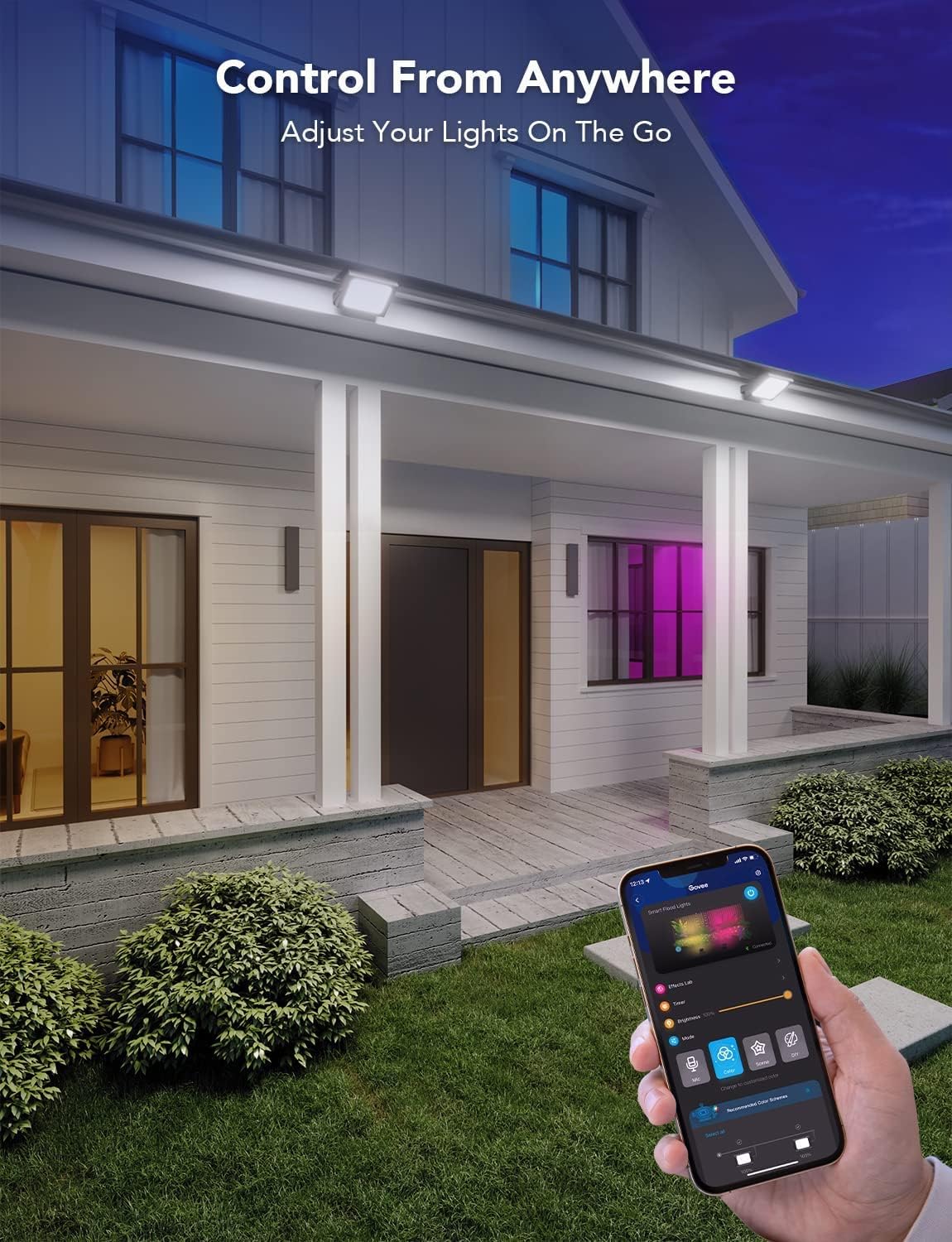
Image: A hand holding a smartphone, showing the Govee Home app interface used to control the outdoor flood lights illuminating a house.
Installation Video Guide
For a visual guide on installation, please watch the official Govee video below:
Video: "How to install Govee Smart Flood Lights" by Govee US. This video demonstrates the step-by-step process of installing the Govee Smart Flood Lights, including connecting cables and placing the lights.
Operating Instructions
Once your Govee RGBIC Outdoor Flood Lights are set up and connected to the Govee Home app, you can begin customizing your lighting experience.
1. App Control
The Govee Home app provides comprehensive control over your lights. You can adjust brightness, select from 16 million colors, choose from 35 preset scene modes, and even create your own DIY lighting effects. The app also allows you to set timers for automatic on/off schedules.

Image: Govee flood lights illuminating a house with various colors, demonstrating the adjustable brightness feature from 1% to 100%.
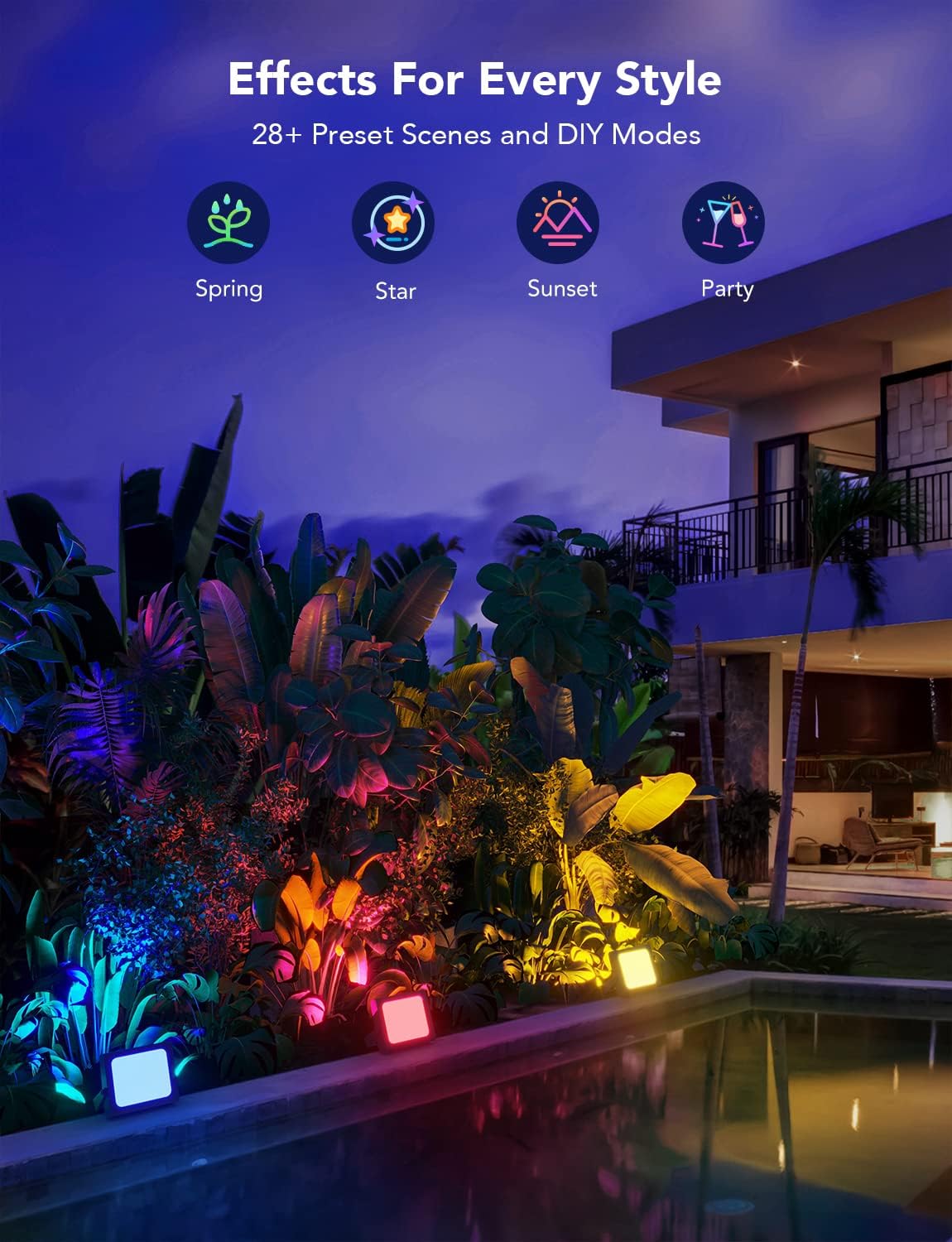
Image: An outdoor scene featuring Govee flood lights illuminating plants and a pool area, showcasing various preset scenes and DIY modes like Spring, Star, Sunset, and Party.

Image: An outdoor garden illuminated with Govee flood lights, creating impressive multicolored displays using RGBICWW Technology.
2. Voice Control
These lights are compatible with Amazon Alexa and Google Assistant. Once integrated, you can use voice commands to control your lights, such as turning them on/off, changing colors, or activating scene modes.
3. Music Mode
Activate the music mode in the Govee Home app to synchronize your lights with the rhythm of your favorite music. The lights will change colors and patterns in response to sounds picked up by your phone's microphone.
Operating Video Guide
For a visual guide on operating your Govee Smart Flood Lights, please watch the official Govee video below:
Video: "Govee Smart RGBIC Flood Lights" by Govee US. This video showcases various features of the Govee Smart RGBIC Flood Lights, including voice control, music mode, DIY graffiti, brightness control, color temperature control, segmented control, and smart timer functions.
Maintenance
Proper maintenance ensures the longevity and optimal performance of your Govee RGBIC Outdoor Flood Lights.
- Cleaning: Regularly wipe the lights with a soft, damp cloth to remove dirt and debris. Avoid using harsh chemicals or abrasive materials that could damage the finish or light panel.
- Water Protection: The lights themselves have an IP66 waterproof rating, making them highly resistant to dust and strong jets of water. However, the power adapter is IP44 rated and should be protected from direct exposure to heavy rain or standing water. Ensure the adapter is placed in a dry, sheltered location or within a waterproof enclosure.
- Cable Management: Periodically check the cables for any signs of wear, fraying, or damage. Secure cables to prevent tripping hazards and ensure they are not exposed to sharp objects or excessive tension.
- Seasonal Storage: If storing the lights for an extended period, clean them thoroughly, disconnect all power, and store them in a cool, dry place away from direct sunlight and extreme temperatures.
Troubleshooting
If you encounter issues with your Govee RGBIC Outdoor Flood Lights, try the following troubleshooting steps:
- Lights Not Turning On:
- Ensure the power adapter is securely plugged into a working outlet.
- Check all cable connections between the lights and the power cable for tightness.
- Verify that the power outlet is receiving power (test with another device).
- App Connectivity Issues:
- Make sure your smartphone's Bluetooth is enabled and you are within range of the lights.
- Ensure your Wi-Fi network is active and the lights are connected to the correct network.
- Restart the Govee Home app or your smartphone.
- If issues persist, try resetting the lights (refer to the app or Govee support for specific reset procedures).
- Inconsistent Lighting/Water Inside Lights:
- While the lights are IP66 rated, extreme conditions or improper installation can sometimes lead to moisture ingress. If you notice water inside a light, immediately disconnect power to prevent electrical hazards.
- Contact Govee customer support for assistance if water ingress occurs, as this may indicate a product defect or require professional attention.
For more detailed troubleshooting or specific error codes, please refer to the official Govee User Manual (PDF) available online or contact Govee customer support.
Specifications
| Feature | Specification |
|---|---|
| Brand | Govee |
| Model Name | H7062111 |
| Color | Multicolor |
| Material | Plastic (Light Fixture), Glass (Shade) |
| Light Fixture Form | Floodlight |
| Indoor/Outdoor Usage | Outdoor |
| Power Source | AC Adapter |
| Special Feature | Adjustable Color Temperature, Dimmable, Waterproof, Color Changing |
| Control Method | Voice (Google Assistant, Amazon Alexa), iOS, Android |
| Light Source Type | LED |
| Number of Light Sources | 6 |
| Wattage | 36 watts |
| Water Resistance Level | Waterproof (Lights: IP66, Power Adapter: IP44) |
| Connectivity Protocol | Bluetooth, Wi-Fi |
| Brightness | 500 Lumen |
| Color Temperature | 2200-6500K |
| Product Dimensions | 16.02"L x 5.12"W x 8.74"H |
| Item Weight | 5.39 pounds |
Warranty and Support
Govee offers various protection plans for their products. For specific warranty details, please refer to the documentation included with your purchase or visit the official Govee website.
If you require further assistance, technical support, or have questions regarding your product, please contact Govee customer support through their official channels. You can often find contact information on the Govee Home app or their website.
- 3-Year Protection Plan: Available for purchase.
- 4-Year Protection Plan: Available for purchase.
- Complete Protect: Monthly plan covering eligible past and future purchases.
Ask a question about this manual
Ask about setup, troubleshooting, compatibility, parts, safety, or missing instructions. Manuals+ will review the question and use this page’s manual context to help answer it.